The servers are communities that bring together many users who share the same interests.
Discover how to join a Discord server and what features you need to know about in this context in this article.
How do I access a server on Discord by invitation?
Steps to follow join a server vary depending on the device you use to connect to Discord. Here are some details.
How can I join a Discord server on PC?
It is very easy to join a Discord server on PC:
- Click on the "+" icon at the bottom of the server list.
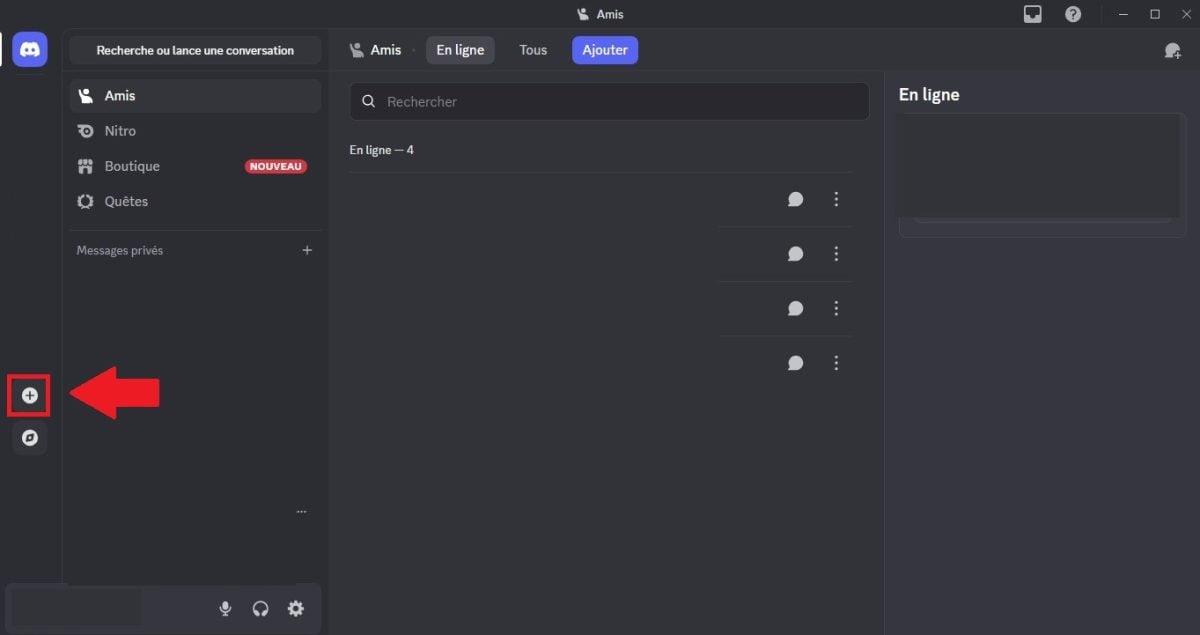
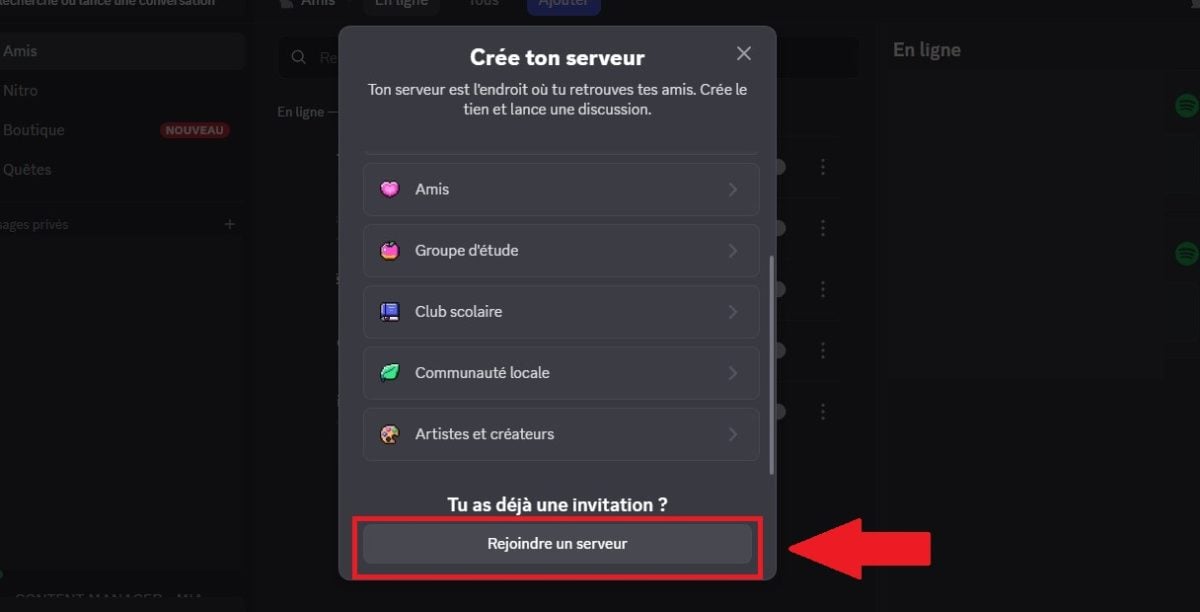
- Push the button “Join a server” on the window that appears.
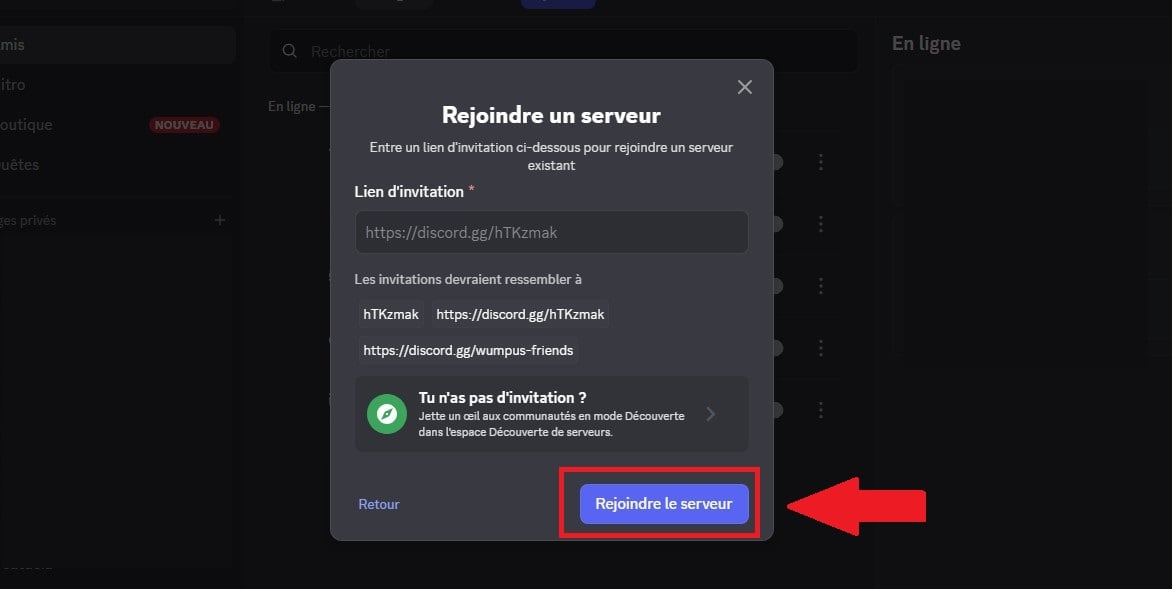
- If you have a server invite link, you can paste the link and press "Join".
Users with a standard Discord account can join/create up to 100 servers. If you wish to increase this limit to 200 servers, you should use Discord Nitro. By the way, discover how to get Nitro for free à travers un autre article sur notre site.
How can I join a Discord server on my phone?
Here are the steps to follow to join a server Discord with the Discord mobile app:
- For beginners, download and Install Discord on mobile.
- You will then see an interface asking if you want to create or join a server. Click the button. “Join a server”.
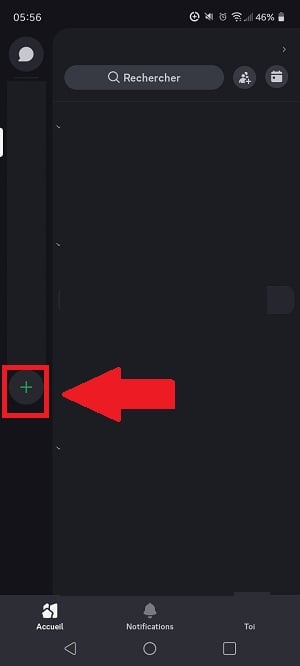
- Add the invitation link to join the Discord server and click Join.
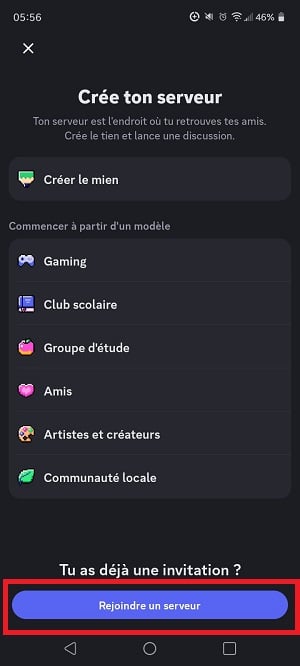
- Finally, accept the invitation to join the Discord server in order to confirm your integration into it.
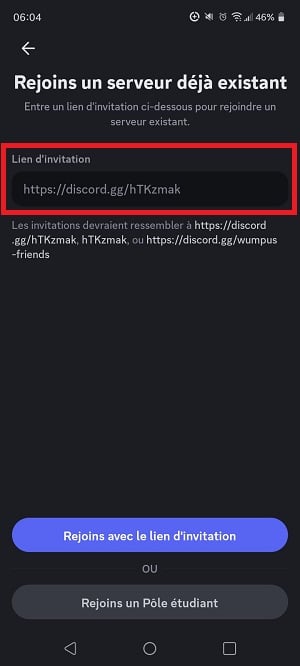
You can also ask a friend or a user who is already on the server to integrate you in it using an invitation link. This is ideal for beginners.
In this context, it is possible to click directly on the link invitation sent by your friend without having to add the link on the Discord application, as you will be automatically redirected to it.
How to join a Discord server without an invite?
If you don't have an invitation link or code for join a Discord serverYou can search the web to find the community. Sometimes, a button is available on a dedicated space allowing access to the Discord server of certain communities.
If you do not have an invitation link for integrate a Discord serverYou can also use the Server Discovery tab in the desktop application.
Please note that you can only join a server using a invitation link when you are on your mobile device.
To do this, click on thecompass icon on the left side of the Discord interface.
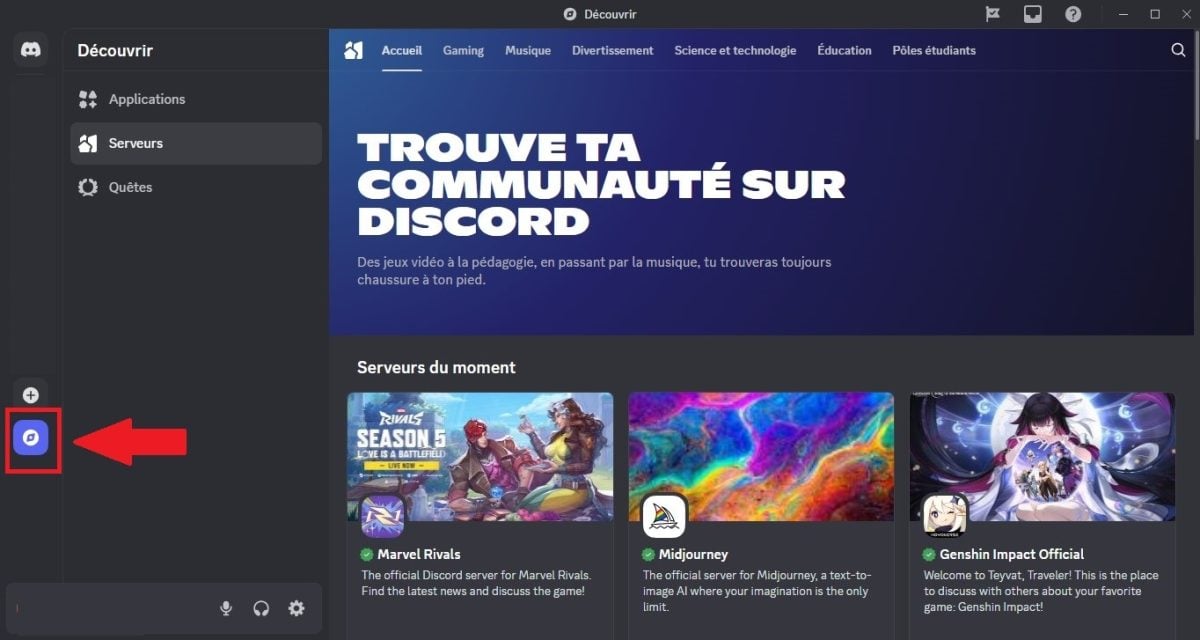
From there, you can access two options:
- Explore the server list according to categories on Discord.
- Refine your search with the search bar on Discord.
List of servers and categories on Discord
Once you have access to the server list on Discord, you can sort based on the categories you want to see if you don't yet know the name of the server you want to join, but want to refine your search.
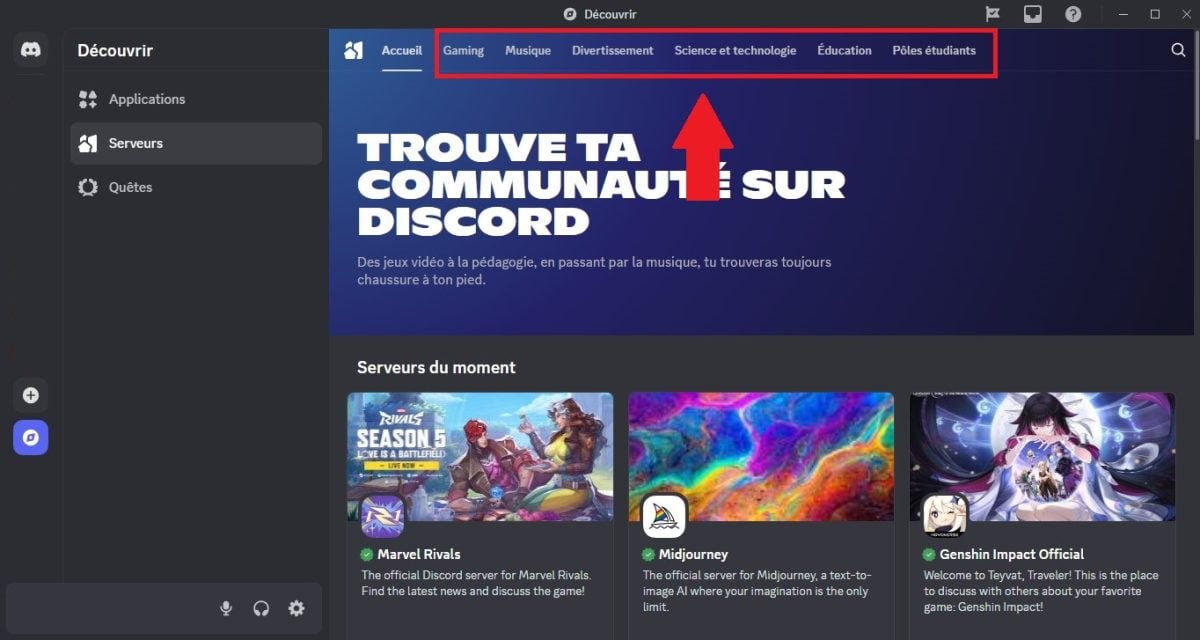
Please note that if you search by category, you will have access to public Discord servers Most popular first. Here are the server categories currently available on Discord:
- Gaming;
- Science & technology;
- Music;
- Student hubs;
- Education;
- Entertainment.
Discovery tab and search bar
You can also make a search for a Discord server specific using the search bar. This is very useful if you already know the name of the server you want to join.
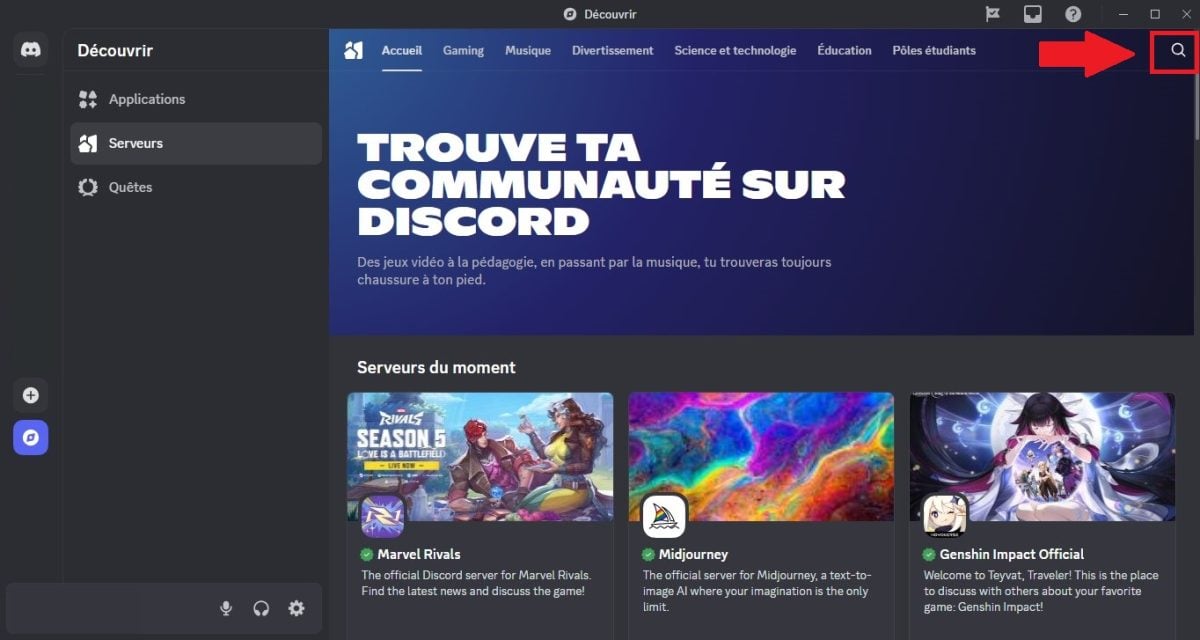
You can also use the discovery feature with the server search bar Discord to enter a specific keyword to refine your community search on Discord.
Once you have entered the keyword, press Enter and look through the results to see if there is a corresponding server or a community that shares this interest.
What information do you need to know before joining a Discord server?
It is wise to find out about a server before joining it, especially if you want to protect your security on DiscordThis applies before joining any community on any social media platform.
If you would like to learn more before joining a server on Discord, you can use the Preview modeThis allows you to take a look at the public chat rooms and see what the server has to offer without having to become an official member of the community.
When you are in Preview mode, you do not connect to the server directly. You will see it appear in your server list, but this is only temporary.
- If you want to join the visited server, press the Join button at the top of the screen and you will automatically be added to the community.
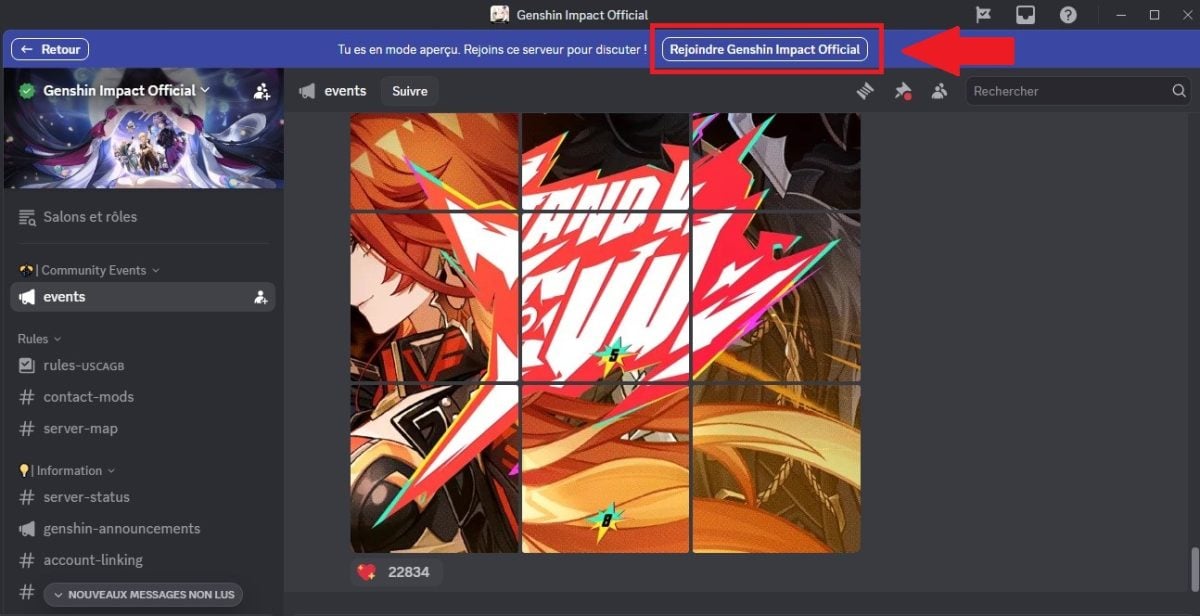
- If you do not wish to join the server, simply press the Back button to return to the Server Discovery tab and exit Preview mode. The server you visited will then be removed from the server list on your Discord account. Furthermore, no one will know that you visited the server.

You can consult the five custom emojis most recently used on the server to find out how users express themselves on it.
It is possible to have server recommendations Customized groups to join based on your activity, interests, or friends on your Discord account.
How to use Discord servers?
Your server consists of text and voice chat roomsThis allows you to communicate with other members of the server.
List of servers
The column on the far left of your application Discord is your list of servers. Each time you add a server, you will see it appear as a small circular icon in this list, and it will be displayed vertically.

Know that :
- You can reorganize your server list by dragging the server icons up and down.
- You can even consolidate servers by sliding them over each other!
Textual salons
Text-based chat rooms are used for written conversations.
- They enable group discussions on a specific topic in a Discord server.
- Thanks to text-based chat rooms, anyone can to participate to discussions on the server.
- It is possible to create a lounge for each subject discussed on the server. This could be planning outings, giving advice, or sharing members' interests. This allows each user to find their place within the community.
Voice chat rooms
Voice chat rooms allow you to carry out voice conversations on server Discord.
- All you have to do is click on the voice chat room to join the call.
- It should be noted, however, that there is no no ringing or notifications when using voice chat rooms.
- Other members can see when you join a voice chat room on the server. This makes it easy for them to join you later.
- You can also share your screen in voice chat rooms.
FAQs
What is a server?
A server is a space on 1TB45TB allowing you to communicate with friends or a community. It is a place where you can connect with others, collaborate, and enjoy meaningful conversations.
More specifically, here is a simple explanation of what a Discord server is. Think of the server you are joining as a hut giant. Each channel on a server represents another room in the cabin where you can chat with your friends.
Servers act as individual hubs divided into two parts: the text channels and voice channels, as mentioned earlier in the article.
It is possible to join an existing server on Discord or create your own. Social media content creators often have their own servers to keep their community active on Discord.
On a daily basis, for example, you can also use a server For :
- Organize a club reading.
- You are coordinate with your classmates or study group.
- To manage classes.
- Stay in touch with your friends.
- Etc.
Regardless of your business, Discord servers are used for bring people together with common interests.
What happens if I am in more than 100 servers but lose Nitro?
According to the Discord support, the platform do not remove the servers you have joined. However, you cannot access other servers until you have reduced the total number of servers to less than 100.
Why is the invite link not working?
You received an invitation to a Discord server, but the link isn't working? There is many reasons for which your server link may be “invalid”.
Here's what you need to do check:
- Expiration : Your invitation link may have expired. In this case, please contact the server owner and request a new invitation.
- Invalid code: Your invite code may not be valid. Please check your code and try again. Remember that invite codes are case sensitive!
- Prohibition: You may have been banned from joining this server. Bans are based on IP address, so you must contact the server administrators and ask them to revoke any bans in the server settings.
- Limit of 100 servers: A user cannot be a member of more than 100 servers. If you are in too many servers, you will need to leave one before you can join another.
If the issue is not resolved, you can look at the help pages on Discord or contact the platform support team via this link:
In conclusion, it is possible to join a Discord server via an invitation link or via the server discovery tab on Discord.
The invitation links are accessible on all devices, but you can only use the server discovery tab on the Discord desktop application.
Other articles are available on our page. Discord if you need further information about this platform. If you have any questions, you can ask them in the comments area.









 English