In Roblox Work at a Pizza Place, there is no no official reward codes code exchange function has been disabled by the developer.
What we call a " video maker code », This is the code generated by the Video Maker plugin (created by Dued1) when you export a video.
This Video Maker plugin installs in Roblox Studio and lets you broadcast your video to any TV in the game. Other players can then reuse yours.
So you have two possible needs:
- 📺 Broadcast another player's video (see the section below)
- 🎬 Create your own video and get its code (follow the 4-step tutorial)
The plugin is free and creation takes around 15 minutes. In this guide, we take you step-by-step through both applications.
Are there any codes for "Work at a Pizza Place"?
Nope, there is no list of codes ready to paste for *Work at a Pizza Place*—it’s best to know that before going any further.
❌ This Roblox game does not have any reward codes: the The exchange feature has been disabled by the developer.
✅ As for the video codes and TV codes that players exchange, they are generated by the players themselves using the Video Maker plugin, and stop working as soon as the original video is deleted.
💡 Two methods that really work for play a video on a TV in the game. We’ll go over both of them in detail below.
Work at a Pizza Place: how to use another player's video codes / tv codes?
Just want to display an existing video without creating one?
There are two ways of doing this:
Method 1: Paste a shared code
- Enter the game
- Open the TV menu
- Paste the code into the text box at the bottom of the menu.
- Validate
If the code is valid, the video loads.
Method 2: Recovering from a player's home (the most reliable)
Visit another player's house:
- Open his video catalog
- Save the one you want in your own library
This is the most commonly used route in the game, as it does not depend on a circulating code.
⚠A A shared code may stop working overnight if the uploader deletes the video. If that happens, try Method 2: it doesn't rely on a circulating code.
💡 Looking for more Roblox codes to stick in your games? Take a look at our selection of best Roblox music codes.
How to create your Work at a Pizza Place video and obtain its video maker code?
To view a tutorial from the developer, go to the menu for switching between videos on the TV in Work at a Pizza Place and click on the button at the bottom right.
Please note that Roblox Studio can only be run on a PC or laptop.
Follow these steps to create your own video:
Step 1: Import your own photos
If you would like to download your own Pictures in the video, change their resolution to 200 x 120 pixels using Paint or an online photo editor.
Then upload them to your Roblox library.

Step 2: Download the plugin
- Launch Roblox Studio and create any location, or launch an existing location.
- Go to the plugins tab and enter roblox pizza video maker to find the Video Maker plugin.
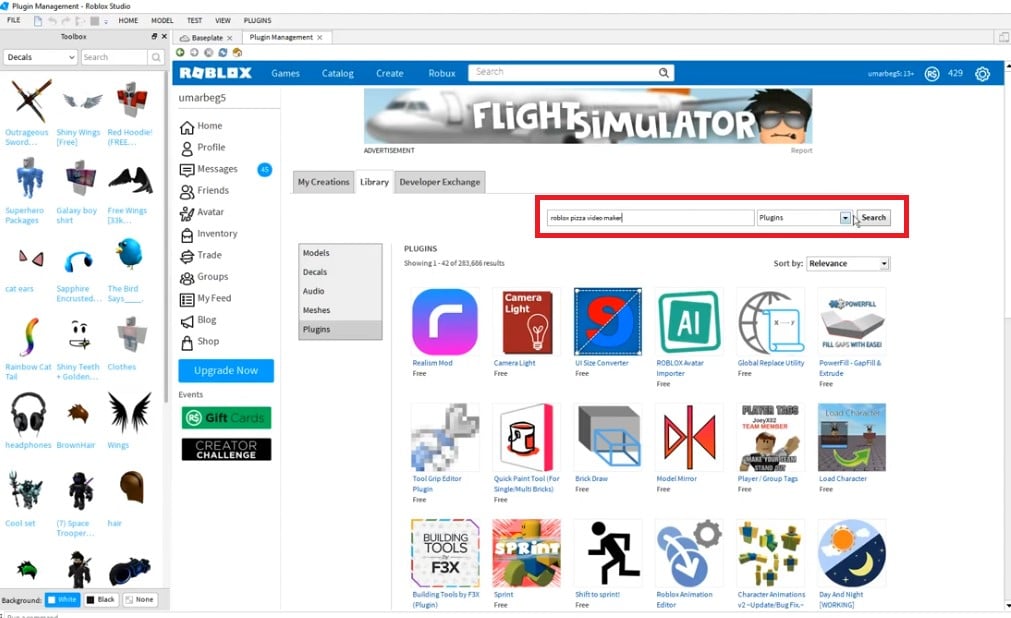
- Choose the plugin and wait for installation.

You're now on the main screen.
- Click the «New» button (New) to create a new project, and you will be redirected to the editor.
- Select "Decals," then New.

Step 3: Create a video
- Next, create a video by selecting an image.
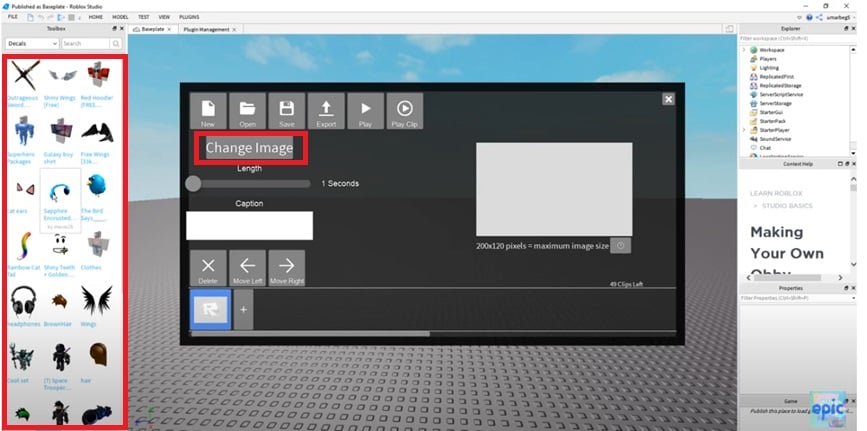
- Name your video.

- Once you've created a video, export it by clicking on the export button.

- Then copy the code generated after export.

👉 This code is your «video maker code» Copy it and paste it (or a friend's copy) into the TV to broadcast the video.
Step 4: Launch the video on a TV
- Enter the game and go to the TV menu.
- Then enter the video code in the text box at the bottom of the menu.
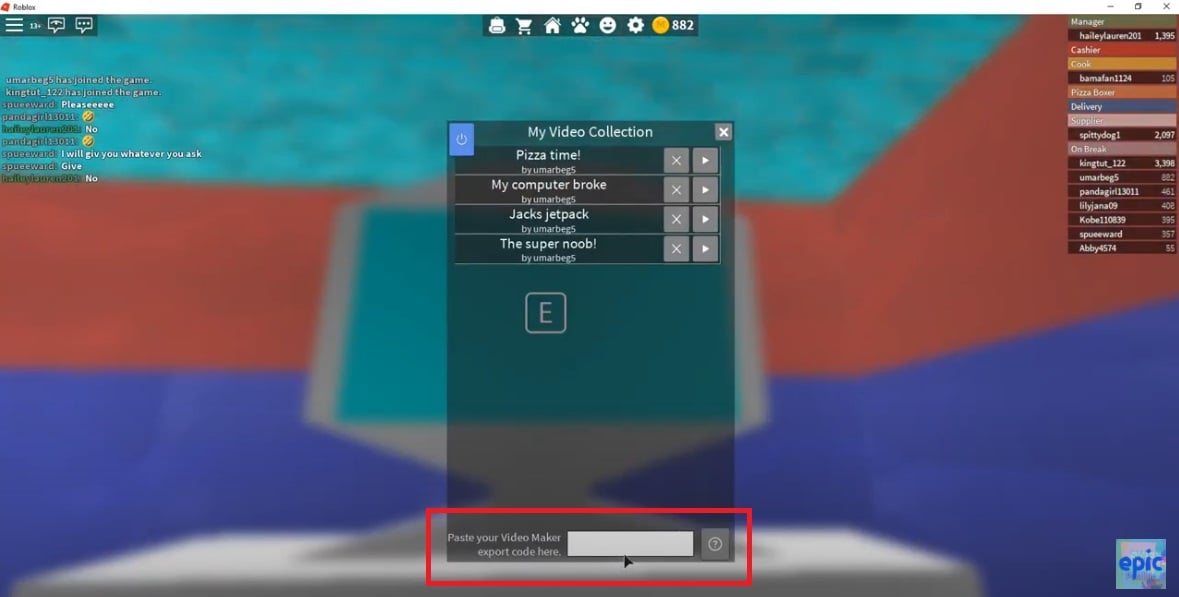
If everything is correct, the video will be uploaded to your video library and other players will be able to add it to their own library.
And as long as you're customizing your pizzeria, you might as well go all the way: decorations, furniture, outfits... all unlocked with Robux. If you're planning to buy some for Roblox Work at a Pizza Place, we might as well pay less for them.
Robux up to -40% to decorate your pizzeria
Reference: all Video Maker plugin buttons
Want to know more about each button? Here's what each element of the editor (and main screen) does.
Button: New
Creates a new project. Available from both the main screen and the editor. If the current project is not saved, you'll need to give it a name before continuing: your changes are then saved.
Button: Open
Returns you to the home screen to load another project. Again, if the current project is not saved, you will be asked for a name.
Button: Save
Saves the project. When you first save it, you give it a name. You can then continue to modify it.
Button: Export
If the project isn't registered, you'll be asked for a name, then redirected to a script containing the video export code (the one you'll need later) and instructions on how to use it.
Button: Play
Start playing the entire video. To play it again, first press Stop, then press Play again.
Button: Stop
Available only after tapping: Play or PlayClip. Stops playback of the clip.
Button: PlayClip
Start playing the video, just like the "Play" button.
Button: Change Image
Modify the frame image by selecting the one of your choice from the toolbox. You can also do this without this button if the photo you want is already selected in the Explorer.
Scale: Length
Sets the image display time, from 1.0 to 5.0 seconds.
Sidebar: Caption
Adds a caption to the frame. Captions are displayed as subtitles.
Button: Delete
In the editor, deletes the selected image. On the main screen, deletes an entire project.
Buttons: Move Left and Move Right
Move the position of an image on the timeline.
Chronology
One of the main elements of the editor. It lets you select the desired frame or add a new one. Just above it, on the right, you'll see the number of remaining frames.
Frame preview window
See what the frame will look like on a TV while playing the game. You can start playback by clicking "Play" or "PlayClip.".
Below the window is the maximum image resolution, and the button next to it opens a tutorial for modifying it.
Closing button
Close the plugin.
FAQ : Work at a Pizza Place video maker codes
Why doesn't my video code work anymore?
Most often, this is because the source video or image has been removed or moderated by Roblox. The code then points to content that no longer exists.
If you're creating your own video, please also remember to respect the 200 × 120 pixel resolution to display it correctly.
Do I have to pay for the Video Maker plugin?
No, it's free. All you need is Roblox Studio (PC or laptop only).
Simple and effective Video Maker plugin from Dued1 allows Roblox Work at a Pizza Place players to create their own customized videos. By following these detailed steps, you can easily bring your ideas to life and share them with other players.
Are you ready? Are you ready to test the Video Maker plugin?
And for more articles on Roblox :








 English
bro you did not even show the codes, just tutorials