LinkedIn is one of the social networks where many professionals meet. The banners and images displayed should therefore reflect your personality in order to better distinguish yourself.
In this article, let's find out together which size, format, and dimensions are best suited for your professional LinkedIn banner.
If you need help creating your professional LinkedIn banner:
Discover professionals in LinkedIn banner creation
What are the ideal dimensions, size, and formats for a professional LinkedIn banner?
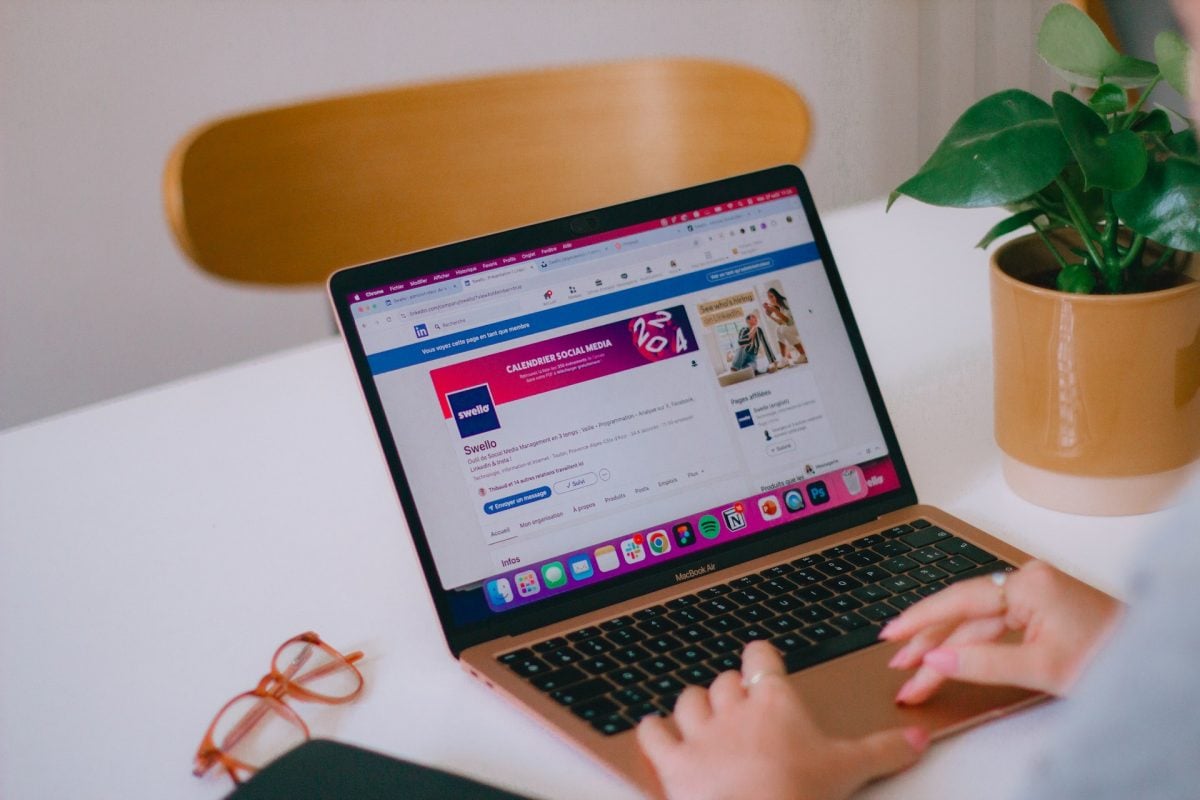
If you add a banner on LinkedIn, you must follow the specified dimensions and the required sizes on the social network:
- LinkedIn banner or cover photo of a personal account : 1584 × 396 pixels
- Banner or cover photo of a LinkedIn page : 1128 × 191 pixels.
In both cases:
- The recommended file size is 8 MB maximum.
- The format must also be suitable for the web, either by JPEG, PNG, or GIF.
If you want add work experience to LinkedIn, but you don't know how to do it, check out our article on the subject.
How to design a good banner on LinkedIn?
Whether you are an individual professional or a company, designing a banner is always useful for promoting yourself and stand out from your competitors.
- Compliance with size, format, and dimension requirements is essential, but it is also necessary to use design elements, the right color, and the right pattern, to create a more engaging experience on this social network.
- Among the key elements to keep in mind, you should know that your LinkedIn banner should reflect your professional identity.
- The photo must be attractive and serve as a powerful communication tool.
You can draw inspiration from banners people who work in the same field as you to create your own. You can also find examples on the Internet. This can spark your creativity, enabling you to create a visual that meets market expectations.
What elements need to be defined in advance?

Here's what you need to know before you do your LinkedIn banner.
1. Determine your main objective
Clearly define your message and your GoalsDetermine what you want to achieve with your LinkedIn profile. Then add a slogan to your banner.
Choose which message you want to convey through your professional banner. In general, this could be:
- Promote a product or a specific service.
- Showcase your skills.
- The quest for a new career or a new job.
- Strengthen your personal brand or highlight your experiences.
In any case, clarification of your Goals is essential for successfully designing your banner.
Our advice :
- Make sure the message does not interfere with other elements on your profile (photo, other text, etc.)
- Check the readability on other devices (tablet, smartphone, etc.).
2. Define colors and design
You should choose fonts and colors that match your professional identity and your profile. The colors you choose should also set you apart from the competition and give an impression of professionalism.
- Be aware that colors and design play an essential role in communicating your message. They can evoke emotions, attract attention, or send messages.
- The design, meanwhile, reflects your professionalism.
Besides, what do you want people to do? remember about you This question is crucial when creating your LinkedIn banner. You should therefore highlight:
- Your industry.
- Your skills.
- Your professional vision.
Here are a few tips To create a good visual:
- Use colors aligned with your brand.
- Ensure that the text is readable.
- Choose a sleek design and professional without visual overload, but which highlights your message.
- If you are working on personal branding or your company's branding, keep a visual consistency in your images. This helps people recognize your brand.
If you want the best professional banner for your LinkedIn page/profile:
Create an eye-catching LinkedIn banner with experts
3. Identify your target audience
To know who we are addressing is essential for a good marketing strategy, whether you are an individual professional or a company.
To do this, we recommend that you examine the demographics, interests, and habits of your targets.
Thanks to this, you can customize your message and your pictures to capture the interest of potential visitors.
4. Choose a high-quality image
Choosing an image is essential to ensure your profile on this social network looks professional. Therefore, even though it may take time, you should choose high-resolution images to avoid the risk of blurry images.
Always remember that poor-quality images can make things look sloppy and non-professional.
The background image you choose should also reflect the essence of your brand. This could be:
- A photo of you working.
- A graphic design customized to reflect your brand.
In all cases, the visual must correspond to professional image that you wish to project.
Our advice :
- Choose an image from high quality.
- Don't neglect the resolution to avoid pixelation.
- Respect the recommended dimensions on LinkedIn.
5. Be clear and precise
L'art of brevity is essential on LinkedIn!
- A banner with too much text can be boring and distracting.
- Therefore, when creating your professional banner, your message must be precise, impactful, and to the point to attract your audience at first glance.
- Please note that a banner is one of the key elements visual communication.
- Therefore, prioritize short sentences, relevant keywords to quickly convey the message.
What tools should you use to create your banner?
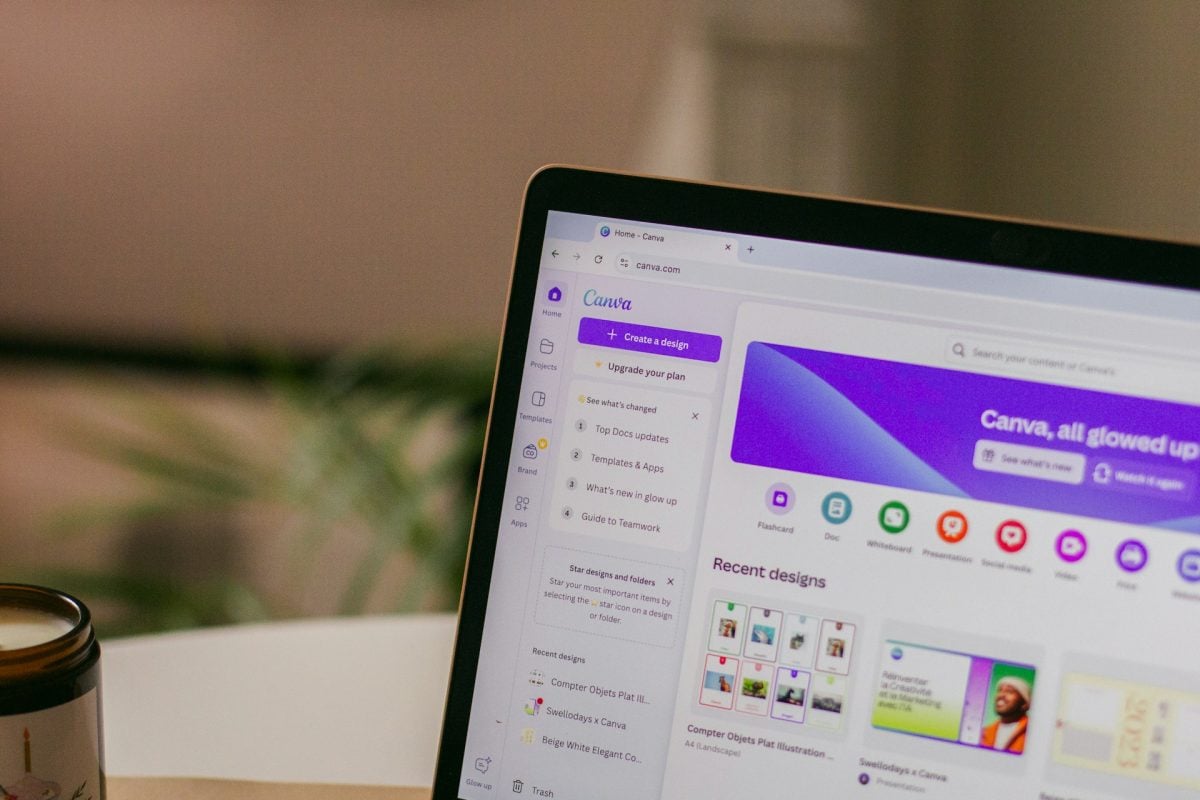
Many professionals create their professional coverage on Canva Nowadays, even those who are new to design can create their professional LinkedIn banner on this platform.
- The advantage of Canva is that you can access free templates created by professional graphic designers on the platform.
- You also have access to a library with over a million photos and images on it.
- This will allow you to create a LinkedIn banner which gives a professional impression in just a few clicks on Canva.
You can also find many professional banner templates for social networks such as LinkedIn at Pinterest. They can then be edited in Photoshop, Canva, or other platforms.
Why entrust the task to experts?
Even with a number of templates, it is important to demonstrate originalityIn this case, you may not have enough time to design your banner or find it difficult to complete the process.
- Call on experts at Fiverr can be an ideal solution for creating your banner (cover).
- You can also ask the professional a profile photo on LinkedIn.
Thanks to this approach, you will have an original profile and a banner that sets you apart from your competitors.
These professionals can design excellent banners at affordable prices. very reasonable whether you are a business or not. Their offers are available from as little as €5.
Get the help you need to create the professional LinkedIn banner of your dreams:
Get a professional LinkedIn banner with a professional
How to change your professional banner on LinkedIn?
Want to modify or add a banner on this professional social network, but you don't know how? In that case, follow these steps:
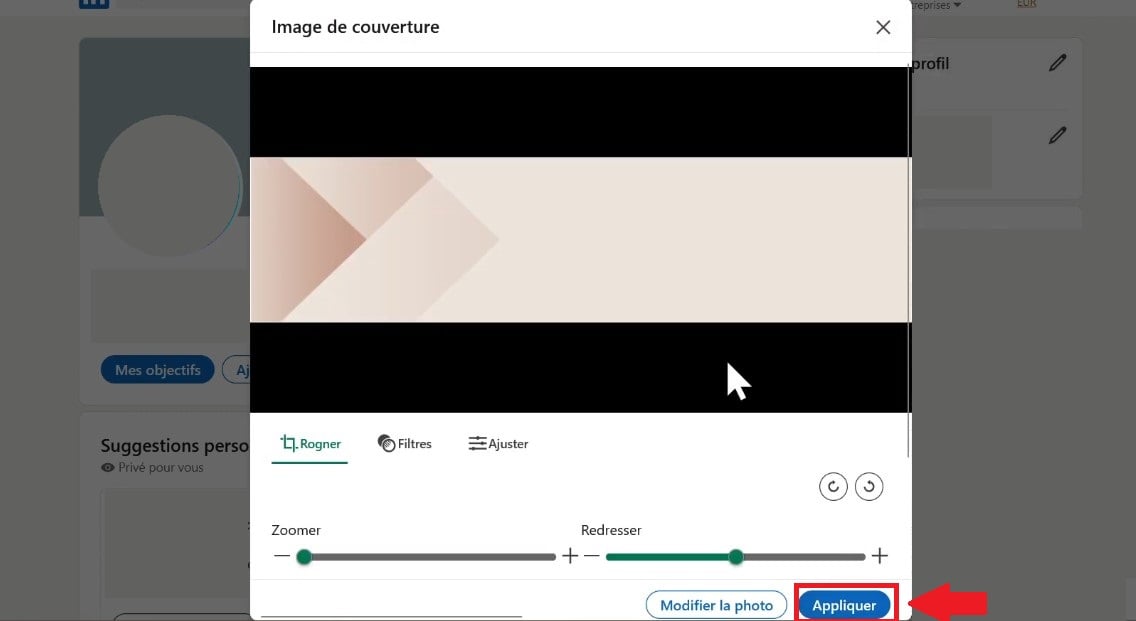
- Access your profile. Then click on thecamera icon in the upper right corner of the banner location. If you have already imported a banner, the button will take the form of a pencil.

- Click on Upload a photo. Select your banner, already saved on your computer, and click on Open.

- LinkedIn will then suggest that you crop your image so that it is the right size. However, if you follow our advice, you will not need to crop the image. Click on Apply, and you will have successfully downloaded your banner!
Why respect LinkedIn's standards when creating a banner?
- The professional banner is both your advertising banner and the showcase for your brand image on LinkedIn.
- Located above your profile photo, a banner on LinkedIn is background at the top of your webpage.
- This usually involvesa cover photo, a graphic work and/or an image that may combine images and text.
LinkedIn pages are viewed on different devices depending on the user. It is therefore very important toadjust the cover photo depending on the screen size requested.
- This adjustment may relate to cutting the image horizontally or vertically to comply with LinkedIn's recommendations.
- To ensure that your image can adapt to all screen resolutions, you need to download a high-quality image with limited text.
Why have a LinkedIn banner?
The number of users on LinkedIn continues to grow, which is why it is important to know how to stand out from the crowd. The banner is a tool that can be of great assistance in this context.
- It allowsincrease visibility, but also to assert your visual identity.
- The banner is useful whether you are an influencer, a job seeker, or a freelancer looking to enhance one's profile, etc.
- It is important to note that the banner is similar to a shop window.
- It creates a memorable impression and reflects your professional intentions.
- She sets you apart from others at first sight.
Entrust the task to the best professional LinkedIn banner creator:
Design a LinkedIn banner with the help of experts
In conclusion :
- Observe the dimensions LinkedIn's specific requirements for banners and other elements to ensure optimal display on different devices.
- Hire professionals to design an attractive, high-quality banner. Contact them via Fiverr for professional results at an affordable price.
- You can also use simple tools such as Canva to design your LinkedIn banner.
- You can improve your professional visibility on LinkedIn by customizing your banner to reflect your brand identity and attract recruiters or potential customers.
If you have any questions, you can ask them in the comments area.








 English