Find out how to speed up and modify video speed on iPhone in this article.
You can use the integrated options on your iPhone or third-party applications in this context. Just follow the guide.
How to speed up video on an iPhone?
Here are the techniques to be applied for slo-mo and normal video.
For a Slo-mo video
The easiest way to speed up video on an iPhone is to use the’use the pre-installed photo and video app. The slow-motion videos you record on your iPhone will be stored there. You can speed up your slo-mo video by following these steps:
It is also possible to’speed up a video via an iPhone, it's very simple. Here's how to do it:
- First, open Photos application on your iPhone, then search for the video you want to speed up. Then click on Edit, then you will find thespeedometer below the stopwatch. The closely spaced lines show the normal speed, while the spaced lines show the slowest part of the video.
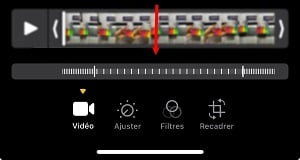
- Visit drag the video onto the vertical bar, and on each side of the desired section to accelerate it.
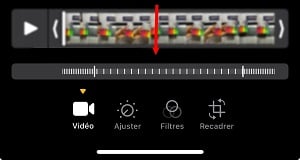
- Click on Completed to save changes and modify video speed. Normally, the video should record itself.
For normal video
Apple's free video-editing software can accelerate classic videos. Start by downloading it from the App store if you don't already have it.
Launch application iMovie icon on your iPhone, then click on the create project and in the window that appears, select Filmthen select Create a movie.
Next, here's what you need to do if you want to modify the speed of a normal video :
- Select thespeed tool (the one that looks like a speedometer), once you've selected the video to be edited. In the speed control section, you have a slider that lets you speed up or slow down the video. By default, the slider on the right displays :1X. Set the cursor to the value desired.
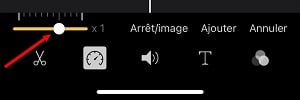
- If you wish to set the playback speed before saving, press playback speed. Once finished, simply press Done .
This modified video can be recorded directly onto your film.
Note: If you want to slow down a video on iPhone, the steps are virtually the same. However, instead of moving the cursor (the control) to the right, move it to the with your finger on the left side to slow down the video.
How to speed up iPhone video with CapCut?
You want to accelerate a video on your iPhone or iPad but you don't know how to do it with CapCut ? The method is very easy. Here's how it works:
- Go to CapCut, click on the New project and import your media file or video.

- Simply click and drop from the system or download from Google Drive, Dropbox or your mobile device by scanning the QR code and clicking on Add to this list.

- Now, place video in the editing timeline at the bottom of the screen. When you click on the video, an editing tab appears on the side, and right next to Audio, a speed function is visible.
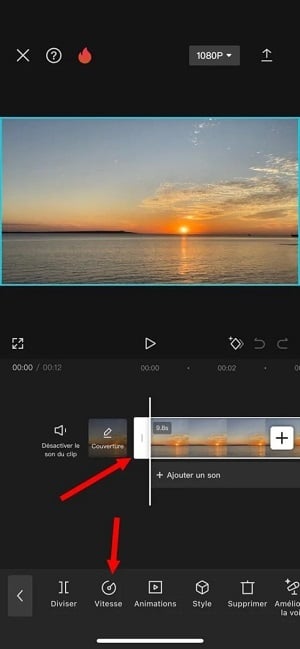
- You can click on the Speed and modify the rhythm to suit your preferences. Options include a normal speed of ×1, ×2, ×5 or more.
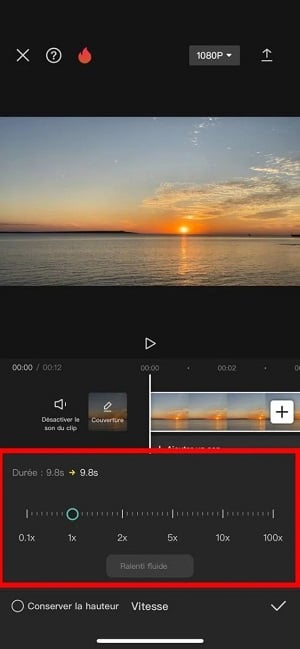
Once you've made the required changes, you can customize and insert effects, You can even add background music to your video and enhance it for social networking.
If you have several clips, you can add transitions. All this is included in the CapCut features.
It is then possible to to share this video. Simply export it from the application to your phone.
And now you can accelerate speed of your video already recorded on your iPhone with this application!
How do I change the speed of an iPhone video with iMovie?
What is the method for slow down a video on iPhone ? If you've taken a video at normal speed, the most effective method is to edit it in iMovie.
the assembly is not difficult and doesn't take much time! We'll guide you through this part of the article.
If the iMovie tool doesn't appear on your home screen, you can install it from the App Store. To create a new project, click on the More, then press the option Film in the dialog box.
Then simply import the video from your gallery and click on the Create a movie at the bottom of your screen. To change the video speed, do the following:
- On the Edit menu, click timeline to display the tools at the bottom. Select the speedometer to access speed controls for your clip. To slow down the video, drag the slider to your left. Take a look at the preview to see the changes, or to see if you can still adjust it!
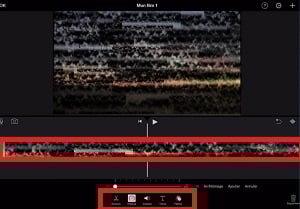
- Assemble the video clips, button, then after editing and adjusting, click on the Completed in order to record the video in slow motion in iMovie.
The last step is to click on the Share to access the list of different sharing options when you're satisfied with the effect.
Select option Record video to transfer it to your film. Exporting your video lets you share it later.
It is important to know that iMovie is intended only for products from the Mark Apple, iOS and macOS systems.
Looking for more iPhone tutorials? Visit our guide how to remove an iPhone wallpaper, on our website.
FAQs
How do I change the section of a video to be played in slow motion?
The process is easy. You need to use Photos application on iPhone. No need to import your video into a third-party application.
- All you have to do isopen video shot in slow-motion mode and press Modify.
- Drag the black vertical bars below the image viewer to select the section to be slowed down.
What applications can be used to modify video speed?
Numerous applications are available for modifying the speed of videos on your iPhone. Some tools are free, others are not. These applications include : Wondershare Filmora.
Download the application via the App Store to edit the video. The advantage of this application is its intuitive interface for speeding up, slowing down and recording videos. You can also make video editing on this application.
Here are some’other alternatives if you do not wish to use this application:
| 📱 Name | 💻 Systems | ⚡ Max. speed | ✨ Features | ⭐ Average score |
|---|---|---|---|---|
| Wondershare Filmora |
|
Up to 100× |
|
4,4/5 ⭐⭐⭐⭐☆ |
| iMovie |
|
2× (per cycle) |
|
4,4/5 ⭐⭐⭐⭐☆ |
| CapCut |
|
5× |
|
4,3/5 ⭐⭐⭐⭐☆ |
| InShot |
|
4 à 5× |
|
4,3/5 ⭐⭐⭐⭐☆ |
| VN Editor |
|
Variable |
|
4,2/5 ⭐⭐⭐⭐☆ |
| KineMaster |
|
Variable |
|
4,2/5 ⭐⭐⭐⭐☆ |
The advantage of third-party applications and non-integrated tools on iPhone is often that you can export your videos as various formats and get the video quality you want.
How do I adjust video playback speed?
Adjust speed and add a more distinctive touch to your iPhone video:
- Access the application Photos on your iPhone, then open your video and tap Edit. Then tap the Video option.
- Press the Playback speed button, then select speed you want.
Note :
- You will have different options reading depending on the format in which the video was taken.
- If the format is large, you'll have more options.
Are there limits to acceleration speed on iPhone?
The acceleration speed depends on the application you're using.
- With iMovie for example, you can accelerate to twice the original speed.
- With CapCut and Wondershare Filmora, But it's possible to go even further and produce faster videos.
Can I keep the original quality of the video by speeding it up on iPhone?
When you use third-party applications such as iMovie Where Filmora, you can obtain a very high-resolution video. Simply select the Original Resolution in the app to maintain the video's original quality.
In conclusion,
- You can speed up a Slo-mo video on iPhone using the Photos application and its speedometer.
- Use iMovie to change the speed of classic videos by adjusting the speed slider.
- CapCut also lets you speed up or slow down videos, with additional editing options such as adding effects and animations. This tool offers both a free and a paid plan,
- Other alternatives with various features such as Filmora are also available to suit your needs and projects. There are both paid and free plans for these apps.
We hope you've found this guide useful in learning how to speed up video on the iPhone. If you have any questions, the comments area is open.
Please feel free to consult other similar articles on our site through the page Tutorial to make sure you don't miss out useful information on a daily basis.








 English