To Change the age category of a Netflix profile, go to Account, open the section Parental Controls, select the relevant profile, enter your password, then select the desired age group.
It takes less than a minute. Once you've signed up, your profile will only show movies and TV shows suitable for that age group.
This is especially useful if you have children or some teenagers at home, because by default, a Netflix account provides unrestricted access to all content.
You can also block specific titles on each profile to further refine parental controls.
How do you change the age category on your Netflix profile?
To define the age group To create a Netflix account, the easiest way is to go through netflix.com from a browser (computer, tablet, or mobile device). On the Netflix app, this feature may be limited depending on the version and operating system.
Here are the steps to follow on a PC:
- Log in to your Netflix account, then click on your profile using the small icon in the top right corner of the screen
- Select Account, then Manage Profiles

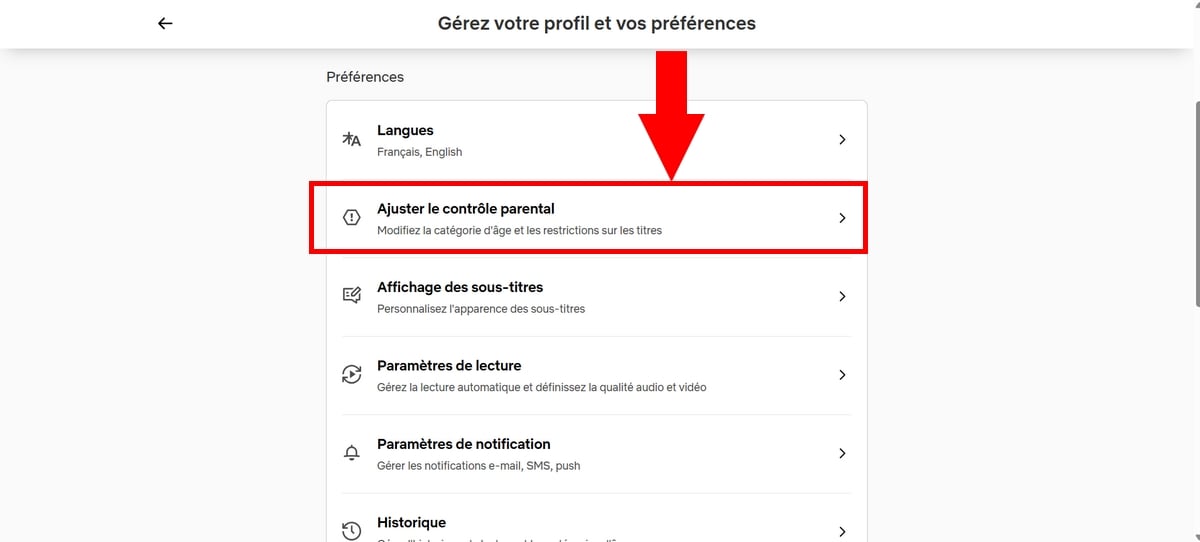
- Select “Adjust the parental controls“
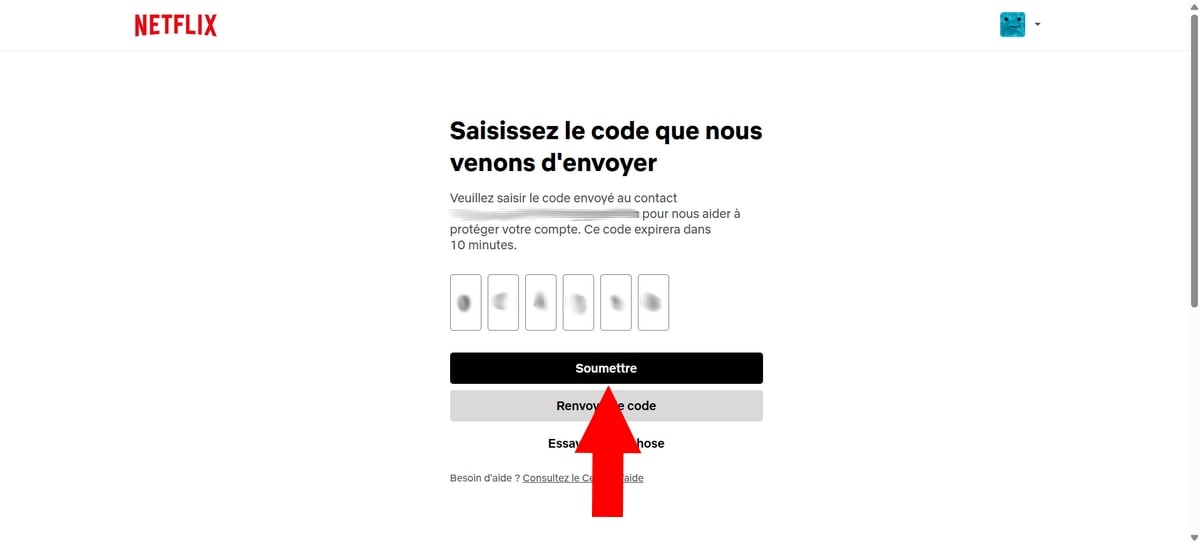
- Verify your identity by entering a code sent to your email address (or your phone number), then enter it in the corresponding fields
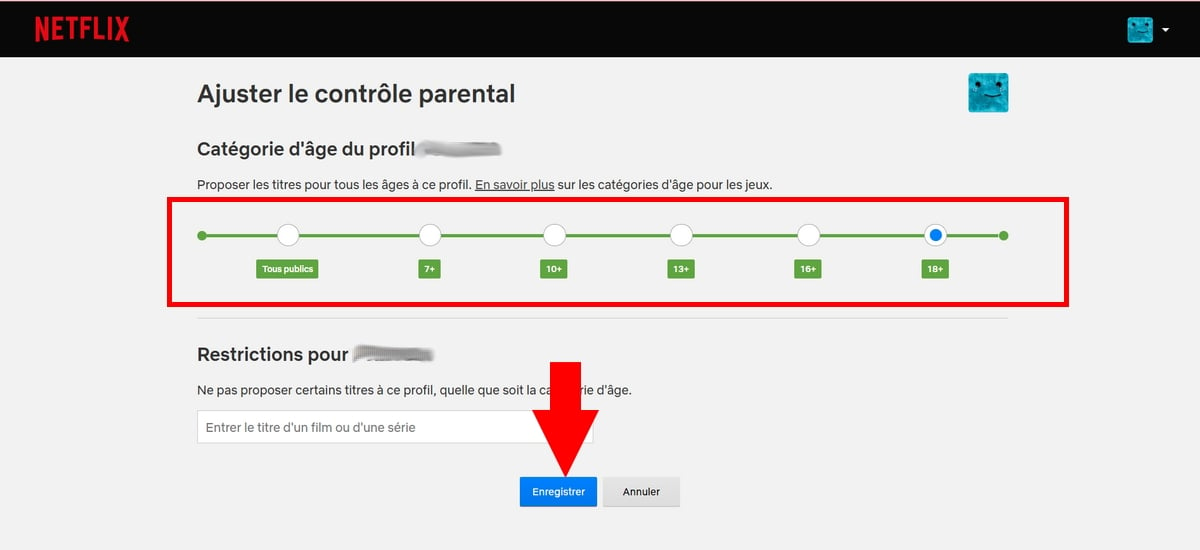
- A window appears where you can select the age group from the profile. Select the one that suits you, for example 7 years, 13 years old Where 16 years old, then click on To register.
Here are the steps to follow on your mobile device:
- Open the Netflix app
- Then, in the lower-right corner, tap “My Netflix”
- Tap the profile name at the top of the screen
- Tap “Manage Profiles”
- Select the profile you want to edit
- Tap “Access Restrictions,” then “Age Category”
- Verify your identity by entering your Netflix account password
- And finally, select the desired age group.
If your account doesn't have a password, you can follow the steps in the “Web Browser” section”
Once registered, the profile will only display the TV shows and movies suitable for this age group. All tracks above the selected limit are automatically blocked.
You can go back and change this setting at any time from the same settings menu.
If you want to take your subscription management a step further, you can also adjust the video quality Depending on your connection, check the rules for account sharing, or find a plan cheaper. Netflix also lets you download movies and TV shows to watch offline.
And if you ever want to cancel your subscription, you can delete your Netflix account in just a few steps from the settings.









 English