Is Netflix crashing on your TV? Black Screen, freezes during loading, connection errors… a reset fixes most of these bugs.
Here are the 4 steps Coming up: from the simplest to the most radical.

Steps to reset Netflix on TV
These steps will resolve issues on the vast majority of devices: Smart TV, Chromecast, Apple TV, box SFR, etc.
Follow them in order : Generally, one of the four is enough to solve the problem.
Step 1: Disconnect Netflix from TV
Start with the gentlest solution: log out and then log back in in the app. Sign out of Netflix and simply signing back in is often enough to get the app working again on your device.
- Open the app Netflix on your device.
- Open the main menu (icon with three horizontal lines or a similar symbol).
- Select « Account » or «Settings.».
- Select « Log Out », then log in again.
Step 2: Reset Netflix via TV settings
If the problem persists, the issue is often caused by a cache is too full : Stored data that causes the app to crash. Here's how to clear it all from your device.
- Open your TV's main menu using the remote control.
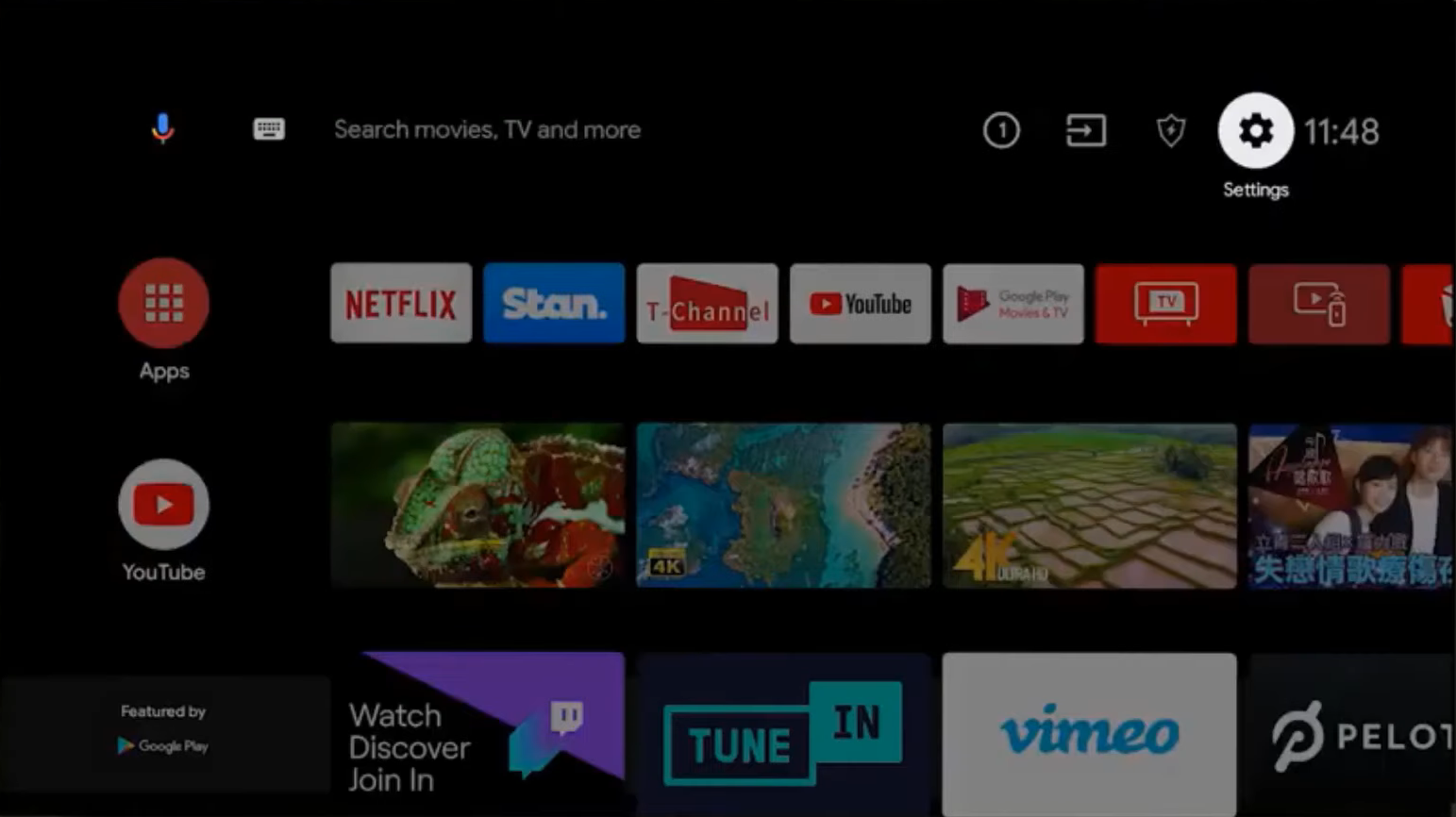
- Press « Settings » or «Settings.».

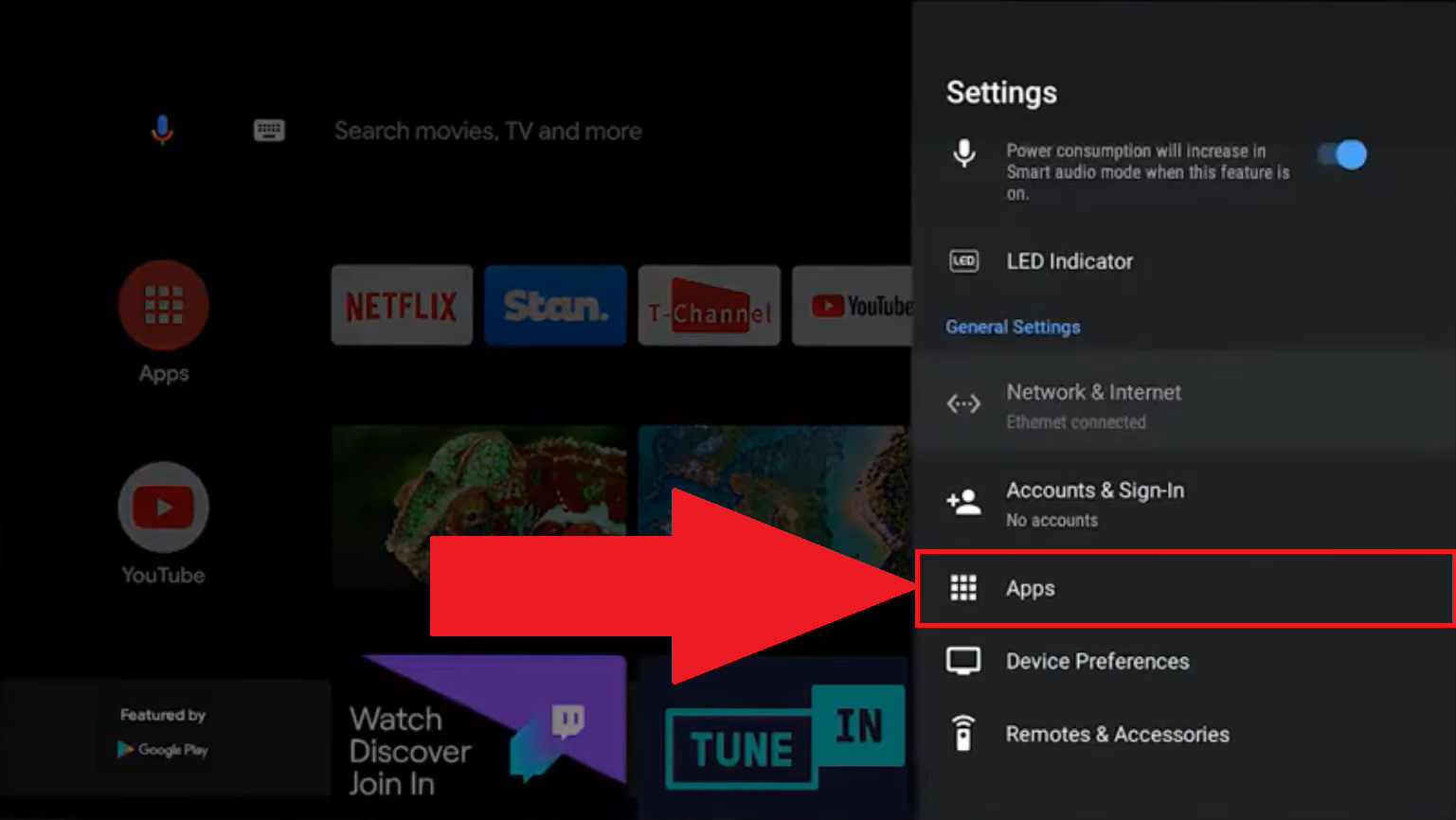
- Search for « Applications » or «Application Management.».
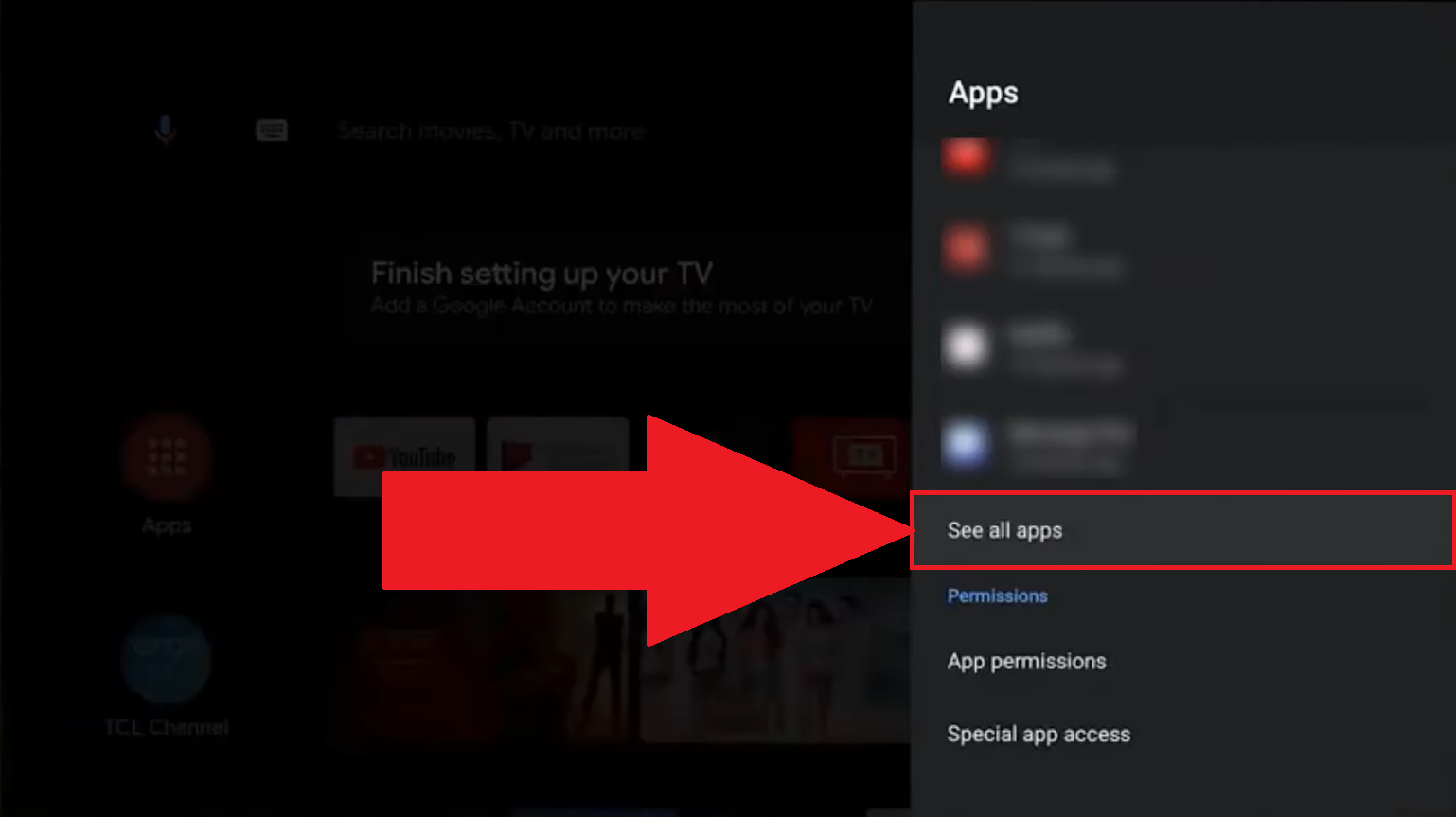
- Open «See all apps» if Netflix does not appear directly.
- Select Netflix in the list of apps.
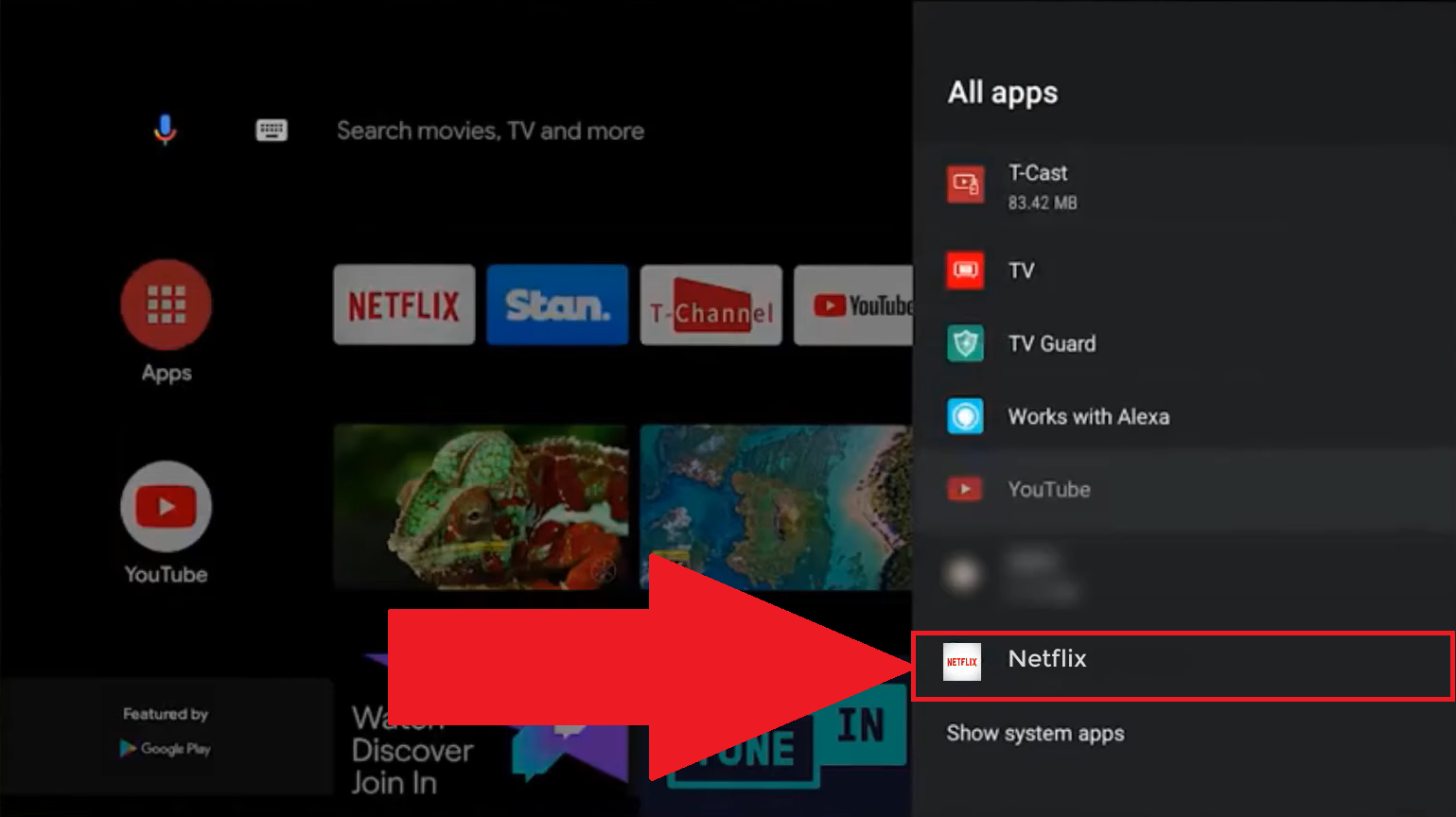
- Press « Erase data » or «Clear the cache.».
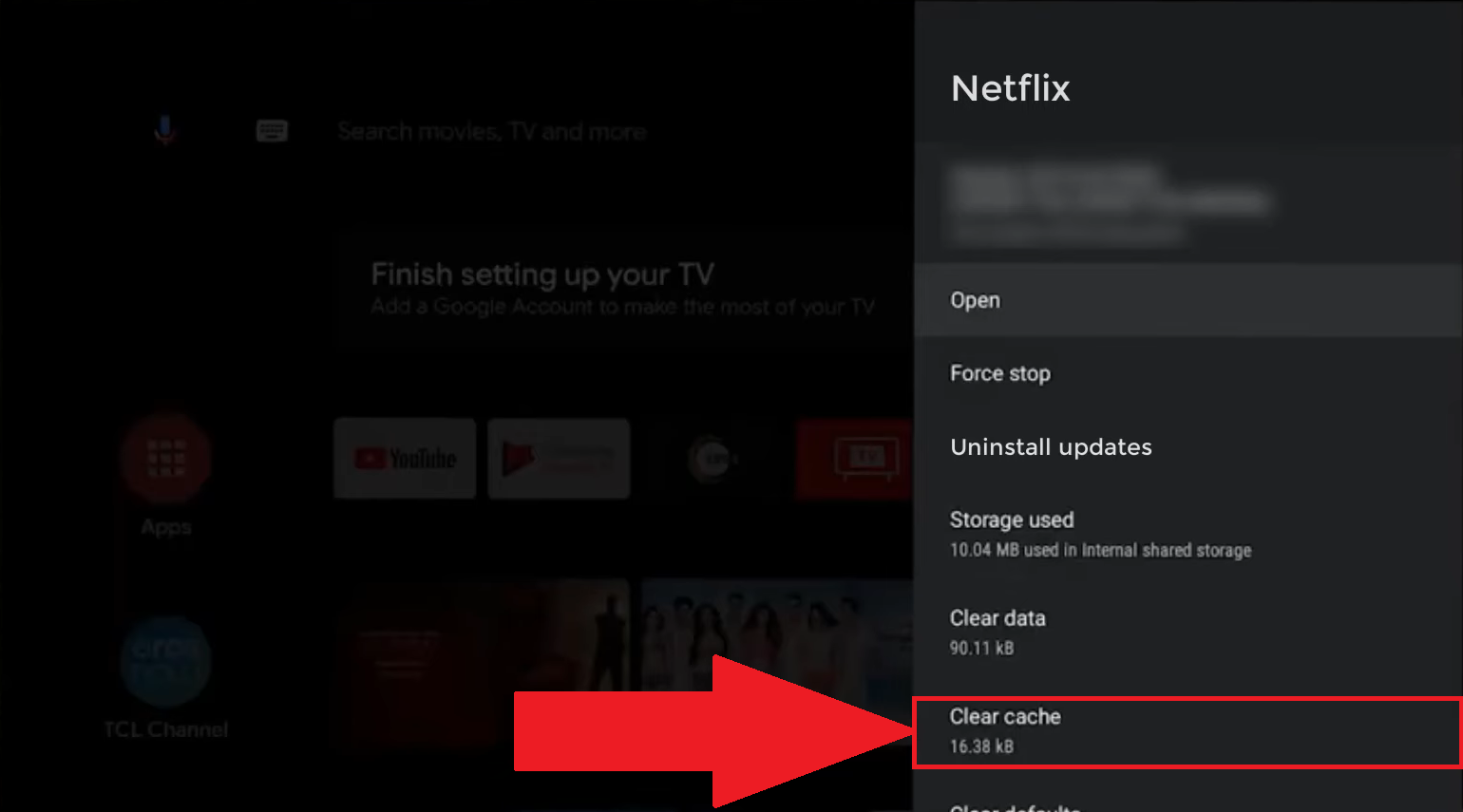
Depending on your device, you'll sometimes see the « Reset the app ». It's the fastest way to start over without uninstalling everything.
Step 3: Restart the TV
A simple restart Fixes a lot of bugs. It's fast and safe for your data.
- Turn off your TV with the remote control or the power button.
- Wait about 30 seconds, then turn it back on.
- For a more thorough restart, unplug the power cord, patient 30 seconds Remove the additional ones, then plug it back in.
Step 4: Uninstall and then reinstall Netflix on the TV
If nothing works, uninstall it and then reinstall the app Netflix. The steps to follow depend on your device.
On a device running Android TV, Chromecast Where box SFR :
- Go to Settings, then «Apps.».
- Open «Downloaded Apps» or «See All Apps.».
- Select Netflix, then « Uninstall » and confirm by clicking «OK.».
- Open the Google Play Store, search Netflix and reinstall it.
On Apple TV (4th-generation HD and 4K models):
- Keep the icon clicked Netflix until it moves, then delete it.
- Open the’App Store, search Netflix and reinstall it.
Please note : on the Apple TV 2nd and 3rd generations, there is no’App Store and Netflix can no longer be reinstalled.
On the Smart TV Samsung (Tizen) And LG (webOS), Netflix is a preinstalled system application, which generally cannot be uninstalled.
On Samsung, try the Smart Hub by holding down the selection button on the icon (only on certain recent models).
On LG, you can only hide it from the home screen. In these cases, go back to the’2nd step to delete the data.
Once Netflix Reinstall it, log back in, and see if the problem is resolved.
Why reset Netflix on TV?
Resetting erases the temporary data stored on your device and restart the app from scratch. This is often the most effective way to fix everyday bugs.
Here are the common issues it can help resolve:
- Netflix blocks when it starts up or doesn't start at all.
- A black screen or an error message appears during playback.
- Netflix infinite load or gets stuck while loading.
- Regarding the connection problems Internet or caching issues occur.
- The app is no longer responding to commands from the remote control.
- Netflix bECOMES unstable after an update of the system on the device.
In most cases, this type of bug is resolved once the reset is complete. If none of these steps resolve the issue, select « Get Help » in the app Netflix to contact the Help Center and get support tailored to your device.
You can also resume your session and dip into the list of serial killer movies to watch on Netflix.
What precautions should I take before resetting Netflix on TV?
The procedure will Sign out of your account and deletes certain data stored on the device. Here's what you need to know before you get started:
- Your downloads Movies and TV shows saved for offline viewing will be deleted; you'll need to download them again after the reset.
- Your profile information Netflix The settings saved on the device will be lost: you'll need to log in again and reconfigure your preferences.
- Your viewing history takes a little while to come back, which makes your recommendations less accurate for a few days.
- Be sure to write down your identifiers Before you begin, because you'll be logged out of your account once the process is complete.
- Check the the stability of your internet connection so that nothing disrupts the process.
On the topic of history, you can also check out Where to Find and Delete Your Netflix History.
To save a little money while you're at it, take a look at the Netflix subscription prices or discover how to pay less for Netflix.







 FR
FR  RU
RU  EN
EN  ES
ES  IT
IT  DE
DE  ZH
ZH  PT
PT  ID
ID  JA
JA  DA
DA