You can Stream Netflix on Discord on a PC by sharing the tab from your web browser from a vocal workshop.
The only thing you need to know before you get started: Disable hardware acceleration in your browser, otherwise your friends will only see a black screen.
On mobile, it's a different story.
How do I stream Netflix to a Discord on Windows/Mac?
The method is the same on Windows and on Mac. Before you get started, make sure you meet the following prerequisites:
- a Netflix account active with a current subscription; ;
- l'application Discord installed on your computer (the desktop version is much more stable than the web version); ;
- a up-to-date web browser (Chrome, Firefox Where Opera GX) ;
- a stable internet connection to avoid interruptions during the broadcast.
Once you have all these items, here are the steps to follow to stream Netflix on Discord:
- Open the Discord app on your computer and log in to your account.
- Disables hardware acceleration in your web browser (see the detailed instructions in the section on the black screen (see below).
- Open Netflix from your web browser and log in to your account.
- On Discord, Join a voice chat room from your Discord server, then click the icon for screen sharing bottom left.

- Selects the window or tab the web browser where Netflix is open.

- Adjusts the quality, resolution, and FPS of your broadcast, then start the stream. Note that the maximum quality (1080p/60 fps) requires a subscription Discord Nitro.

©Antonin for Alucare.fr
When selecting the tab, be sure to Enable audio sharing so your friends can hear the stream clearly.
An alternative if you run into problems: you can download Netflix movies and series on your PC, then share your screen with the player open.
Can I stream Netflix on Discord on my cell phone (Android/iOS)?
No. On a mobile device, you can't stream Netflix on Discord, whether you're on android Where iOS. Screen sharing from the Discord mobile app always results in a black screen.
The cause stems from a combination of two safeguards. First, the DRM (Digital Rights Management), the technology that protects Netflix's copyrights.
Next, the system restrictions : iOS and Android block the recording of protected content directly on the device.
As soon as the broadcast is transmitted via a protected video stream, recording is blocked, and attempting to bypass these protections puts you on the fringes of the conditions of use of the platform.
To watch it together anyway, the easiest solution is to start the stream from a computer (see the PC method above), while everyone listens in the voice chat room on server Discord, including those connected from their mobile devices.
How can I prevent the black screen issue when streaming Netflix on a Discord?
The most common problem when streaming Netflix on a Discord is the black screen : The video remains dark, but the audio works.
In 90% cases, there is only one setting involved: material acceleration from your web browser or the Discord app.
Netflix protects its videos using a system of DRM (digital rights management). This system prevents content from being captured when video rendering is handled by the GPUs through hardware acceleration.
Results : Discord sees only a black screen. By disabling this option, you force rendering via the processor and the image becomes visible again during playback.
This technology is useful in everyday life because it reduces the load on the CPU. But to stream Netflix on Discord, you'll need to disable it, either in your web browser or directly within the app.
Here's how to do it for each tool, step by step.
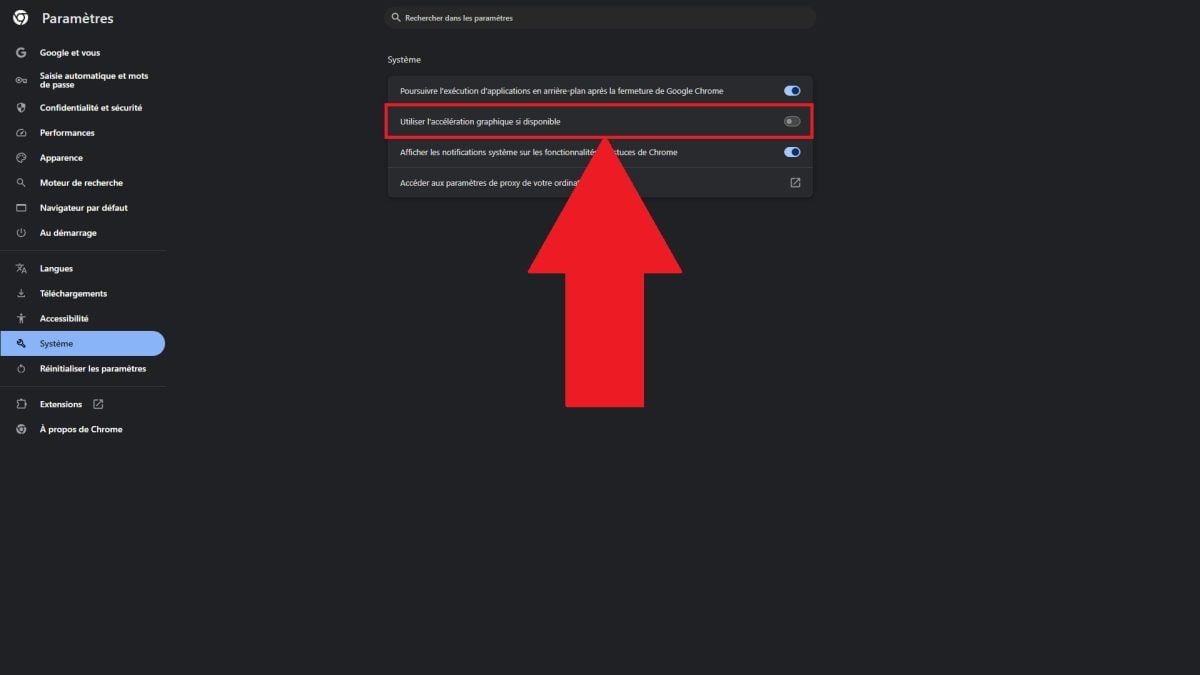
Disable hardware acceleration on Google Chrome
- Click on the three small points at top right.

- Open the Settings.

- Select the section «System».

- Disables hardware acceleration.
Disable hardware acceleration on Mozilla Firefox
- Click on the three horizontal lines at top right.

- Open the Settings.

- Scroll down to the section «Performances».

- Decoche «Use the recommended performance settings», and then disables hardware acceleration right away.

Disable hardware acceleration on Opera GX
Opera GX is based on Chromium, as Chrome, Edge Where Brave.
So the black screen issue affects it in the same way, and the solution remains the same.
- Click on the’gear icon Tap on the left to open Settings.

- In the search bar in the upper-right corner, type «system» Then open the section.
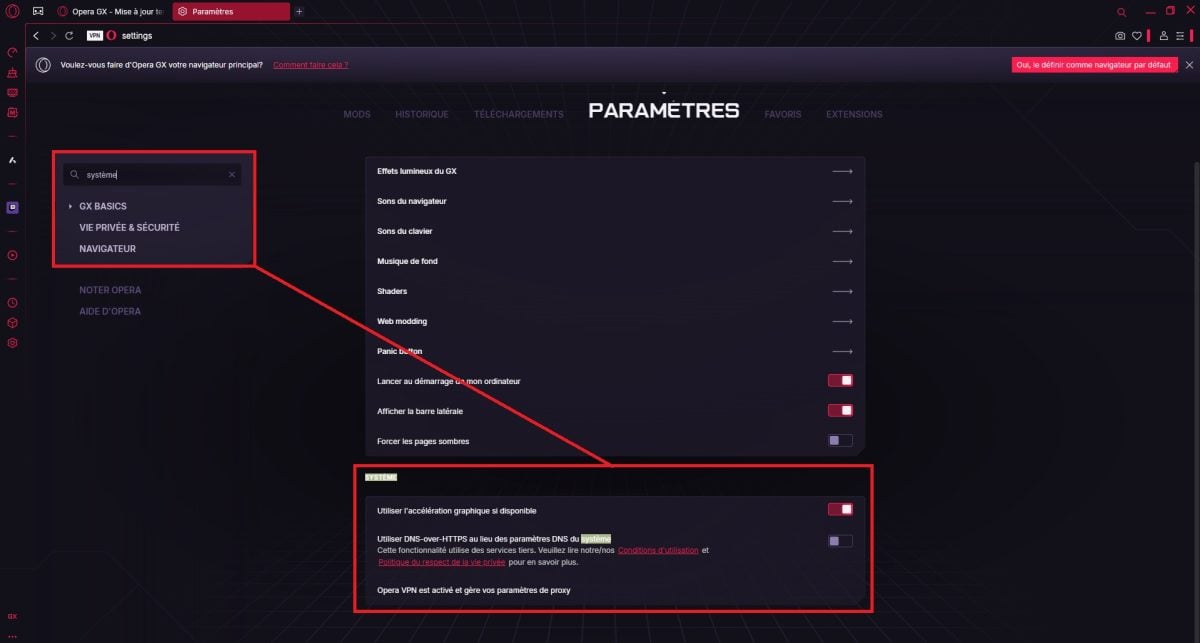
- Disables hardware acceleration.

Disable hardware acceleration in the Discord app
- Click on the’gear icon in the lower-left corner to open the settings.

- Scroll down to the section «App Settings» then open «Advanced».

- Disables hardware acceleration.

What if the screen stays black during the broadcast?
Hardware acceleration is the main cause, but not the only one. If the screen remains black while you're streaming Netflix on the Discord, try these steps:
- Restart Discord after changing the setting; otherwise, the change will not be saved.
- Alternates between the web browser window and the tab when selecting, whichever works.
- Update Discord and update your web browser to the latest version available.
- Empty the browser cache, which can prevent the video from playing.
- Check that the’audio from the tab is properly enabled on the Discord side to play audio along with the video.
Share your experience in the comments, and if you want to learn more, check out our guide on the Netflix account sharing.








 FR
FR  RU
RU  EN
EN  ES
ES  IT
IT  DE
DE  ZH
ZH  PT
PT  ID
ID  JA
JA  DA
DA