Netflix does not allow you to transfer its movies directly to a USB flash drive. Downloads made within the app are quantified : You can't copy them or read them elsewhere.
Regarding the third-party tools There are ways to circumvent this protection, but their use raises serious legal questions.
Here's what's possible, how it works, and what you need to know before you get started.
How do I download a Netflix movie to my computer?
On a computer, the only official way is through the’application Netflix available on the Microsoft Store at Windows.
The web browser doesn't allow downloads. So you'll need the dedicated app to watch your titles offline.
Here are the specific steps:
- Install the’application Netflix since Microsoft Store, then log in to your Netflix account.
- Search for the film or the series that you want to download.
- Click on the’download icon (the downward-pointing arrow) located below the title.
- You can then find your downloaded videos in the Downloads of the app.
Not all content is available for download; this depends on the rights associated with each title. You can also choose the video quality (Standard or Higher) in the settings, which affects the amount of storage space used on your device.
the number of simultaneous downloads depends on your Netflix subscription. Ad-free plans allow up to 100 active downloads at the same time, distributed across the included devices.
Offers that include ads are subject to stricter limits depending on the title and the country.
These downloaded files are quantified and can only be read from within the app Netflix, never with another player. It is precisely this protection that makes transferring files to a USB flash drive complicated, as you'll see.
To learn more, check out our full article on how to download movies and series on Netflix, with all the steps detailed at computer, Android and iPhone.
How do I transfer a Netflix movie to a USB flash drive?
Netflix does not natively support copying a movie to a USB flash drive. To create a video file that's truly portable, you need to use a third-party tool.
Three software programs come up frequently:
- TunePat Netflix Video Downloader
- Netflix Video Downloader
- SameMovie Netflix Video Downloader

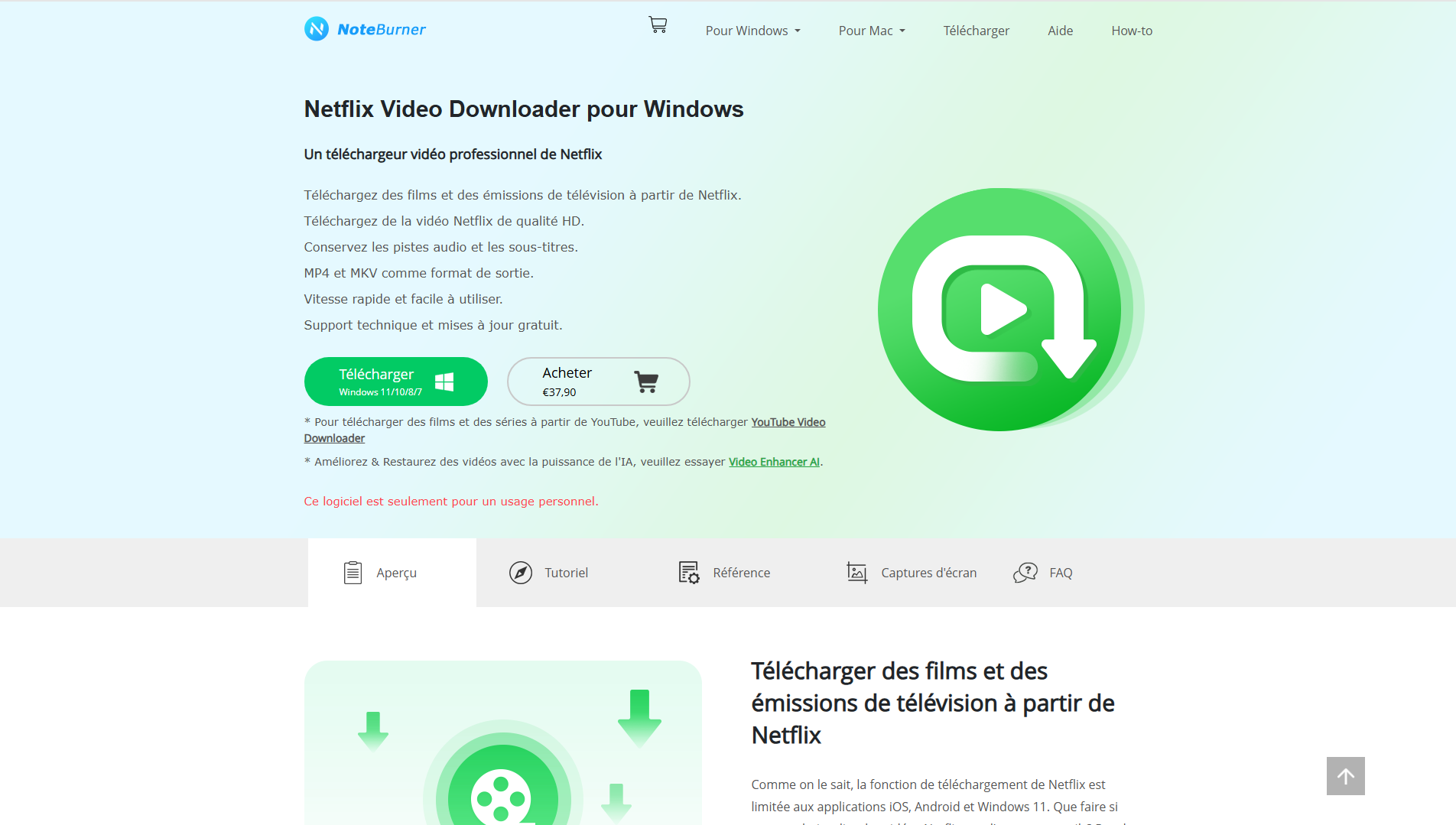
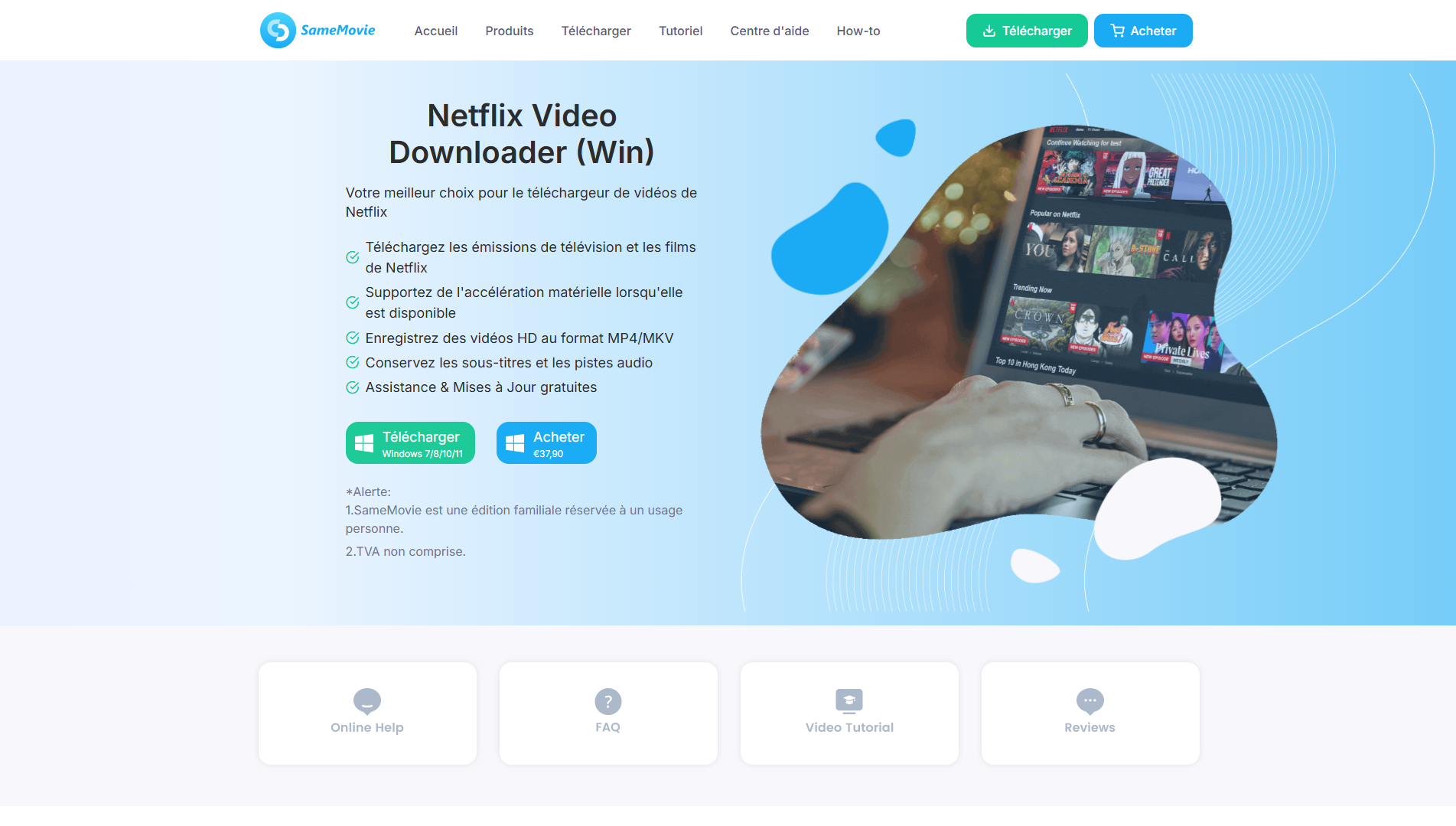
These three apps download series and films from Netflix, right on your PC Windows.
You get standard video files that can be copied to external hard drive, SD card or USB key, and can be viewed on a TV, smartphone, or tablet for offline viewing.
Steps for Downloading with TunePat
In this example, we use TunePat Netflix Video Downloader. The procedure is similar for the other tools.
- Launch the app on your PC, then log in to your Netflix account from the software window.
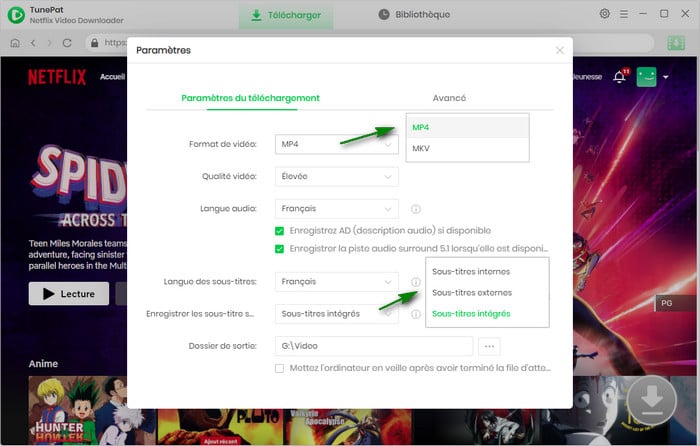
- Select the download quality and the desired language.
- Copy the link to the movie or TV series select it, then paste it into the software's search bar.
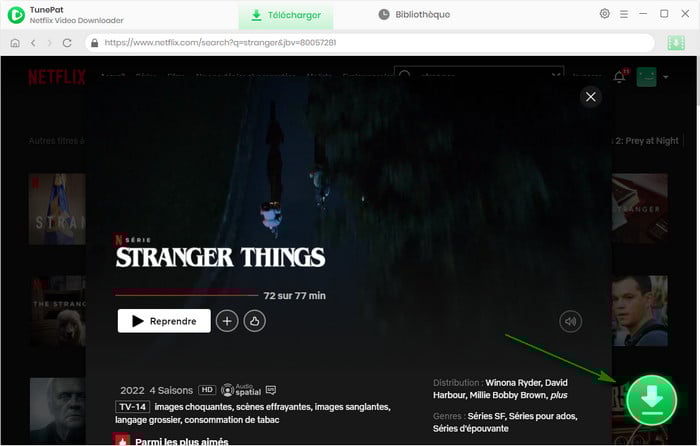
- Choose the episodes or the movie Select the relevant item, then start the download.

- Once you're done, find the videos in the software library.
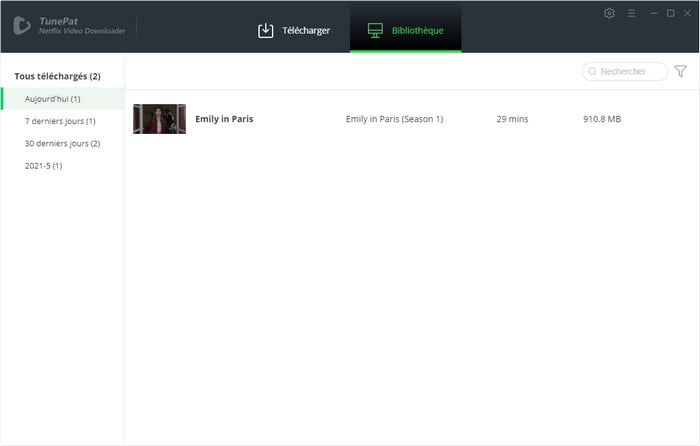
How to Copy a Movie to a USB Flash Drive, Step by Step
The file is now on your computer. All you have to do is move it to your USB drive:
- Plug it in USB key on a port on your PC, then open File Explorer.
- Go to the discharge summary the software and locates the video file, usually in MP4.
- Right-click the file, select «Copy,» and then paste it into the folder on your USB drive.
- Wait until the transfer is complete, then ejects cleanly the key before removing it.
You can then plug the USB drive into a compatible TV, another computer, or a streaming device to watch your movies offline.
Can I recover a Netflix download on Android and PC?
Yes, you can find the files you've downloaded using the app Netflix, both on PC and on Android.
But be careful: these files are encrypted by Netflix's DRM. Simply copying them to a USB drive isn't enough to read them anywhere other than within the app.
Find the download folder on your PC (Windows 11)
- In File Explorer, click the tab «Display».
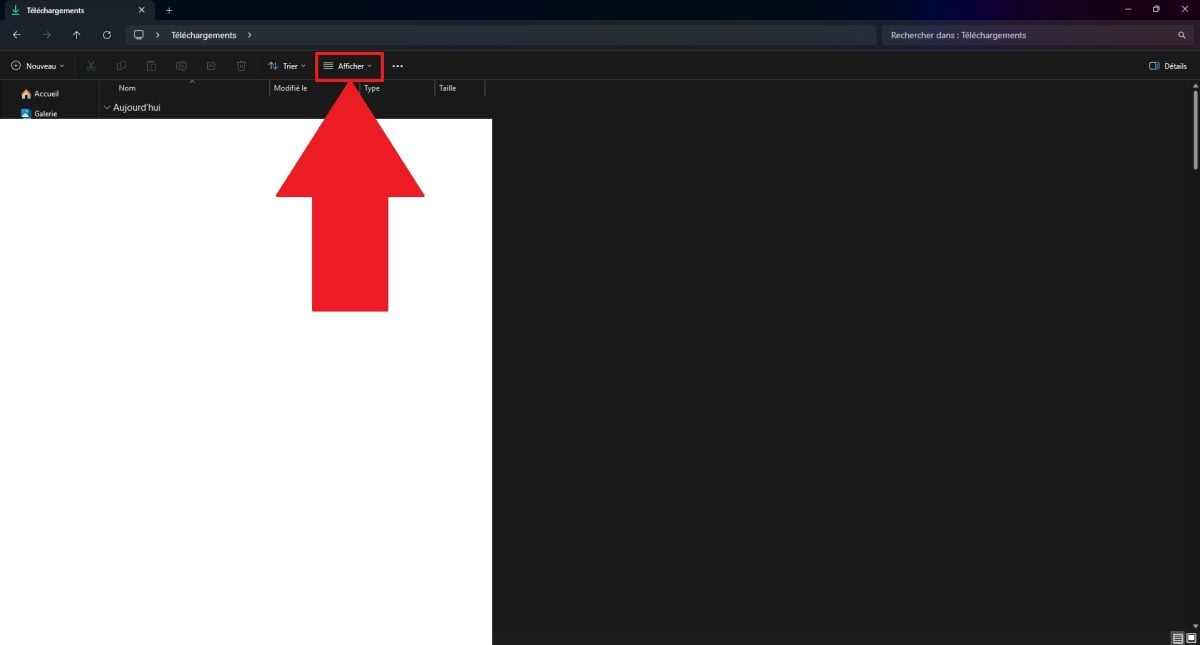
- Open the submenu «Show».
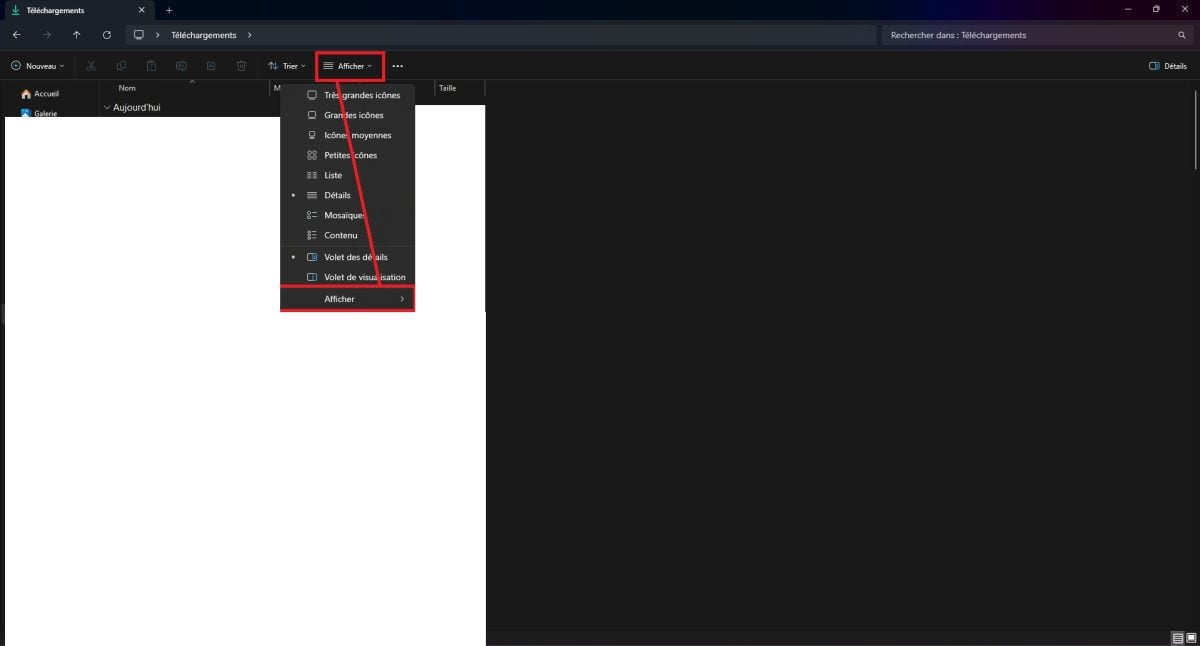
- Select «Hidden Elements».
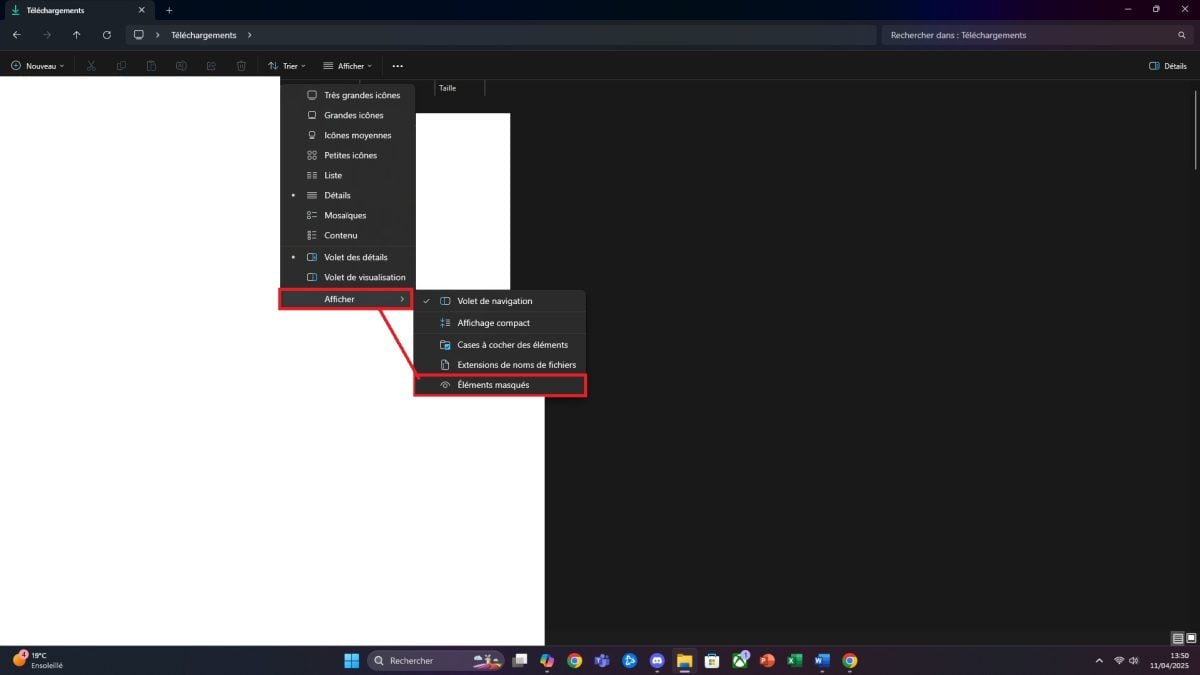
- Follow this path: C:\Users\Nom-utilisateur\AppData\Local\Packages\4DF9E0F8.Netflix_mcm4njqhnhss8\LocalState\offlineInfo\downloads.
- The largest file is the one containing your downloaded movies and TV shows.
Important : These files have extensions such as .ismv and .isma, encrypted by DRM. Even if copied to a USB flash drive, an external hard drive, or an SD card, they remain unreadable outside the Netflix app.
Find the download folder at Android
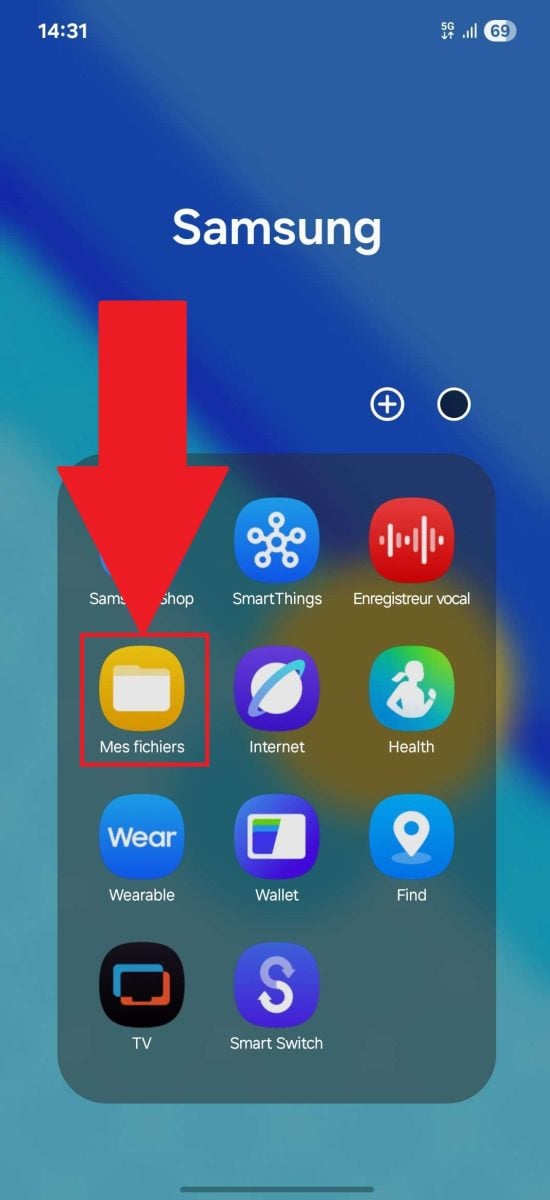
- Open the app «My Files».
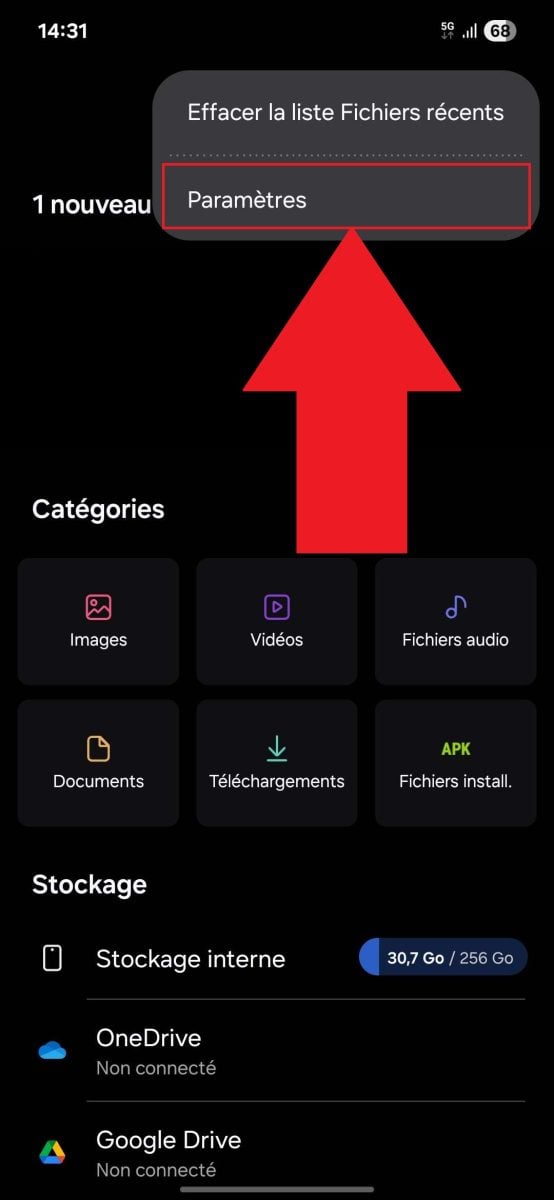
- In the upper right corner, open the "Settings.
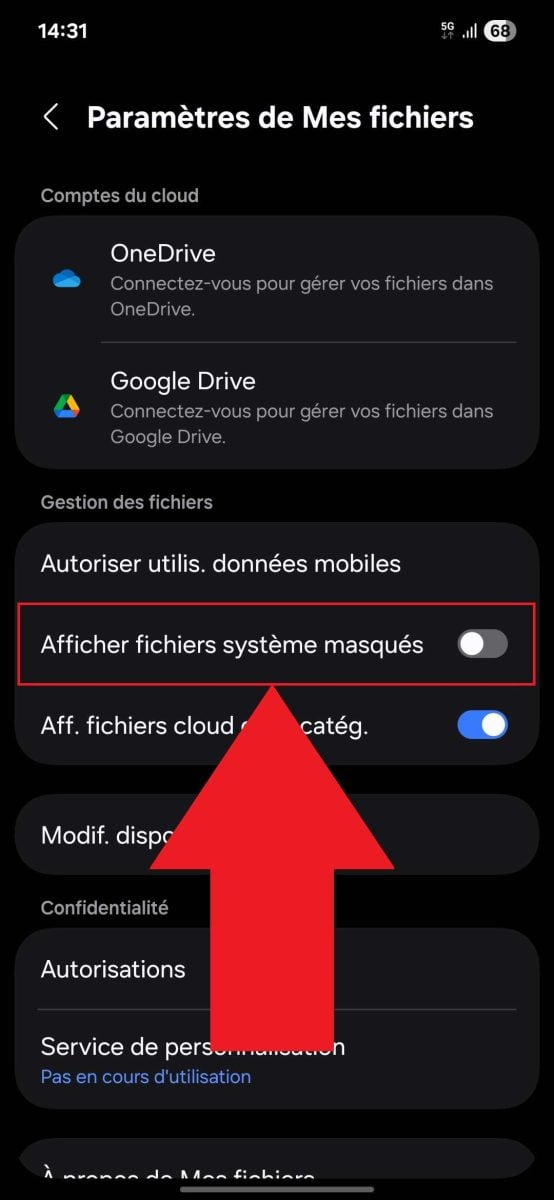
- Active «Show hidden system files».
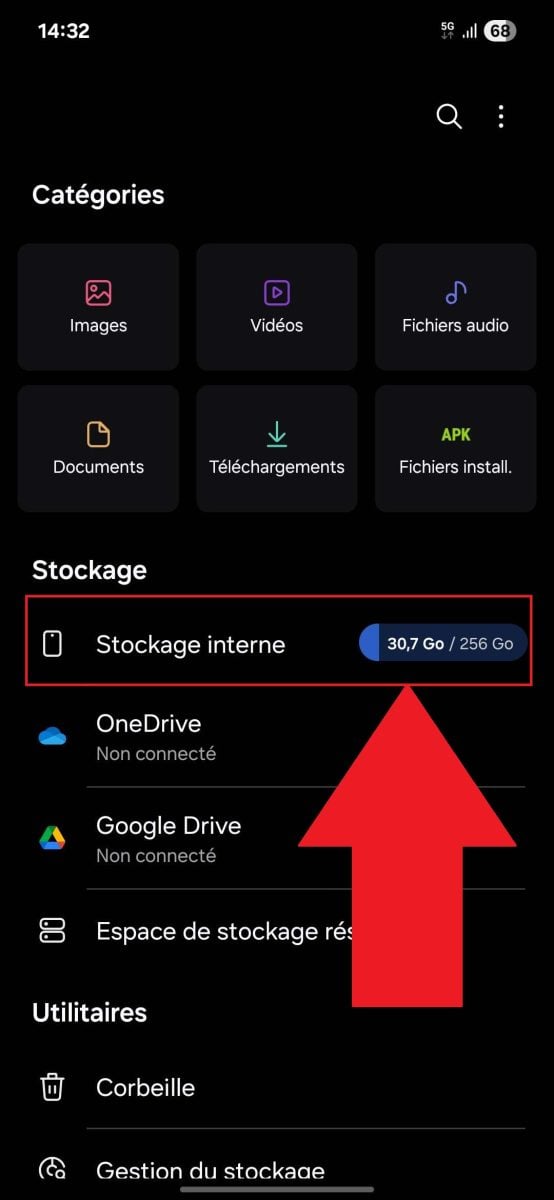
- Go back, then open «Internal Storage».
- Press the back button «Android».
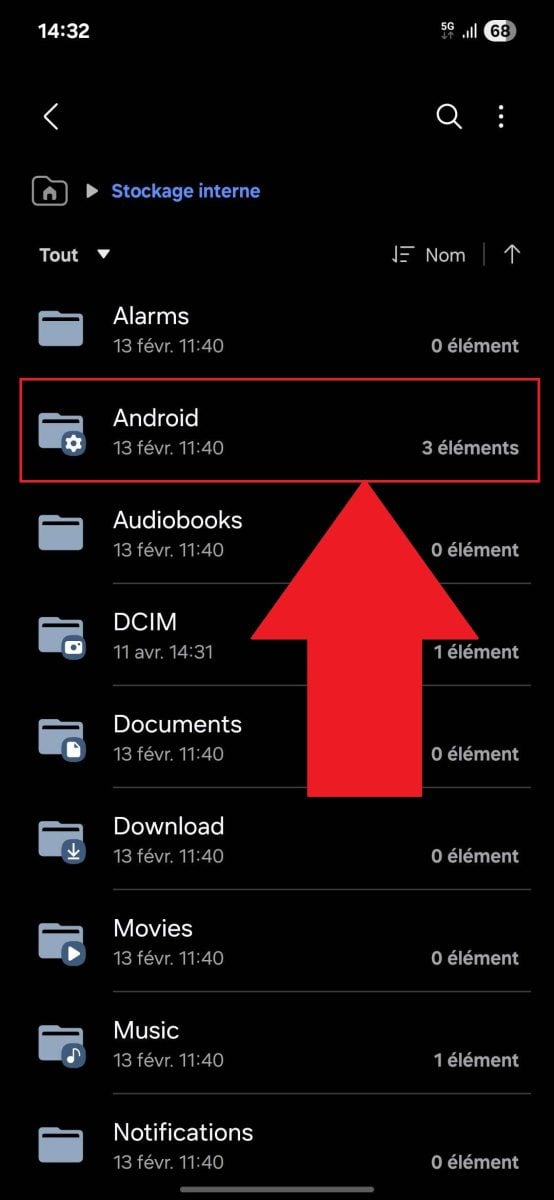
- Follow this path: data > com.netflix.mediaclient > Files > Download > .of. You'll find the folders for your movies and TV shows right here, too encrypted and unreadable outside the app.
Remark : on iPhone and iPad, the «Files» folder stores only imports and content iCloud.
Your downloaded videos are only available in the Netflix app, via the "Downloads lower right.
How to Transfer a Netflix Movie to a USB Drive: The Only Method That Works
Since the native files are locked, the only way to get a a video that actually plays To watch offline, you'll need to use third-party software. Tools such as TunePat Netflix Video Downloader Where SameMovie convert your tracks into files MP4, which can be copied anywhere.
The principle is simple:
- Log in to your Netflix account from within the software.
- Research and select the movie or episodes you want.
- Adjust the video quality and the language, then start the download.
- Once the file MP4 Once you've got it, plug in your USB key and open File Explorer.
- Copy the file, paste it onto the flash drive, and then Eject it properly before removing it.
You can then watch your movies on a A PC, a media player, or a USB-compatible TV, offline.
Is it legal? What you need to know about the limits
This software bypass DRM from Netflix, which is prohibited by its terms of use. The service is reserved for a for strictly personal use, without copying or redistribution.
In Europe, this workaround is governed by the Directive 2001/29/EC (known as the EUCD), which has been implemented differently in each country. Depending on your situation, downloading protected movies may expose you to legal risks.
It's up to you to make an informed decision and stick with a responsible use.








 FR
FR  RU
RU  EN
EN  ES
ES  IT
IT  DE
DE  ZH
ZH  PT
PT  ID
ID  JA
JA  DA
DA