To Permanently delete your account Netflix, there are two steps: Cancel your subscription, then request that your personal data.
Be careful not to confuse Delete your account and delete a profile : These are two very different approaches! We'll explain everything in this article!
Explanatory video in French by Alucare, ideal complement to the page. View video (you can use YouTube's automatic translation)

How do you delete your Netflix account for good?
Here are the steps starting from the’application Netflix.
- Open the app Netflix on your phone.
- Press the’your profile icon at the top of the screen.
- Scroll all the way to the bottom, then select Account.
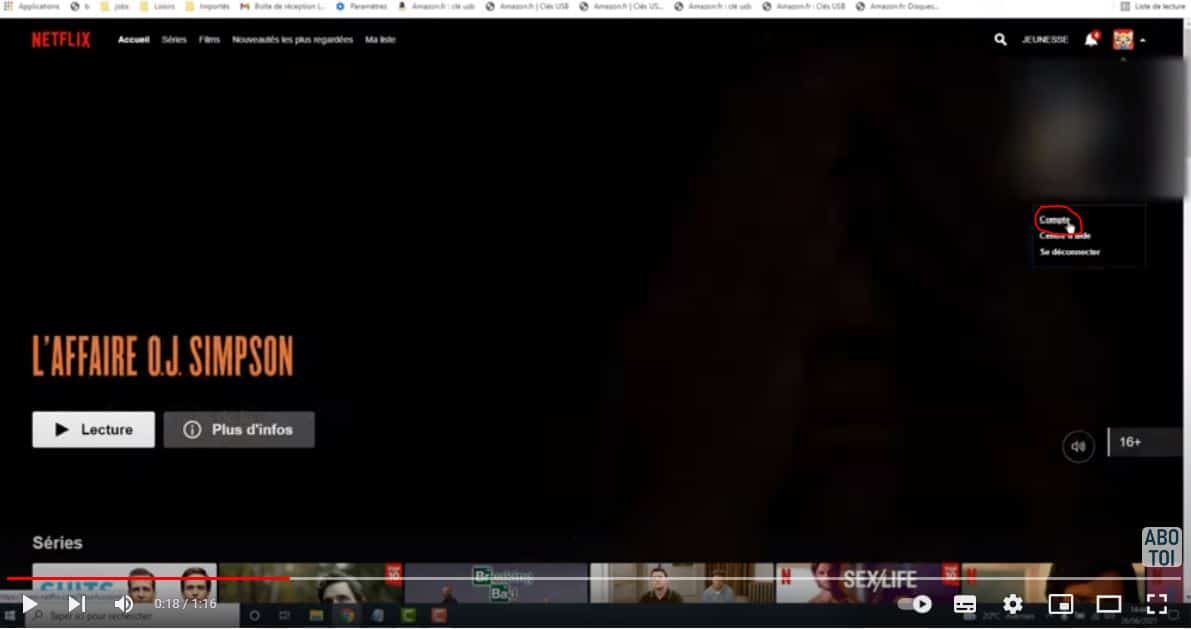
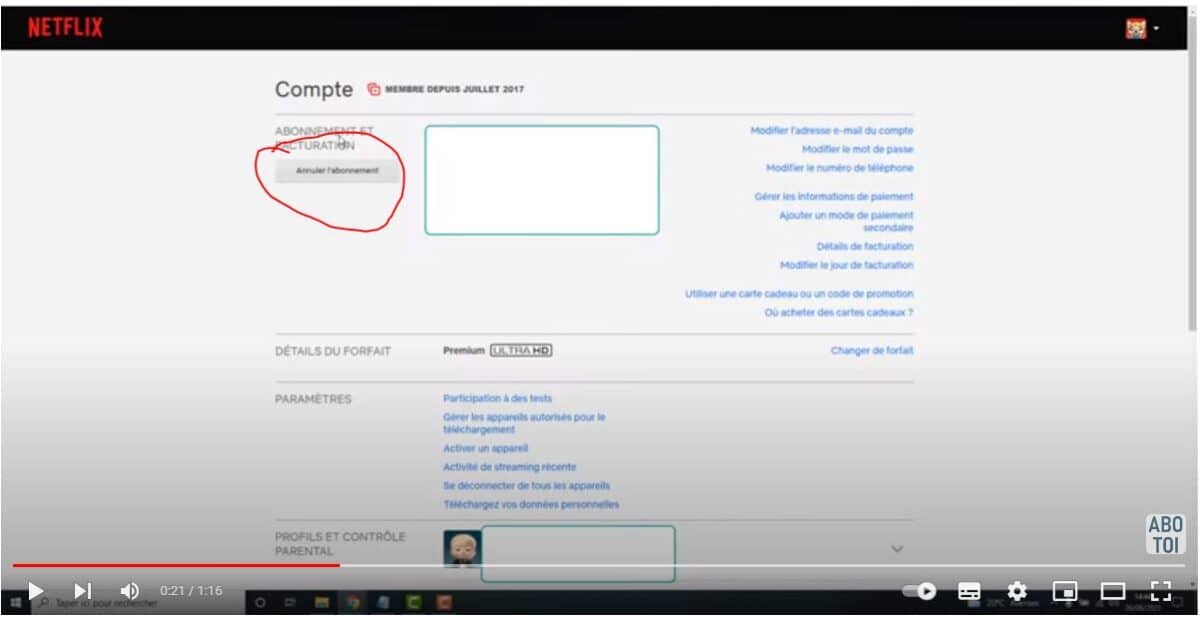
- Go to the section Subscription and billing.
- Select Cancel Subscription.
- Confirm by pressing Complete the cancellation. Your subscription has been canceled.
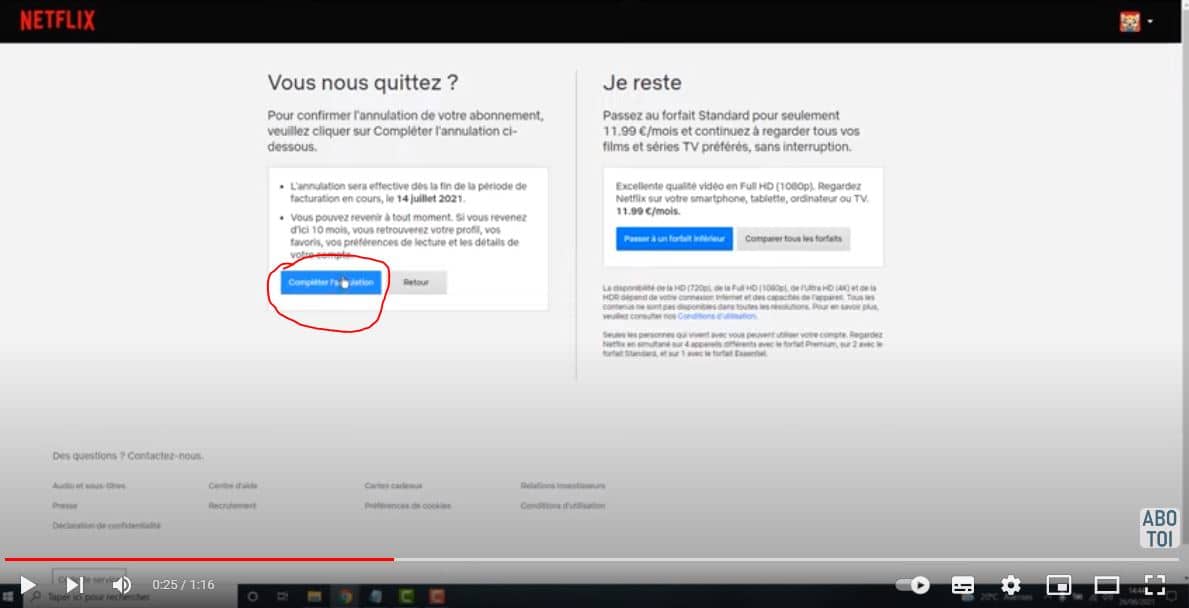
Cancellation stops future payments. If you don't take any further action, Netflix automatically deletes your account data (profiles and history) after 10 months without renewal.
To speed up the deletion process, send an email directly to privacy@netflix.com since the’email address associated with your account. In your email, please include your e-mail address account information as well as your name. Request the Deleting Your Account and your personal data. Netflix handles this type of GDPR request under 30 days maximum, once your identity has been verified. You can find the official procedure on the Netflix Help Center dedicated to data deletion.
How do I delete a Netflix profile?
A profile is not an account: it's simply a viewing identity within your account Netflix, with its own history and its recommendations. An account Netflix may contain up to 5 profiles, each with its own preferences, his favorite movies and TV shows, and its parental control. Deleting it is therefore much simpler than deleting the entire account.
Every compatible device (computer, TV, smartphone) lets you manage profiles since the account settings. Here are the steps starting from a web browser, and then from the’application Netflix.
Delete a profile on the web
- Go to netflix.com from your browser.
- Select MANAGE PROFILES on the profile selection screen.
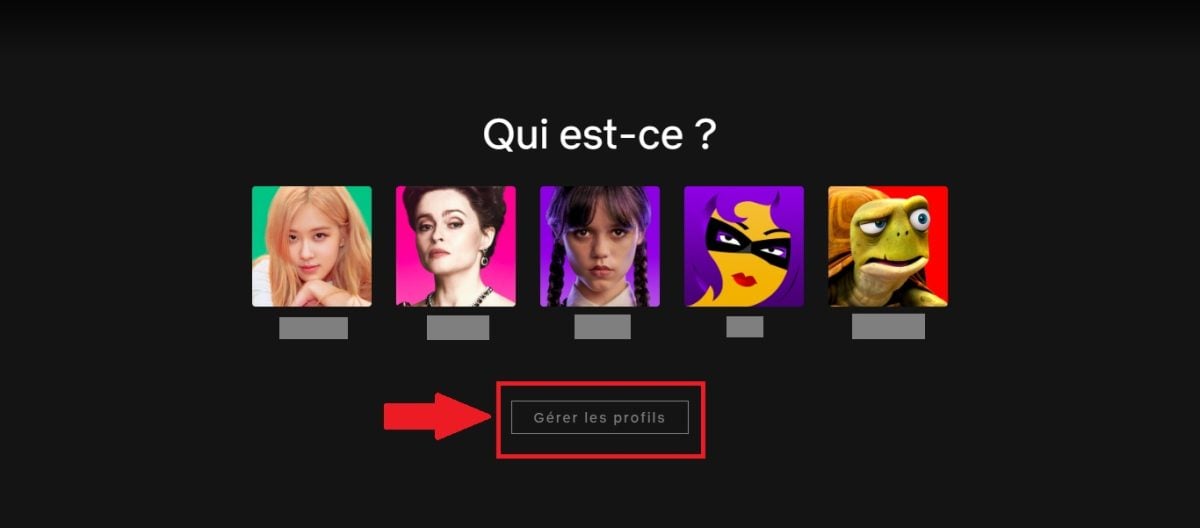
- Select the profile you want to delete.
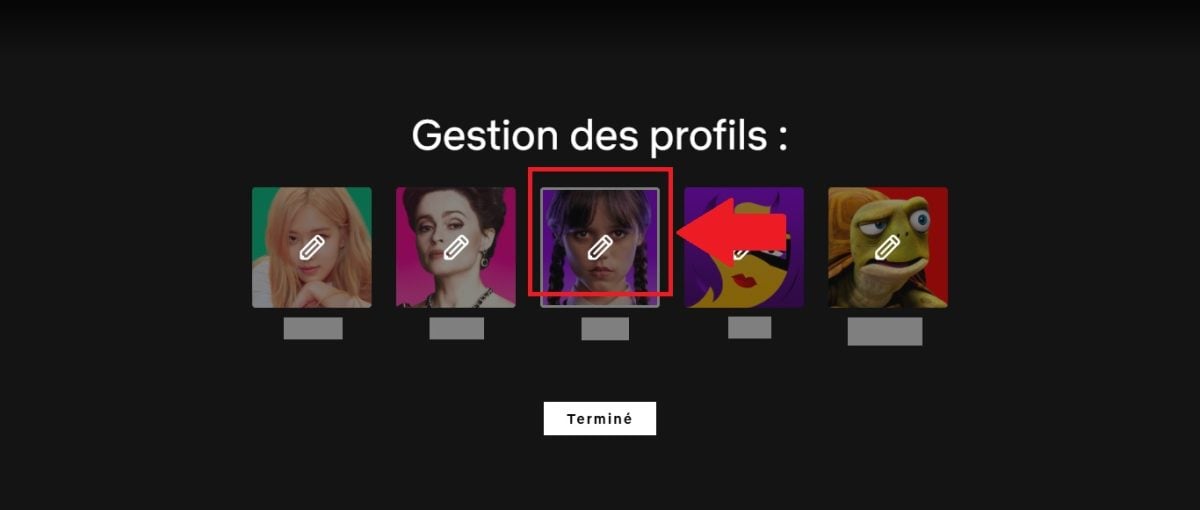
- Go to the profile management section.
- Scroll all the way to the bottom of the page.
- Click on DELETE PROFILE.
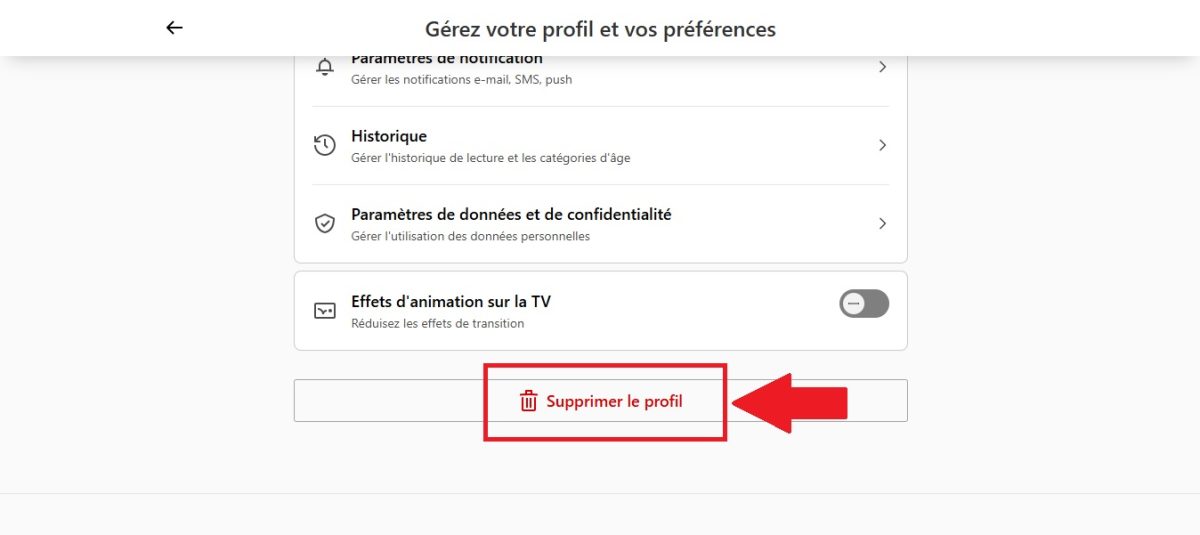
Delete a profile from the Netflix app
- Open the’application Netflix on your device (smartphone, TV, or tablet).
- In top right, press the’pencil icon.

- Select the profile you want to delete from the list.
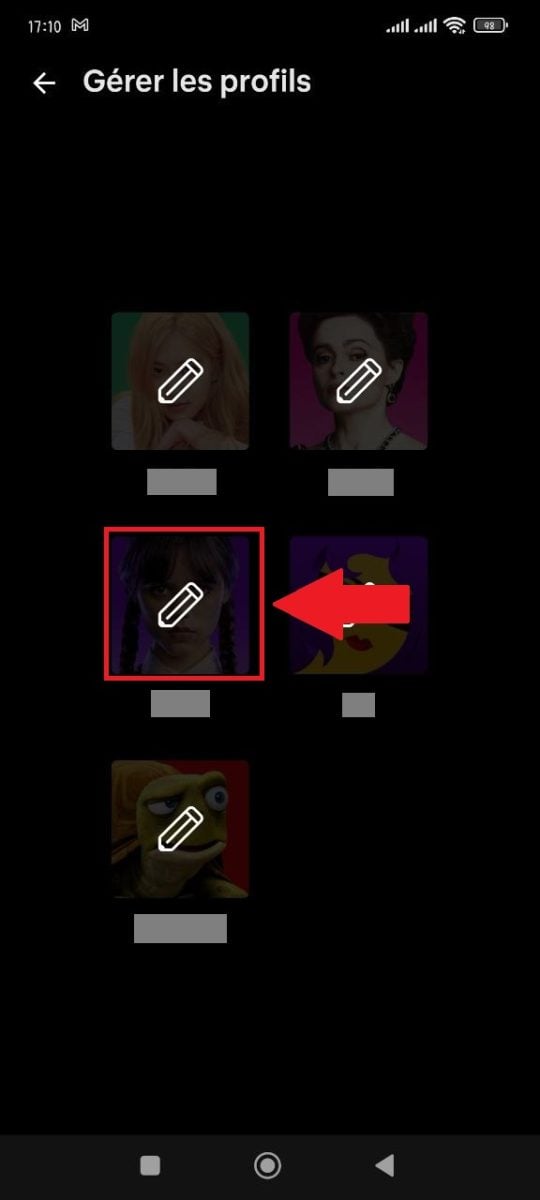
- Scroll to the bottom of the screen.
- Press DELETE PROFILE to confirm.

To note : Once a profile has been deleted from an active account, its viewing history and your recommendations are permanently lost. The only exception: if the entire account has been closed, you can reactivate it within 10 months to view your profiles and history.
To Edit an existing profile (name, avatar, or playback settings), access the same section from the web browser or theapplication Netflix.
And for more helpful Netflix tutorials:









 FR
FR  RU
RU  EN
EN  ES
ES  IT
IT  DE
DE  ZH
ZH  PT
PT  ID
ID  JA
JA  DA
DA