Launched on October 23, 2026, BlueStacks 16 is now available in beta on Windows. It is billed as the first consumer-grade emulator to run Android 16 on a PC. Features include games in true resizable windows, refresh rates up to 120 Hz, smart app archiving to free up space, and support for the APV video format.
Download BlueStacks 16 for free
What exactly is BlueStacks 16?
BlueStacks 16 is Run Android 16 directly on your Windows PC, with separate application windows, smoother gameplay at high frame rates, and smart application archiving.
This is a major leap forward. Until now, BlueStacks 5 allowed users to create instances running Android 7, 9, or 11, with Android 13 available in beta. BlueStacks 16 jumps straight to the latest generation of Google’s operating system: Android 16, or API level 36. According to the developer, this will allow users to play new Android games on the day they’re released.
Why is this interesting for gamers? Android 16 was designed for large screens: tablets, foldable devices, and resizable windows. On a PC, these new features really come into their own. BlueStacks has grouped them into four improvements:
| New | What This Means for You |
|---|---|
| True Desktop Windowing | Your games open in separate windows, side by side |
| Up to 120 Hz | Smoother graphics in compatible games |
| Smart App Archiving | Free up disk space without losing your data |
| APV Video | High-quality video recording and editing |
Please note: BlueStacks 16 is currently available in beta version, Windows only. On a Mac, you'll need to use BlueStacks Air, which may have different features and an Android version.
A helpful note on compatibility: A game updated for Android 16 may not work uniquely on Android 16. The version a developer targets is not the minimum required version. Conversely, some games remain incompatible with emulators due to anti-cheat measures or specific hardware components. It’s best to check each game individually.
True Desktop Windowing: Play Your Games Side by Side
This is the most noticeable new feature in BlueStacks 16: compatible games and apps each open in their own window, just like any other Windows software.
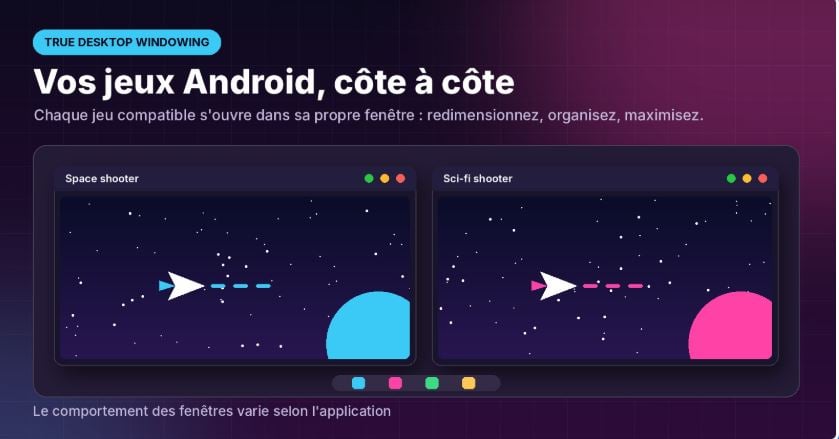
Specifically, you can:
- Resize each window to the desired size;
- Organize multiple games on the same desktop, side by side;
- Maximize a window when it's time to focus on a game.
Gone are the days of emulators that look like a tablet sitting in the middle of the screen. For example, you can run a strategy game on one side and keep a messaging app or a second game open on the other, without having to switch between tabs.
It also marks a change in approach. Until now, to use multiple games at the same time, you had to go through the Multi-Instance : Run multiple full instances of the emulator, each of which uses a lot of resources. With BlueStacks 16, all windows share the same Android instance.
BlueStacks notes, however, that the behavior of the windows varies depending on the application : Not all games will respond the same way to resizing.
Mouse, Keyboard, and Controller: The Comfort of a PC
Playing on BlueStacks also means use computer commands. In a shooter game, the mouse is used for aiming and the keyboard for moving around. In a strategy game, the large screen displays a wider map and makes menus, inventories, and busy interfaces much easier to read.
Compatible controllers are also supported, for an experience similar to that of a console. Keep in mind, however, that some games are still designed for the touchscreen: they may require you to manually configure the buttons.
Hyper-V-compatible and free of the smartphone's flaws
Good news for anyone who has already run into this problem: according to BlueStacks, version 16 works with Hyper-V enabled. So there's no need to change Windows' virtualization settings to install the emulator and play games. That's a real relief if you use WSL, Docker, or virtualization-based security.
Playing on a PC also helps you avoid the little annoyances of mobile gaming during long sessions:
- No overheating from the phone; ;
- No batteries that melt in the middle of a game;
- No notifications that interrupt the game.
Up to 120 Hz for smoother gameplay
Compatible games can run at a refresh rate of up to 120 Hz. The result: smoother movements and faster visual feedback—a real plus in action games, first-person shooters, and racing games.

The principle is simple: Whereas a standard display refreshes 60 times per second, a 120 Hz display refreshes twice as often. Each movement is broken down into finer steps, making aiming and movement more precise.
Attention : Three conditions must be met to take advantage of this:
- A compatible game with 120 Hz;
- A compatible screen (a monitor with a refresh rate of 120 Hz or higher);
- A A sufficiently powerful PC.
As BlueStacks notes, actual results depend on the game, the screen, the hardware, and the settings you choose.
Another point to note: A 120 Hz display does not guarantee that a game will run at 120 frames per second. If a game caps its own frame rate, the benefit will be reduced or even nonexistent. Therefore, 120 Hz is a maximum under ideal conditions, not a guarantee that applies to all applications.
Smart App Archiving: Free Up Space Without Losing Your Data
Recent mobile games often take up several gigabytes. With Smart App Archiving, BlueStacks 16 deletes files from a compatible game while while retaining its application data. You'll free up some space, and you'll be able to pick up where you left off.

The process consists of four steps:
- Step 1 : You're archiving a game you no longer play;
- 2nd step : Its game files are deleted from the disk;
- Step 3: Its compatible application data is retained;
- Step 4: You can restore it whenever you want.
This is ideal if you switch back and forth between several major titles, or if your SSD is starting to run out of space. The only caveat: restoring your connection and progress depends on the game and the synchronizing their account. Be sure to link your games to an account before archiving them.
APV Video: A Format Designed for Creators
BlueStacks 16 supports APV (Advanced Professional Video), for recording and editing high-quality videos. This format made its debut in the Android ecosystem with Android 16.
APV is a professional-grade codec: it prioritizes image quality and ease of editing, whereas consumer-grade formats focus primarily on reducing file size. For content creators, this is an attractive proposition—provided they use applications compatible with this format.
System Requirements: Is Your PC Compatible?
The key takeaway: BlueStacks 16 requires at least 12 GB of RAM, significantly more than earlier versions of the emulator.
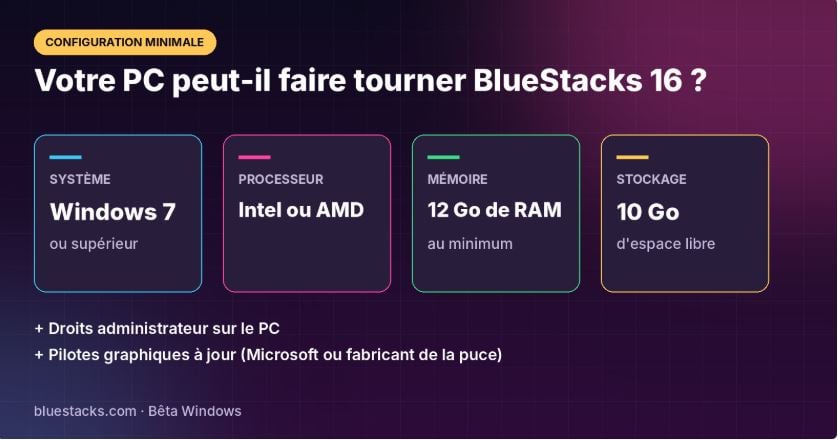
| Component | Minimum requirements |
|---|---|
| Operating system | Windows 7 or later |
| Processor | Intel or AMD |
| RAM | At least 12 GB of RAM |
| Storage | 10 GB of free disk space |
| Others | Administrator rights and up-to-date graphics drivers |
For graphics drivers, use Windows Update or the website of your graphics chip manufacturer (NVIDIA, AMD, or Intel). And to take advantage of 120 Hz, make sure you have a compatible monitor.
How to Download and Install BlueStacks 16
Installation takes a few minutes:
- Visit the official page BlueStacks 16.
- Click on «Download BlueStacks 16 (Beta)» to download the installer.
- Run the downloaded file Log in with an administrator account and follow the steps.
- When you start it up for the first time, Sign in with your Google account to access the Play Store.
- Install your favorite games and test the windows side by side.
Are you already using BlueStacks? Before upgrading to version 16, Check the system requirements and compatibility of your favorite games. If you have any important instances, accounts, or save files, be sure to back them up and check out the available migration options.
Good to know: Like previous versions, BlueStacks also lets you install Android apps from sources other than the Play Store, starting from APK files. This is a handy way to test an app, as long as you download it from a reliable source.
Safety Tip: Always download BlueStacks from the official website. Avoid «premium» or modified versions offered on third-party sites, which may contain unwanted software. To learn more, check out How to Safely Use an Android Emulator on a PC.
FAQ: Your Questions About BlueStacks 16
What is BlueStacks 16?
This is the new version of the BlueStacks emulator. It runs Android 16 on a PC, with separate app windows, high-refresh-rate gaming, and smart app archiving.
What is True Desktop Windowing?
This function opens compatible games and apps in windows that you can move, resize, or maximize. Behavior may vary depending on the application.
Will all games run at 120 Hz?
Nope. 120 Hz requires a compatible game, a suitable display, and hardware that is powerful enough.
What does Smart App Archiving save?
He keeps the compatible application data. Whether you can restore your connection and progress depends on the game and whether your account is synced.
Does BlueStacks 16 work on a Mac?
Nope, BlueStacks 16 is available for Windows. Mac users can use BlueStacks Air, which may have different features and an Android version.
Is BlueStacks 16 free?
Yes, the beta version is available for free download from the official BlueStacks website.
Do I need to disable Hyper-V to use BlueStacks 16?
Nope. According to BlueStacks, the emulator works with Hyper-V enabled, without changing Windows' virtualization settings.
What version of Android does BlueStacks 16 use?
Android 16, which corresponds to API Level 36.
Our take: Should you upgrade to BlueStacks 16?
Yes, if your PC has at least 12 GB of RAM. BlueStacks 16 is the easiest way to enjoy Android 16 on a computer, and its new features really transform the everyday user experience: games in real windows, smoother 120 Hz visuals, and less clutter on your hard drive thanks to archiving.
Keep in mind that this is a beta : Some games may still have issues with resizing or may not take full advantage of the 120 Hz refresh rate. If you mainly play on a low-end PC, BlueStacks 5 remains a lighter alternative.









 FR
FR  RU
RU  EN
EN  ES
ES  IT
IT  DE
DE  ZH
ZH  PT
PT  ID
ID  JA
JA  DA
DA