How do I change my Minecraft skin? [Tutorial]

Author :

React :

Comment

Now that you've embarked on your Minecraft adventures, do you feel like a makeover? Rest assured, it's perfectly possible to change skin Minecraft. You can choose the skins offered in the game, or create your own. But how do you go about it? We tell you all about it in this tutorial!

Alex and Steve (left to right), the two basic skins on Minecraft
Alex and Steve (left to right), the two basic skins for Minecraft. Alexia for Alucare.fr

But first, let's (re)discover the concept of skin. in Minecraft ? It is a large pixel painting that wraps around your character to give them a whole new look!

You can download new skins from Minecraft. Java or Bedrock version, here's how!

How do I change my Minecraft Java skin?

  • Go to launcher Minecraft Java
  • Go to PAGE SKINS 
Visit Minecraft's Skin page
Visit the Skins page of Minecraft Java ©Alexia for Alucare.fr
  • Then select the NEW SKIN
Click on "New Skin
Select the New Skin ©Alexia feature for Alucare.fr
  • Using your mouse, press the PARCOURIR
  • Then select a skin (PNG file) in your PC
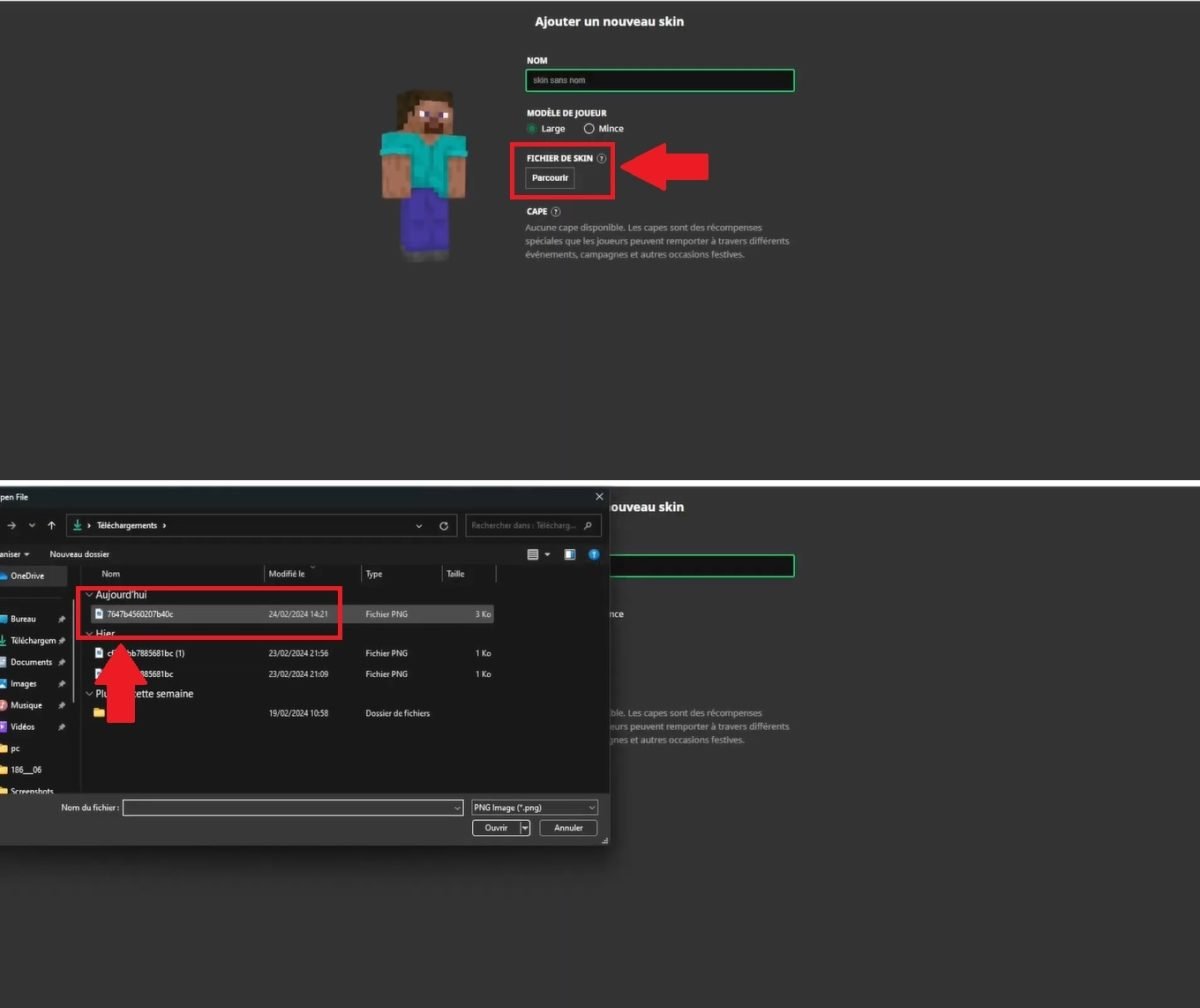
Click on "Browse" to select a skin on your computer
Click on Browse to select a skin on your computer ©Alexia pour Alucare.fr
  • Return to the Skin page of the Minecraft website
  • Then select the new Skin downloaded 
  • Now your Minecraft character has a whole new look!

    Click on the new skin to change head in Minecraft
    Just click on the new skin for a new look in Minecraft Java ©Alexia pour Alucare.fr

How do I change my skin on Minecraft Bedrock?

  • Go to launcher Minecraft Bedrock
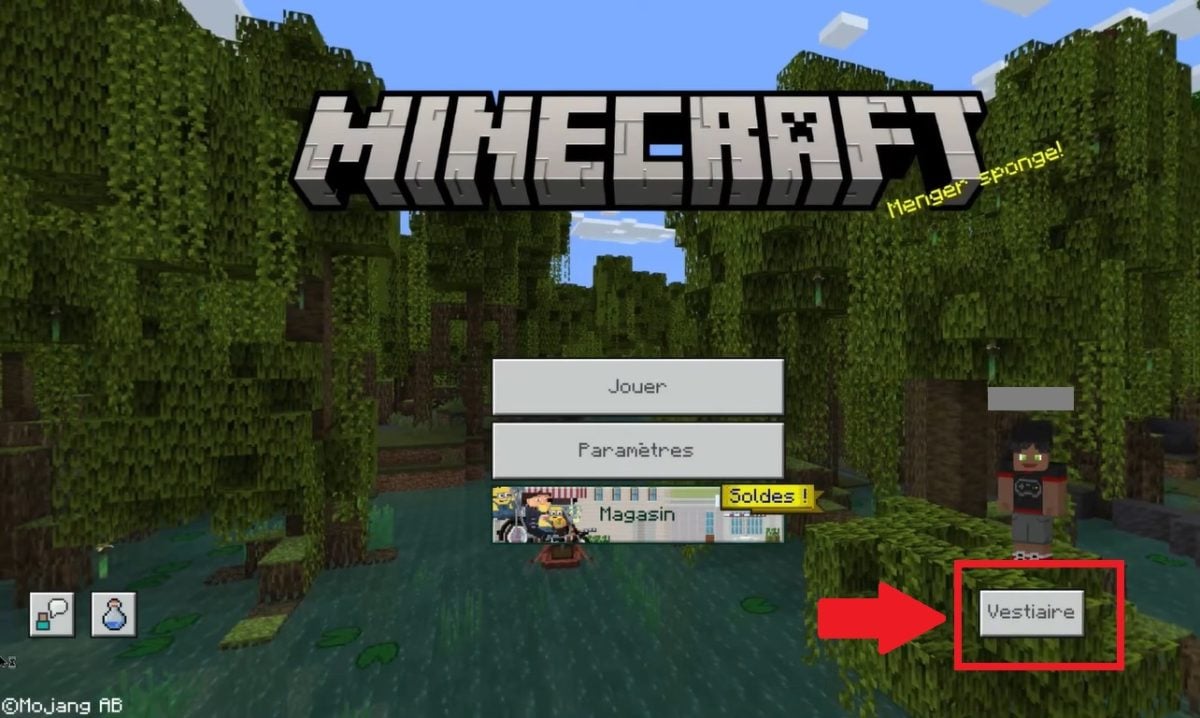
  • Then go to VESTIARY 
Go to Vestiaire to change your Minecraft Bedrock skin
Go to Vestiaire to give your character a new look in Minecraft Bedrock ©Alexia for Alucare.fr
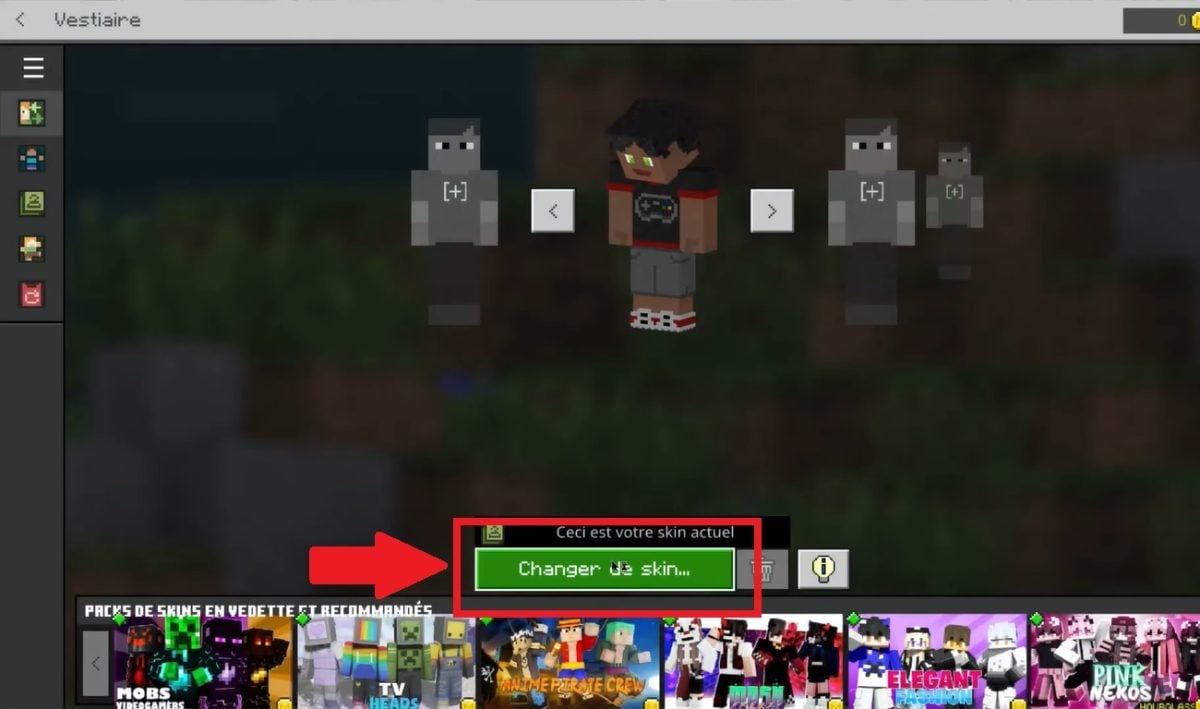
  • Select CHANGE SKIN 
Select the Change skin option
Just click on the button to start your skin change on Minecraft ©Alexia for Alucare.fr
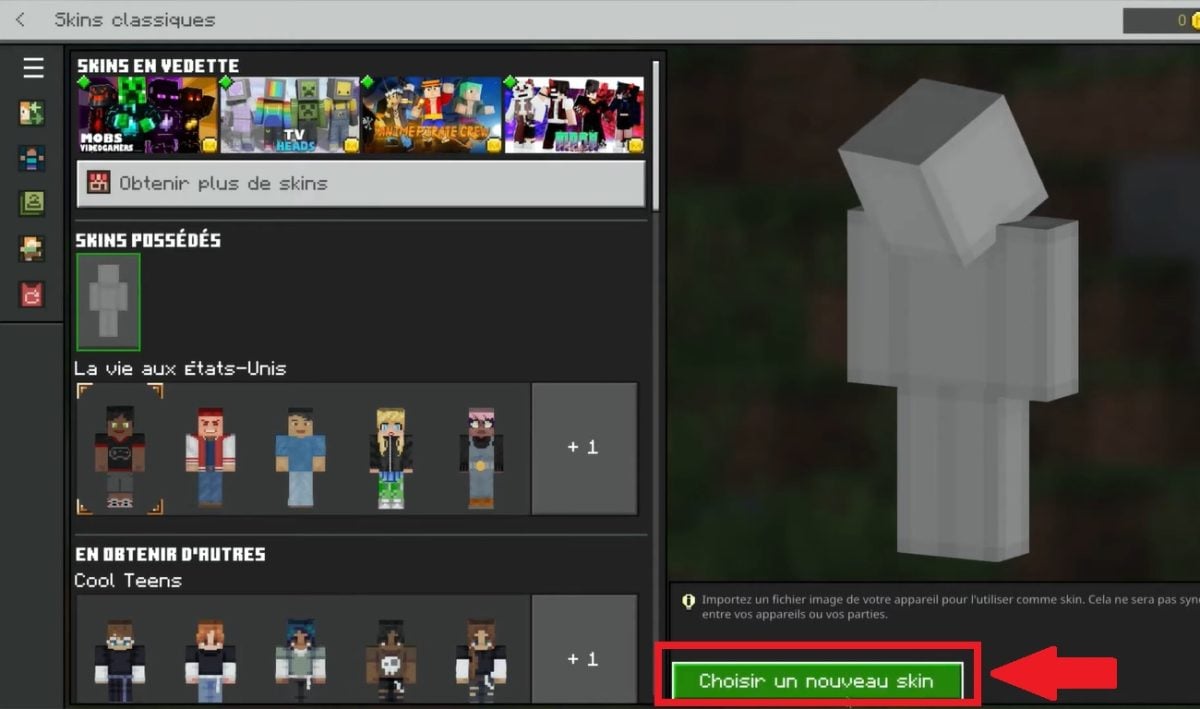
  • Then select the option POSSESSED SKINS 
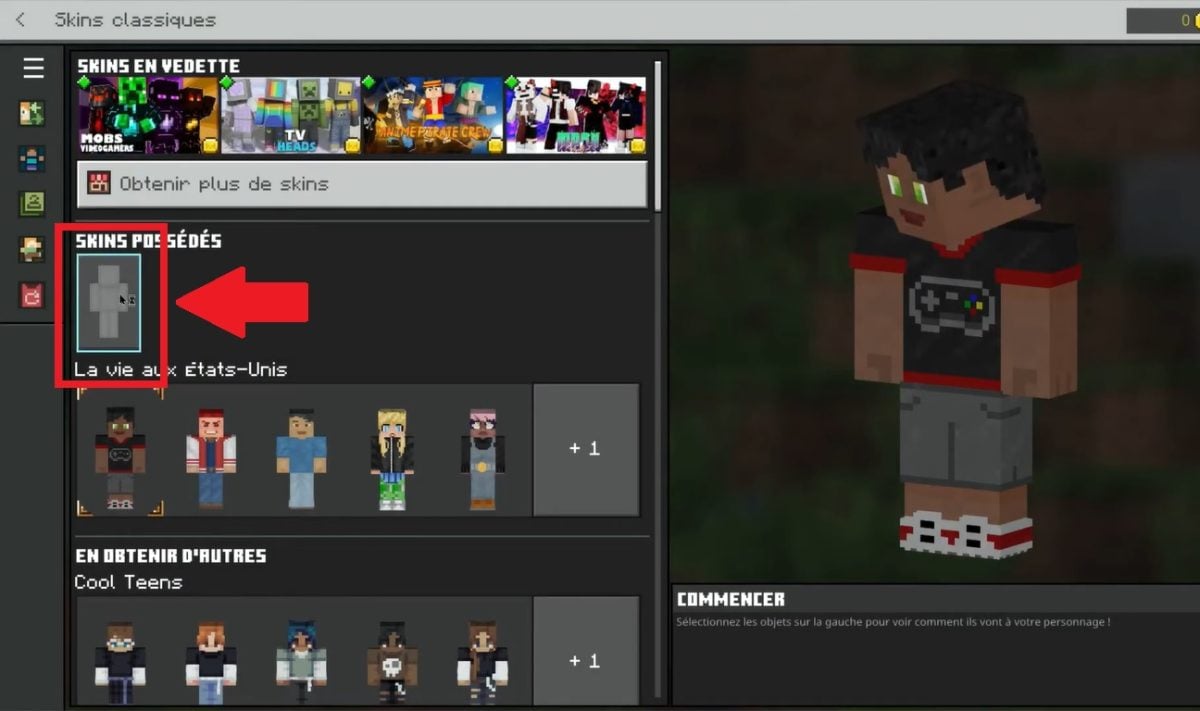
Click on the grey man to access the Possessed Skins option
Click on the gray man to access the Skins Possessed feature ©Alexia pour Alucare.fr
  • Then select CHOOSE A NEW SKIN
By clicking on Choose a new skin, you can import a skin file (PNG) from your computer.
By clicking on Choose a new skin, you can import a skin file from your computer ©Alexia pour Alucare.fr
  • Import a skin from your PC
  • All you have to do is select it to get a new head in Minecraft!
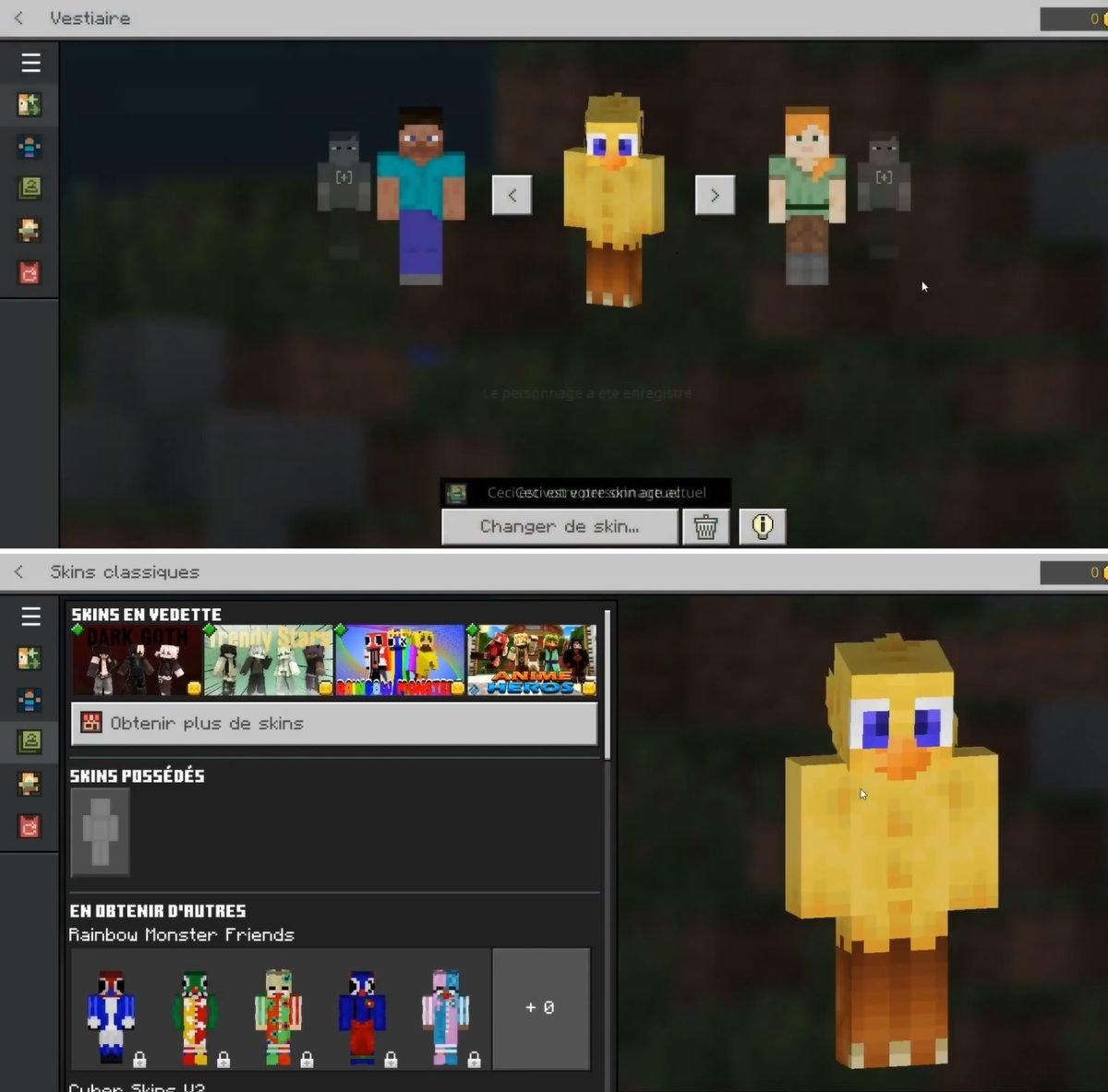
Once the skin has been imported into your wardrobe, all you have to do is select it to change your character's appearance Minecraft Bedrock
Once the skin has been imported into your wardrobe, all you have to do is select it to give your character a new look. Minecraft Bedrock ©Alexia for Alucare.fr

How do I create a Minecraft skin?

Want to customize your character in Minecraft You have two choices:

  • Create your own skin OR
  • Download ready-made skins

In both cases, there are websites that allow you to do one and/or the other. free.

The most popular platforms include :

Minecraft Skins Net lets you customize skins in just a few clicks
Minecraft Skins Net lets you customize skins in just a few clicks ©Alexia pour Alucare.fr
  • NameMC offering a wide selection of skins Minecraft to download. 
You can download ready-made Minecraft skins from the Name MC website.
You can download ready-made Minecraft skins from the NameMC ©Alexia website for Alucare.fr.
For the skin change MinecraftThe process is more or less the same for both the Java and Bedrock versions. You can import new skins in just a few clicks and change your appearance whenever you want. Which Minecraft skin would you like to try? Feel free to let us know in the comments!
And for even more practical information about Minecraft, perhaps our article on the ideal RAM for a Minecraft server may be of interest to you.

Found this helpful? Share it with a friend!

This content is originally in French (See the editor just below.). It has been translated and proofread in various languages using Deepl and/or the Google Translate API to offer help in as many countries as possible. This translation costs us several thousand euros a month. If it's not 100% perfect, please leave a comment for us to fix. If you're interested in proofreading and improving the quality of translated articles, don't hesitate to send us an e-mail via the contact form!
We appreciate your feedback to improve our content. If you would like to suggest improvements, please use our contact form or leave a comment below. Your feedback always help us to improve the quality of our website Alucare.fr


Alucare is an free independent media. Support us by adding us to your Google News favorites:

Post a comment on the discussion forum

Minecraft

Released on : November 18, 2011

Developed by : Markus Persson, Mojang Studios

Edited by : Mojang Studios, Sony Interactive Entertainment, Xbox Game Studios

Available on : PC, Mac, Linux, PlayStation, Xbox

Genres : Multiplayer