You are looking for set up Discord on your computer or smartphone? You've come to the right place!
This article reveals the steps involved inDiscord installation on all major operating systems, including:
- Windows
- macOS
- linux
- Mobile devices (Android/iPhone)
🎁 Bonus: A section FAQs has also been added at the end of this article to help you resolve any common problems that you may encounter when installing Discord !
1. How to install Discord on Windows 10/11?
Here's how to install Discord on Windows 10/11 step by step:
- Open the web browser of your choice (Internet Explorer, Firefox, Google Chrome, etc.)
- Then go to the Discord download pageThe link opens in a new tab so you can easily follow this tutorial.
- Once you arrive at the home page, simply click on the "Download for Windows" button (Download for Windows).
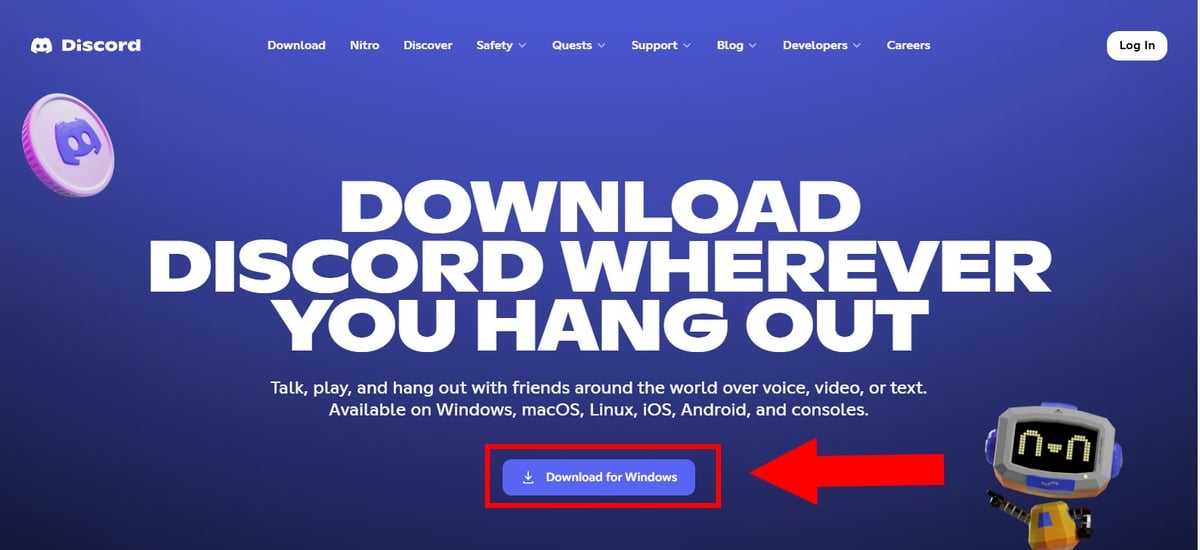
- From now on, the download of Discord will begin, and you will be able to track it in your browser's download area, at the top right of the screen.
- Please wait a moment to complete the download.
Now, for install Discord, you have two options:
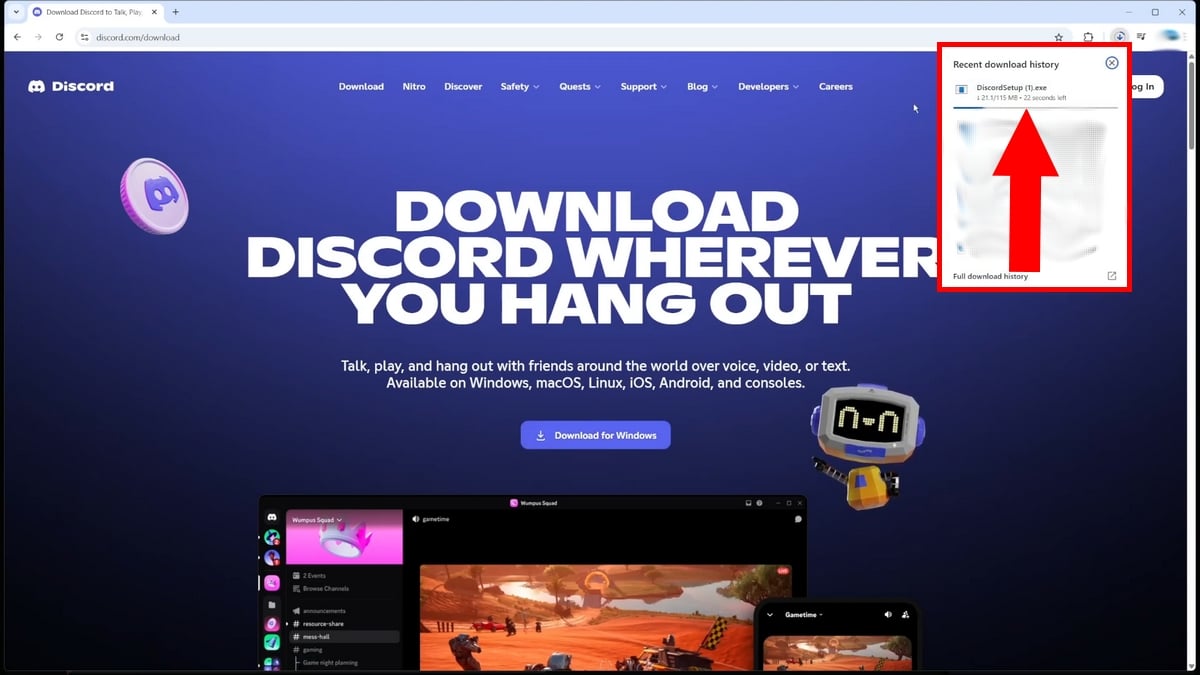
- Double-click on the downloaded file.The image below shows a download in progress.
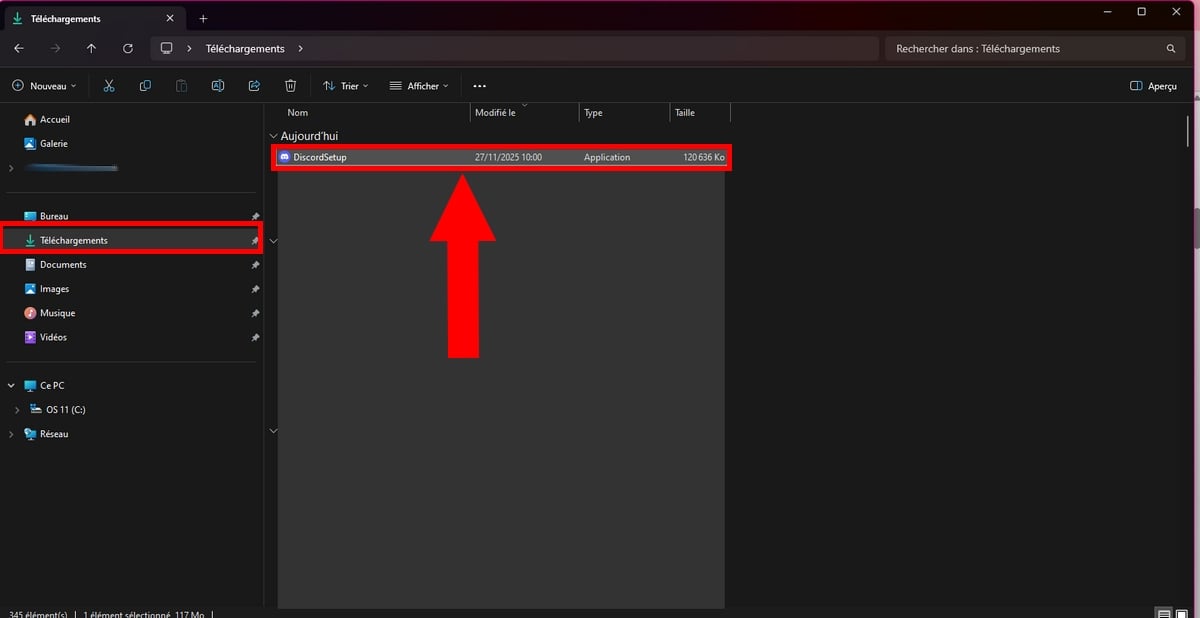
- OR search for the newly downloaded application in your “Download” on your PC.
- Finally, once the installation is complete, you will arrive at the login page, where you can log in or create your account Discord.
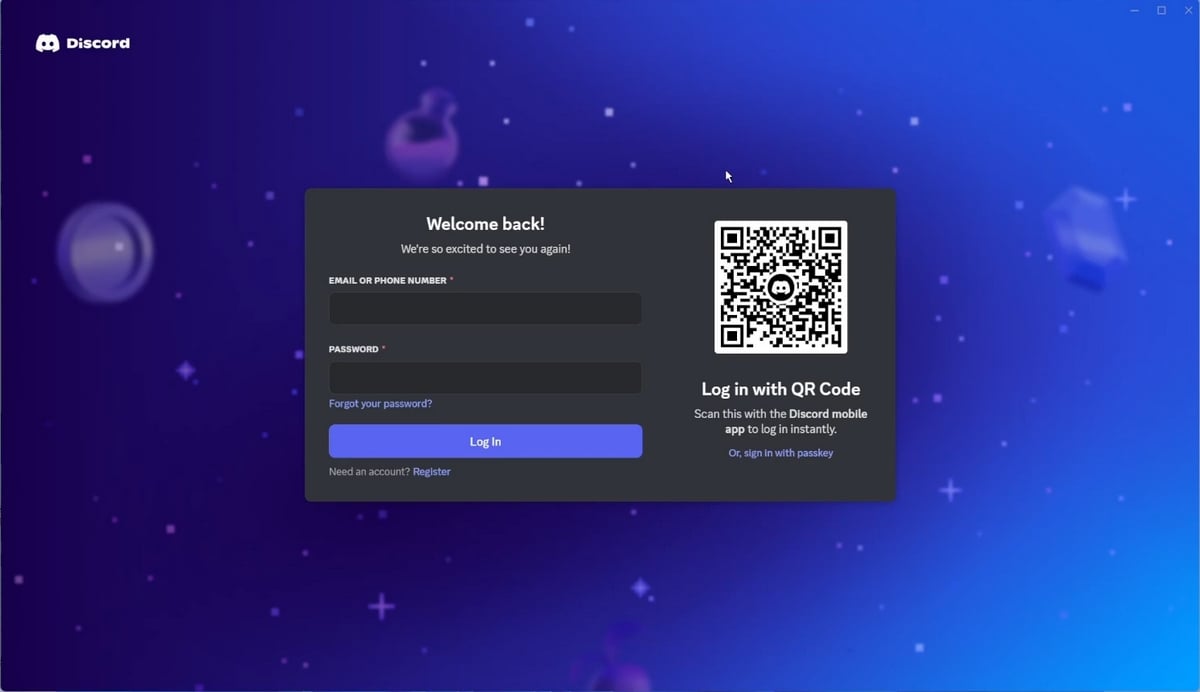
Please feel free to grant Discord the necessary permissions (microphone, etc.) for it to work properly!
2. How to download Discord on macOS?
Here are the steps to download Discord on macOS:
- Open the browser of your choice, then go to the official download page for Discord,
- Then click on the “Download for macOS” (Download for Mac),
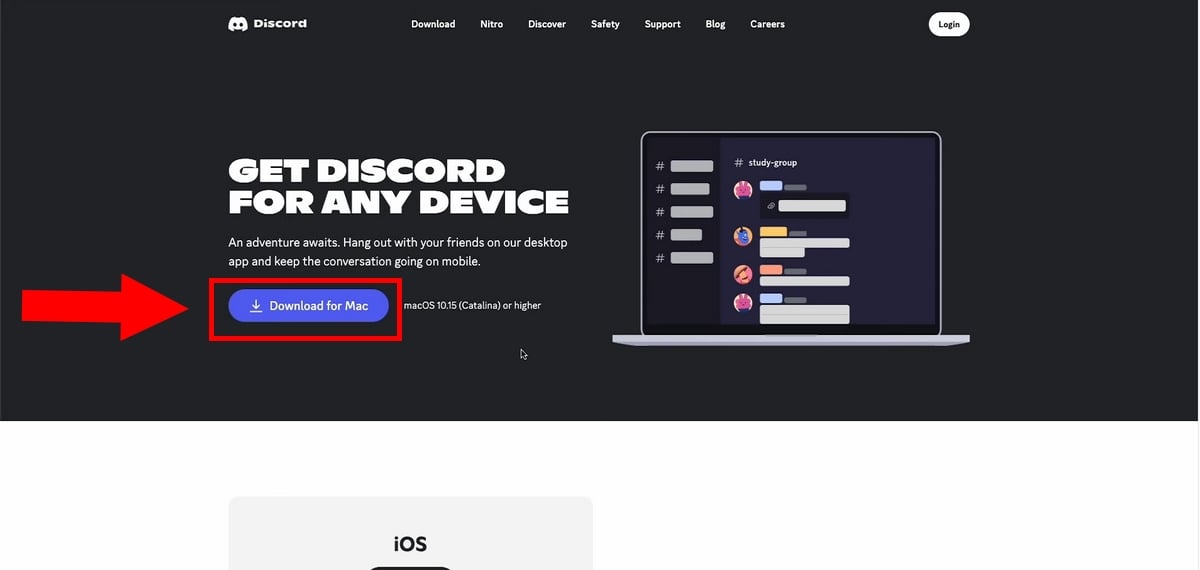
- The download will then begin.
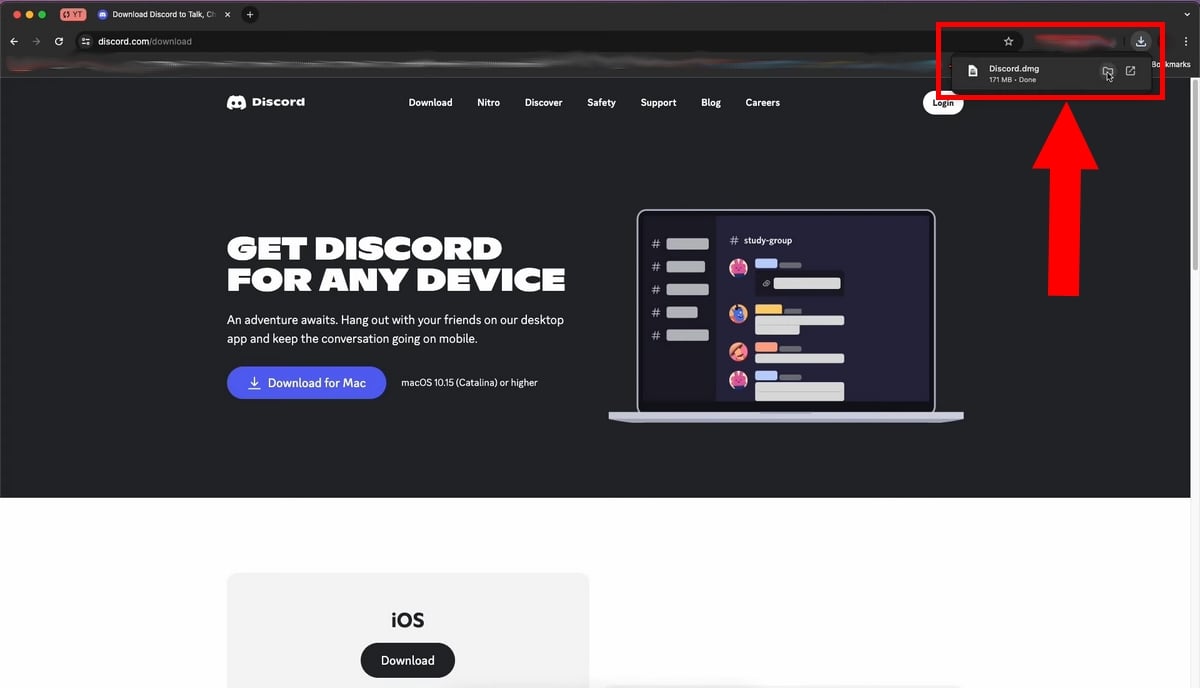
- Then, in the download history, double-click the file. Discord.dmg to run the program.
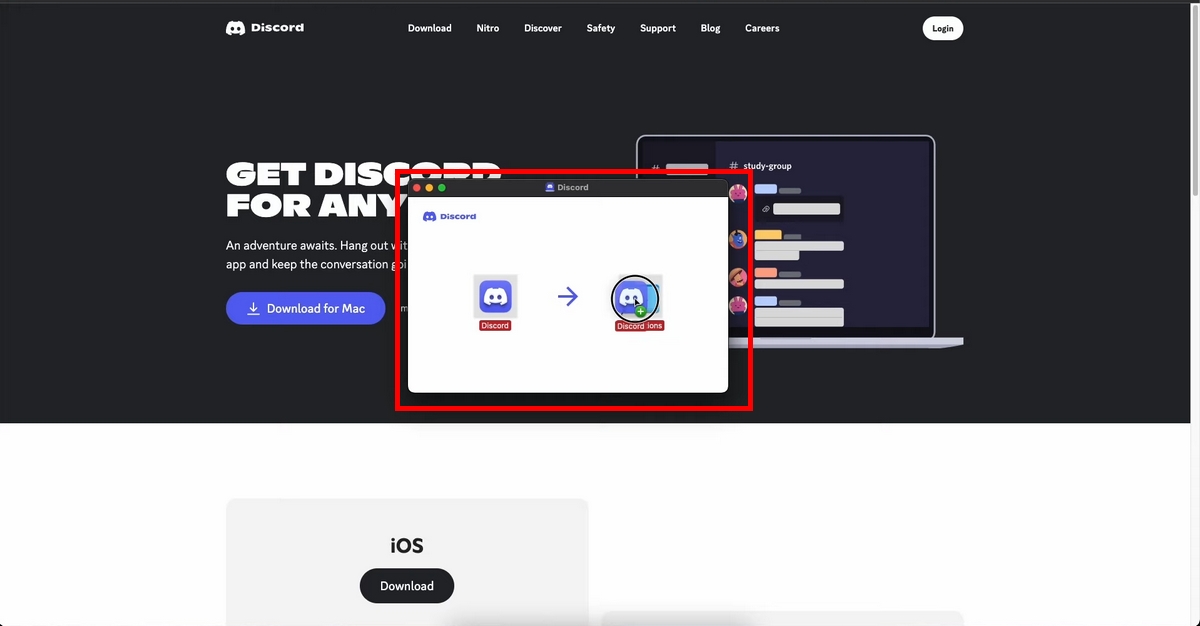
- In the pop-up window that appears, you just need to slide the logo of Discord in the file Applications, as shown in the following image:
- That's it! You can now launch Discord and use the application on your macOS!
- You don't know how log in to your Discord account ? Click on this article!
3. How to download Discord on Linux?
There are several techniques for downloading Discord on linux, but in this tutorial, we will choose to download the .deb file.
We choose this option because if you are on a distribution such as Ubuntu Where Mint, the format .deb is undoubtedly the easiest option.
Here's how Download Discord on Linux :
- Open your preferred browser, then go to the Discord download page,
- To download the application, you must click on the "Download for Linux“,
- Please note that by clicking on this option, you will have two formats available, including:
- .deb This is a package for Debian-based distributions.
- .tar.gz which is a generic compressed archive.
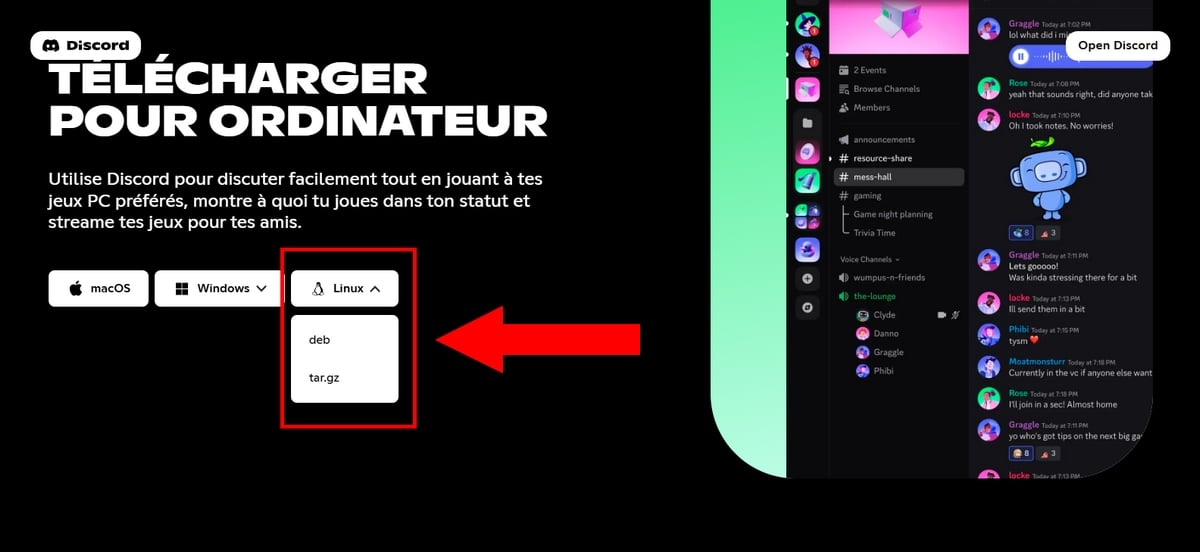
- By clicking on “.debThis file will be saved by default in your directory. Download.
- Now, open your Terminal. You can use the shortcut Ctrl+Alt+T
- Then navigate to the directory of downloadTo navigate the file system easily, use the command:
- cd ~/Downloads
- Once you have located the file, use the manager per package Debian using the command:
- sudo dpkg -i discord-*.deb
- Next, the system will likely ask you for your administrator password to install the file correctly.
- Generally, the installation is successful. However, it may fail, reporting that there are missing dependencies, i.e., external software components necessary.
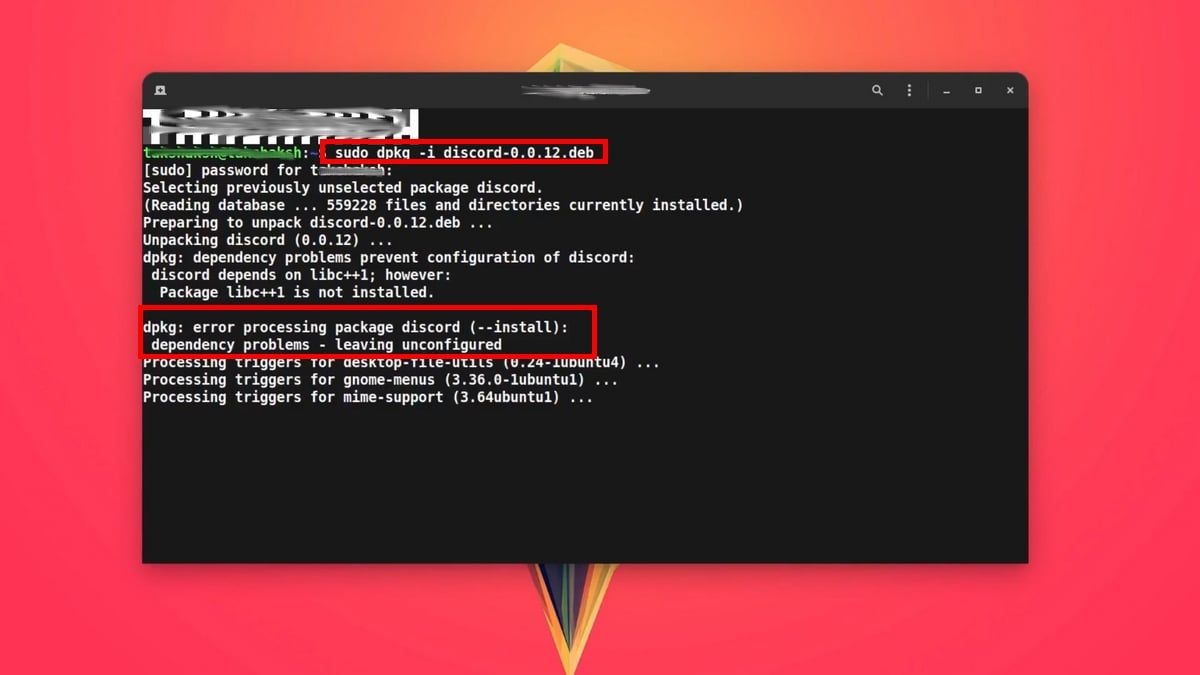
In that case, don't panic!
- To correct and clean up the incomplete installation, use the following command:
- sudo apt -f install

- Congratulations! TheApplication Discord is installed on your device.
- To verify that this is the case, exit Terminal, then search for Discord in your applications menu.
- Just launch it and log in.

4. How to download Discord on mobile devices?
To use the mobile app Discord, go to the official app store on your phone.
a) On Android:
- See you in the Play store,
- Search for the application Discord using the search bar at the top of the screen,
- Click on the "Install" button. (Install) to start the download,
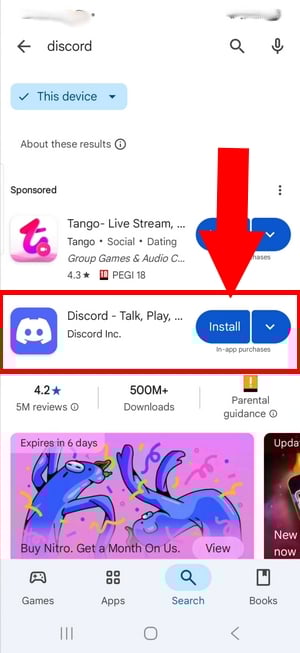
- Once the installation is complete, click Open to start Discord on your Android device.
b) On iPhone:
- See you in theAppStore,
- If you do not see Discord directly in the menu, use the search function at the bottom right of the screen.
- Click on the little blue cloud to set up the application,
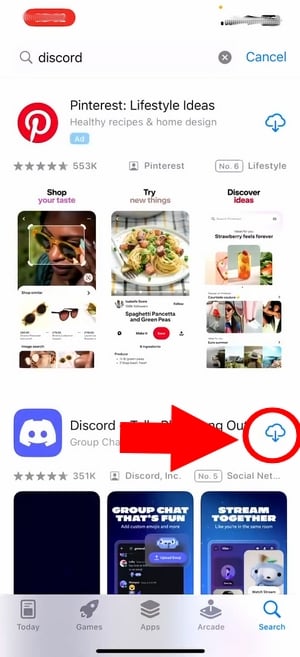
- Once the download is complete, click the Open button to launch the Discord app on your iPhone and send messages to your friends or others.
FAQs
Why won't Discord install on my PC?
The reasons why Discord There are many reasons why you might not want to install something on your PC, but the most common ones are as follows:
- A lack of storage space,
- Protection antivirus activated,
- Processes of Discord always active,
- An outdated version of the operating system,
- Connection problems, etc.
Error installing Discord on Windows/macOS: What to do?
You have followed all the necessary steps to install Discord on your device but you get an error message?
Don't worry! Generally speaking, this can be explained by Discord process still active. To resolve this issue, find out how to do so on the following pages:
In addition, if you received an error message during theDiscord installation On another device, make sure you have enough space, a good internet connection, and that your antivirus software is disabled.
How do I install Discord on my tablet?
- On iOS : go to theAppStore then click on the blue cloud to install it.
- On android :go to the Play store and click the Install button.
Can Discord be downloaded for free?
Yes. You can download Discord free of charge, regardless of your device.
Why install Discord?
Install the application Discord can be beneficial for several reasons:
- Better performance,
- Receipt of notifications,
- Automatic updates,
- More comprehensive features for an optimal experience.
However, the version website is also an alternative if you have installation restrictions or want to minimize system resources.
Once you've installed Discord, you'll be able to take full advantage of all its features. advanced options. For example, did you know that it is possible to schedule the sending of your messages ? Find out how in this video:
Explanatory video in French by Alucare, ideal complement to the page. View video (you can use YouTube's automatic translation)

Is Discord free or paid?
The app is free, but it offers Discord Nitro for premium features and more fun. If you want to take advantage of them, check out our guide on how to Get Nitro for free on Discord.
How to activate Discord on a PC?
To do this, you must first Download and install the application from the Microsoft Store or the official website, and then log in to your account or create a new one!
Is Discord available on Linux?
YesThe Discord desktop application is also available on Linux.
Now you know how to install the Discord application, no matter what devices you use! Do you have any questions? Be sure to ask us in the comments section!









 English