To Change version to Minecraft On a PC, open the launcher, go to the tab Configurations, create a new installation and select the desired version.
Do you want to try something new or revisit a previous version Out of nostalgia? Here are the steps to do it in just a few minutes, on both a PC and a mobile device.
Steps to upgrade your PC to version Minecraft
On Minecraft Java Edition, everything has been happening since launcher of Mojang. You create a new configuration, select the version you want from a drop-down menu, and you're all set.
- Launch the launcher Minecraft from your PC.
- Go to the tab "Configurations at the top of the menu.

- Click on «New Configuration» to create a dedicated profile.

- Choose the preferred version in the drop-down menu : recent version, older version, or even a snapshot (trial version published by Mojang (before the official release).
- Give your configuration a clear name, for example «Version 1.17», then click on "Create.
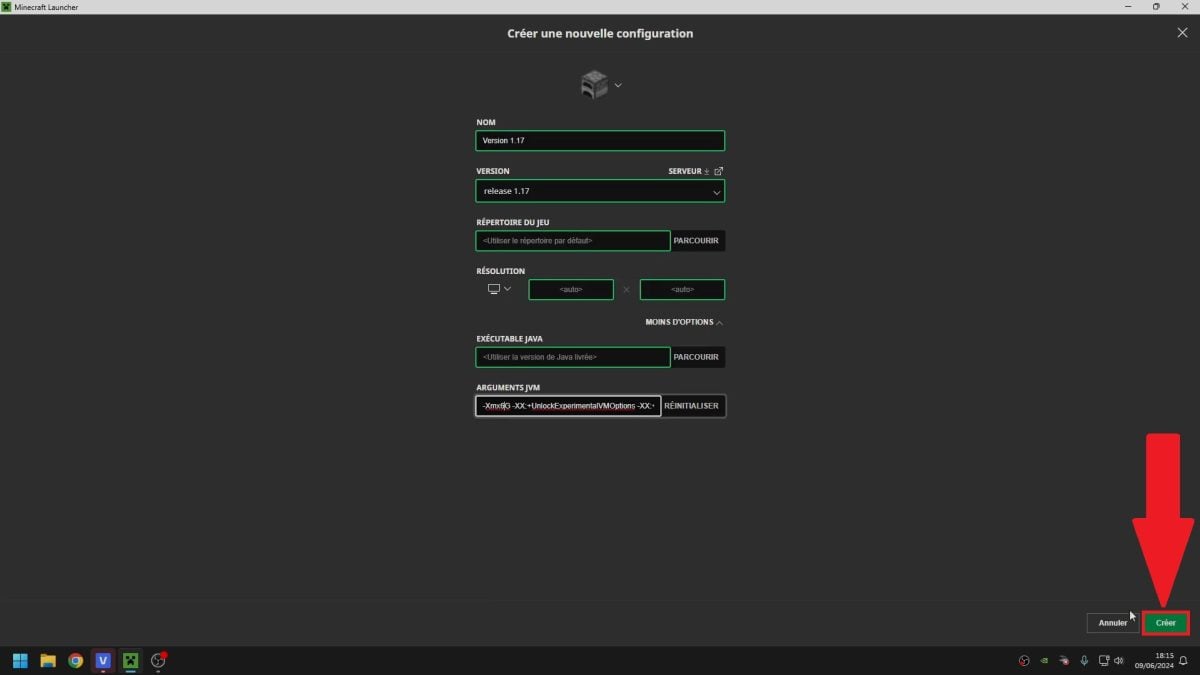
- Find the settings in the tab "Configurations, select it from the drop-down menu at the bottom of the screen, then click on «Play».

The game launches directly in the selected version. The default version The launcher always corresponds to the most recent stable version. If you want to play on a server Minecraft, be sure to check which version it requires before logging in.
What precautions should I take before changing versions?
Before changing the version of Minecraft, save your worlds. Open a world created in a recent version using a older version can corrupt your backup files.
Here are the precautions to follow:
- Make a copy of your worlds before any version update.
- Avoid the snapshots For everyday use: they are unstable and may contain bugs.
- Adjust your configuration to match the version required by the Minecraft servers that you want to connect to; otherwise, the connection will fail.
How do I change the Bedrock Minecraft version on my phone?
On mobile devices, the ability to switch versions is much more limited than on a PC. The app updates itself automatically toward the latest version as soon as a new update is released, with no built-in option to stay on a previous version.
On Android
the Google Play Store offers only one version—always the most recent one. To install a previous version, you have to go through a third-party APK file and install it manually, outside the official app store.
This method works technically, but it bypasses the official process, so risks and hazards.
On iOS
On iPhone and iPad, Apple does not allow you to restore a previous version via the’App Store.
Undoing an action is still theoretically possible, but only through advanced technical methods intended for experienced users.
A word of advice before you get started
These unofficial solutions involve third parties and do not guarantee the security of your device. You risk’damage your game files. Always make a backing up your data before testing anything.
If you want to further customize your experience, check out our guide on how to change your skin Minecraft.









 English
v1.2.27