Do you want to retrieve images from a web page But you don't know how to do it? There are three simple methods:
- save the entire page,
- go through the’code inspector from the browser,
- or install a dedicated extension. The first two do not require no installation.
To extract images in bulk, tools for web scraping ...also do a great job.
1. Simple, manual methods
Method 1: Recording the web page
The best way to simple is to save the entire web page. Your computer then creates a .html file and a folder containing all the page elements, including images.
Here's how to do it:
- Go to the webpage from which you want to extract the images.
- Do Ctrl + S (Windows) or Cmd + S (Mac).
- A window opens to save the page.
- Check that the record type is correct «Complete Web Page».
- Click on "Save" button.

Advantages : it is fast and requires no installation, making it ideal for a occasional need.
Disadvantages : The file contains a lot of unnecessary files (style sheets, scripts) and none automatic sorting. This method does not always retrieve images that are dynamically loaded in JavaScript, and it is not suitable for large quantities.
Method 2: The Code Inspector (to target a specific image)
L'code inspector Built into your browser, this feature lets you extract a specific image, even when the standard right-click doesn't work. It's especially useful for images loaded in CSS background or through a script—features that are otherwise inaccessible. You don't need to be a developer; just a basic familiarity with the interface is enough.
Here's how it works:
- Do Right-click on the image to extract..
- Click on "Inspect" at the very bottom.

- A window opens with the page code.
- Find the line containing the beacon <img> with the attribute srcsuch as :
<img src="https://exemple.com/image.jpg" alt="description">

- Do Right-click on the tag <img>, then select «Open in a new tab».
- Once the image is the only item in the tab, right-click on it, then «Save Image As...».
Advantages : a precise method that retrieves even images that cannot be accessed using the standard right-click.
Disadvantages : The manipulation is more technical and not very convenient for downloading a large number of images at once.
2. Image extraction tools and software
When manual methods are no longer sufficient, specialized tools take over to retrieve multiple images at the same time. Here are the two options, depending on your needs.
Browser extensions
An extension is a mini-program which is added to your browser (Chrome, Firefox). It's quick to install.
Some of the most useful extensions include:
- Image Downloader to Chrome
- Image-Grabber to Firefox
The procedure is the same regardless of the browser or browser extension:
- Install the extension from your browser's store.

- Open the web page from which you want to retrieve the images.
- Click on the’extension icon : A small window opens.
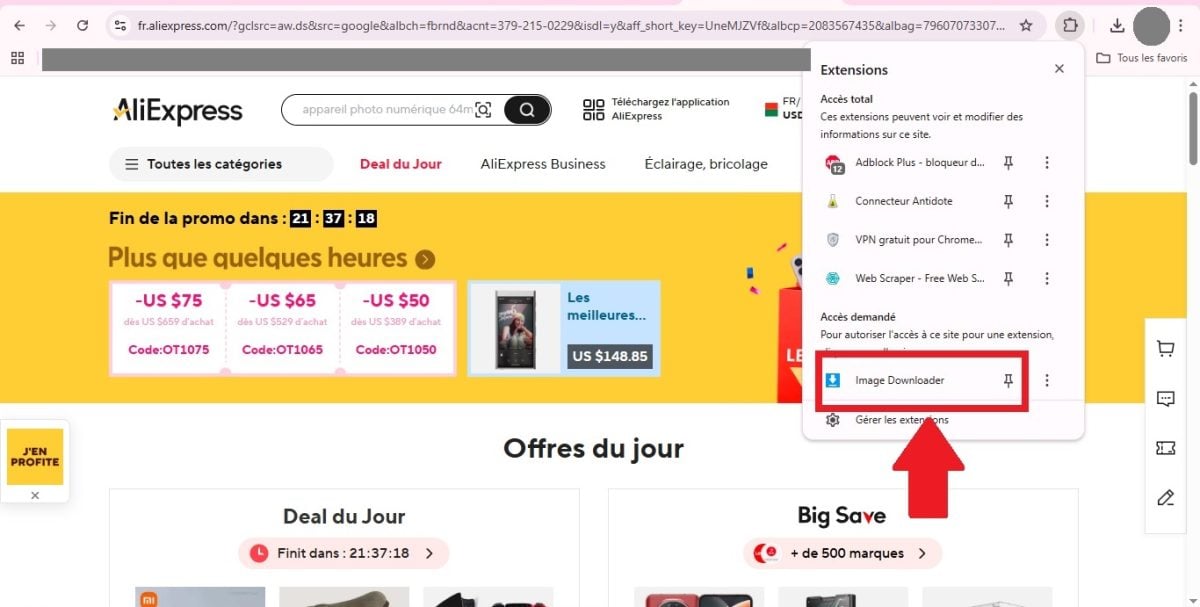
- Select the images that you want to recover.
- Click the button to download (Download).

Advantages : it's Fast, visual, and free. No code to write.
Limits : Extensions get stuck on pages packed with scripts or that block the download.
Dedicated web scraping software
To extract a a ton of images, software for web scraping are the right solution. They are versatile data collection platforms, and image extraction is just one of their many uses.
Solutions like Bright Data Where Octoparse allow you to:
- Extract all images of a single page or an entire website, in a single step.
- Filter by keyword or by image size.
- Retrieve the metadata associated elements (title, alt tag, source URL).
These tools also manage the Dynamic JavaScript websites, where a simple extension falls short.
Advantages : solutions powerful, automatable and highly flexible.
Limits : It takes a bit more technical know-how to get started, and the most powerful features are often paying.
Is it legal to extract images from a web page?
Technically, it's simple. But legally, it's not always allowed. The majority of images on the web are protected by copyright, and many websites also prohibit scraping on their terms and conditions of use (TCU).
Need more information on the legal aspects? Check out our article on the legality of web scraping explains everything to you in detail.









 English