Your hard drive is divided into multiple scoresEach of them can have problems.
Fortunately, even if your storage space is no longer present or is declared as unallocated, it is not not lost forever.
In this guide, we will help you to recover a partition on Windows through simple and effective tips.
How to recover unallocated partition on Windows?
Thanks to these methods, you will be able to resolve the partition or unallocated space issue on your hard drive in Windows. You will then be able to use the lost storage space again easily, free of charge, and without wasting a lot of time.
Update or reinstall drivers
When your drivers are outdated or corrupted, this can lead to unallocated hard disk space. This is because the use of these elements is essential to your storage devices and other components of your computer.
Here's what you need to do to resolve driver-related issues :
- Right-click on the Start button on your PC and select “Disk Management”.
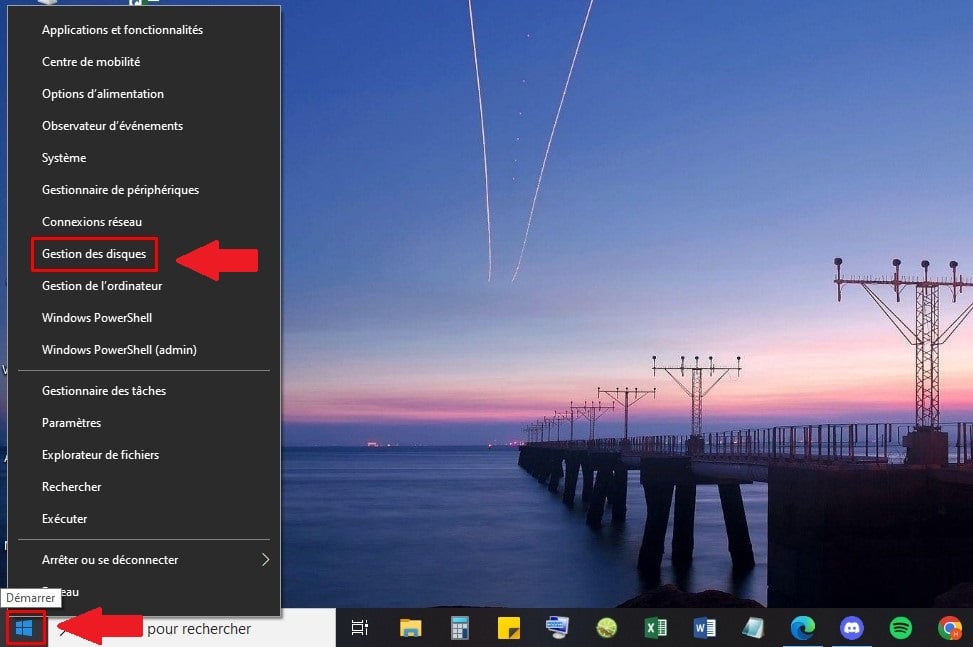
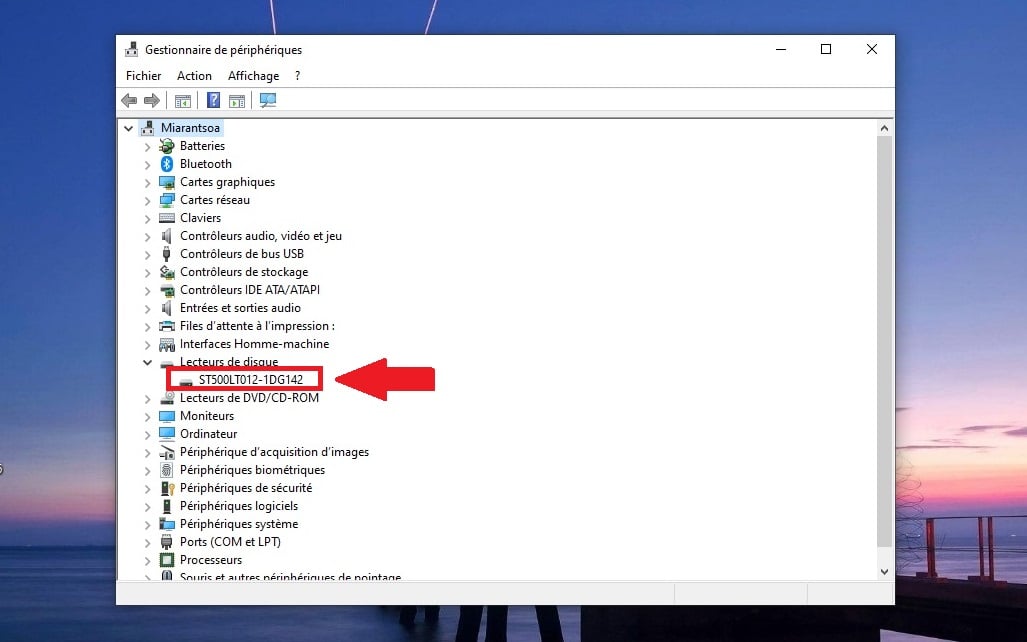
- Expand the section “Disk Management”, then right-click on your disk drive.
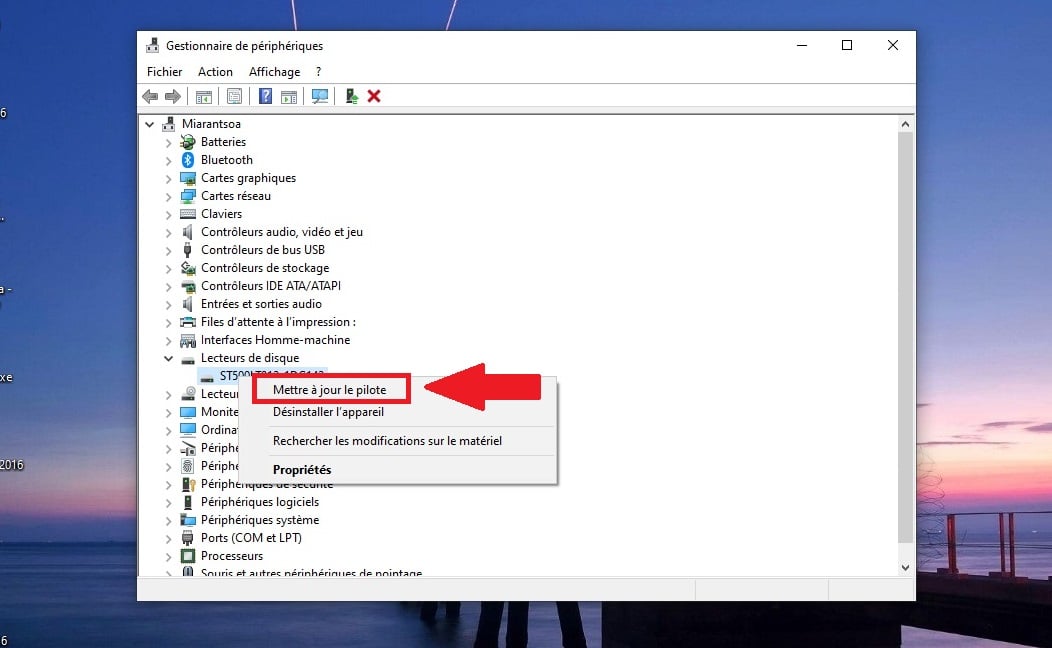
- Click on “Update the driver”.
- Select “Automatically search for drivers”.
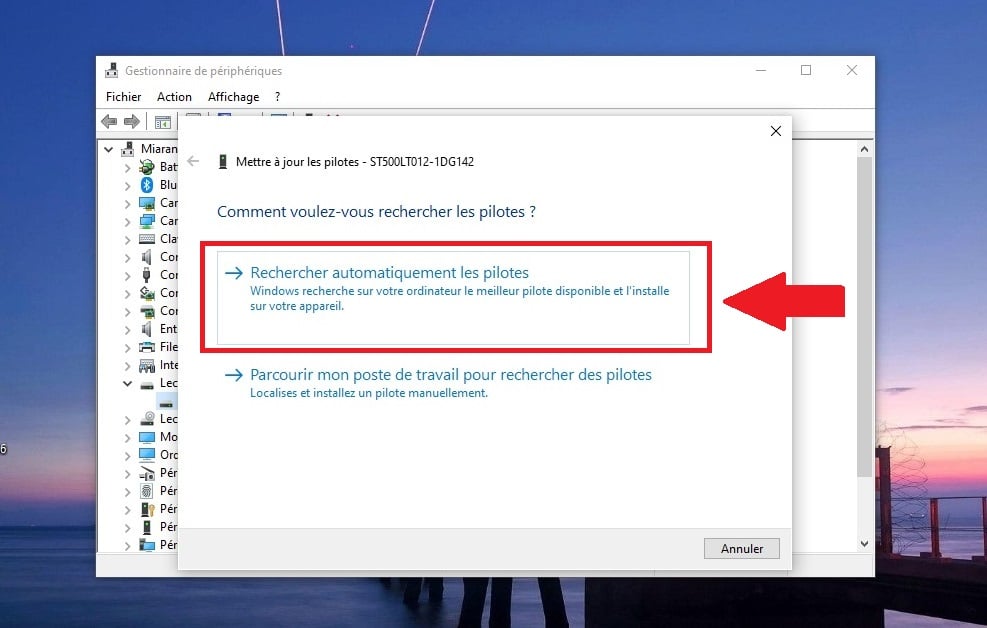
If the problem persists, close the window and uninstall the driverRestart your computer and you will see that the drivers will be reinstalled automatically.
Discover also How to fix a USB port that is not working on Windows à travers un autre article sur notre site.
Using the DiskPart command
DiskPart is a command-line tool ordered Free on Windows, this tool allows you to manage your computer's drives. With this tool, you can create a new partition and recover unallocated space.
It is quite simple to use. Here is how: steps to follow :
- Press the Start button on the keyboard and the R key simultaneously, then type in the field that appears. diskpart.
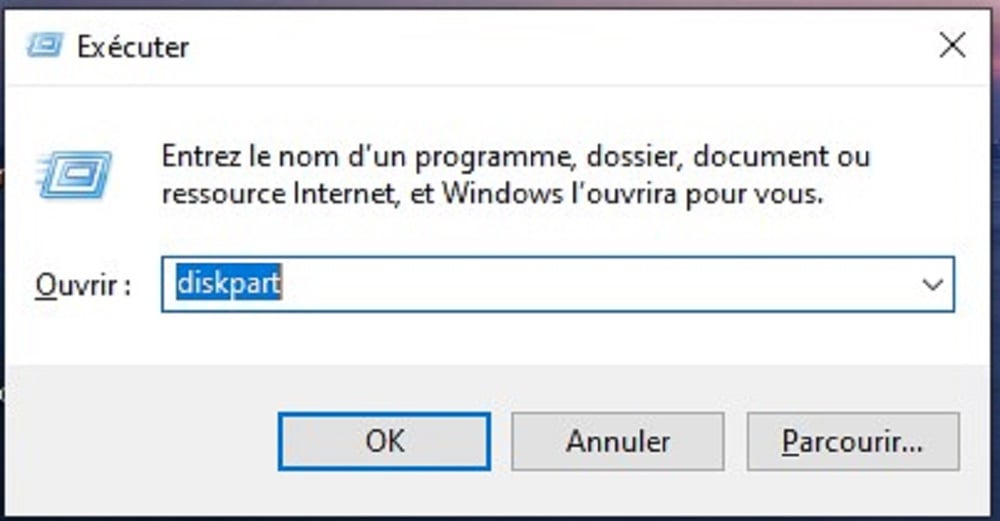
- You will see a window that appears.

- Start by listing the disks with the command list disk, then confirm with Enter.
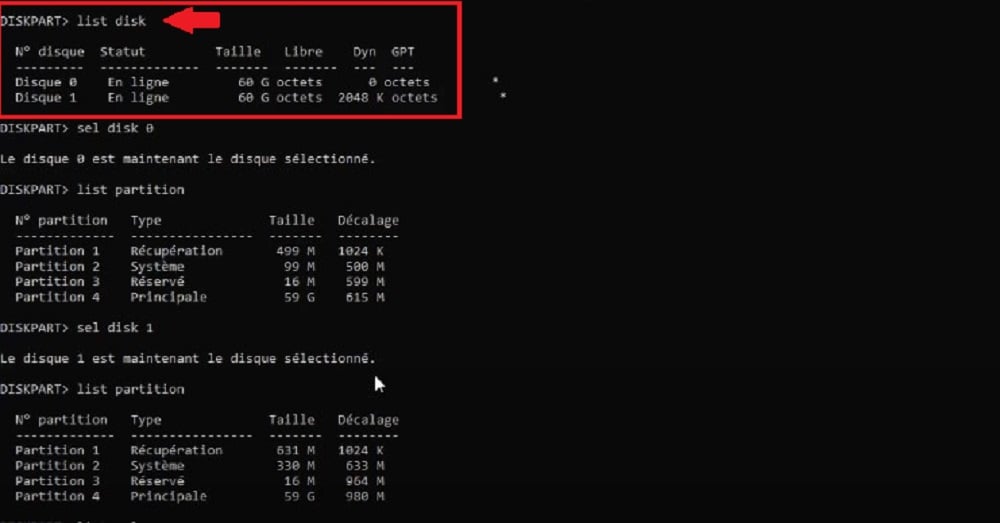
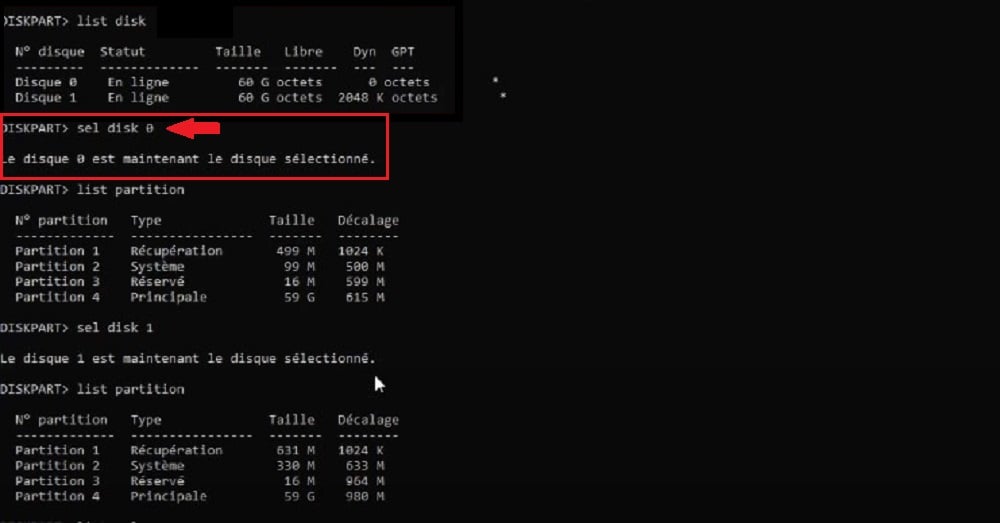
- Then, select a disk with the command salt disk X (replace X with the name or number of your unallocated external hard drive) and confirm with the key. Entrance. If you cannot find the drive letter assigned to you, try searching in Disk Management.
- Then type delete partition and press Enter. Verify that the deletion was successful with list partition.
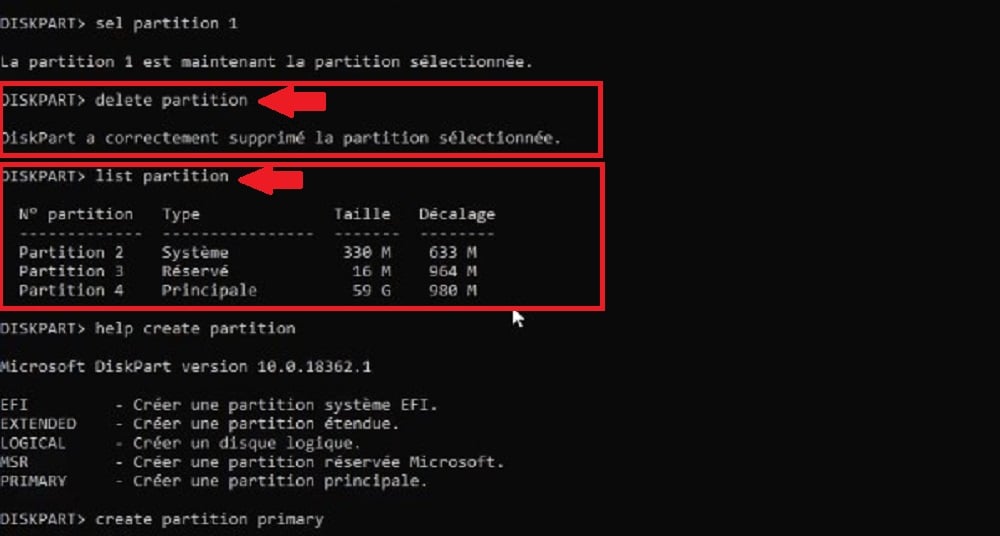
⚠️ WARNING: The use of delete partition permanently delete the partition and all the data it contained. Only use this command if you are certain that the space is already unallocated or if you are willing to lose all data in order to create a new partition.
If thespace is already unallocated, skip the deletion step and go straight to creation:
- Create a new partition using help create partition and choose from the options displayed. For example, you can use the command create partition primary (you can replace primary by the option that suits you).

- Then, format the disk on DiskPart using the command help format and choose from the options.
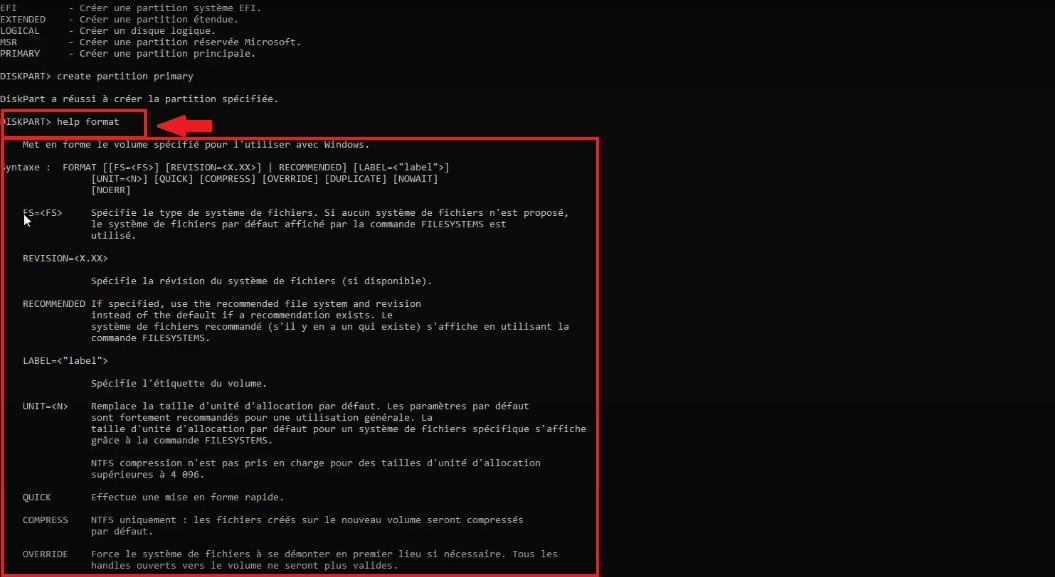
- For instance : format fs=ntfsRemember to check your list of partitions with list partition before doing so to avoid formatting another partition.
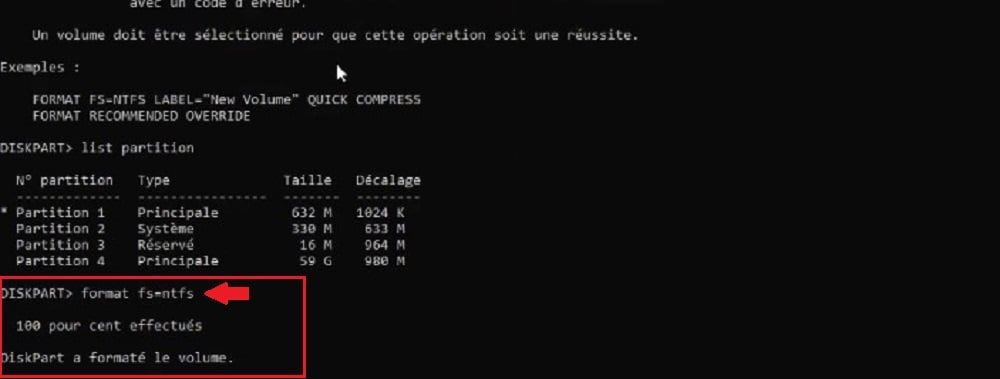
Please note that you must press Enter after typing each command.
Extend an existing partition
It is important to know that if you have any remaining partition allocated on your hard drive, you can use this space to allocate it to an existing partition and get additional storage. Here are the steps to follow in this case:
- Right-click on the Start button on your computer and select Disk management to access the options for each hard drive in Windows.
- Right-click on the disk and select “Increase the volume”(If the feature is grayed out, you will not be able to use it).
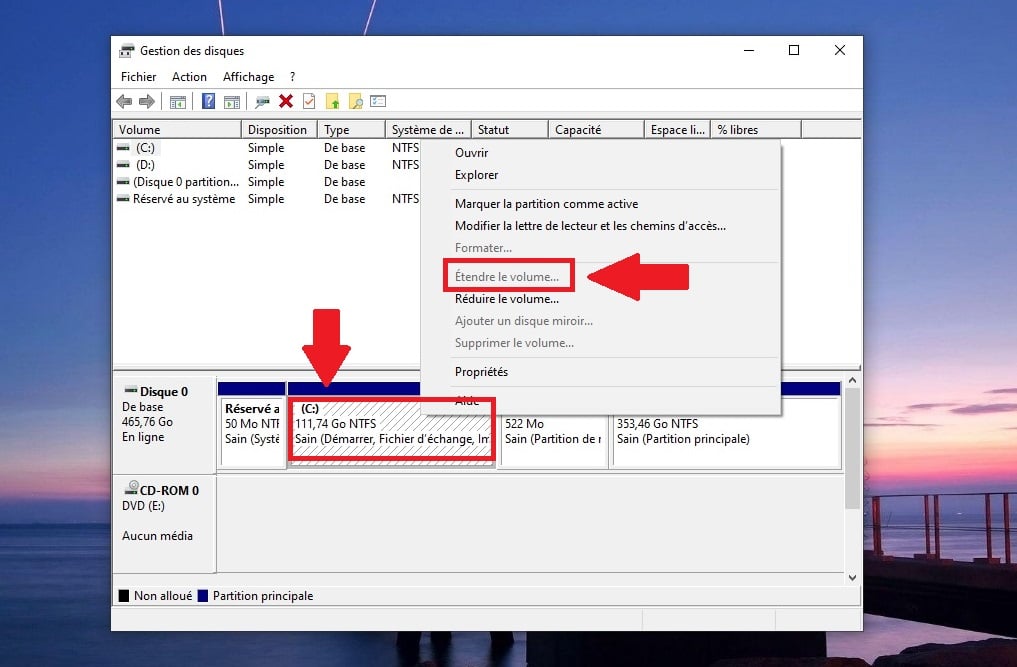
- Follow the instructions that are displayed.
Remark : The "Extend Volume" option will only be available (not grayed out) if the unallocated space is located immediately to the right and is contiguous (right next to) the partition you want to extend. If the space is separated by another partition, this native method will not work.
Create a new partition from unallocated space
Please note that you can also create a new partition from the unallocated disk space. You can then format it and use it to store your data. Here's how: the steps you need to take :
- Right-click on the Start button and select “Disk Management” to access your hard drive options.
- Right-click on the unallocated space and select “New split volume”.
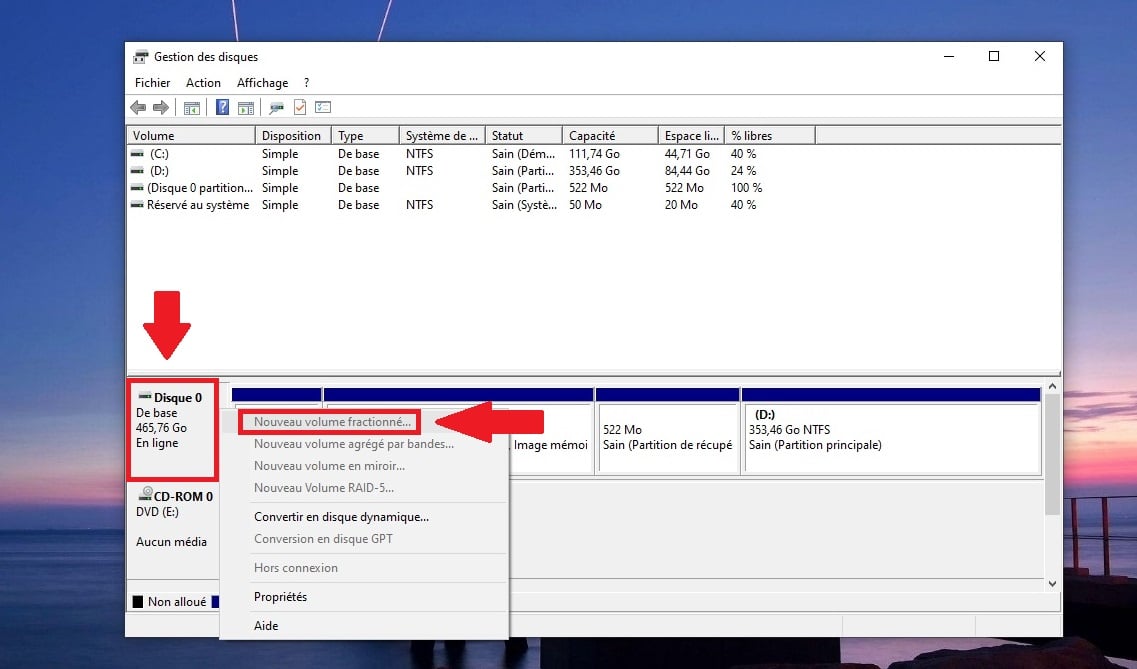
- Follow the instructions, then format the partitionTo do this, right-click on it and click "Format."
When should you seek professional help?
If traditional data recovery methods do not work and you absolutely need to recover your data, there are a final solution.
So, if you lose partitions on your hard drive, you can call on a recovery service professional data backup. It comes at a cost, but if it allows you to retrieve your various work files from your computer, it may be the best option.
Good news for you:
- Stellar Data Recovery offers you repair your computer. Indeed, when data recovery is too complex, data recovery professionals can take over.
- Moreover, the company guarantees a specialized expertise, with qualified technicians capable of recovering data even in extreme situations.
- This includes, in particular, damaged discs by water or physically damaged smartphones.
- The company offers a transparent service with a guaranteed fixed price, a free diagnosis and payment based on results.
- All you have to do issend your hard drive or your storage device and wait for the result.
You don't have no chance of being disappointed.
How to recover data from an unallocated hard drive?
You can also recover data that you no longer have access to on the unallocated disk with a few tricks.
Using backup on Windows
As we mentioned earlier, an unallocated partition can be recovered and reused. And there are several solutions to recover your data on Windows.
The first is to perform a restore from a backup. Indeed, it is an effective way to recover lost data from your unallocated partition.
- It should be noted, however, that this approach will only work if you have back up your important data beforehand.
- Please also note that the backup restoration process may vary. depending on the operating system.
- In this article, we focus solely on Windows.
So.., follow the guide :
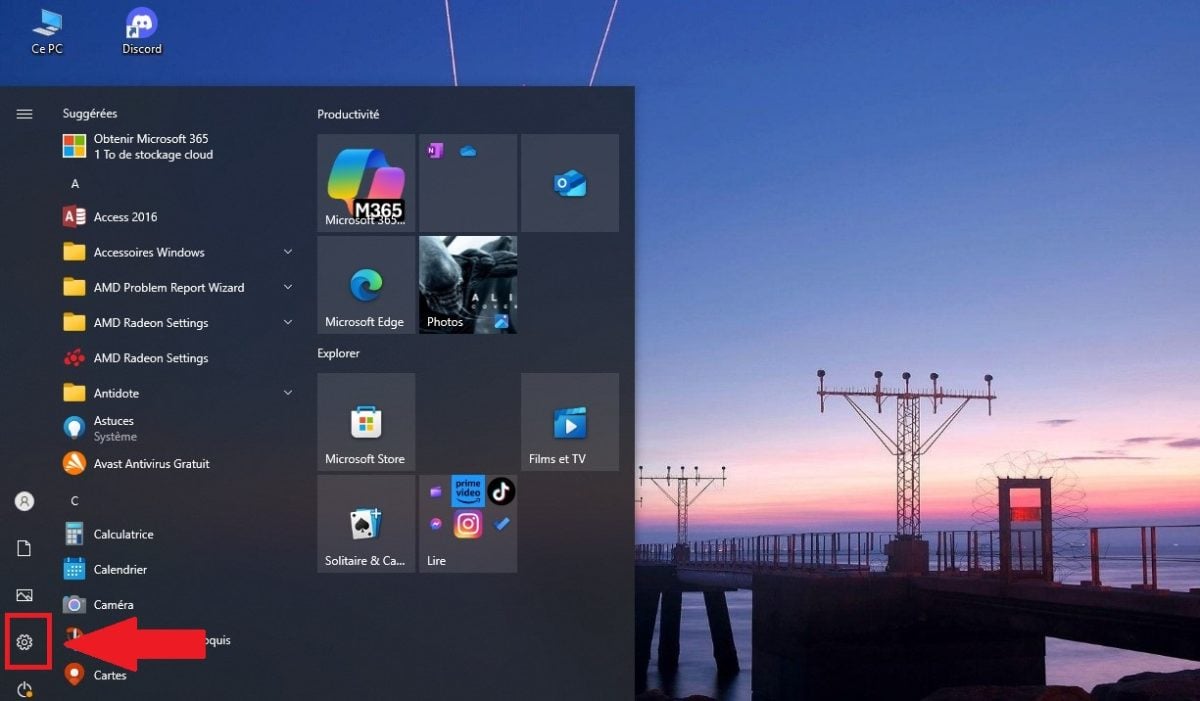
- Access your settings on Windows.
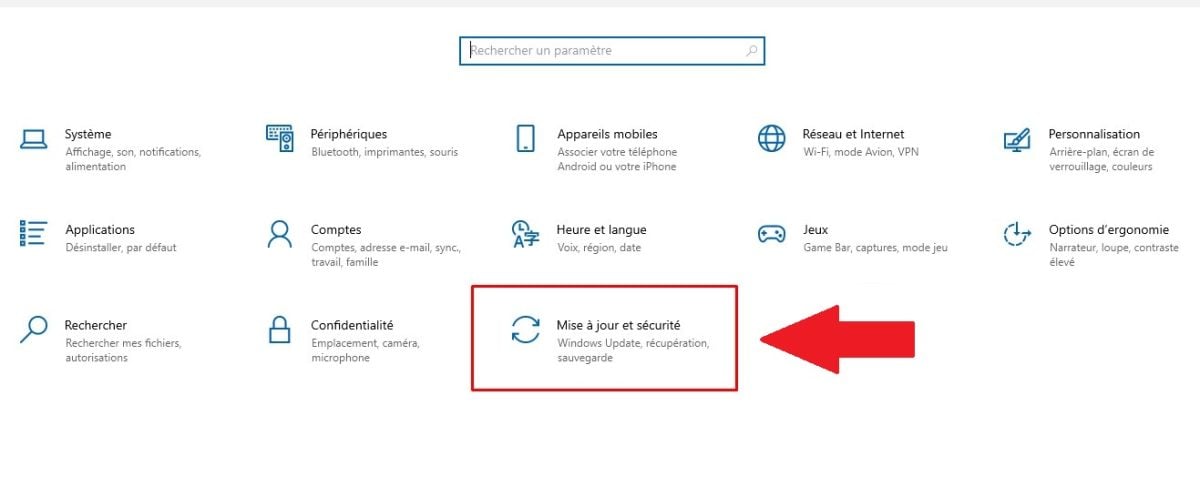
- Click on the option “Update and security”.
- Select “File backup”.
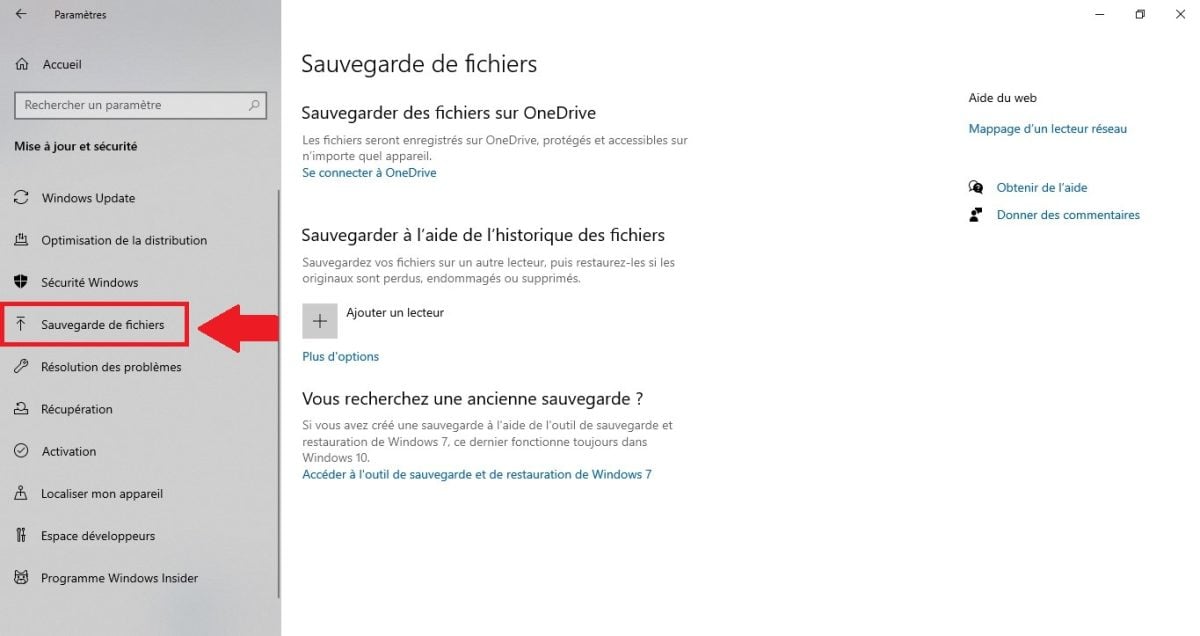
- Click on “More options”.

- Then select the option Restore from a current backup, located at the bottom.
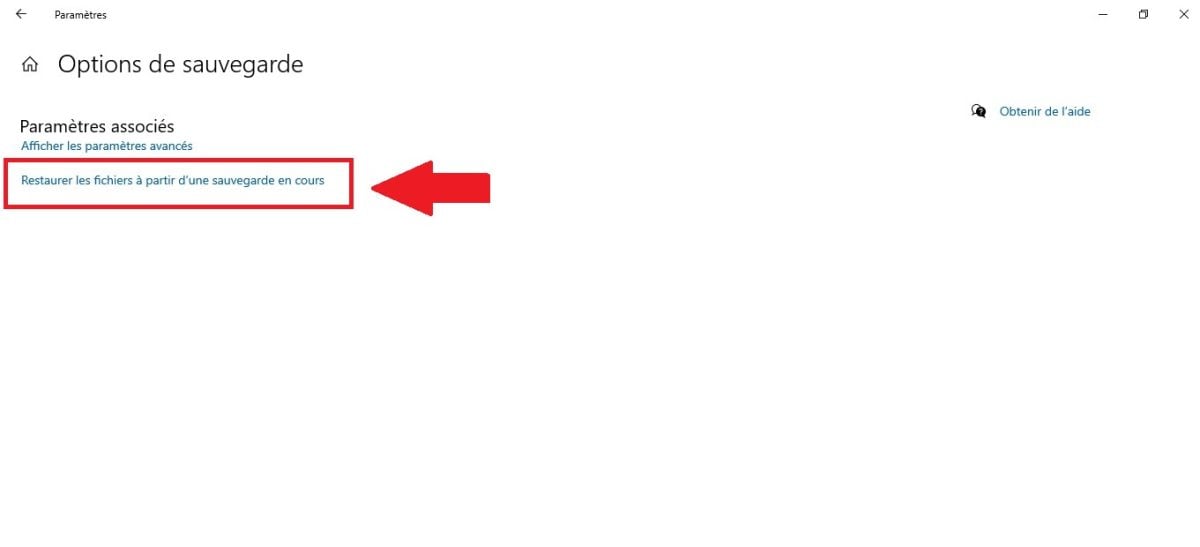
The system will display all the folders you have previously saved using the feature. File History Windows. All you have to do is double-click on the folder Search for and preview the files you want to recover.
Select recoverable files and click the green button at the bottom of the screen to restore them. Windows will automatically restore the backup file to its previous location.
Once you have done this, you should normally be able to recover your data. However, if this is not the case, you will need to use a data recovery software. We explain this in the rest of our article.
Use third-party software
If you haven't backed up your data beforehand, you will probably need another way to recover the files on your storage space. Here, we will offer you a ldata recovery software.
The software in question is Stellar Data Recovery Pro :
- For those who are unfamiliar with it, this software is designed to retrieve files lost or deleted from any computer or storage device running Windows.
- It works, no matter how it was lost : deleted, system crash, malware, etc.
And the least we can say is that the software is effective. Indeed, it offers advanced features such as:
- Preview of recoverable files before their restoration.
- It also allows you to filter by type or extension during the recovery process.
- On Windows, the software allows RAID device management and virtual servers for professionals.
Visit how to use it :
- Download and install the software on your computer, then select file types to be recovered.
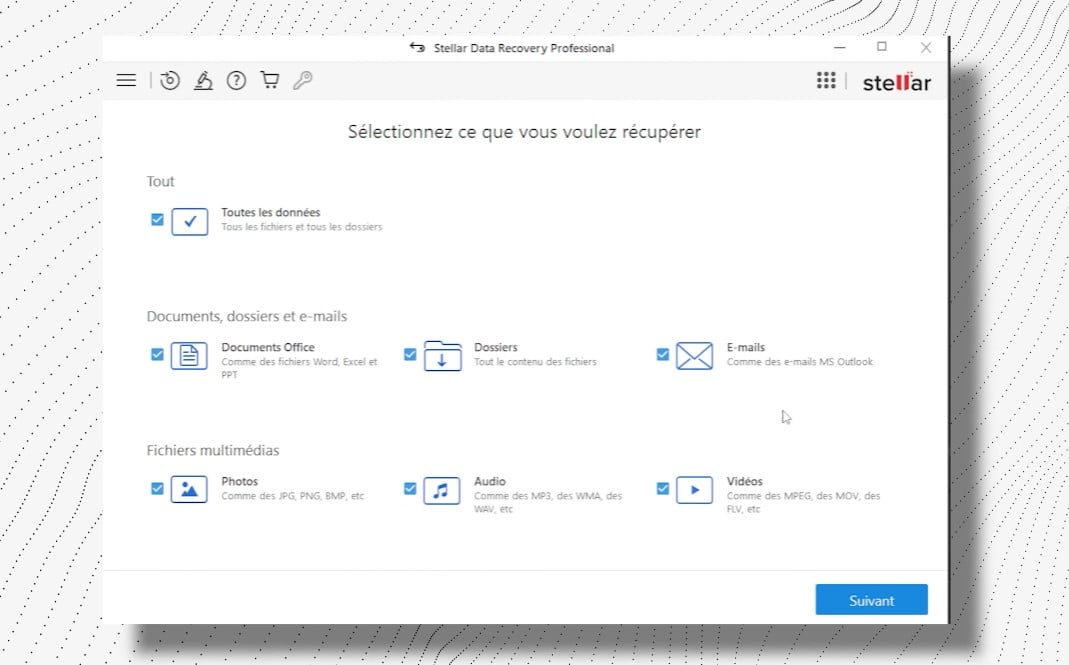
- Select the hard drive, USB drive, or memory card where the lost data is located.
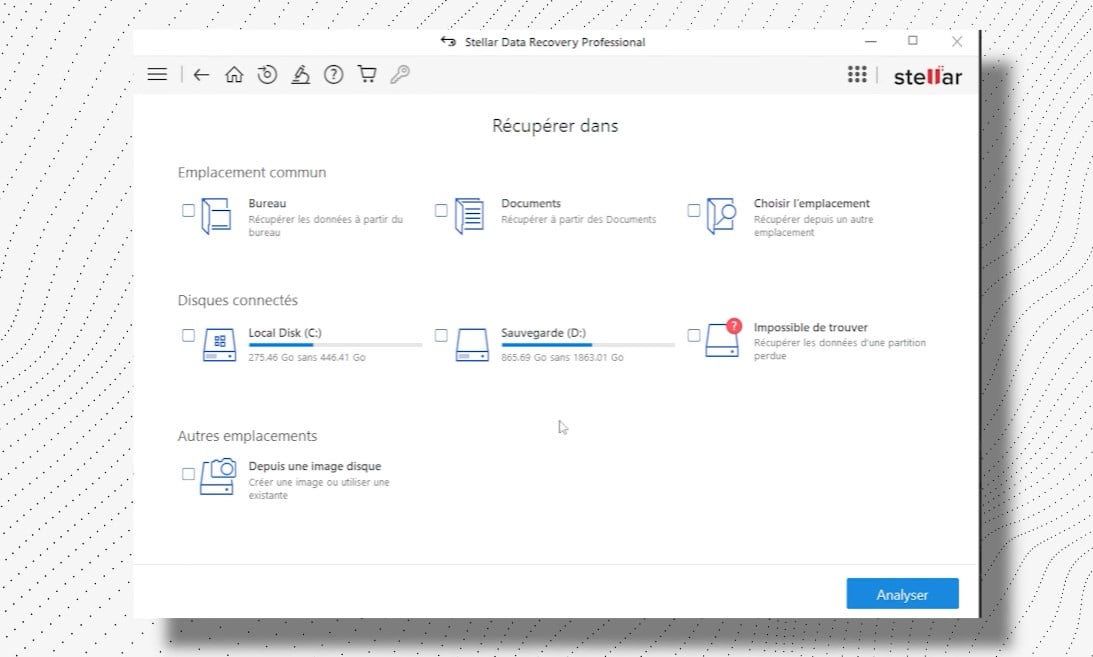
- Launch rapid or in-depth analysis to detect lost files. The deep scan will take longer, but will give better results.
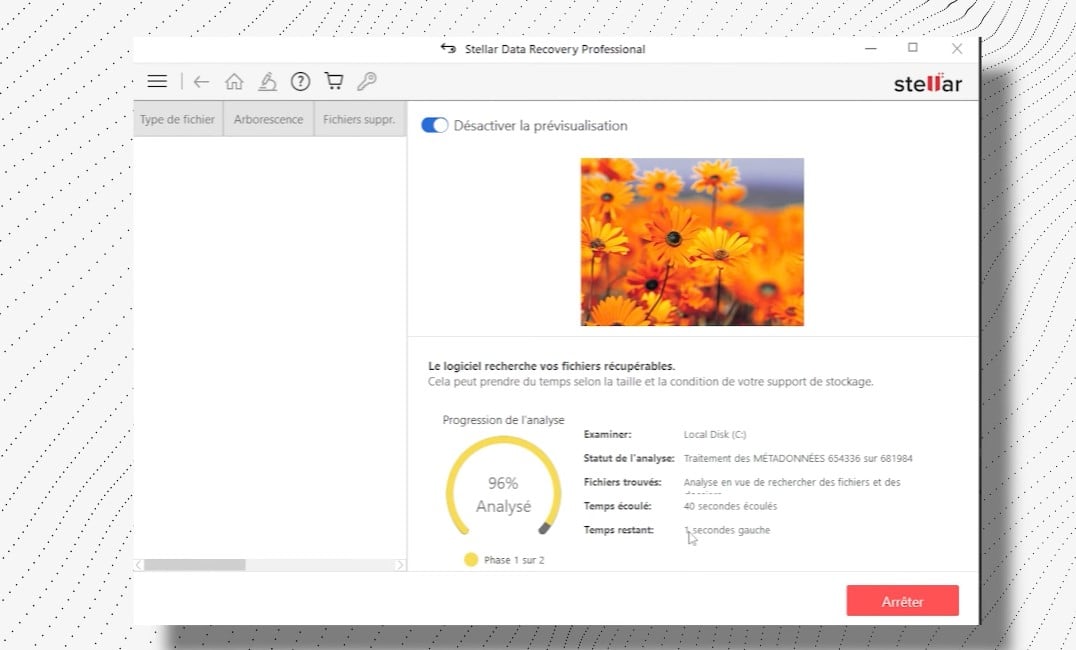
- Once the analysis is complete, you can preview and select the files to restoreAnd there you have it, all done.
You'll see, Stellar Data Recovery is known for its effectiveness in recovering deleted files. In addition to this, the software has a intuitive user interface and easy to use. Yes, even beginners can find their way around without any problems.
Here, we are mainly talking about Stellar Data Recovery, but of course, there are other options available. other software data recovery. These include:
- Recuva.
- DiskDrill.
- Windows File Recovery.
- PC Inspector File Recovery.
- UndeleteMyFilesPro.
However, Stellar Data Recovery stands out from the rest. The software is capable of recovering various types of files and support multiple file systems.
Although it has some limitations in its free version and a potentially high cost for the premium version, it nevertheless offers features that others do not have.
We therefore strongly recommend Stellar Data Recovery. And we especially recommend it to professionals or users who need a robust solution to recover their lost data.
FAQs
What is a partition on a hard drive?
Before explaining what a unallocated partition and how to find it, we will tell you about the score itself.
- So, it's very simple: a partition refers to each partition of your hard drive, created to organize it into several storage spaces.
- In other words, this means that your hard drive can be divided into several partitions. These are identified by a specific letter.
- A score allows you tohave two operating systems on the same hard drive, but also, and above all, to organize the data.
Unfortunately, sometimes these scores can become unallocatedThat is, your disk space is not associated with an existing partition.
It's a bit like an empty lot: it's available, but you can't build anything on it until you have it. not assigned.
What causes an unallocated partition?
Have you noticed a unallocated partition on your hard drive And you're wondering why it appeared? Unfortunately, it happens. In reality, there are many reasons why a partition may be unallocated. Here are the most common reasons:
| 🧐 Cause of an unallocated partition | 📑 Details |
|---|---|
| Deleting the partition | The most common reason for an unallocated hard drive is accidental deletion of the score.
When this happens, it can erase all data and therefore render your storage space unusable. unallocated. |
| Hard drive problem | It is also possible that the hard drives have a problemSometimes due to a malfunction, and other times simply due to wear and tear on your computer.
This can lead to data loss by displaying the partition as unallocated after restarting your computer. |
| Power failure | Suppose you meet a sudden power failureWell, you should know that this can also result in data loss.
And if that were the case, your computer might display the partition as unallocated after restarting the system. |
| Attacks or viruses on your hard drive | Please note that some virus attacks or of malware can also delete your data or partitions, thereby making your partitions unallocated. |
There you go, now you know everything there is to know about this topic. If you want to recover your data or recover an unallocated partition, you now have several possibilities at your disposal. It's up to you!
If you have any questions, please feel free to ask them in the comment areaOther articles similar to this one are available on our page. Guides & How-To's. Please feel free to consult them.








 English