During your Netflix experience on television, you may experience certain technical problems. If you've already tried everything to solve it, there's still one option: reset.
In this guide, see how to reset the Netflix application on your TV set. This action may be the solution to your potential future problems.
By the way, don't hesitate to check out how much does a Netflix subscription cost in our article compiling all the streaming platform's packages.
Steps to reset Netflix on TV
As a preamble, please note that all the steps we are about to describe are concern televisions in general (Smart TV, Chromecast, Apple TV, SFR box, etc.).
Here's your guide to next steps to solve your problems on the streaming platform.
Step 1: Disconnect Netflix from TV
First, you can simply disconnect Netflix from your device. A simply reconnect to the application could be all you need to enjoy Netflix on your TV again.
- Go to the Netflix app on your TV.
- Open the main menu (icon with three horizontal lines or similar symbol).
- Select "Account" or "Settings."
- Click "Sign out" or "Log out."
Step 2: Reset Netflix via TV settings
Second, see how to reset Netflix via parameters of your TV set. In fact, it's possible that the problem with your device stems from a excess cache stored on it.
- Open your TV's main menu (using the remote control).
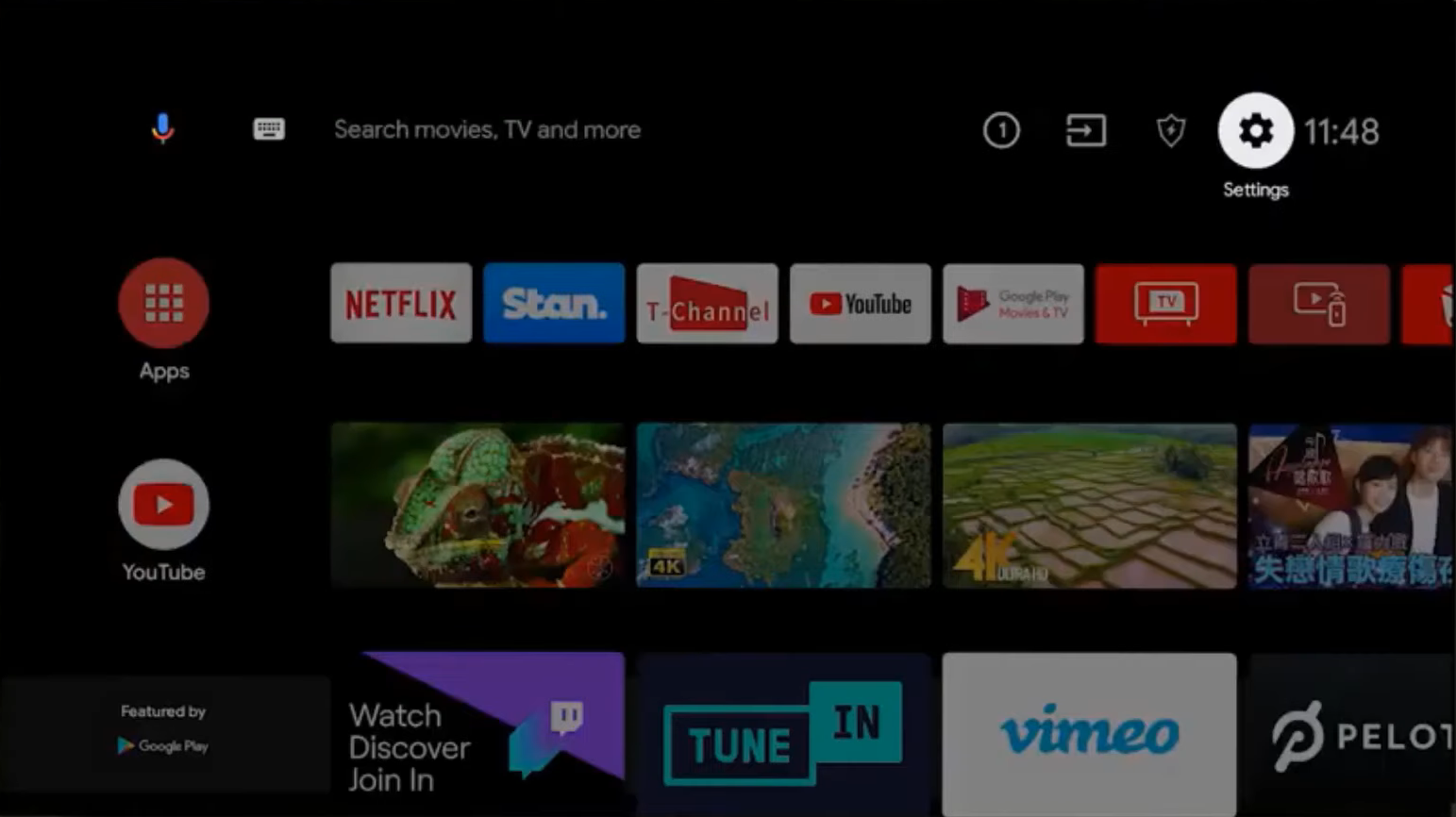
- Tap "Settings" or "Configuration."

- Search for "Applications" or "Application Management."
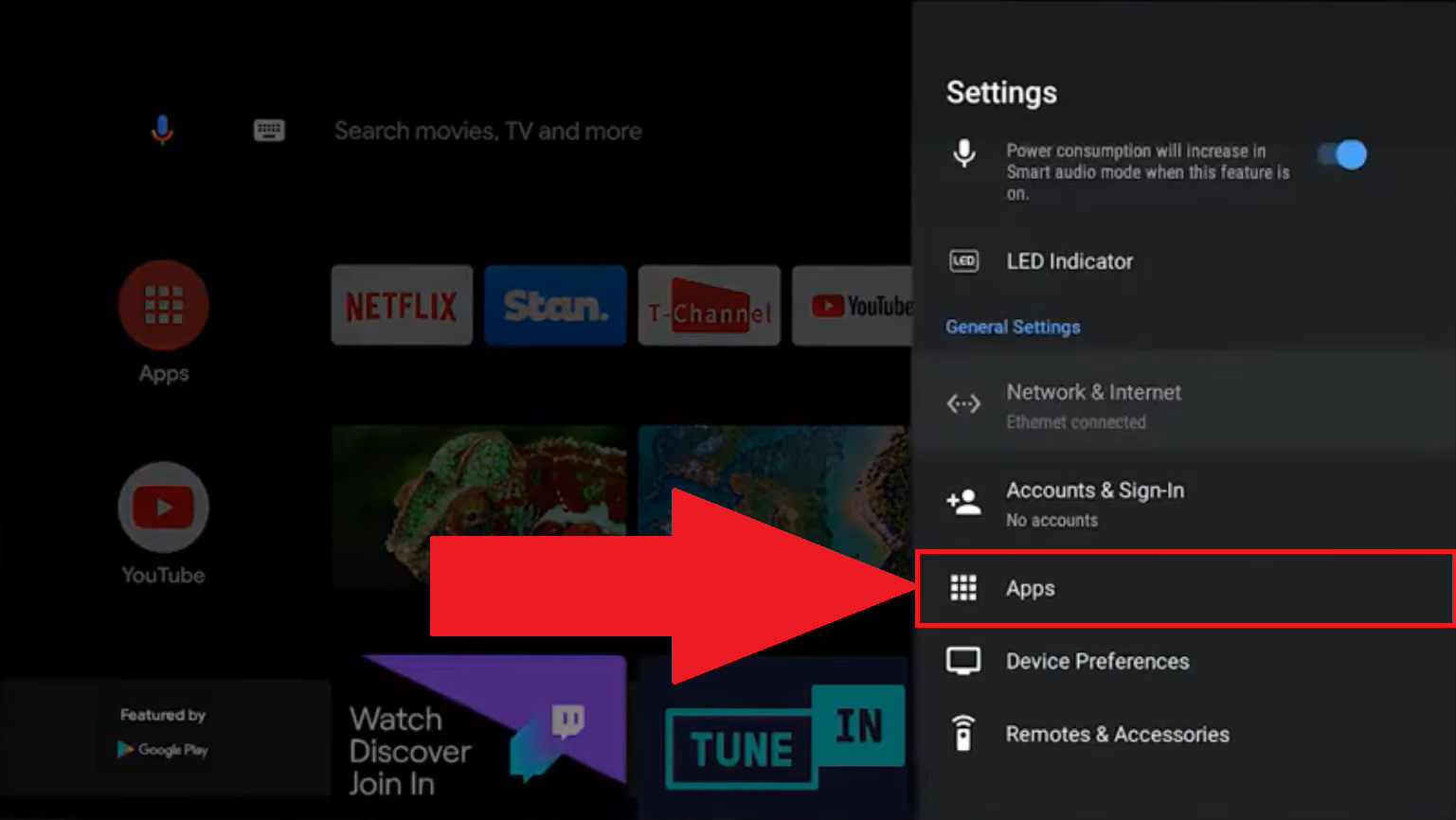
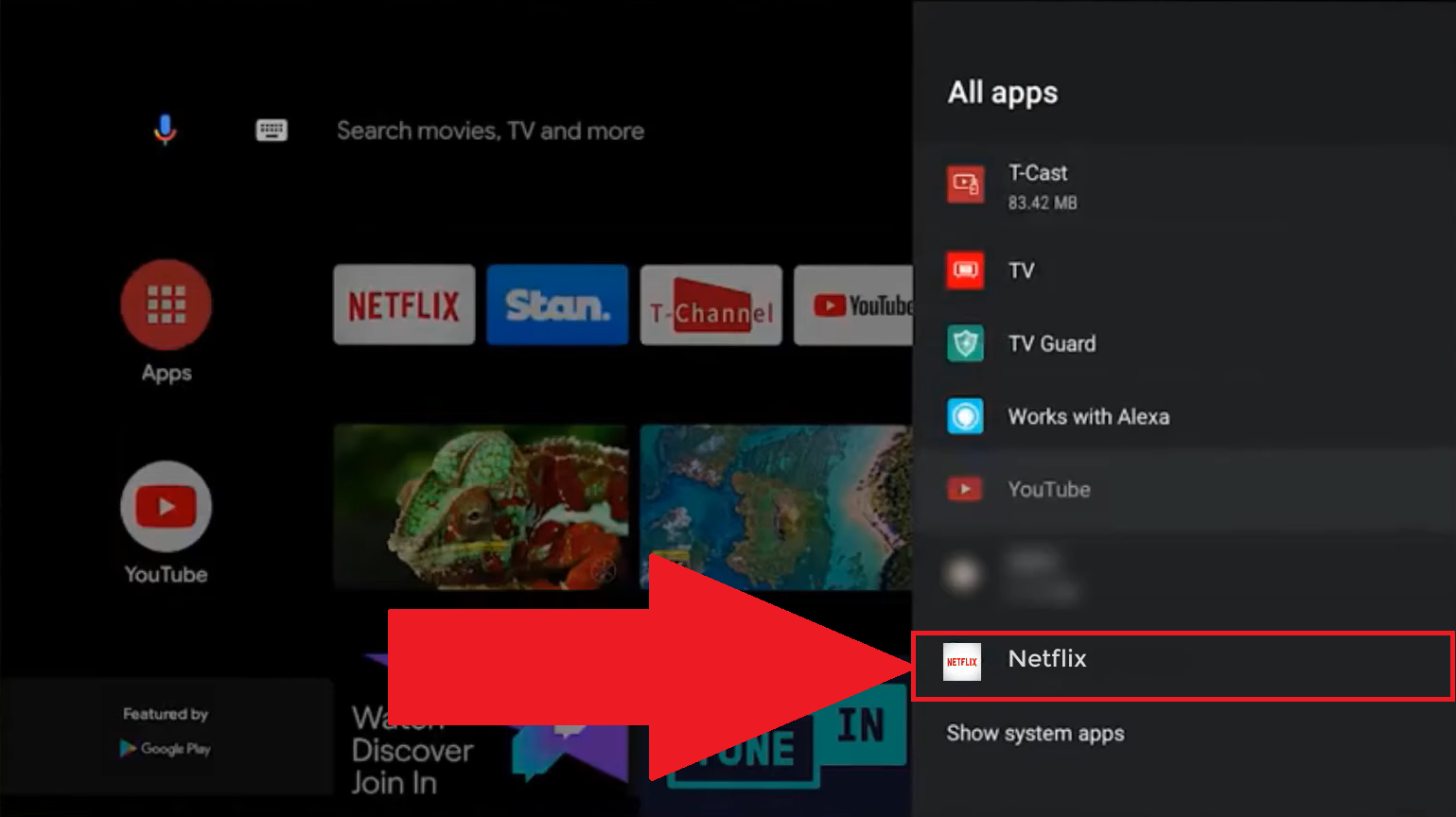
- Go to "View all apps."
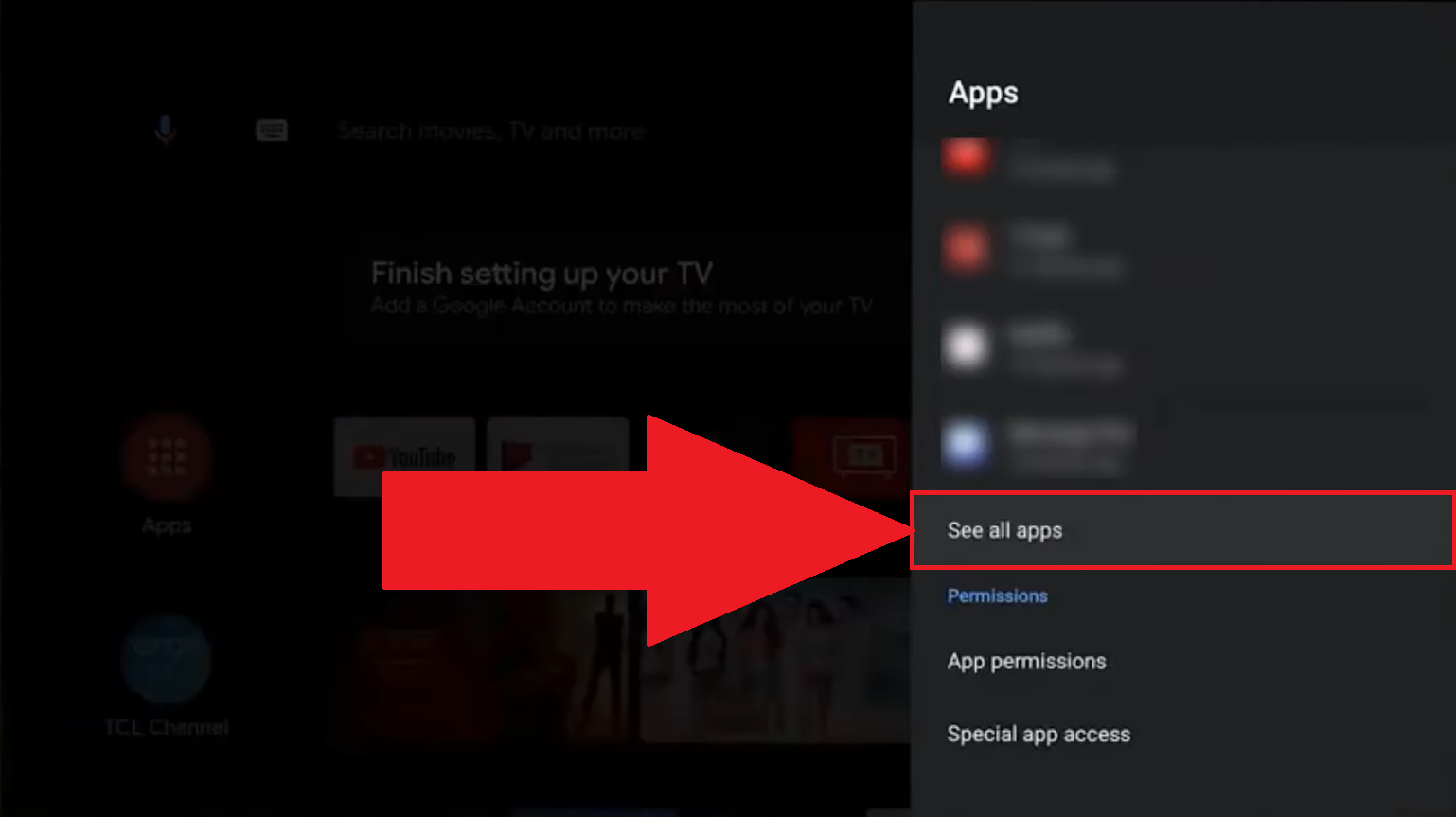
- Select Netflix from the list of applications.
- Tap “Clear data” or “Clear cache.”
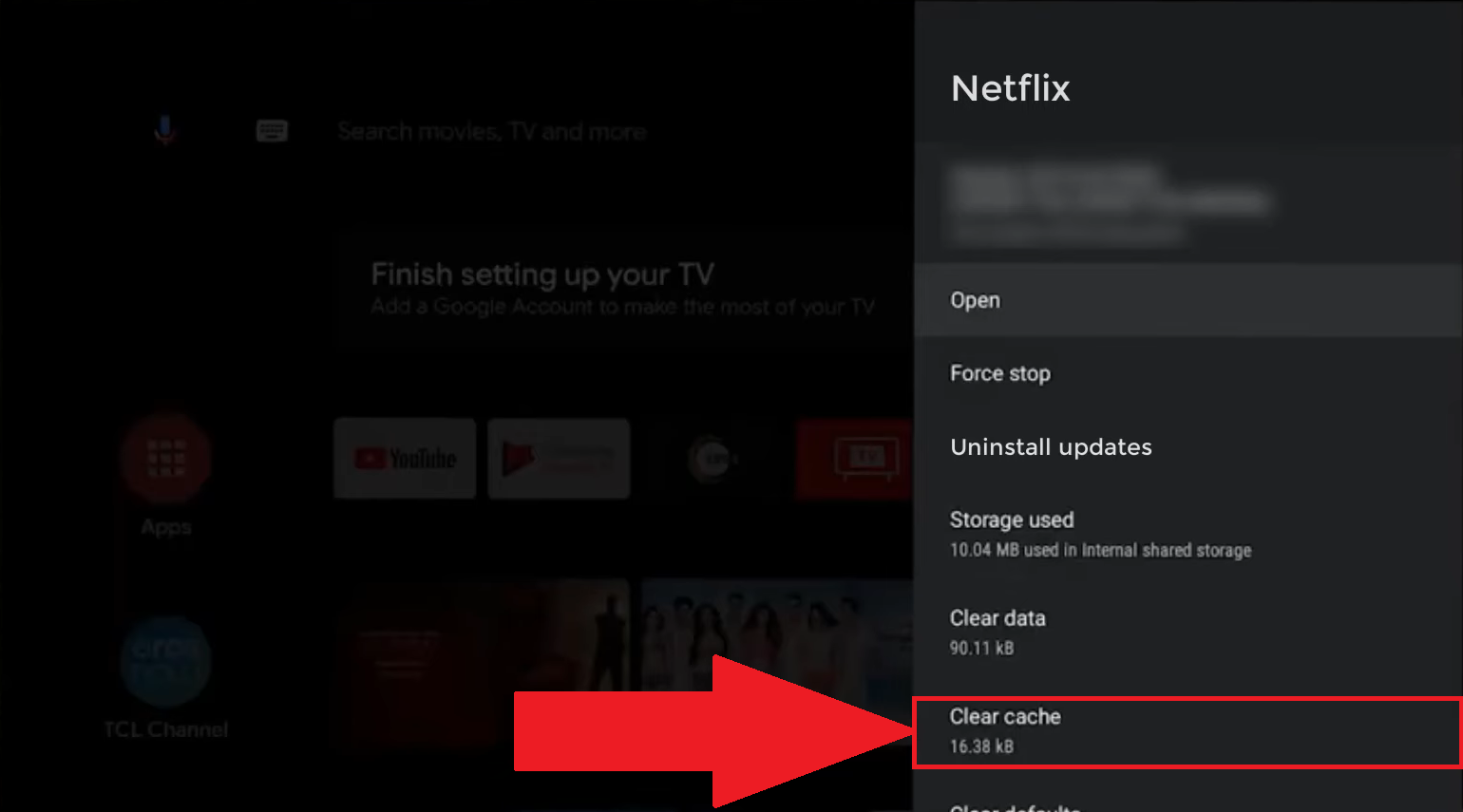
To conclude on this subject, please note that depending on your TV setyou'll get the “Reset the application” which will be proposed to you.
Step 3: Restart your TV
Thirdly, you have the option of restart your TV. There are just two steps to follow:
- Turn off your TV (using the remote control or the power button).
- Wait a minute or so before switching it back on.
Step 4: Reinstall Netflix on TV
Fourth and final stage: removal and subsequent reinstalling Netflix on your device. Here's how to do it, whether you have a Smart TV, Chromecast, Apple TV, SFR box, etc.
- Install Netflix on your TV again.
- Login with your usual username and password.
- Check if the problem has been solved.
Why reset Netflix on TV?
Once again, the reset of Netflix on your TV can prove to be the perfect worry-solver you may encounter. The most common are :
- The Netflix application does not launch or freezes on startup.
- A black screen or error message appears during playback.
- Connection or buffering problems appear.
- That the Netflix application no longer responds to remote control commands.
- That the Netflix application is defective after an update.
Once reset, you should have no more worries! To celebrate and explore the platform, why not check out the list of serial killer movies to watch on Netflix ?
What precautions should I take before resetting Netflix on TV?
There are several major consequences that accompany a Netflix reset on your TV. Expect the following:
- The deletion of movie and series downloads for offline viewing, which will have to be re-downloaded after the reset.
- The disappearance of your Netflix profile data stored on your device, which will have to be reconfigured after you have reconnected to your account.
- A delay in the return of your Netflix viewing history, which will make your recommendations less accurate for a while.
Since we're on the subject of viewing history on Netflix, be sure to check out where to find and delete your Netflix history.
To return to the subject, we invite you to take your precautionss to ensure optimal use of the application on your TV. These precautions are :
- Make a note of your login details, as you will be logged out of your account after the reset.
- Check the stability of your Internet connection, so that nothing can disrupt the procedure and create additional problems.
Ultimately, resetting Netflix on your television is a serious solution with reading problems, black screens and post-update bugs.
Thanks to this guide, you now have several methods to achieve this resultfrom TV settings to application reinstallation.
Nevertheless, be sure to take precautions before doing soWe'll do our best to help you, by taking note of your login details and checking your Internet connection, and then hopefully solving your problem.
You may also be interested in this blog post:









 English