Youtube offers three ways to add subtitles to your videos:
- Import a subtitle file,
- Activate automatic generation,
- Or enter them manually.
It all takes place in YouTube Studio, in the section dedicated to subtitles. These options make your content accessible to international viewers, as well as to those watching without sound. The steps are the same for all three methods—we’ll walk you through everything!
1) Add YouTube subtitles by importing a file
This is the ideal option if you've already created your subtitles using the time codes synced. To import a subtitle file, YouTube supports multiple formats: .srt, .sbv, .sub and .mountain bike. Here are the steps to follow to add subtitles to your video.
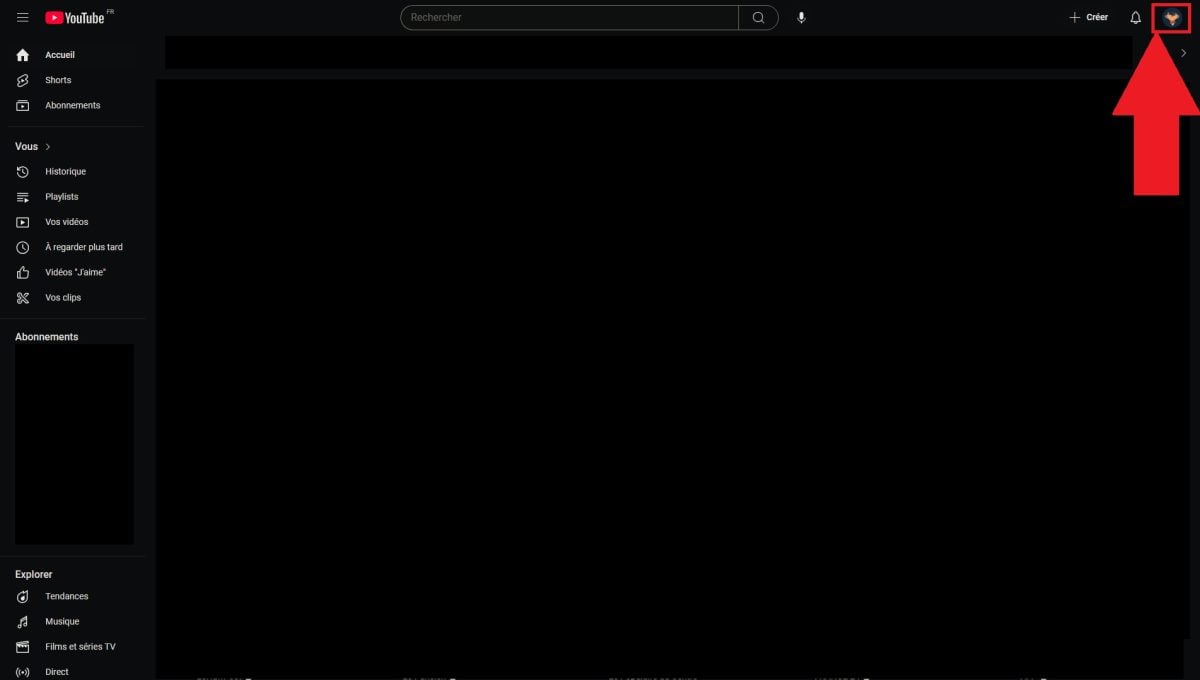
- Click on your profile photo YouTube.
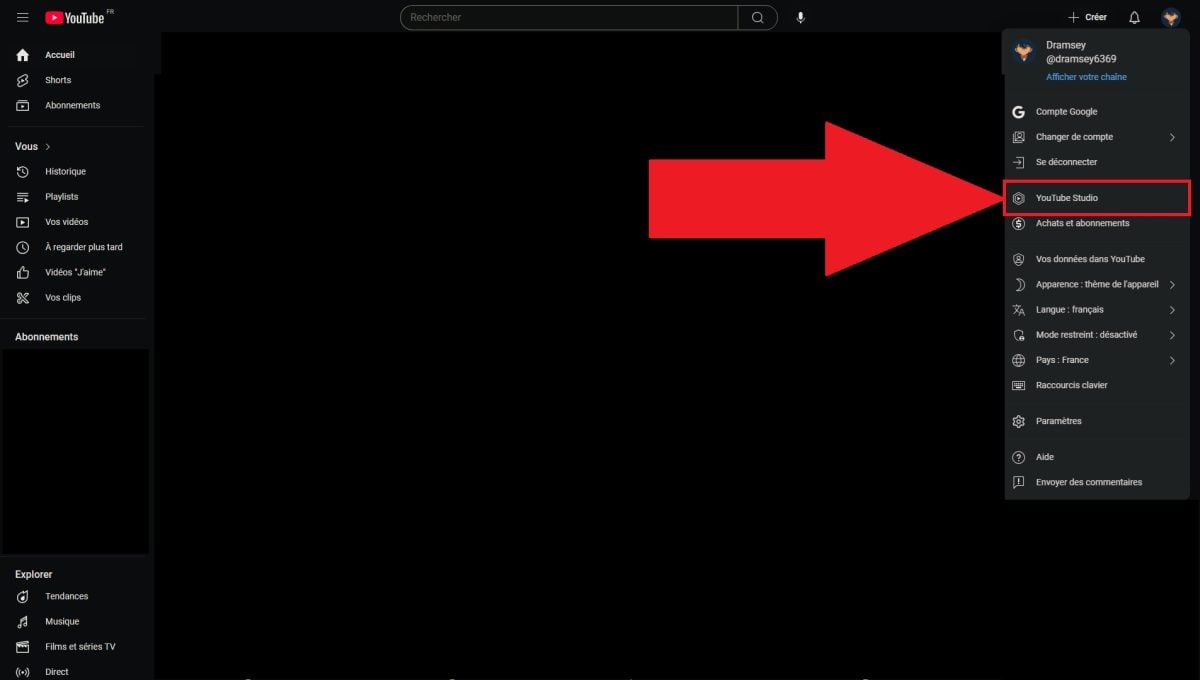
- In the drop-down menu, open YouTube Studio.
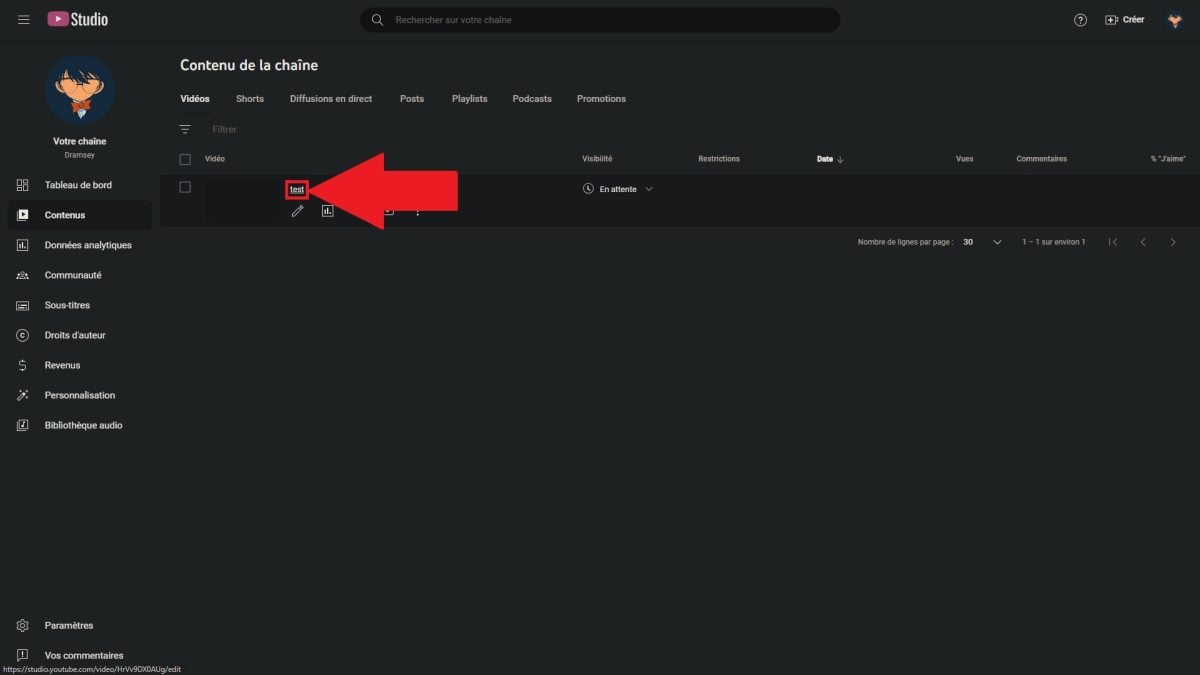
- Select the video to add subtitles. If you want to set it to "unlisted" first, find out how How to set a video to "unlisted" on YouTube.
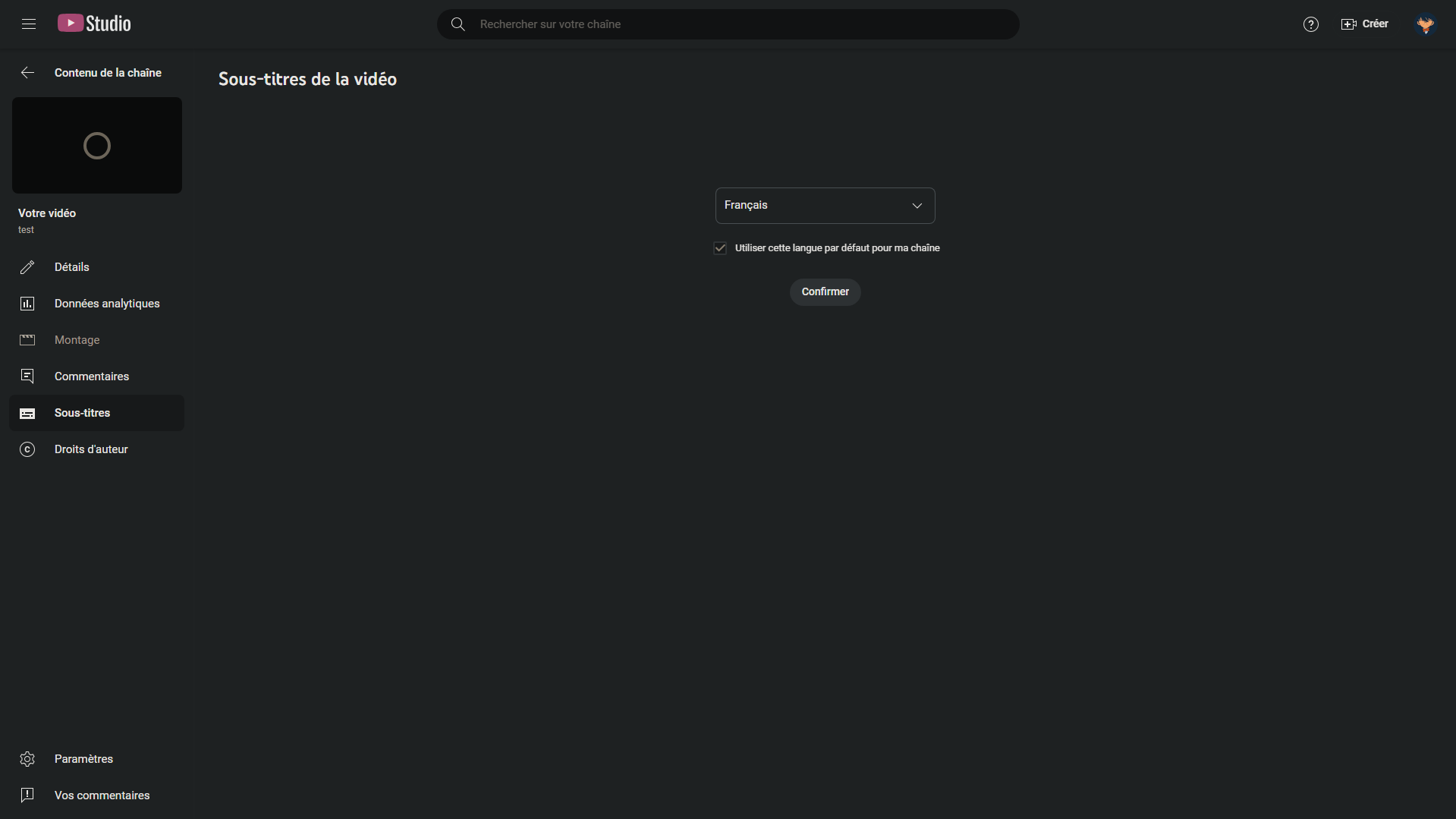
- In the left-hand menu, go to the « Subtitles ".

- Click on «Add a language», select the desired language, then confirm by clicking « To confirm ".
- Click on the’pen icon in front of the tongue, to start with.

- Select the option «Import a File», then upload your subtitle file (.srt, .sbv, .sub Where .mountain bike).
- Select « with the timing »If your file already contains the time codes, otherwise « without a time limit ".
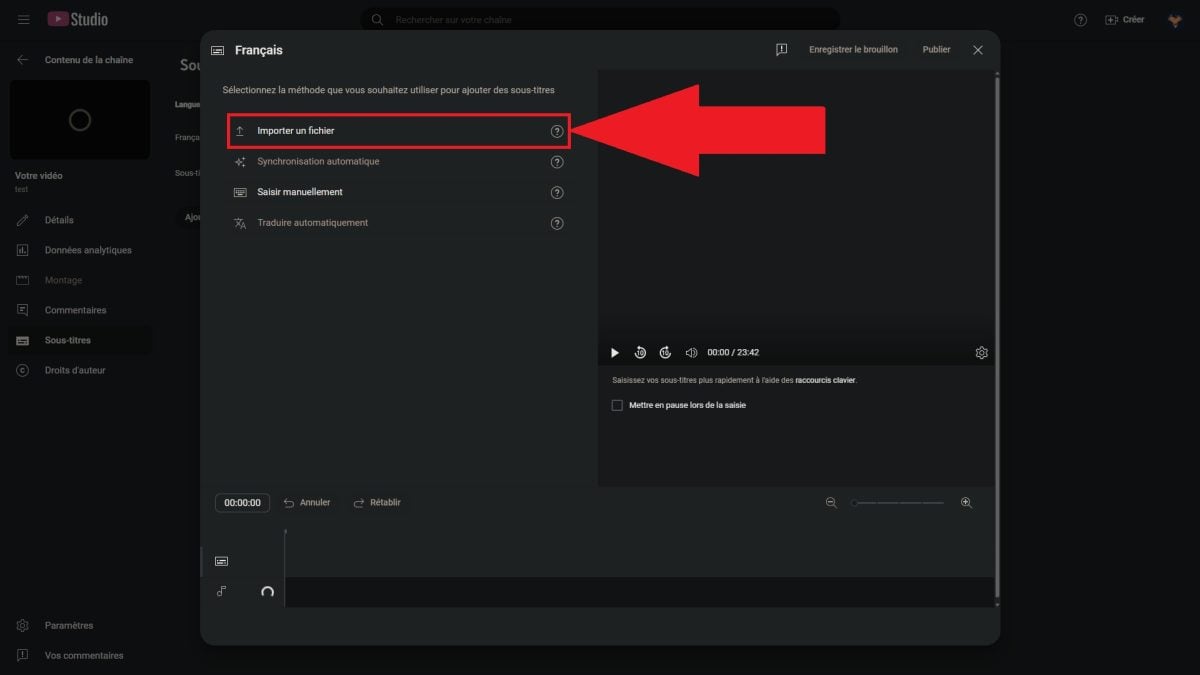
- Click on « Continue » and checks the audio synchronization. Adjust the text or timestamps as needed.
- Click on «Publish» so that your subtitles appear on the video.
2) Use the automatic captions generated by YouTube
YouTube can automatically generate subtitles using its speech recognition technology. This option only works if your video is eligible : it must be in a supported language, with a sound clear and of good quality. Audio that is too complex (dominant music, intense background noise) prevents automatic transcription from working properly.
Log in to your account, then follow the general steps described above to access the « Subtitles » from your video in YouTube Studio.
- Choose the language of your video and click on « To confirm ".
- If your video is eligible, YouTube automatically creates subtitles from the transcript. Otherwise, the option does not appear.
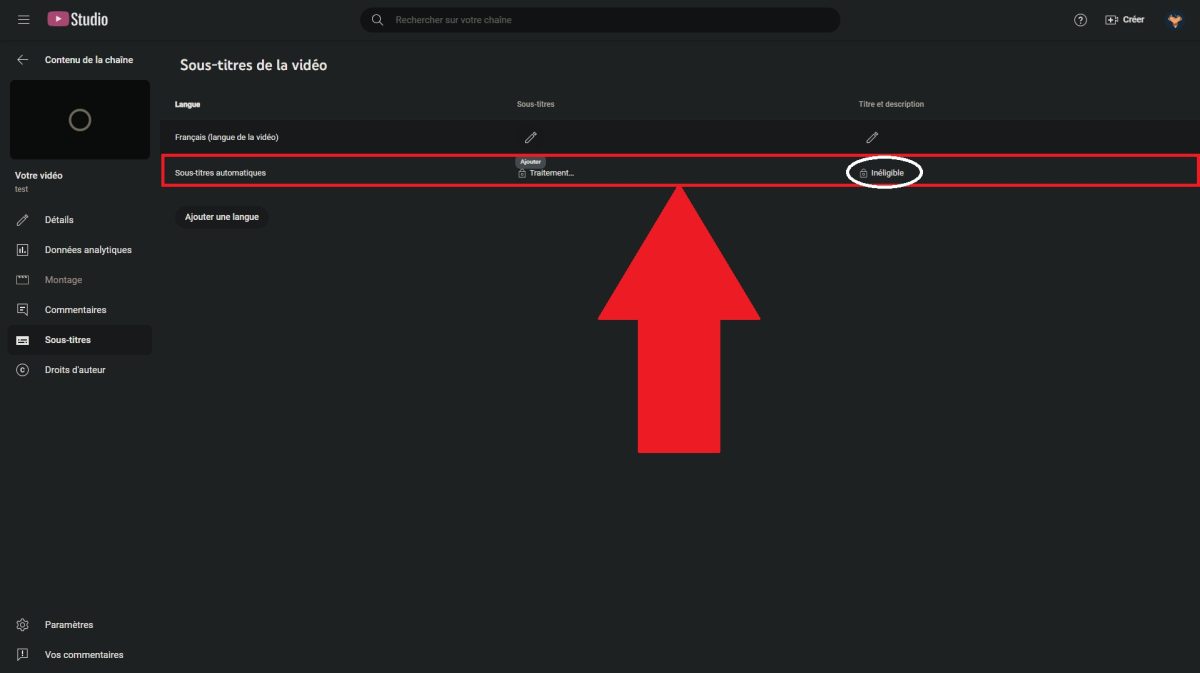
The speech recognition sometimes makes transcription errors. Take the time to edit the subtitles line by line, then save your changes. A quick manual review significantly improves the audio and text quality for your viewers and creators who care about their image.
3) Create subtitles on YouTube
The manual entry is the most accurate way to add subtitles to your video. You type the text yourself and manage the synchronization with the’sound, line by line. This is ideal when you want subtitles that are perfectly synchronized.
Log in to your account, then follow the standard steps to access the « Subtitles » in your video, select the language, and confirm.
- Click on the’pen icon to open the subtitle editor.
- Select the « Enter manually », then type your subtitles line by line.

- For each line of subtitles, set the time of onset and disappearing from the timeline. These time codes ensure seamless synchronization with the’sound from your video.
- Check the reading, then click «Publish». Your subtitles will then appear for all your viewers.
If you also edit your videos using video editing software, you should know that you can add a logo directly in Premiere Pro to refine your visual identity.
How do I set French subtitles on YouTube?
If you look at a foreign video and that you want some French subtitles, YouTube allows you to do this directly while playing. This machine translation It works as long as the video already has subtitles, even if they're in a different language. Creators don't have to do anything—it's the viewer who enables the option.
- While listening, click on the’gear, then go to « Subtitles ".
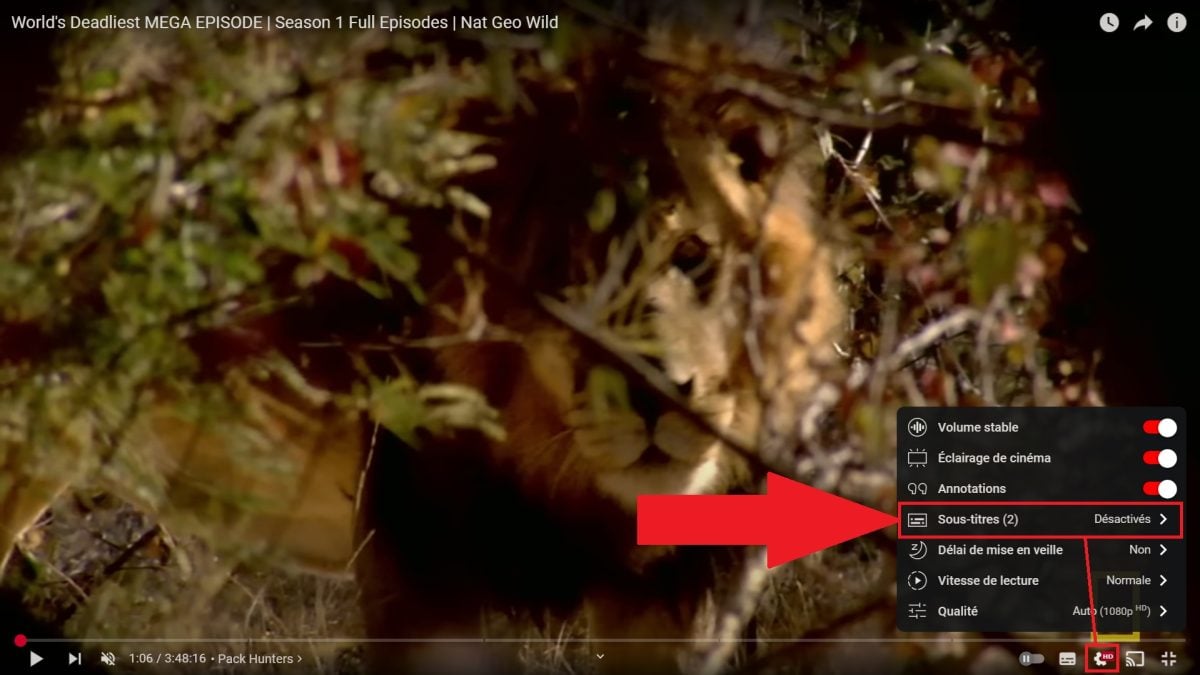
- Turn on the subtitles, then go to « Automatically translate ".
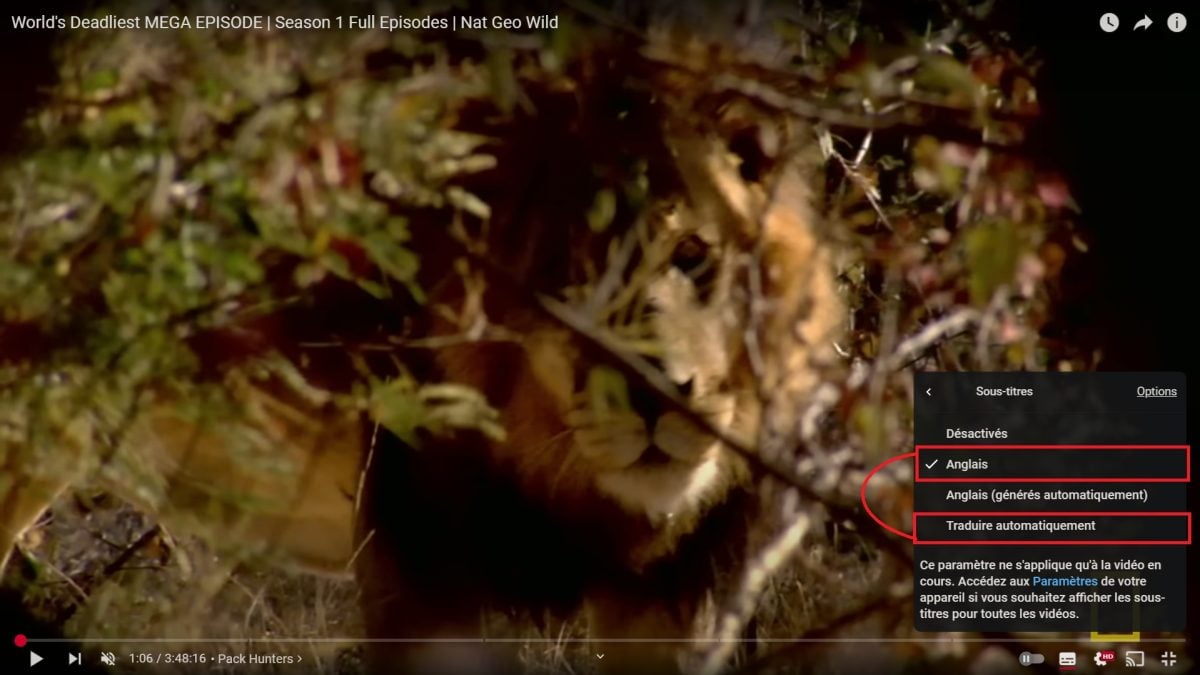
- Select «French» in the list of available languages.
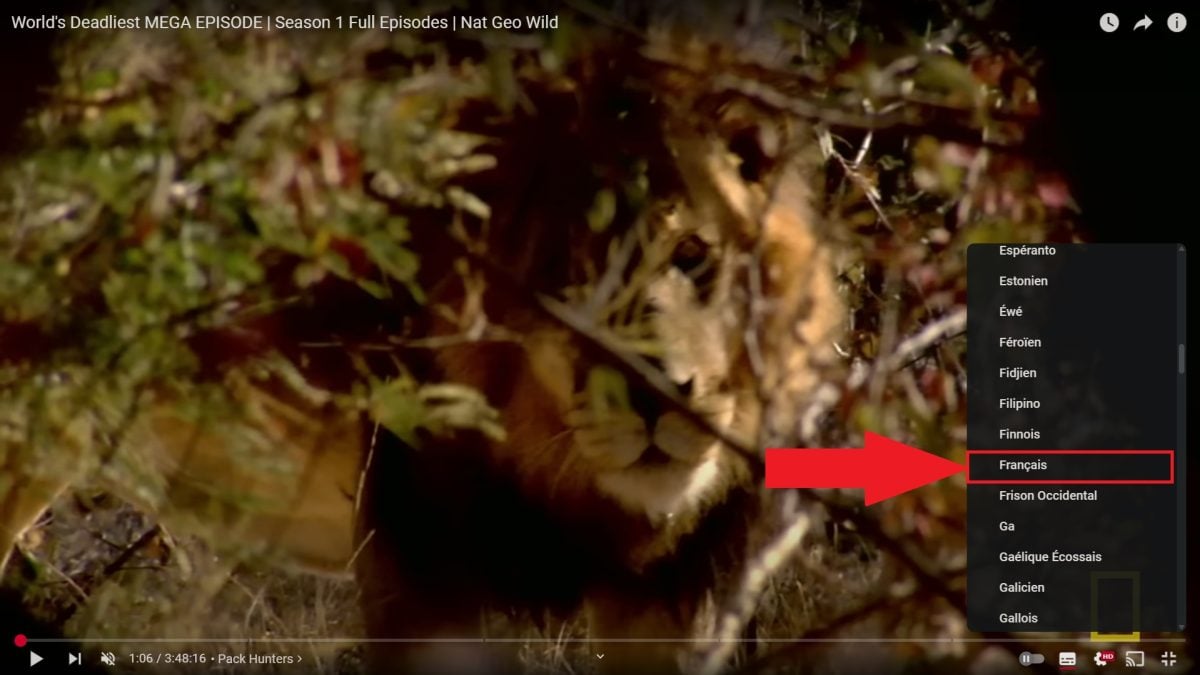
- Enjoy the content with the subtitles translated into French.
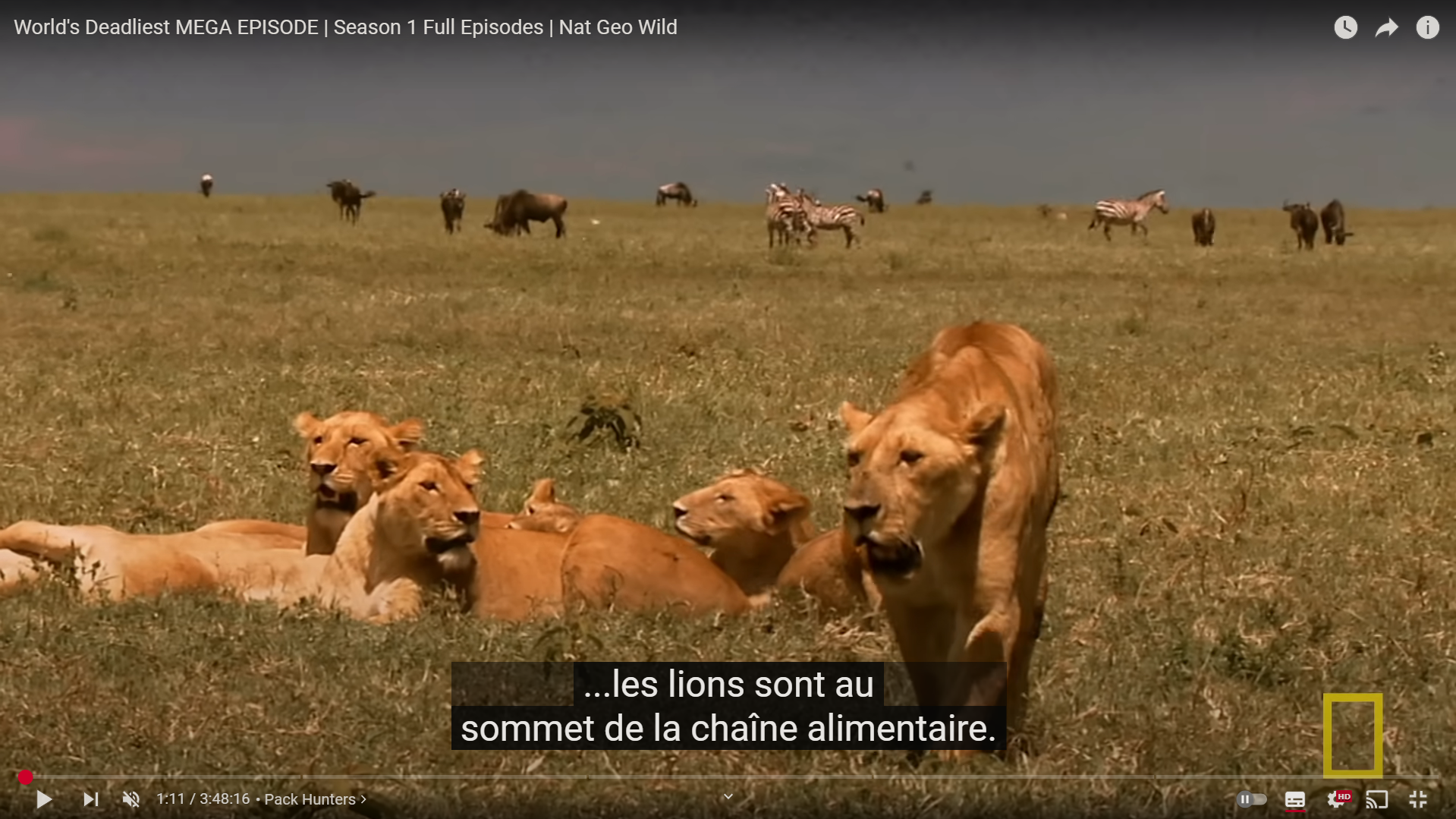
You've now mastered the three methods for Add subtitles on YouTube, whether you're a creator or just a viewer. Whether you import a file, enable automatic generation via speech recognition, or enter everything manually, each approach has its advantages depending on your situation and the quality of your audio.
Machine translation is still useful but imperfect: always check the translation if the subtitle quality seems approximate to you.
To take your creative skills to the next level, check out how to get YouTube Premium cheaper.








 English