As a reminder, the Rythm music bot was closed in September 2021 due to copyright issues. Since June 2024, it has officially returned as Activity Discord. You can invite him to your server or launch him directly from a voice lounge.
This new version brings :
- A new visual interface.
- A catalog of over 50 million titles 100% legal and licensed.
- Regarding the listening sessions in a synchronized, collaborative vocal salon.
- A limited free version to predefined radio stations and playlists.
As before, Rythm offers two versions: the free version and the pay version, which offers additional features at 4.99 $/month.
See below for a complete list of Rythm commands and how to use them.
Sound problem?
If you have sound issues, click on the link below and come to Discord :).
How can I use Rhythm commands on Discord in 2026?
To use Rythm commands on Discord, you naturally need to connect the Rythm bot to your server.
First of all, here are a few prerequisites:
- Be connected to your account Discord via the browser,
- Be administrator the server you want to add Rhythm,
- Have a good Internet connection.
- Have a living room vocal in this one.
Connect Rythm to your Discord server
Here are the steps to follow:
- Open your browser and click on this invitation link from Rythm Bot,
- The link will open in a new tab so you can easily follow this tutorial.,
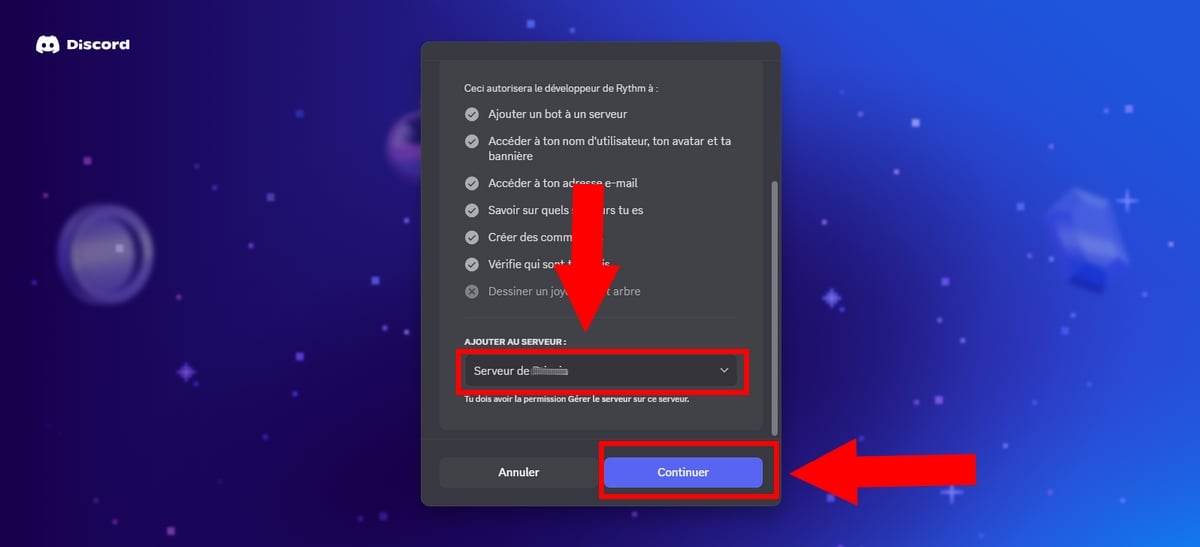
- Once on the page, select the Discord server to which you wish to add the Rythm bot. or enter the name manually,
- And click on “Continue“.
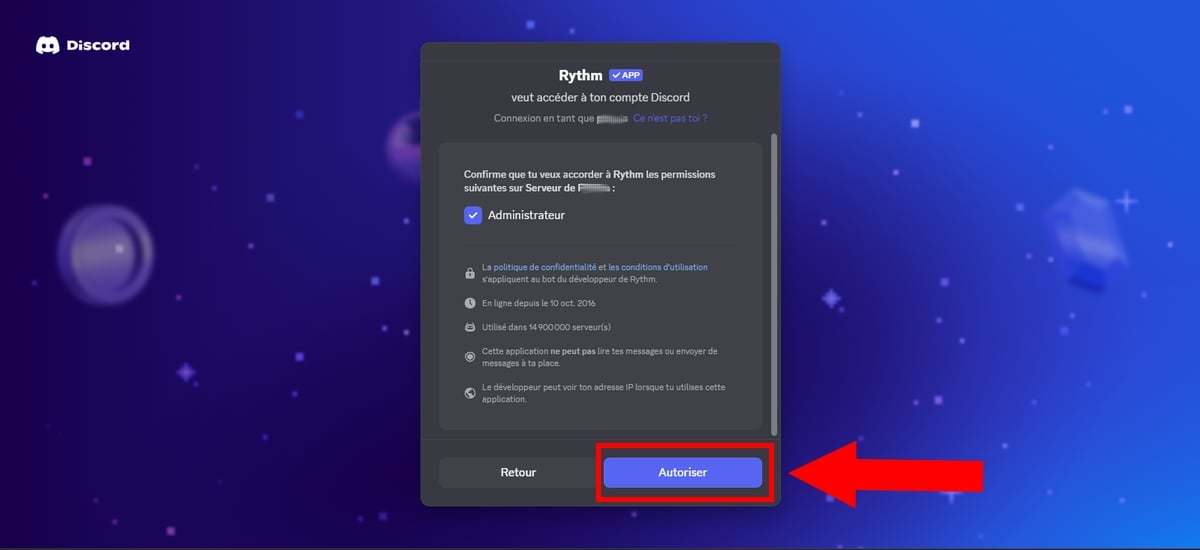
- From now on, grant Rhythm the necessary permissions by clicking on the button “To allow“.
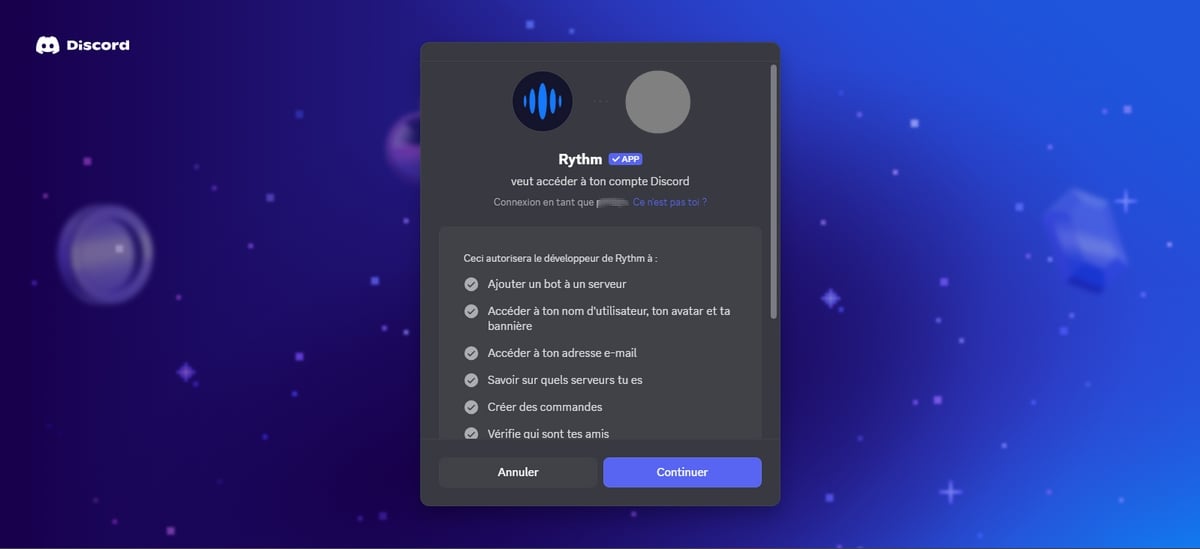
- Then, continue by clicking on “Continue“.
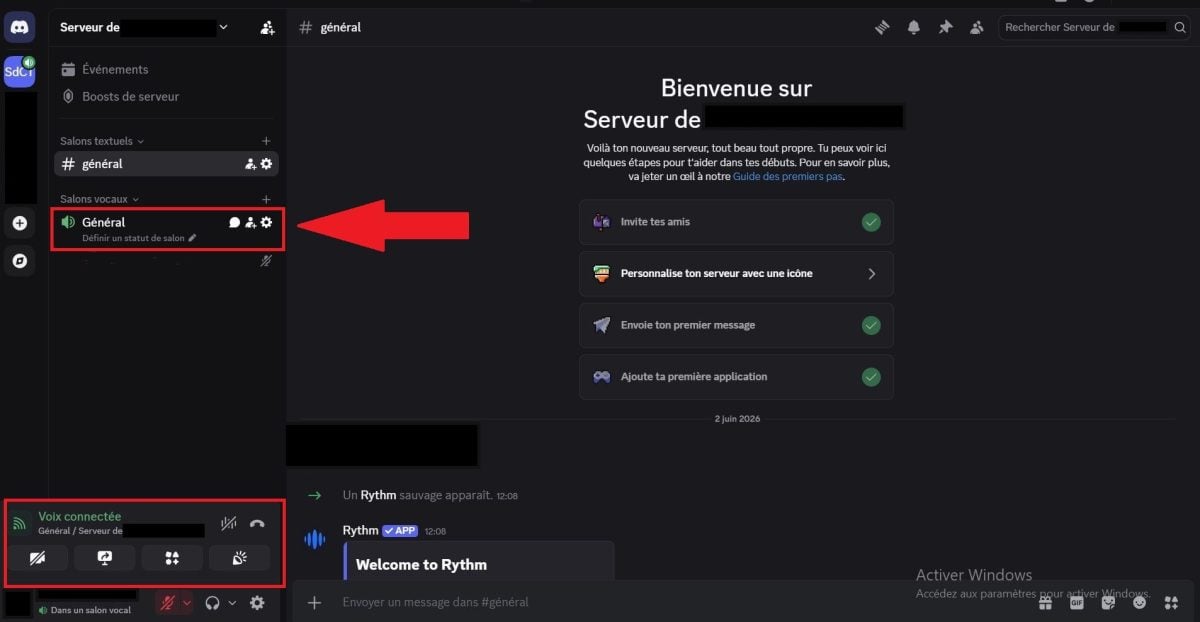
- Once Rhythm Once added to your server, you will see a message like the one in this image:

- Finally, verify that Rhythm is present in the list of right-wing members. Indeed, if you have followed the instructions correctly, it will be there.
- Otherwise, give to Rhythm (by going to the server settings) permission ”Director”, or expel him and restart the tutorial from the beginning.
Testing the Rythm music bot commands
Once you've installed the Rythm bot, you don't need to type any conventional chat messages. Everything goes through Discord's built-in command interface. Here's how to use it:
- Join a vocal salon Before typing any commands, you should first connect to a chat room on your server. If you're not in a room, the bot won't know where to go and will display an error message.
- Activate command bar Type the symbol
/(the slash) in your message bar. A pop-up window will open, listing all the bots on your server.
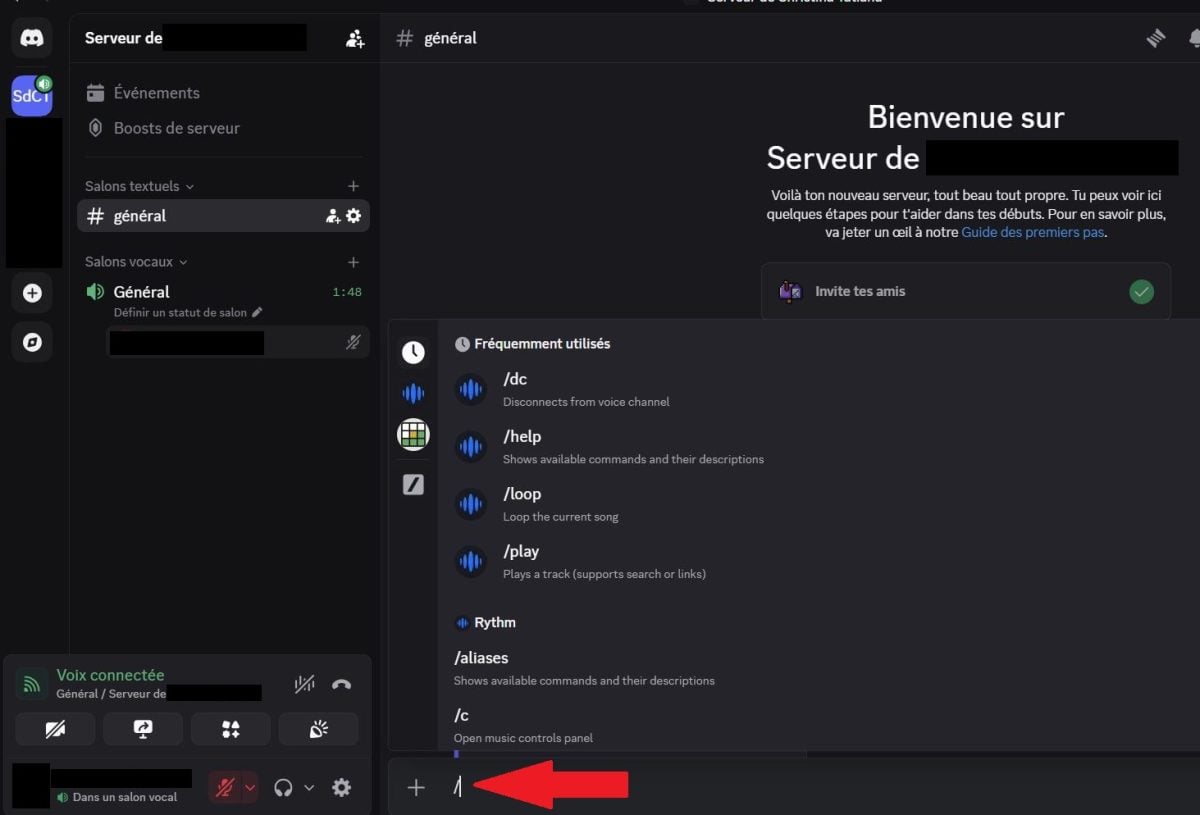
- Play a song Type directly
/play. An empty box appears: type in the name of the artist and the song you're looking for, then press Enter. The bot will join your voice lounge and play the music.

Note:
- () = required
- []= optional
Here is a detailed explanation of most of the commands.
⚠️ What you need to know The bot now requires at least one member in the lounge to have a Rythm Premium subscription in order to select a specific song on demand (via orders or activity).
If, by chance, a song was played, it's because the session benefited from a special pass (third-party subscription) or because the track was part of a random radio program that corresponded to your choice at that precise moment.
1. Basic commands
Here are a few orders What you need to know to monitor your listening:
| ▶️ Basic order | ✅ Utility / Action |
|---|---|
/join |
Connect Rhythm in the voice chat room where you are currently located. |
/disconnect Where /leave Where /dc |
Disconnect the bot from the chat room (the old prefix !dc is obsolete). |
/control Where /c |
Opens an interactive control panel with visual buttons directly in the text chat. |
/play (name or link) Where /p |
Plays requested music. Supports links to YouTube, YouTube Music, Spotify (tracks only), SoundCloud (tracks only). |
/search (noun) |
Searches for a title and offers several choices to add to the queue. |
/np Where /nowplaying |
Displays information (title, artist) about the currently playing music. |
/pause / /resume |
Pauses playback or restarts. |
/replay |
Restarts the current track from the beginning (0:00). |
/volume [1 to 200] |
Displays the current volume or changes it according to the selected value. |
/info |
Displays general information about the bot and its status. |
/skip Where /s |
Starts a vote to move on to the next song (requires a majority of users present). |
/fs Where /fskip |
Move on to the next song without a vote. |
2. Commands for the queue
How to manage queue music?
Some of these commands are linked to the Premium subscription (such as unlimited queue management), while others are available to all free of charge:
| 📜 File Command | ✅ Utility / Action |
|---|---|
/queue [page] |
Displays the list of songs that will be played soon. |
/playtop |
Adds the requested music to the top of the queue. |
/playskip |
Add music and jump immediately towards her. |
/move (position) |
Moves a song to a new position in the list. |
/skipto (position) |
Jump directly to a specific song in the queue. |
/remove (number) |
Removes a specific song from the queue. |
/removed duplicates |
Automatically removes duplicate songs from the queue. |
/shuffle |
Randomly shuffle the order of all songs in the queue. |
/clear |
Completely clears the queue with one click. |
/leavecleanup |
Removes all music added by users who have left the room from the queue. |
Audio settings and effects
For those who want to monitor their sound streams, Here are the various commands to know:
| ⚙️ Settings & Effects | ✅ Utility / Action |
|---|---|
/seek |
Jump directly to a specific point in the music (e.g., 60 for 1 min). |
/forward |
Fast-forward by a specified number of seconds. |
/rewind Where /rwd |
Go back a specified number of seconds. |
/loop |
Turns loop playback of the current track on or off. |
/effects |
(Premium) Opens the audio effects menu (Bass, Speed, etc.). |
/settings |
Access the full control panel (DJ role, restrictions). |
/premium |
Displays your subscription status and available benefits. |
Using the Rhythm Activity on Discord
If you want to dispense with text chat altogether, the Rythm team offers a visual alternative the Activité Rythm. No invitation is required for this version, which is already integrated into Discord.
How do you launch it?
- Join a vocal salon.
- Click on the rocket icon 🚀 (Start an activity) at the bottom of your screen, next to the screen sharing button.
- Select Rhythm from the list.
An interactive visual interface opens up. Here you can search for tracks and manage the playlist as a team with the mouse.
To note : The free version of Rythm is currently limited to thematic radios.
How do you set up the Rythm bot on your server?
Here we will see how to configure Rythm sur votre waiter !
- Use the
/settingsto access the settings, OR type the command/helpfor general assistance.
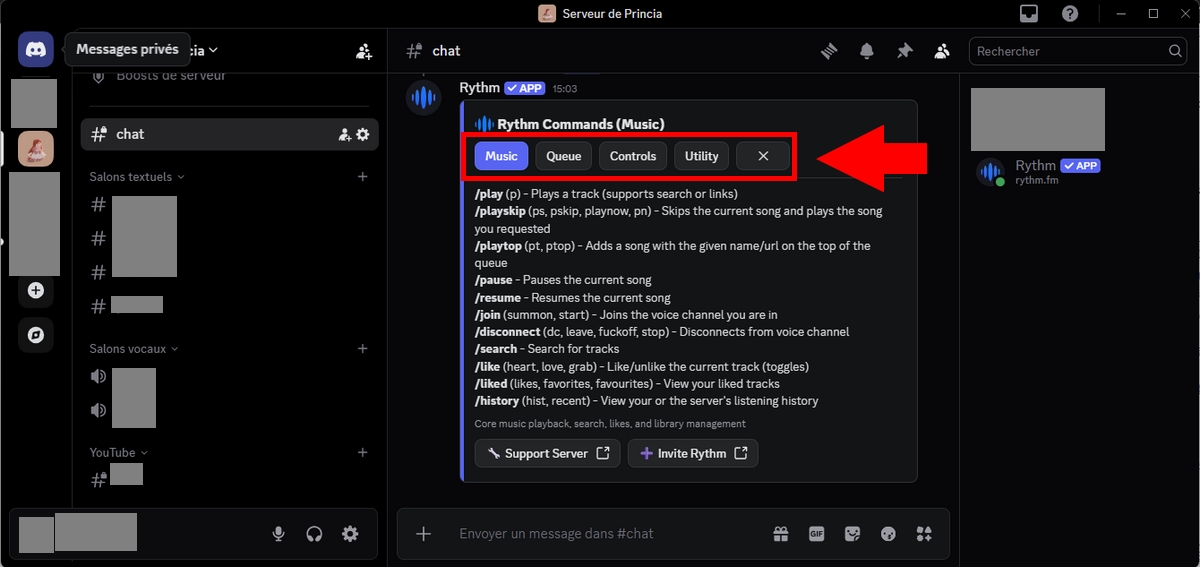
a) Rythm command prefix (/)
the Rythm bot no longer supports the default prefix “!“.
- Now, with the new version, you must use the prefix “/” for all orders.
b) Disable commands in certain chat rooms
To disable commands from Rhythm In Discord salons, you have several choices, including:
- Click on the gear icon to the left of the text chat room to Edit the living room,
- Then select Permissions,
- Disable permissions related to posts and to apps order in this specific showroom.
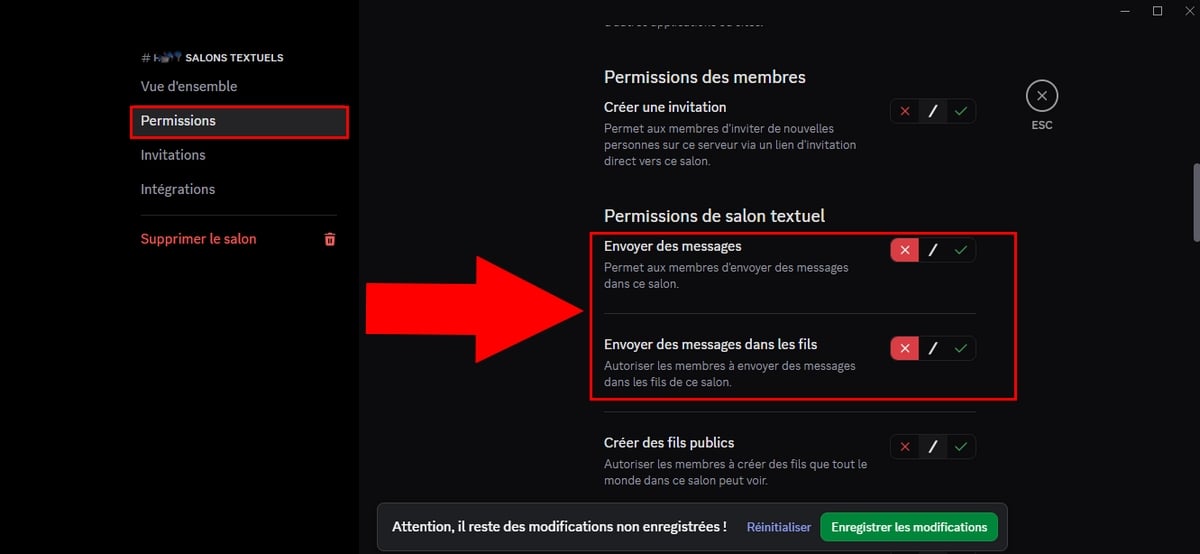
But you can also follow these steps:
- Right-click on your server,
- Click on Settings from server,
- In “Integrations”, search for “Rhythm” then “To manage“,
- In the option “Trade shows“Manually choose which salons can use the app's commands and which roles have access to them.
c) Music announcements
To view the music while playing, use the command /nowplaying.
d) Maximum length of the queue size
This Rythm Premium option allows you to limit the size from the queue. To do this:
- Type the command
/settings. - Then look for the option Max Queue Length.
- By default, it is unlimited and this command is used to impose a limit, namely 10 or 20 songs maximum per user, to prevent abuse!
- In this image, the number of Max Queue Length authorized is 10.
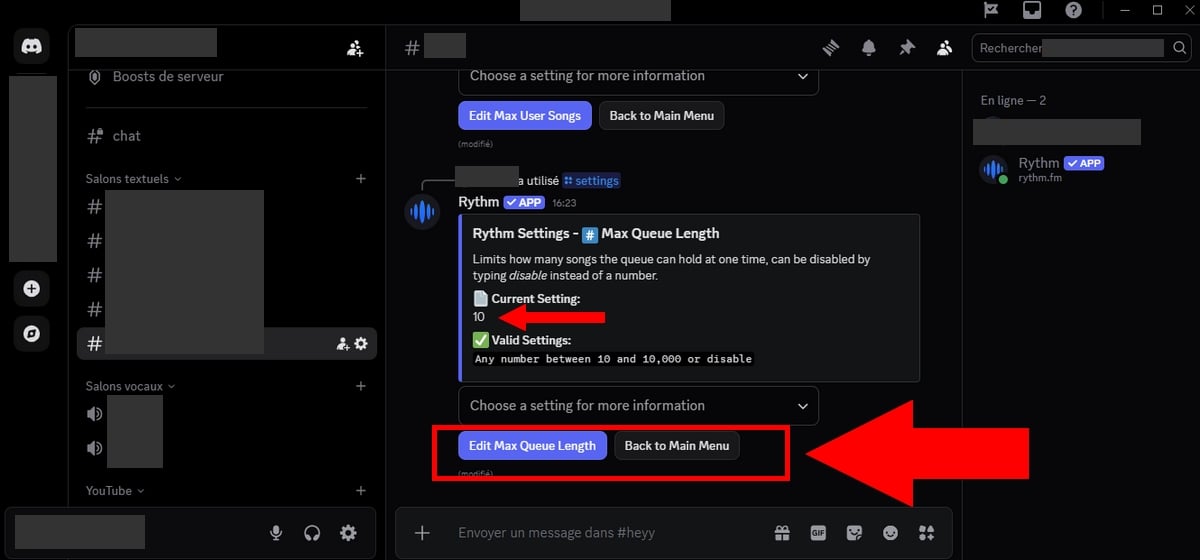
However, if you use the free version, this option is disabled by default. And although you have the right to configure, the setting will not be applied.
With this in mind, you can:
- Assign the role to members (or a trusted person) DJ,
- Type the ordered
/skipto skip to the next track. If multiple members press this command, the unwanted music will automatically skip. - Or ask users to prepare their playlists in advance to better control the content.
e) Maximum number of songs per user
This feature is useful for directors where the DJs may limit the number of songs that users can add to queue at the same time.
Indeed, once Premium Rhythm When enabled, the queue becomes unlimited.
- To change the maximum number of songs per user, simply type the command /settings.
- Then look for the option Max User Songs (Premium feature).
- Select the number of songs you allow per user by clicking on “Edit Max User Songs“.
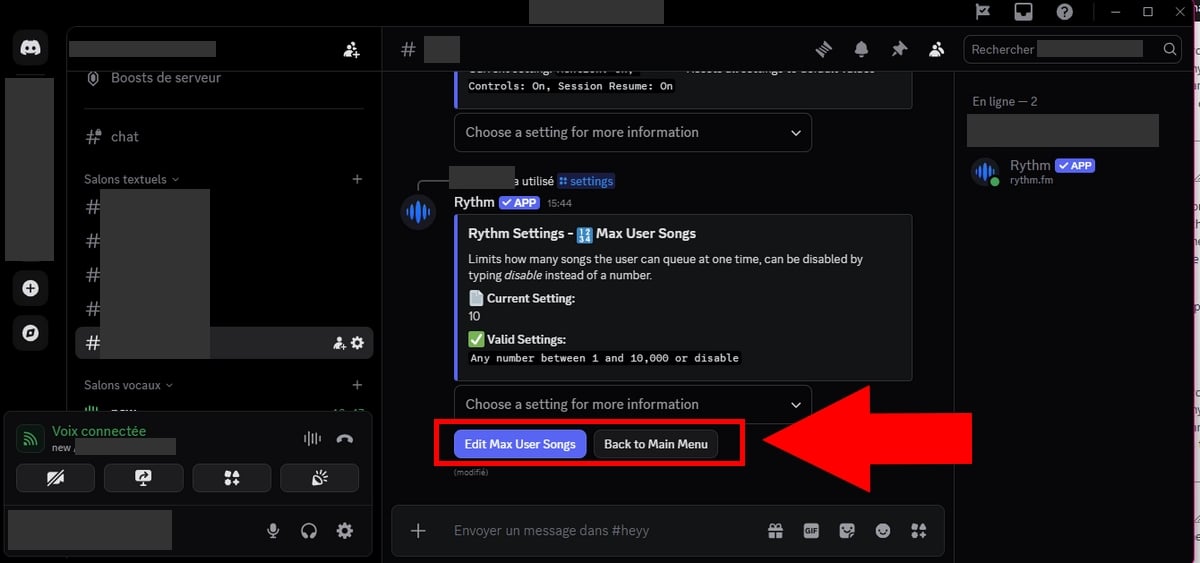
⚠️ Important note :
You can change this setting in the free version, but it will remain without effect. This option is only taken into account for servers or users subscribed to Premium Rhythm.
f) Remove duplicates from the queue
Also among the benefits of a Premium subscription. To prevent users from posting duplicate music In the queue, you can use one of the following commands:
/drm/rd/removed duplicates/rmd
However, you can also follow these steps:
- Use the
/settings. - Choose Duplicate song Prevention
- To activate it, click on We in the drop-down menu that opens.
- To disable it, click on Off.
g) Configure the DJ role on the server
To activate the DJ mode, Everything happens in one place!
- Type the command
/settingsto display the different possible options.
1. Define the role of the DJ
If you haven't already done so:
- Go to Settings from waiter > Roles
- Next, create a new role named DJ, (the role name must be exactly DJ)
- Then, assign this role to the members you wish to authorize.
2. Activate DJ mode
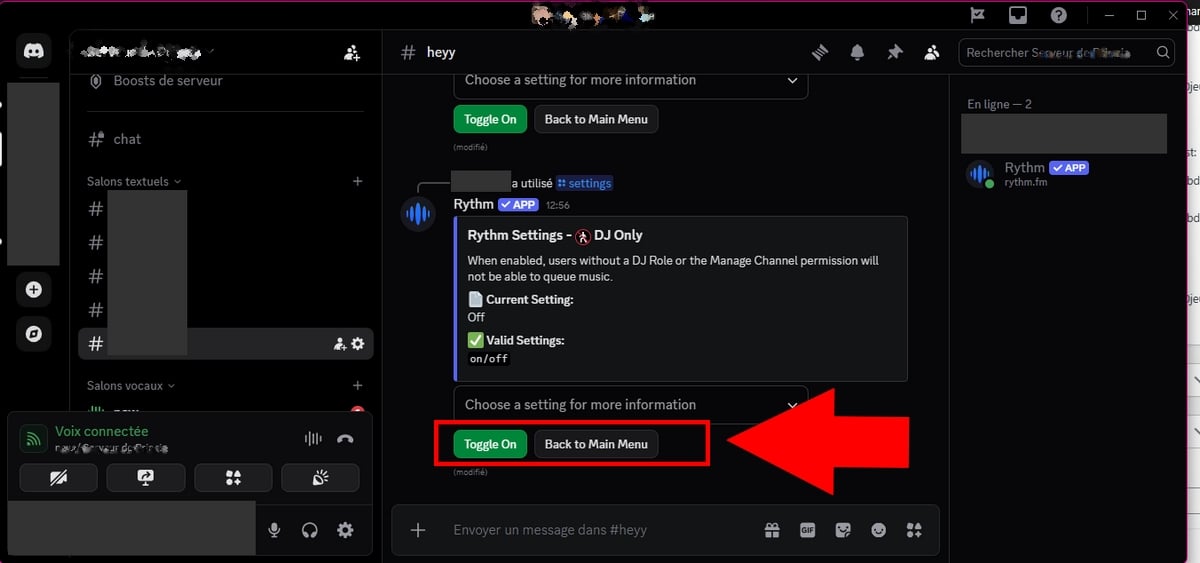
- You must use the
/settings. - Among the options offered after placing your order, look for the option DJ Only (or similar),
- In the image below, the function DJ Only is on Off.
- To activate it, switch it to “Turn On“.
In fact, all members who have access to the role of DJ will have access to the cmanagement orders (edit the list, skip music, etc.), even if you have set certain restrictions.
h) Resetting settings
Did you make a mistake in your settings? Don't panic!
- Use the
/settingsto display the various options available to you, - Click on the last option Reset(or similar),
- Then select “Yes, reset all" Where "Cancel”if you've changed your mind.
WARNING: this will reset ALL Rythm settings to their default values!

What to do after use
You have now finished configuring Rythm! If you have a problem, check this tutorial, everything is there! You can also come to on our Discord server !
We invite you to leave a comment if you find the tutorial comprehensive and easy to follow, or if you have any feedback, among other things.
FAQs
What's the difference between bot Rythm and Activité Rythm?
- The bot invites itself onto your server and controls it via slash commands (/play, /skip...).
- The Activité launches directly into a voice lounge via the 🚀 icon, with a clickable interface and a catalog of around 50 million licensed titles.
Do I need both: bot Rythm and Activité Rythm?
Not necessarily.
- The bot is best suited to community servers who want precise queue control.
- L'Activité is ideal for shared listening quick and easy, with no configuration required.
Is the Rhythm function free on Discord?
the Rhythm on Discord offers a free version but is also available in a version Premium.
On which devices is Rythm available?
Rythm is available on Discord (bot and Activité), but also as an iOS, Android, Windows and macOS app via rythm.fm/download, as well as a web version.
What is the purpose of the Rythm premium on Discord?
Here are the various advantages of Premium Rhythm :
- Change the bass, speed up or slow down the sound.
- Create queues unlimited,
- Free choice of songs,
- Best quality audio,
- Play music during 24 hours a day, 7 days a week,
- Premium Sharing All participants in your session benefit from Premium features.,
- Personalized listening Control what you listen to.
What's more, to discover all the benefits available to you when you subscribe to Premium Rhythm, don't hesitate to enter /premium in your chat.
How much does the Rythm Premium bot cost?
Premium Rhythm is available at 4.99 $/month. This is the only official price list.
Comparison: Free Rythm vs. Rythm Premium
Here are some notable differences between the version free of charge and the version paying of Rhythm :
| 🌟 Features | Free version | Premium Version |
|---|---|---|
| Audio Quality | Standard | Better audio quality (HD) |
| Song control | No (radios only) | Yes |
| Queue | Limited | Unlimited |
| Audio Effects | ❌ No | ✅ Included (speeds, bass, etc.) |
| 24/7 playback | ❌ No | ✅ Included |
| Shared benefits | ❌ No | ✅ Yes (The entire voice chat benefits) |
Rhythm and MAC: is it feasible?
Yes, Rythm is available on several devices:
- iOS Rhythm Music“ application on the App Store (requires iOS 15.1+, compatible with macOS 12+ M1)
- android available on Google Play
- Windows / macOS : download at rythm.fm/download

Lag and games
Nope, If you are a player, Rhythm will not impact your gaming performance if you play games at the same time.
Can moderation change the song list?
Yes, moderators can delete what they don't like and change the way songs are played.
Using spotify premium or twitch?
Rythm integration (now an official licensed activity on Discord) and the use of Spotify Premium or Twitch meet different needs.
Rythm accepts Spotify/SoundCloud track links, but not full playlists or the Spotify Premium account itself.
How can I see the video and images of the songs?
Now, with the new version of Rythm, you can no longer access to video streams (like YouTube clips). The service specializes in audio streaming only.
However, the new Activité Discord does display the album art (cover art) of the current tracks, as well as a graphic visualizer.
Any other concerns?
You can visit the official help page for Rhythm If you encounter other difficulties when using Rythm bot on Discord:
See the list of our tutorials:









 English
Why when I put the Dj role I can't create a playlist and what is the command to play a playlist.
DJ allows you to play music (so those who are not DJs cannot play music)
but so my question is is it possible to put a playlist and if so how. mrc
Not possible 😉
Ah shame
Hello, overnight the bot no longer wanted to talk. That is to say that he no longer responds at all. I can put “!play” etc it doesn't matter yet the bot is marked as connected. No matter how much I do any command, the bot doesn't respond, which really bothers me… I didn't change his nickname or anything. Thanks in advance
you have to do everything that is marked there like on my discord 🙂
Ok but the invitation is expired can I have another one?
you have to warn me so I changed it 😉
Hello, my Bot is deco.. I tried to make it leave and to invite it again but it is still deco.. So impossible to use it..
change the server, or else send me an invitation I will try to help
Bha ducoup.. It's good mdr he co all alone..
good well good 🙂
hello, how to make that rhythm remains on the vocal even if there is no longer anyone
you can't ^^
Hi there,
Is it possible to loop a playlist?
Thanks in advance
You can put several times the same the same music 🙂
Hi, my bot doesn't “speak” so I can't put the music on.
https://discord.gg/RPUsbZ
Thanks in advance 😀
Check the link to solve the problem on my discord 🙂
Hello, my bot is offline, I cannot invite it to a voice channel.
What do you think ?
I invite you to click on the first link if you have a problem there is everything to mark on how to make it work again 🙂
Hi, I would like that when I arrive on the server I am automatically mute, and that only the bot is heard, that is to say that all the other members are also mute, how do I do ? I've found nothing
need help plz!
In the channel you mean? simple = you change the rules of your music channel everyone mute automatically (only those who have permission can mute) and in the channel you put the bot AUTHORIZE
Good morning ! I have a problem, I am admin of the server and therefore I can play the music, stop it etc, the moderators too. But other members can only play the music. They can't stop it or get the bot out of the channel. Have a good day.
Hi, did you put a DJ role?
unable to play our rhythm
https://discord.gg/YgR6YS
The problem comes back again and I sias dou ca just help me ^^' https://discord.gg/8d6cXV
same problem for me...
https://discord.gg/4He4wn
hi i have the same problem, no sound i checked everything, permissions, roles but nothing works https://discord.gg/zKWmu3
Thank you very much, it helped me! 🙂
Is there a command to remove music from the list?
No you wait for her to pass to skip
I think you have to write skip 1,2,3 according to its position in the queue
Finally it's remove and you put the number of the music you want to remove
Hello Alucare,
My bot has the same problem, music plays but 0 sound
https://www.alucare.fr/reparer-le-son-sur-le-bot-discord-rythm/ I put the answers here 🙂
Thanks it's fixed
I had to change the server region for me 🙂
Yep like I said 🙂
Yo, the same, it was working very well and today no more sound...
Give me a prompt please
No worries 🙂
https://discord.gg/WKp4ME
I have the same problem I want a lot of help please https://discord.gg/dd8hbT
https://www.alucare.fr/reparer-le-son-sur-le-bot-discord-rythm/ I put how to do it here 🙂
Hi Alucare, I have a problem with my rhythm bot. I wanted to know if you could take 2 minutes to come take a look at my server please? 🙂 https://discord.gg/TZWjyT
Hello, same problem, it worked very well but today nothing
Invitation link please 🙂
hello i have the same problem what to do
same problem the music launches but 0 sound..
Give me the invitation link to a discord where it beug please, and where I could have rights to check thank you
Hi, mine bug too, I send you the link just below.
https://discord.gg/zxanCj
I went there for info and everything works fine, if you still have problems put the link below I'll go see
Well, problem solved, thank you for coming to help me! 🙂
the bot works but when I ask it to play music it doesn't make a sound… (no I didn't mute it and the sound is not at zero)
I do not know how to do…
Is he allowed to speak in this channel? (must check permissions). Does he have access to the channel where you put the music? (normally he should answer)
Thanks for the tutorial it worked
Good 🙂