Don't want to stay in touch with a friend on Snapchat anymore? Don't just want to remove them from your friends list—do you want to block them entirely on your Snapchat account?
To block someone on Snapchat, Press and hold its name, then select “Managing Friendship” then “Block”. Good news: the person is never told!
Note, however, that the process may vary depending on the specific situation (recent message, deleted friend, pending request).
And if you ever change your mind, unlocking takes just a few seconds from Settings. In this article, we'll show you how to do it!
Explanatory video in French by Alucare, ideal complement to the page. View video (you can use YouTube's automatic translation)
How do I block someone on Snapchat?
To block a Snapchat contact, there are generally two ways three ways to do so, and they are as follows:
1. Recent communication
For people with whom you have recently communicated or sent Snaps, the procedures are as follows:
- In the first place, open the Snapchat application and redirect you to the discussion. To do this, you can click on the icon selected on the image;

- Then click and hold the name of the profile to be blocked ;
- After that, a a new window will appear on your screen;
- Now choose Managing friendship ;
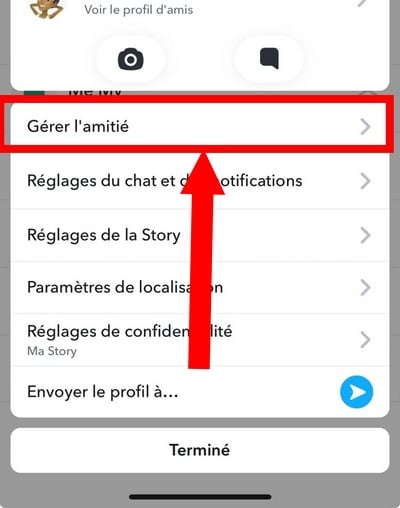
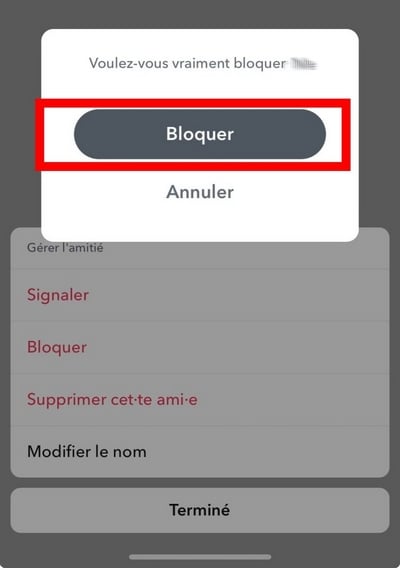
- Now click on the "Block before confirming your choice by pressing "Block" again.
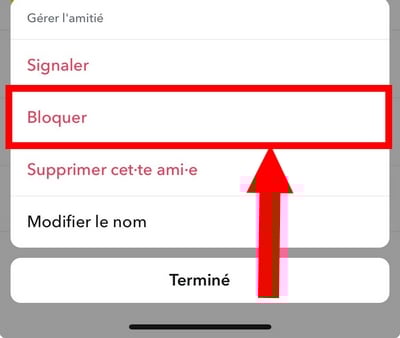
2. On a discussion already deleted
If you haven't contacted the person in a while and your discussion has been deleted, you must :
- First, open the app, then tap your profile icon in the top-left corner of the screen, and scroll down on the Snap home screen; ;
- Then choose "my friends ;
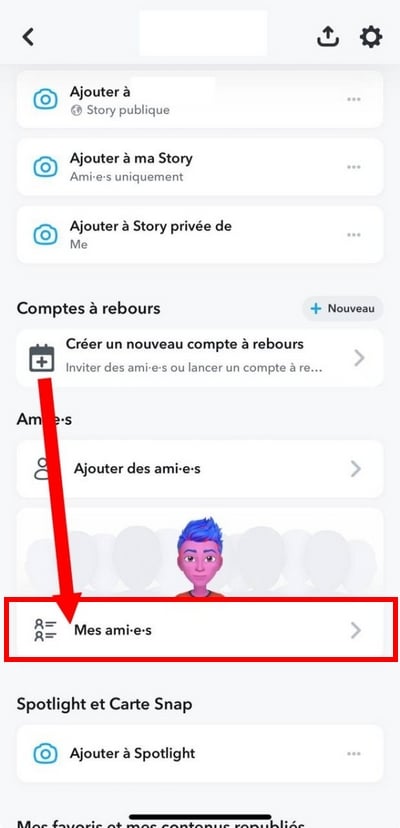
- Once the list of friends is displayed, press on the name of the person you wish to block.
- If you can't quickly find the person you want to block, you can enter your name in the search bar. You will then have several options, as shown on this screen:
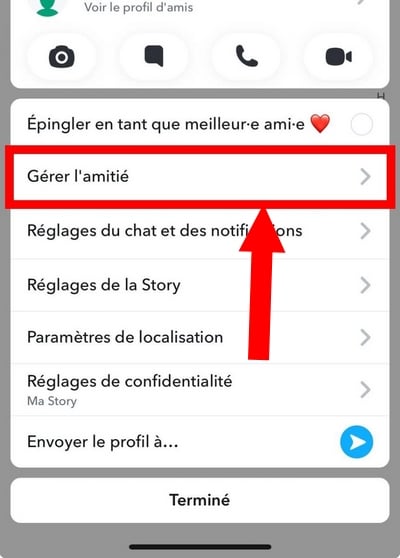
- You will finally be redirected to another tab, press "block" and to finalize, confirm by pressing the "Block.
3. On a pending friend request
In the event that the person to be blocked has added as a friendbut which you have not added in return, the procedures are as follows :
- First, you need to open the application and scan down the screen;
- Stop when you see : They added me. ;
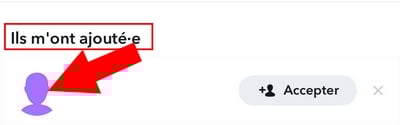
- To block a specific person from this list, press on the profile to be blocked;
- Once on your profile, simply click on the three dots up located at the top right of the screen;
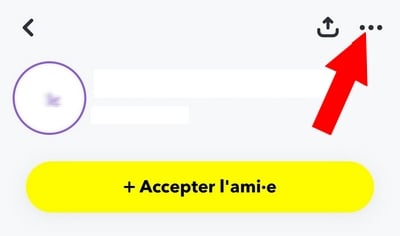
- An option will appear, so just click on it. To block to block the person who sent you an invitation. And there you have it, you've successfully blocked the person who sent you an invitation on Snapchat!
How to block on snap without deleting?
He is impossible block someone without removing them from your friends list. When you block someone on Snapchat, the platform automatically removes them from it.
It's also worth noting that all blocked contacts will not be able to You won't be able to see your private stories, badges, or Snap score anymore. They also won't be able to send you Snaps or chats anymore, which helps protect your privacy on the app.
Blocking or Deleting on Snapchat: What's the Difference?
Many people confuse these two actions, even though they have completely different consequences. In fact, removing a friend does not have the same effect as blocking a friend:
- ❌ Delete a friend This simply removes them from your contact list. The person can still see the content you post publicly (depending on your privacy settings) and can add you back at any time.
- 🚫 Blocking goes much further : That person will no longer be able to view your private Stories, send you Snaps or messages, or interact with you in any way.
Deleting a friend on Snapchat can therefore be undone at any time, whereas blocking someone completely cuts off all contact.
📌 In either case, Snapchat does not send any notifications to the person in question.
Not sure if you've been blocked or just deleted? We explain how to tell the difference in our dedicated guide: How to tell if you've been blocked or deleted on Snapchat.
How do I unblock someone on Snapchat?
To unblock someone on Snap, follow these steps:
- Open the Snapchat app, then scroll down to view your profile; ;
- Next, tap the settings icon in the upper-right corner of your screen; ;

- Scroll to menu "Privacy controls then select the "Blocked users;
- Normally, blocked contacts appear there, and all you have to do is unblock that Snapchat user by tapping the X next to their profile.
Unblocking on Snapchat: consequences
Once you've unlocked your friends, you'll need to add them again to be able to chat with them.
⚠️ Please note that, depending on your version of Snapchat, the conversation history may not reappear automatically. If the messages are important to you, be sure to save them before blocking anyone.
Once you've unblocked the person and added them on Snapchat, you'll be able to interact with them just as before:
- Sending him snaps,
- Chat online via instant messaging.
- Watch his Snap private stories or others for 24 hours.
- Share your various statuses…
FAQs
Would a blocked person be notified of the block?
Blocking someone on Snapchat means preventing them from accessing the content you post on the platform and therefore prohibiting them from communicating with you. It is entirely possible to block someone discreetly, and Snapchat does not notify the user blocked.
However, over time, if the user finds that they can no longer interact with your content as before, or that he sees the status message waiting on Snapchat, he will surely realize that you have blocked him.
Does blocking someone delete the conversation?
When a user is blocked, they cannot view your Story or send you Snaps or Chats. On the other hand, this does not erase messages already existing on its side.
How can I see if I've been blocked or deleted from SNAP?
- If you have them located on Snapchat and you can add them back, this indicates that you are not blocked, but that they have been removed from your contacts.
- However, if you can no longer see If you can no longer see their profile in your friends list, if they no longer appear in searches, or if your message is never viewed, it is probably because the person has blocked you on Snapchat.
Remark : Similar to blocking, Snapchat does not send any notification to the person you have chosen to remove.
There you go, now you know how to block or unblock someone on Snapchat! Feel free to comment on the article if you have any questions about this topic!








 English
Hello, I have blocked people on snapchat and I wanted to unblock them but when I put the cross it tells me "a problem has occurred". I think the people must have deleted their accounts but how do I remove blocked people anyway?
Thanks
Coucou, I think that unfortunately we can do nothing, see can be with the support
Why am I no longer entitled to have a snapchat account. It is temporarily banned in my phone
Hello, I work for Alucare, if you have a question don't hesitate to ask it on the Alucare discord: (link at the bottom of the site)