Want to control what your kids watch on the Internet? Youtube ? Unfortunately, they are not immune from inappropriate content on this platform!
What's more, we don't have enough time to check what kind of content they're viewing on this social network at all times!
So, if you want to activate the children's fashion and use the parental control YouTubethis article is for you!
Find out more here :
- How to activate the restricted mode on YouTube,
- How to add a supervised account for your kids and teens on YouTube,
- How to use it effectively YouTube Kids for your children under 13!
1. Activate restricted mode on YouTube
the restricted mode on YouTube allows you to block or hide certain age-inappropriate content.
For parents who want to make their children's experience safer kids on YouTubeHere's how to get there:
- Visit us on YouTube,
- Then press the profile photo at top right,
- Select restricted mode: disabled,
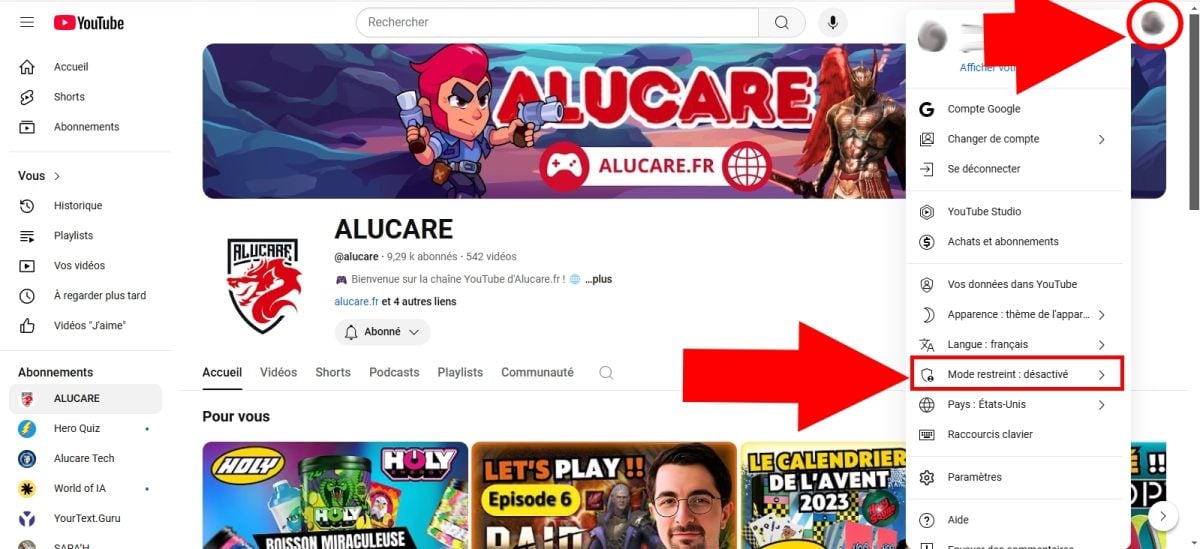
- Finally, press this button toenable.

From now on, all content deemed to be excessive by YouTube for your children will be blocked. But by the way, if you want to discover how to get YouTube Premium cheaperclick on this article!
Important note:
- The steps for activating restricted mode on computers, mobile devices (Android, iOS), and tablets remain the same.
- Restricted mode applies only to the browser on which you configured itIt is therefore recommended that you do this on other devices that they can use to browse YouTube.
- You should also know that this filter is not 100% reliable.
But in this case, how can protect content intended for an informed audience that they will be able to find?
Don't worry! The Alucare.fr team is here to reveal more useful techniques to make their YouTube experience more fun and risk-free!
2. Add a supervised account for tweens
Your boy or girl over 9 years old ? In that case, he/she will probably want to enjoy many videos on YouTube As for you, you don't want him/her to come across inappropriate videos or videos intended for adult audiences!
This account allows you to limit functionality which the users concerned will have access to on YouTube. To do this, you canlink to your main account and apply a parental control according to your child's age.
a) Creation of a supervised account
- Go to your Google account,
- Click on your profile photo in the top right-hand corner, then press Add an account,
- Choose from the following options For my child,
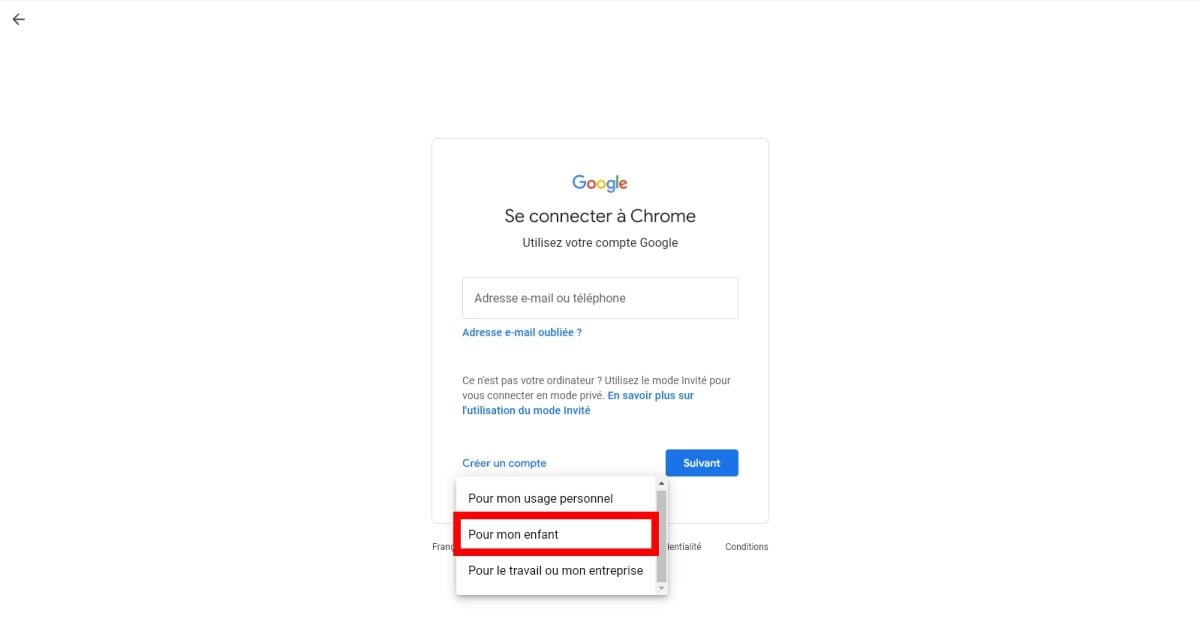
- From now on, you must indicate the name and first name then on Next,
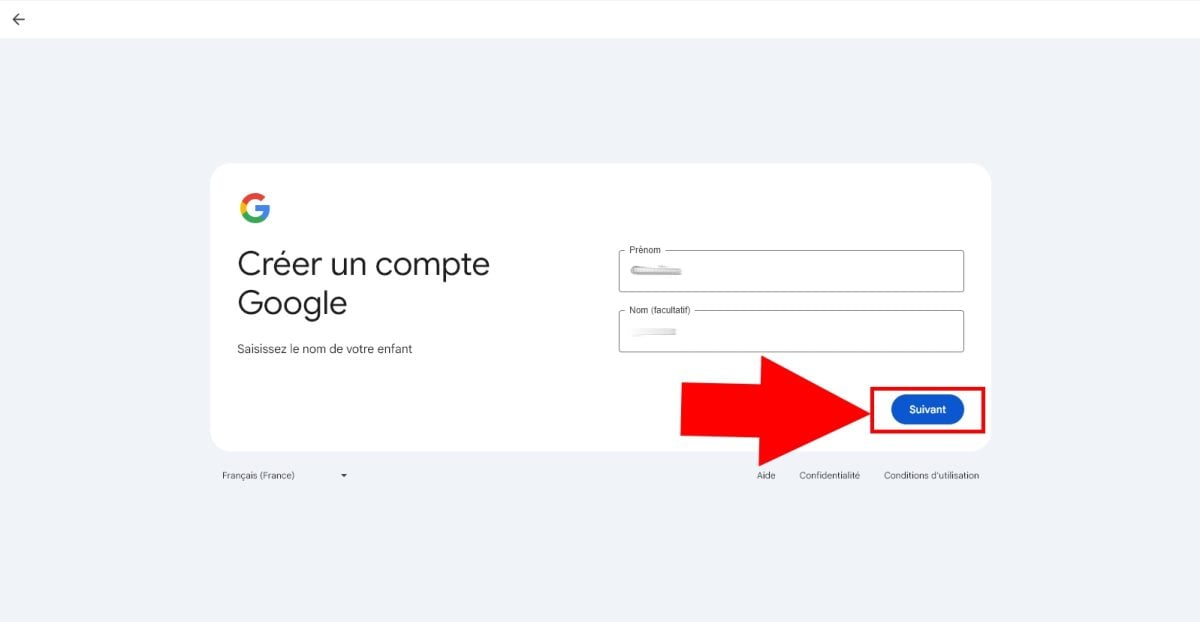
- Do the same with the date of birth, then press Next,
- Then choose how he/she will connect later,
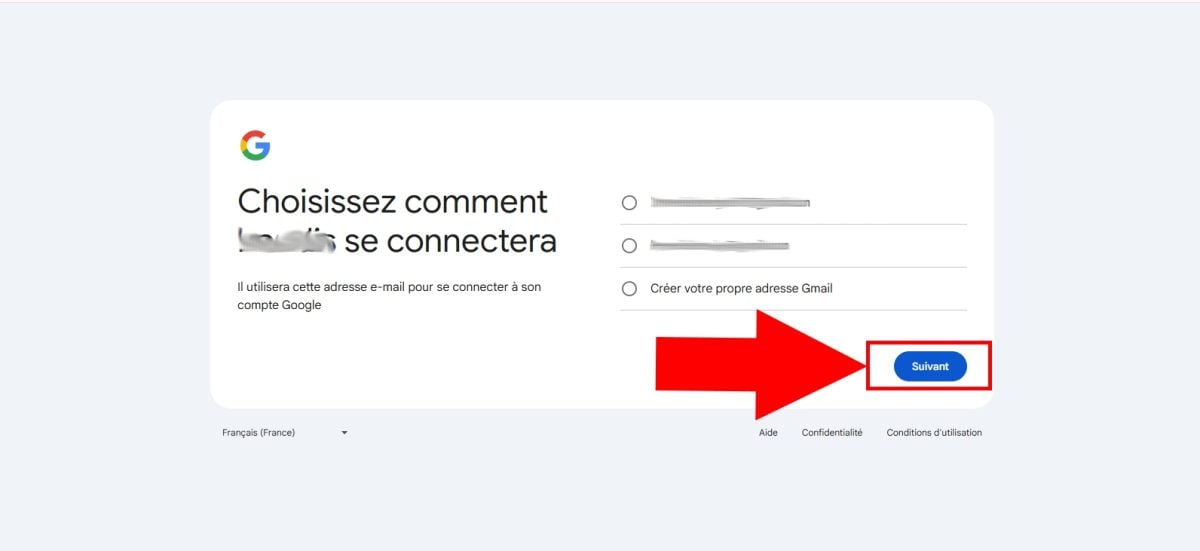
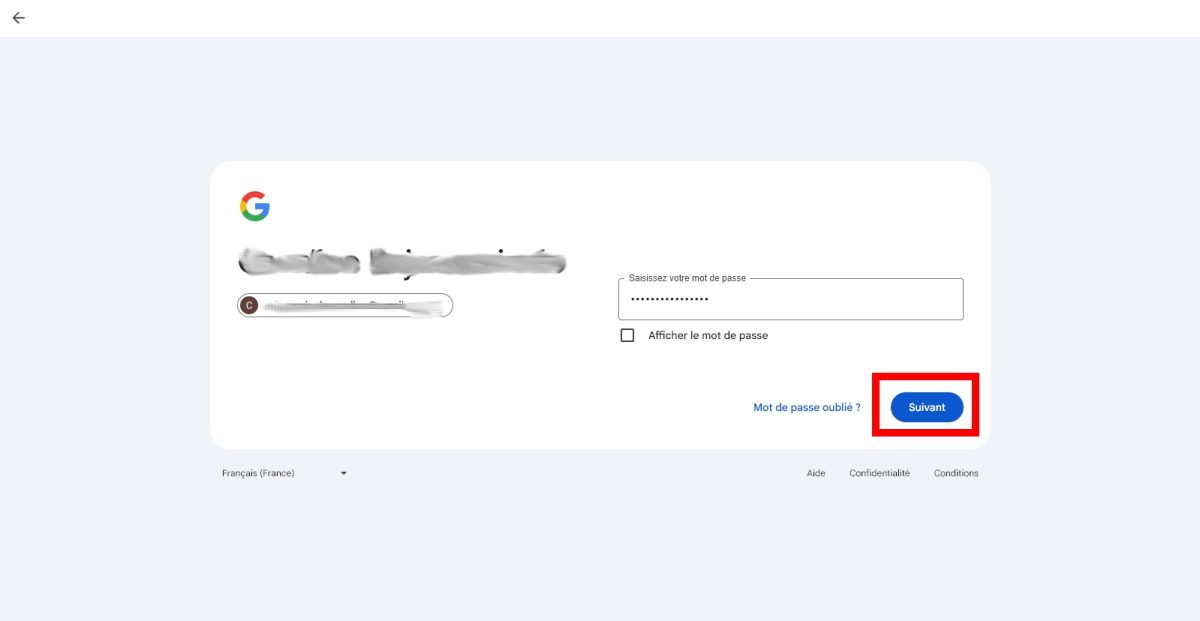
- You must now create a secure password for this account,
- Then accept the terms of use and click on Accept,
b) Account configuration
To set parental controls on this account :
- Go to your YouTube account (the parent account),
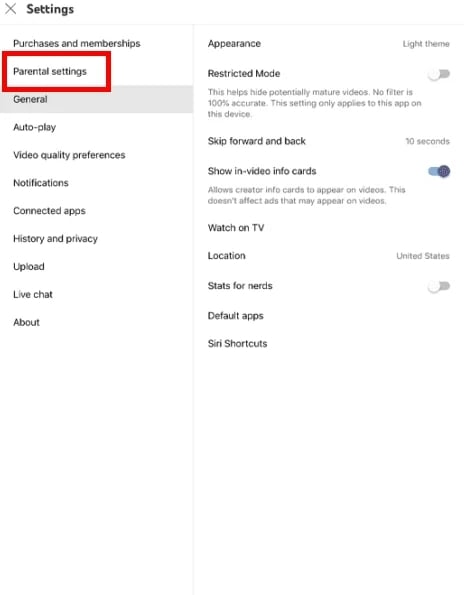
- Select Settings then Parental settings,
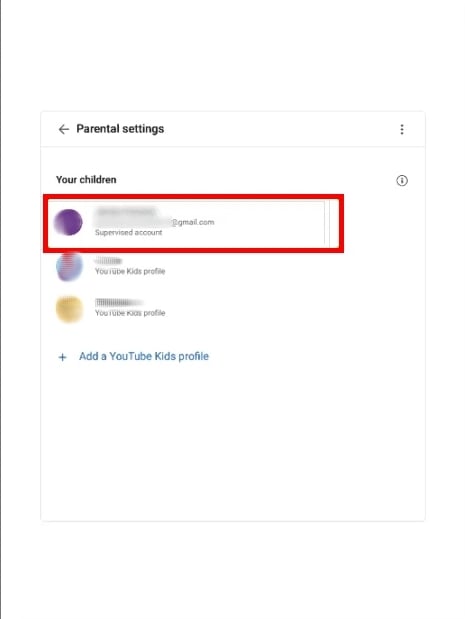
- On this page, you can access a list of associated users to your account,
- You have to choose the child for which you wish to configure the account by clicking on it,
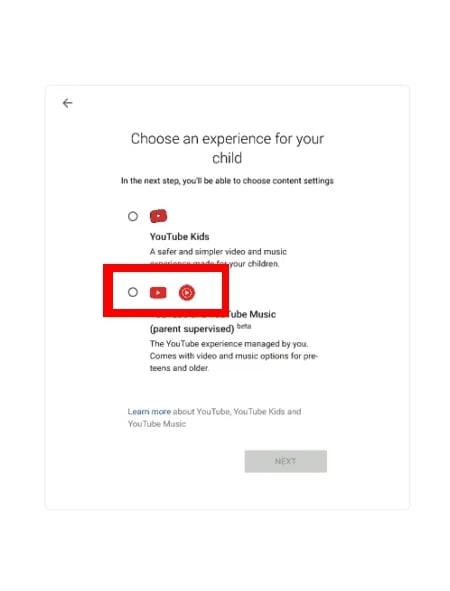
- Then select Youtube and YouTube music then Next,
Congratulations! You can now apply parental control and choose appropriate content for your child, such as :
- Explore (Discover) : For those aged 9 and over,
- Explore more For those aged 13 and over,
- Most of YouTube : Larger videos, except for those reserved for viewers over 18 years of age.
After finishing the selection of suitable video types to their age, you will be redirected to a new page for finalize configuration and you're done!
From now on, you can bring your own following modifications on behalf of your little boy or girl:
- To block content,
- Disable automatic playback,
- Consult theYouTube video history watched by your child,
- Hang Where delete search history, etc.
3. Creating a YouTube Kids profile for children
Your child is still too small for YouTube?
In this case, please note that you can also use the application. YouTube Kids for children under 13. Simple to use, it allows access to videos exclusively for them!
To use it, follow these steps:
a) Creating a parent account
- Download the app on App Store or Play Store and launch it on your device,
- Then click on I'M A PARENT,

- From now on, please follow instructions to set up the account, starting with entering your year of birth,
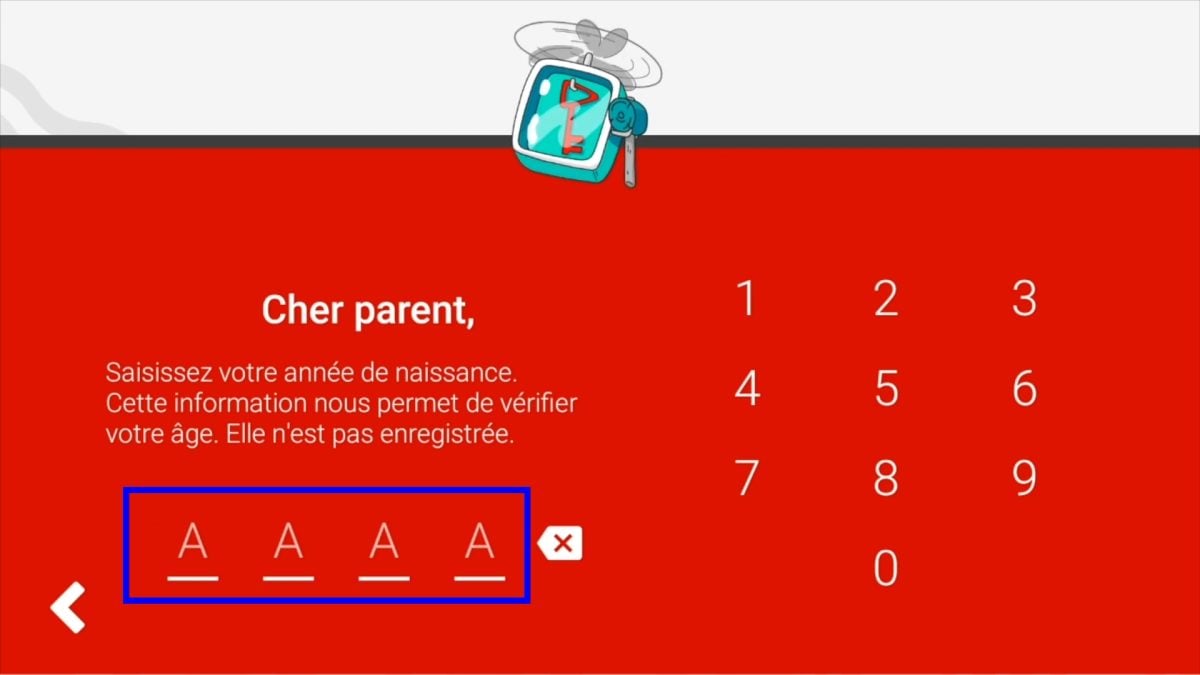
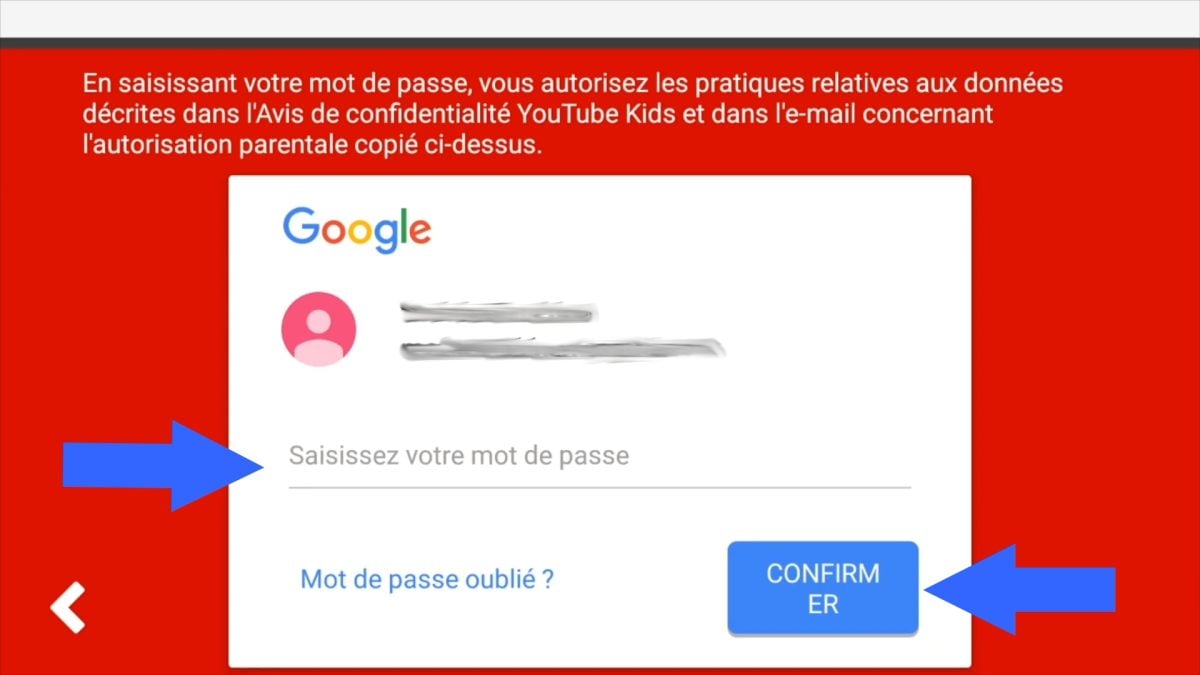
- You must then create a parental account (if you don't have one), or enter your email address,
- Finally, read the terms and conditions of use and click on To confirm,
b) Creating a child's account
Once you have entered the password for your parental account, you can now create an account for your child !
To do this :
- Insert sound name, first name(s), age and month of birth in the appropriate fields,
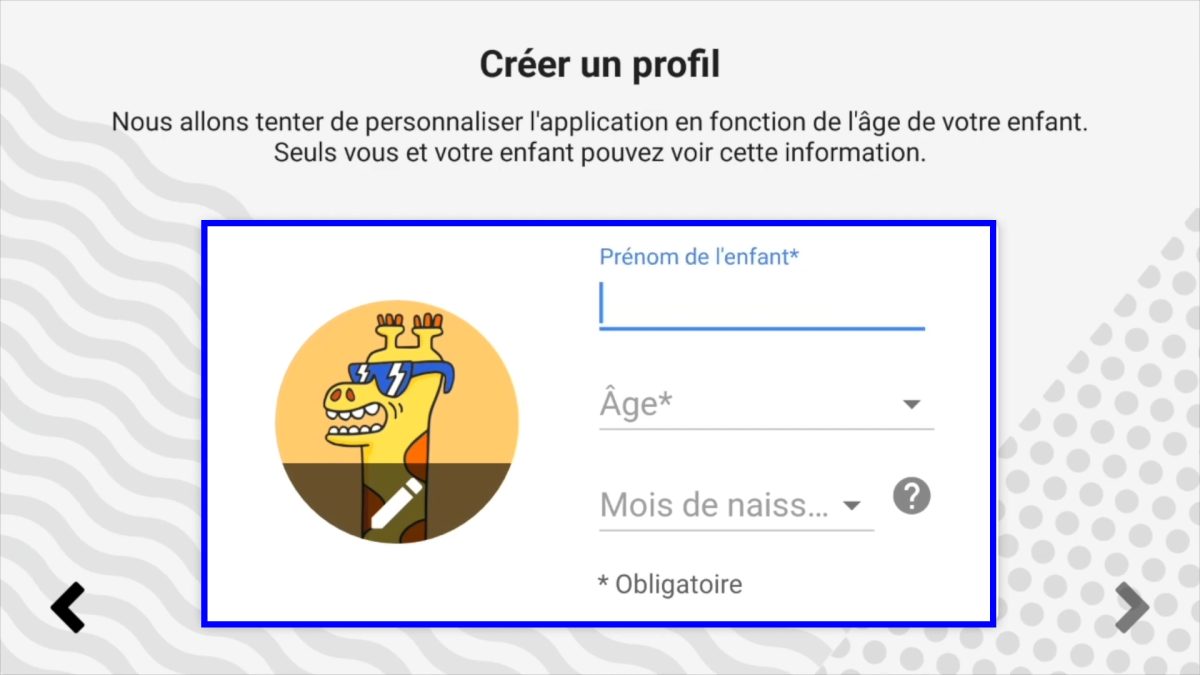
- Then you can select content type he can access,
- At least select 5 channels per category in order to approve the content and the channels you authorize to be approved,

- Finally, launch account and let it browse the application at its leisure!
c) Modify parental control settings
Over time, if you want to control its use YouTube Kids, or add more content to your child on the platform or other, here's how to do it:
- Locate the small padlock lower right,
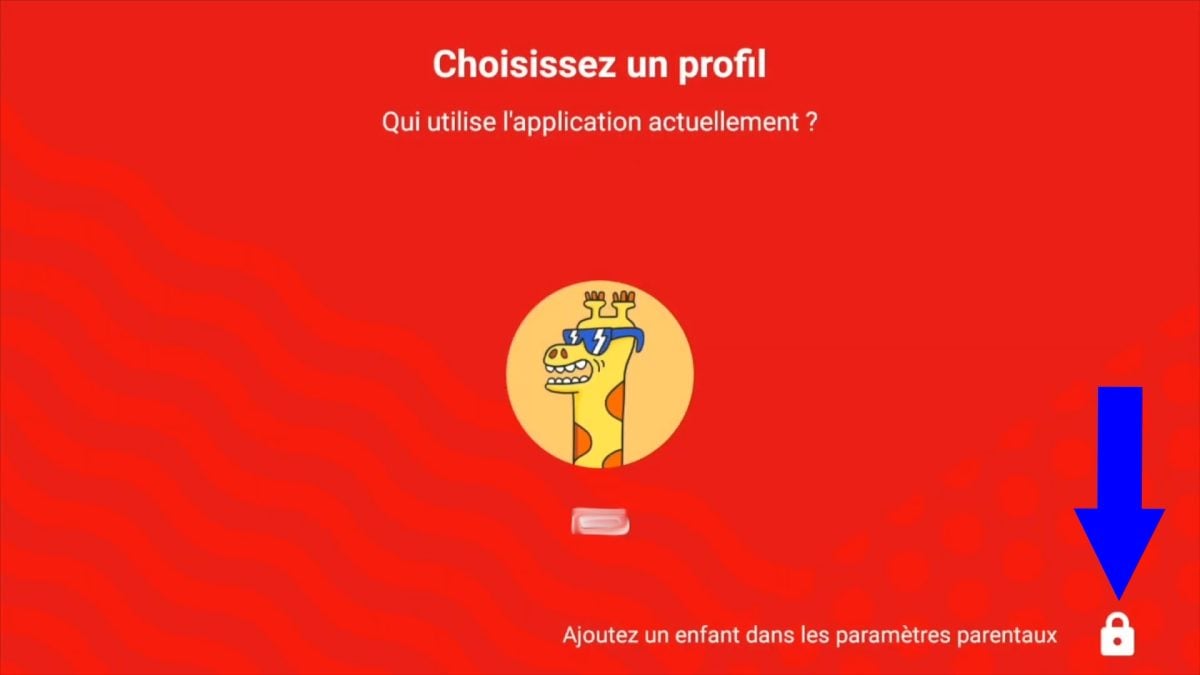
- On this page, you have two choices, including solve the small calculation proposed or set a secret code 4 digits. You will need this code in the future.

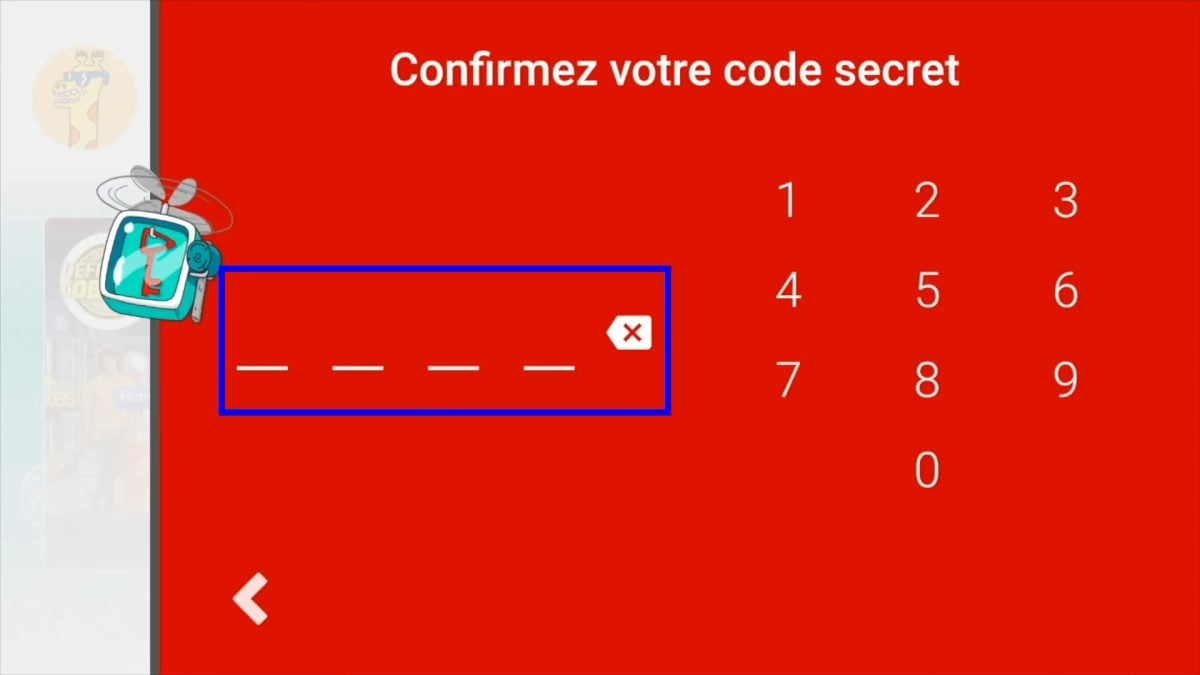
Once you've set the password, you'll have access to the next menu :
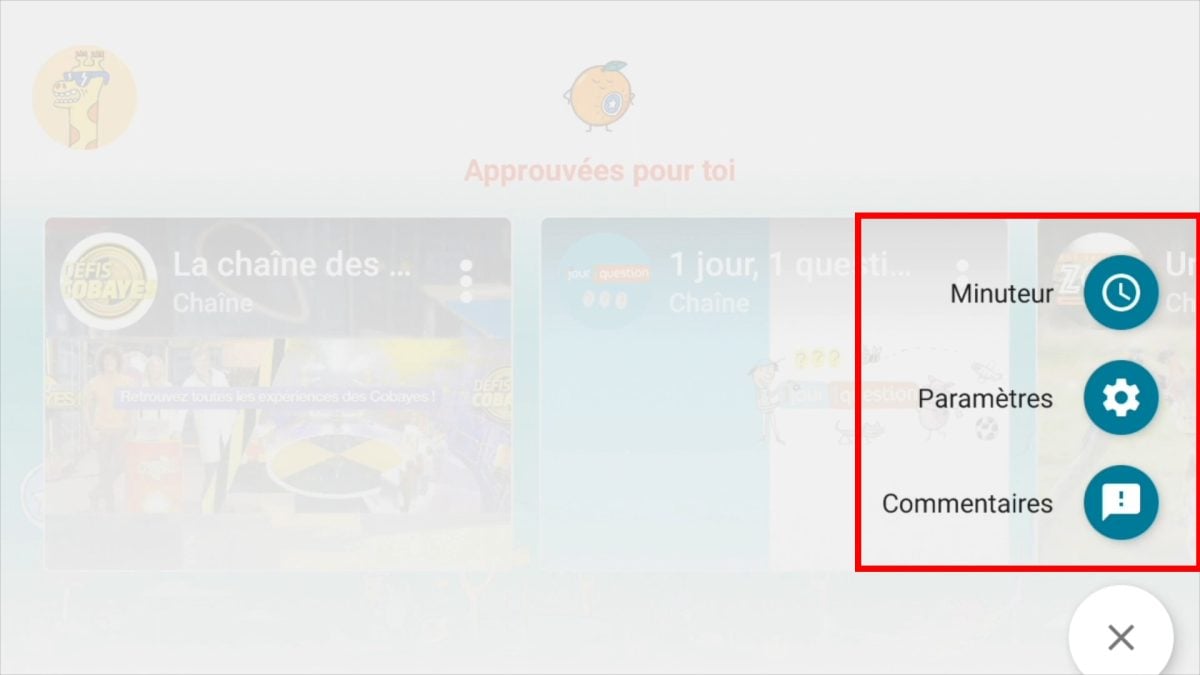
As a result, you will have access to several possibilities, such as :
- Add Where delete content videos for him,
- Give him permission to research or not,
- To create a second account for other children at home,
- Define a timer, or the time allowed for him to spend on this app!
In short, these are a few techniques for using the parental control on YouTube and YouTube Kids protect your children!








 English