Did you know that your PS3 gamepad can still be useful to you? With a little configuration, you canuse on PCAll you need is:
- A PS3 controller official
- A laptop under Windows
- A USB Mini-B cable (The standard PS3 charging cable)
- Regarding the software/specific pilots

Step 1: Check that your PC is up to date
Before you can use your PS3 gamepadyou need to make sure that your system is up to date. These devices are generally compatible with Windows 10 and 11. On older versions, however, compatibility problems may arise.
To check if your system is up to date :
- Click on the "Startthen go to “Settings.

- Click on “Updates and security.
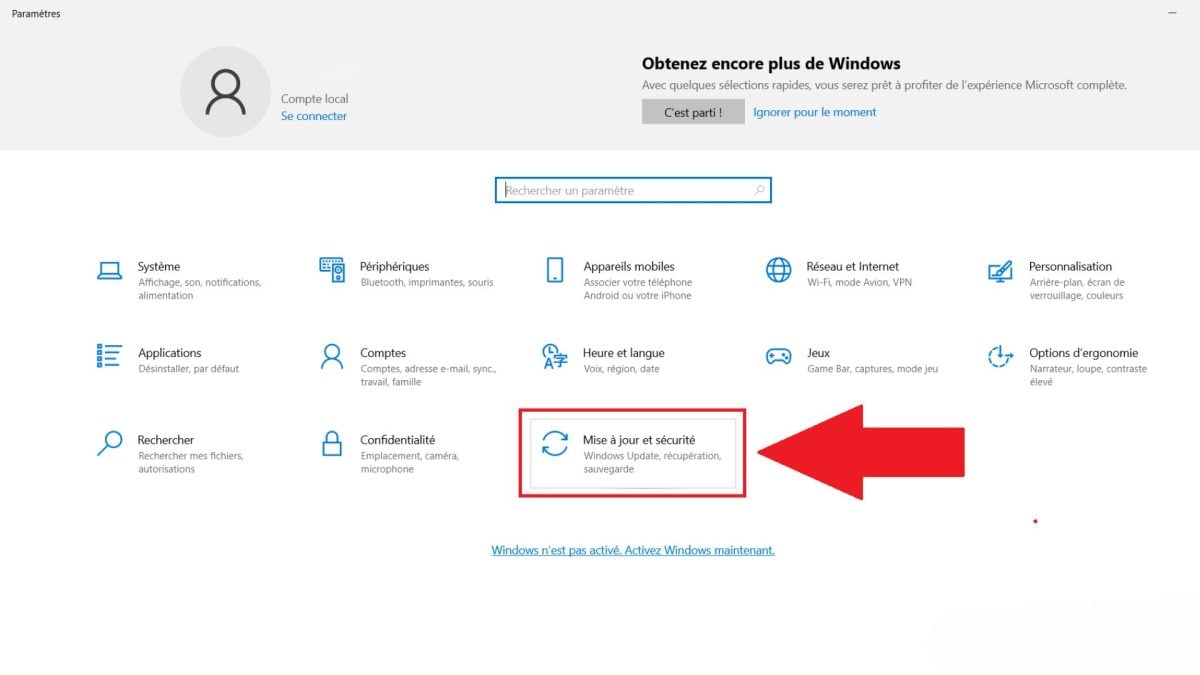
- Click on “Win Updatethen on “Check for updates.
- Install all available updates.

Step 2: Download and install software to use a PS3 controller on PC
Some PlayStation joysticks are not recognized by Windows. The PS3 joystick is one of them. For this, you need to download software or some specific pilots.
Here's a list you can choose from:
1. XPadder
It is a program that allows you toassociate each button on the dualshock 3 to a key on the keyboard. It also allows you to control the pointer of the mouse with the sticks.

2. Joy2Key
Like XPadder, Joy2Key allows you toassign mouse and keyboard to gamepad buttons.

3. ScpToolkit
This program automatically sets up the pilots required and places the order PlayStation for that of a Xbox 360which makes it compatible with most games.
4. MotionInJoy
MotionInJoy is also an option for connecting your dualshock 3 to your machine. However, it is advisable to handle with careDue to certain security issues, many gamers have advised against it.

Step 3: Connect your PS3 controller to your PC
Once you've set up your tool, plug in your dualshock 3 to your laptop.
How to connect your PS3 controller to your PC via cable?
To connect your PS3 gamepad to your computer, use the USB Mini-B cablethe same one used to recharge the device.
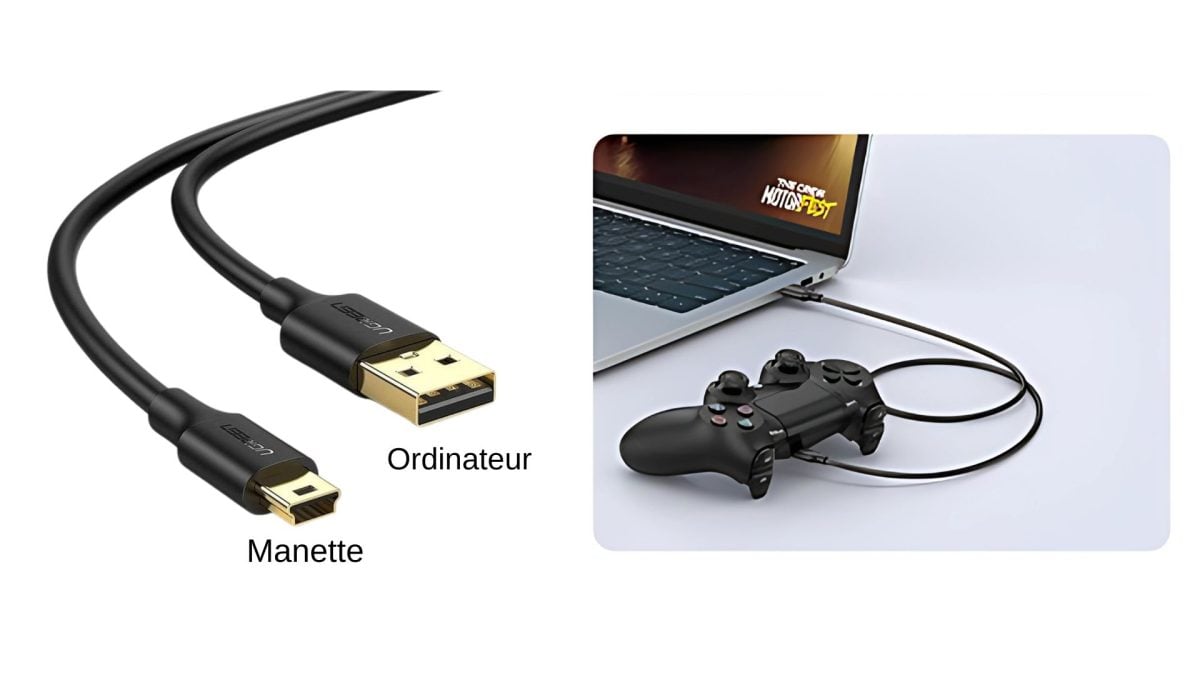
Once connected, your computer should detect automatically a new device.
How to connect your PS3 controller via Bluetooth?
You can also connect your PS3 joystick via Bluetooth to free wireless play.
Here are the steps forpairing :
- Connect the PS3 gaming device to the machine using the USB cable.
- Launch the application you have chosen, for example: ScpToolkit.

- Open the tool ScpToolkit Driver Installer.
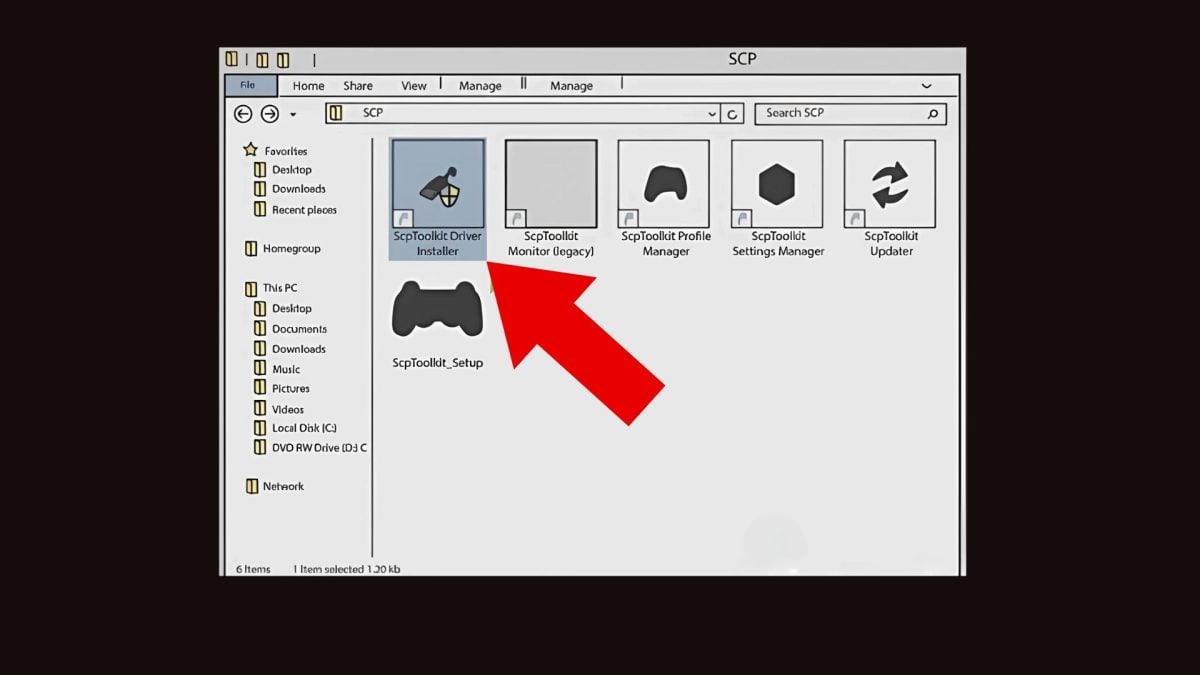
- Check box “Install Bluetooth driver.
- Dans la section “Select Bluetooth dongles to installselect your Bluetooth adapter.
- Check box “Install DualShock 3 driver and select your gamepad.
- Click on “Install.
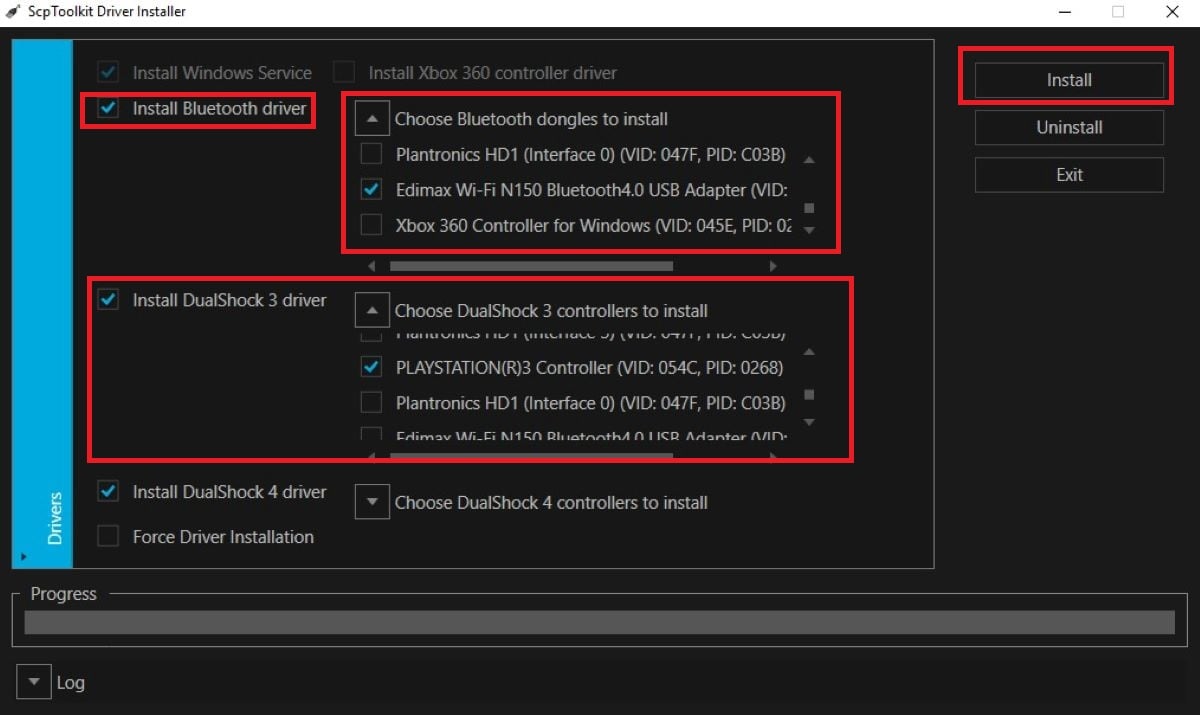
- After installing the drivers, disconnect the USB cable.
- If the installation is successful, information messages appear in the corner of your screen.
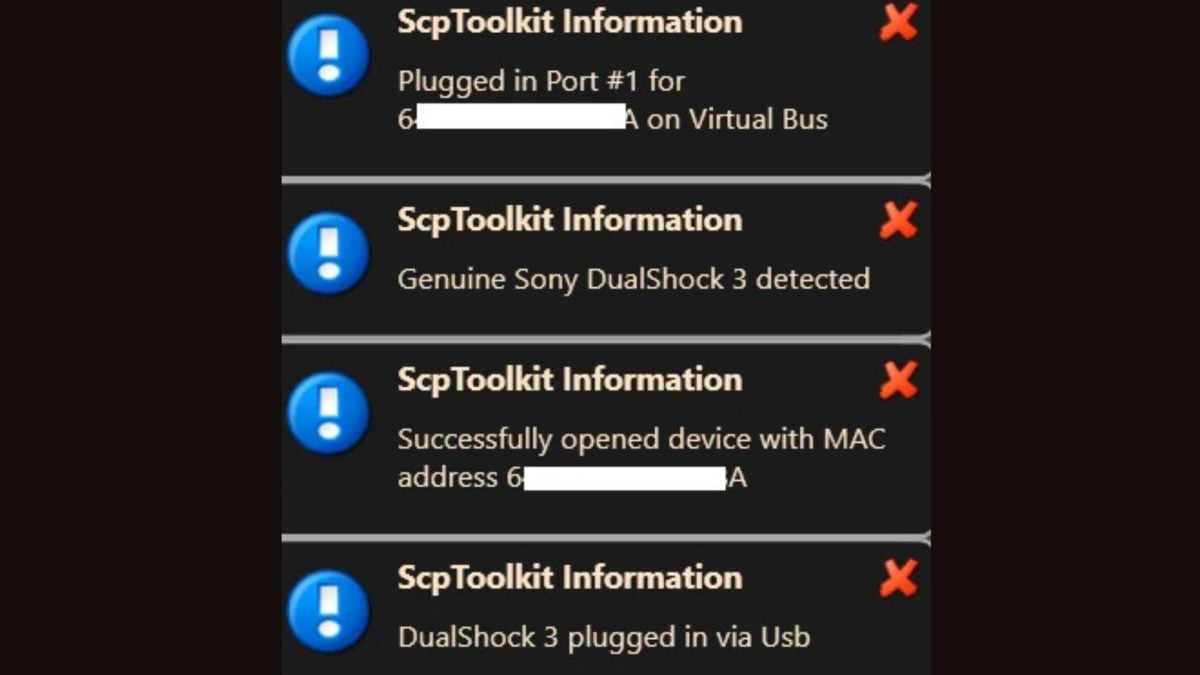
- Press the PS button to switch on the device.

- The device should automatically connect to the machine.
Step 4: Configure your software/driver
Now that your ordered is recognized by your laptop, it's time to configure itThis procedure varies depending on the tool you have chosen.
For each of the above-mentioned programs, follow these steps:
1. XPadder
- Launch XPadderIf your gamepad is not connected, you will see a blank window.
- Plug it in to display buttons.
- Click on thejoystick icon.
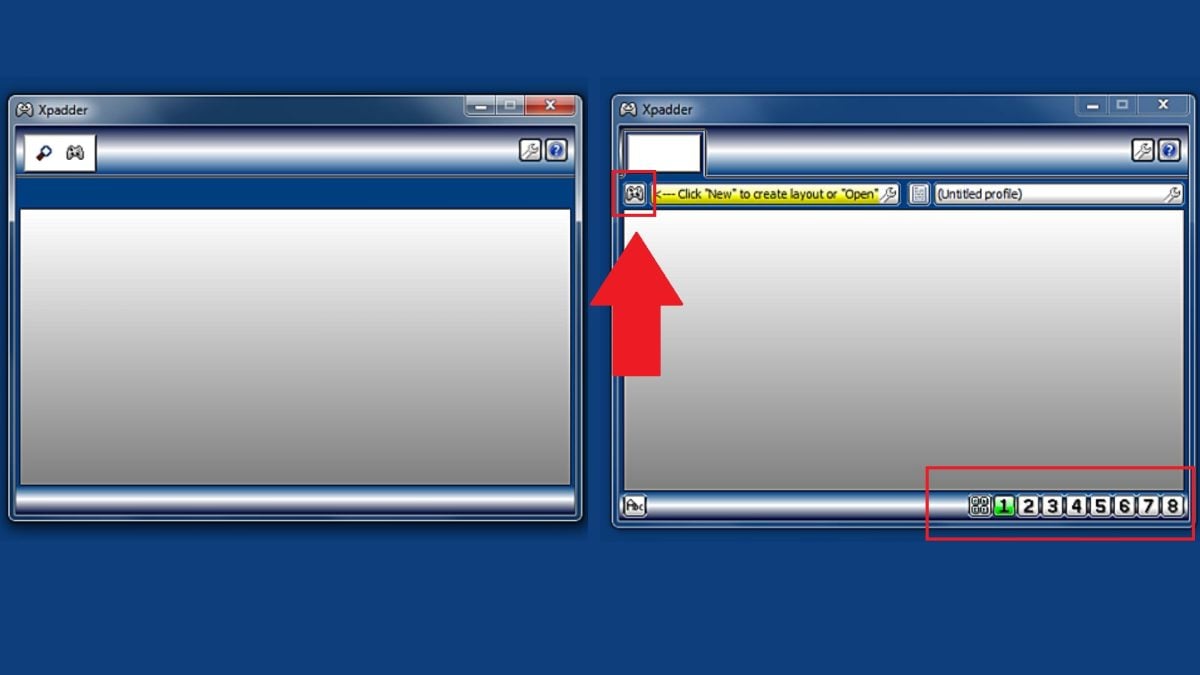
- Create a new profile by clicking on “New”.
- A new window appears.
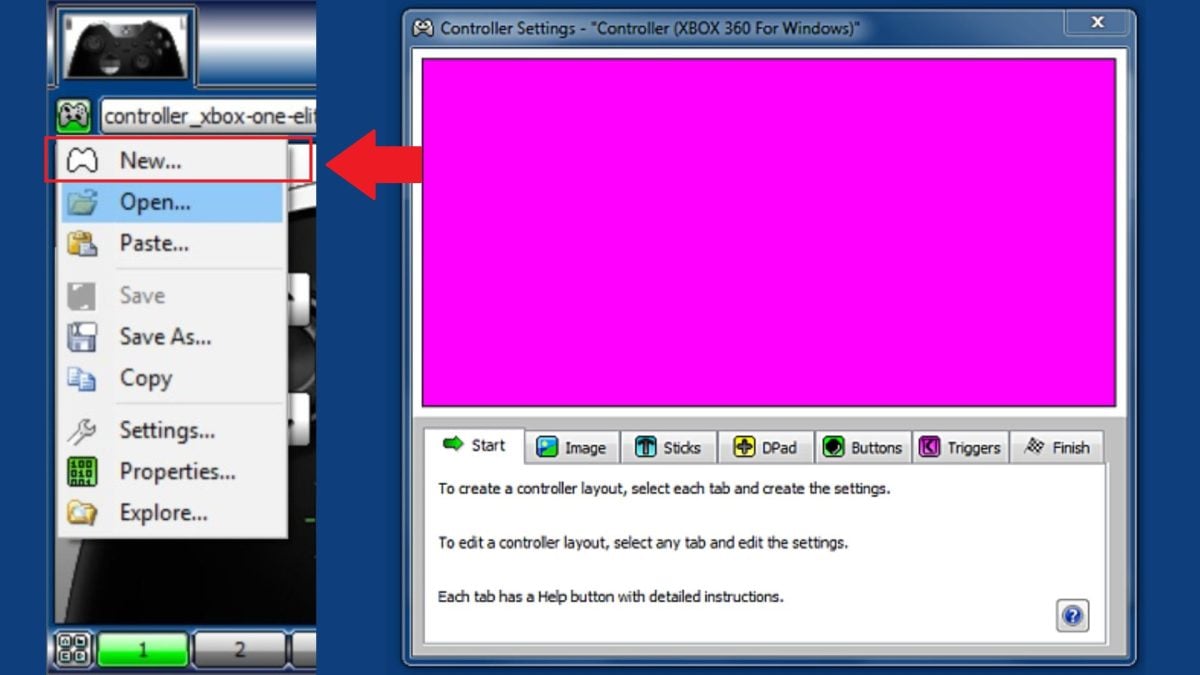
- Import or create a joystick image. This facilitates visual configuration of the buttons.
- Click on each zone to configure associated keys.
- Register your profile by clicking on “Save As…”.

2. Joy2Key
- Launch Joy2KeyA window will appear.
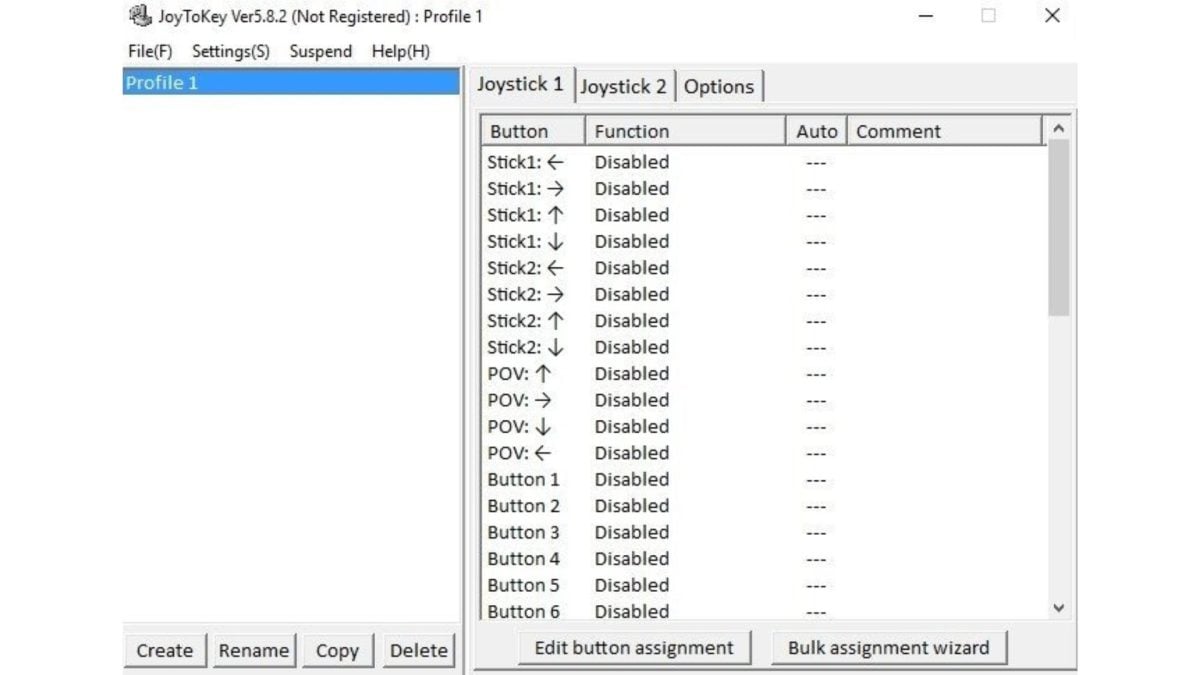
- Double-click on a line (Sur Stick 1 for example).

- A new window appears.
- Click on the first “Disabled to change in one keyboard keyFor example, "Q." This allows you to assign a keyboard key to a button.

- Test in an application to ensure proper operation.
3. ScpToolkit
- Plug in your PS3 controller.
- Type “Control Panel in your machine's search bar.
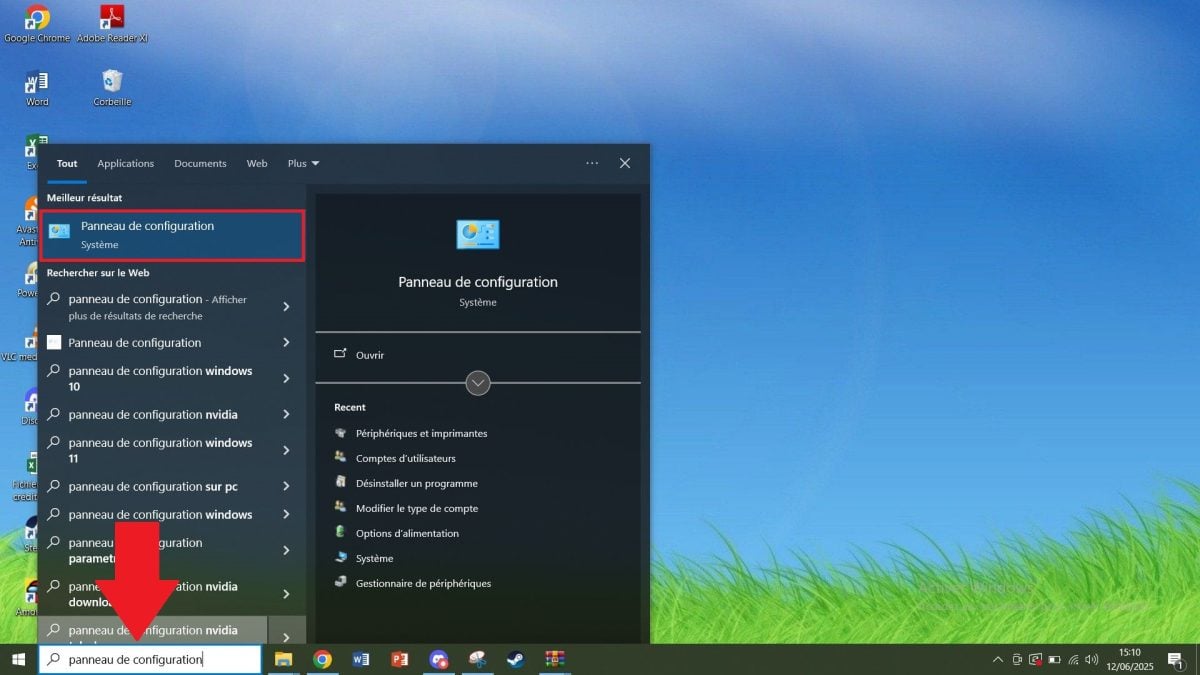
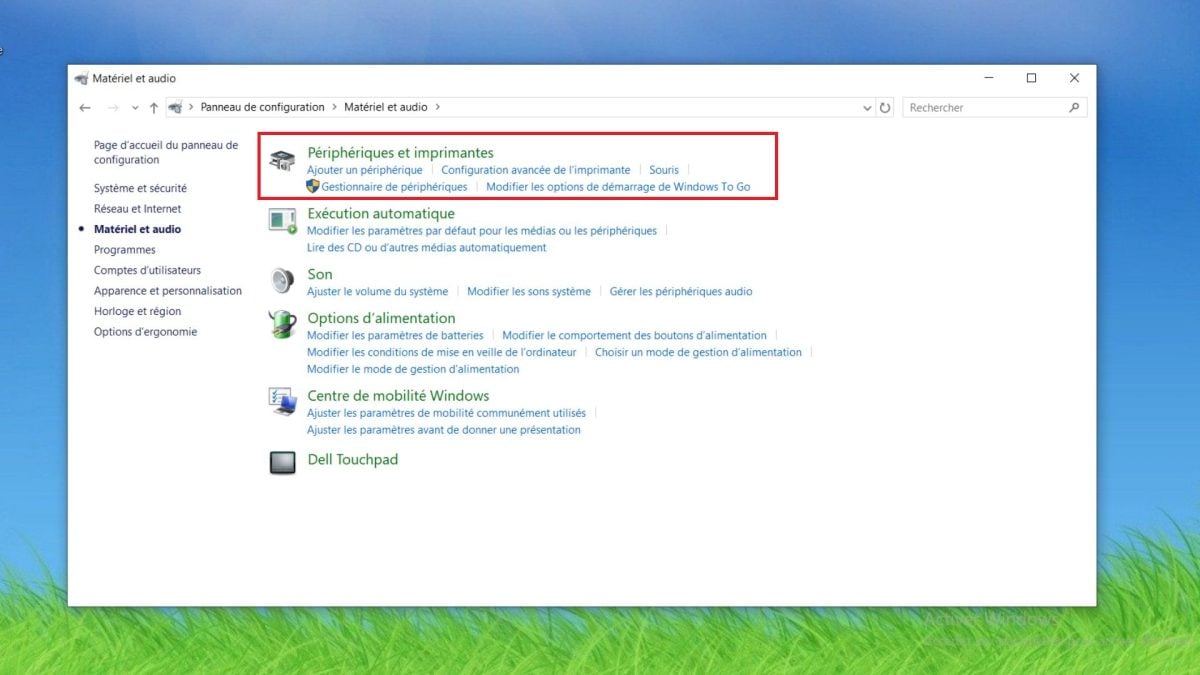
- Go to “Hardware and audio”.

- Go to “Peripherals and printers”.
- Select your gamepad.
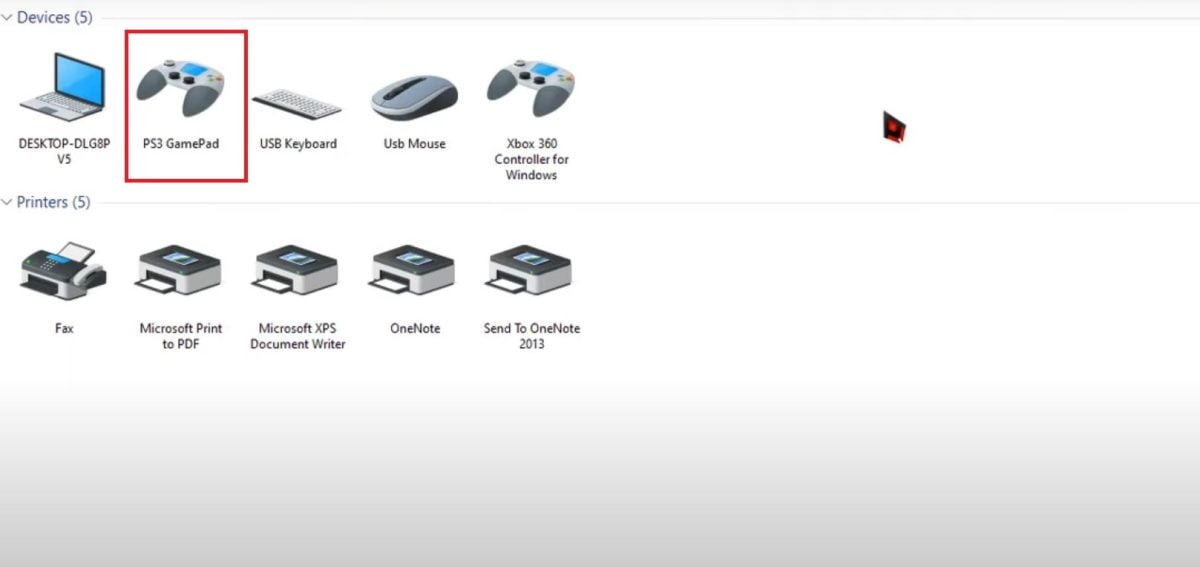
- Right-click on the image and click “Properties”.
- A window opens for perform a test. Press the buttons on your gamepad to test responsiveness.

4. MotionInJoy
- Plug in your PS3 joystick.
- Launch the tool.
- In the tab “Driver Managerthen check the small box above Load driver.
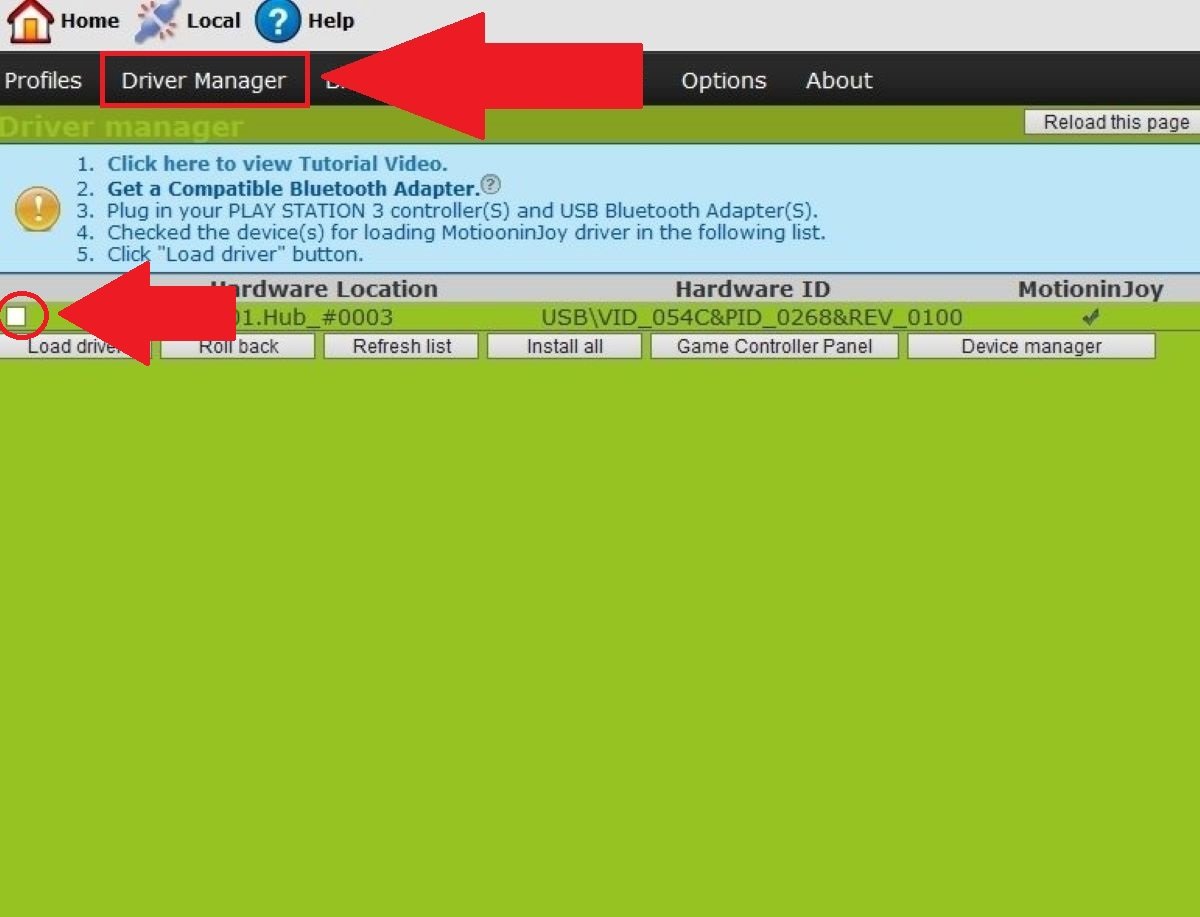
- Click on “Load driver and wait for the page to display the data showing “Success.

- Go to the “Profiles”then select “PlayStation 3″. Then click on “Enable.
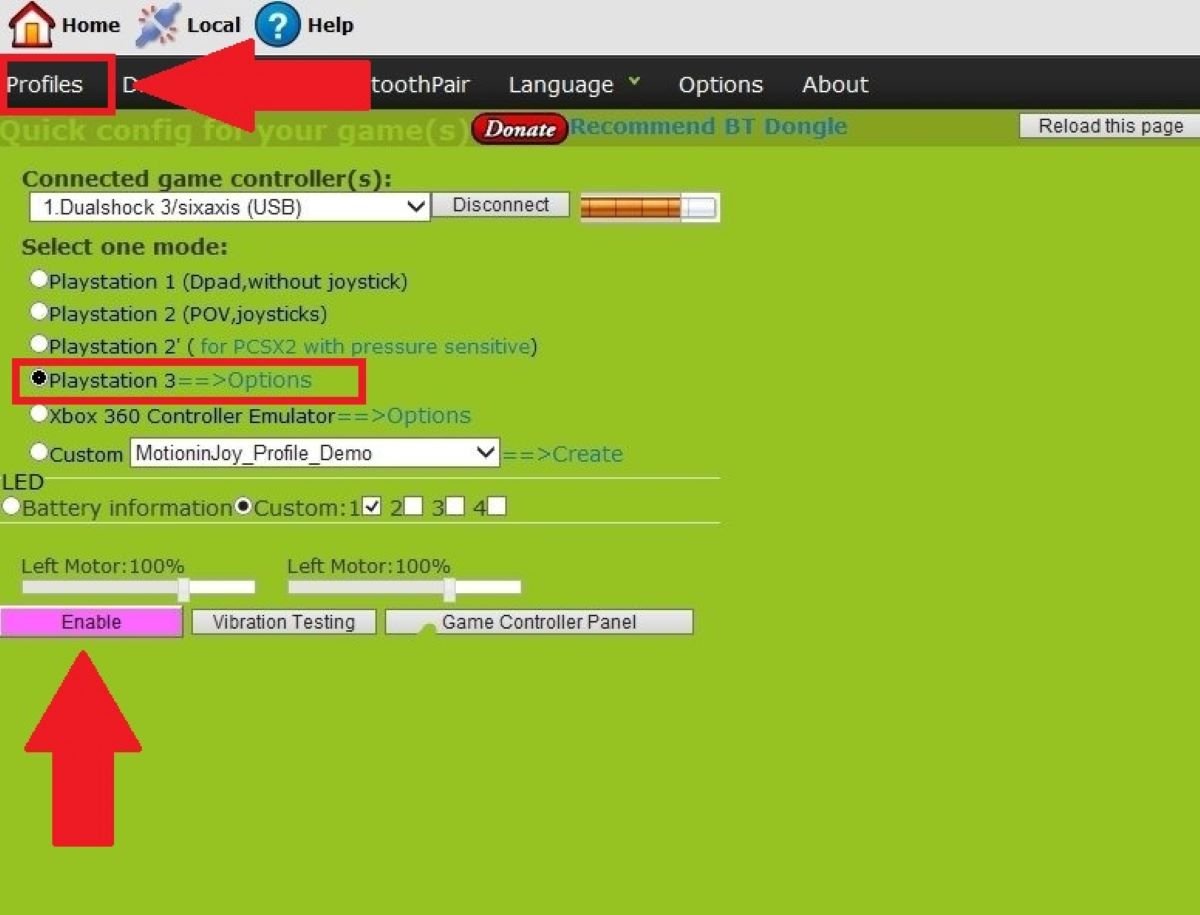
- Test the buttons in the tab “Game Controller Panel and vibrations in “Vibration Testing.
Step 5: Testing your PS3 controller on PC
After installing and configuring your software, test your PS3 controller to see if it works properly on your computer. To do this:
- Unplug then reconnect-it. You'll see if it's detected by the system.
- Start a game.
- Check that the controls work correctly.
- If everything is OK, your PS3 controller is ready to use.
FAQs
Why won't my PS3 controller work on my PC?
There are several reasons why your PS3 controller may not work on your computer:
- The drivers are not installed.
- the software The selected option is not configured correctly.
- the USB cable where the port is faulty.
What should I do if my controller is not detected via USB?
If your gamepad is not detected via USB:
- Test another USB Mini-B cable or another USB port.
- Open your system's device manager to check whether the ordered appears.
- Make sure your DualShock 3 is well installed.
Bluetooth connection fails or is unstable. What should I do?
To resolve an unstable or refused Bluetooth connection :
- Avoid obstacles Where interference walls, nearby electronic devices.
- Do not use other devices at the same time if your adapter is limited.
- Check that your adapter is compatible.
- Reinstall the pilot.
Why don't the buttons on my PS3 controller work properly on PC?
There are several reasons why the buttons on your joystick may be malfunctioning:
- A incorrect configuration keys.
- A incomplete configuration in the tool that has been set up.
- Regarding the conflicts with other connected devices.
Why doesn't my PS3 controller vibrate?
In some situations, the vibration of your dualshock 3 may not work because :
- It depends on theapplication used. Some support vibration, but not on all games.
- Some programs disable by default the vibration function.
Thanks to this comprehensive guide, you now know how to connect your DualShock 3 to your laptop. Feel free to check out our other articles to find out more about:









 English