Whether you're a wired or wireless team, you can connect your PS5 controller to your PC. Follow this guide to learn more and enjoy a smooth and immersive gaming experience!
1. Connecting a wired PS5 controller to a PC
For this type of connection, simply connect your PS5 controller to your computer with a USB cable on the PC. Here are the steps:
- Take a compatible USB cable with your gamepad 5 and your PC's USB port.
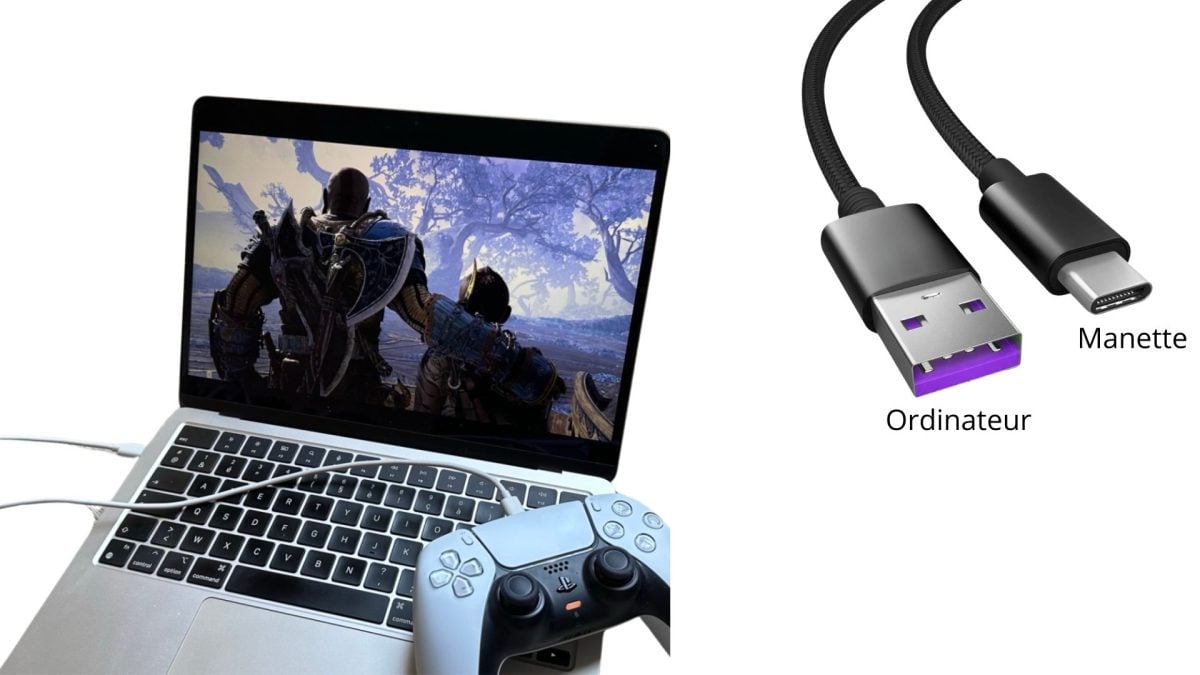
- Check that your game controller automatically appears in your device's connected peripherals. Go to Menu Start > Settings > Peripherals.

- Play a game for test your controller.
2. Connecting a PS5 controller to a PC via Bluetooth
Here's how to pair your PlayStation 5 controller with your PC via Bluetooth :
- See you in the Settings on your Windows PC.
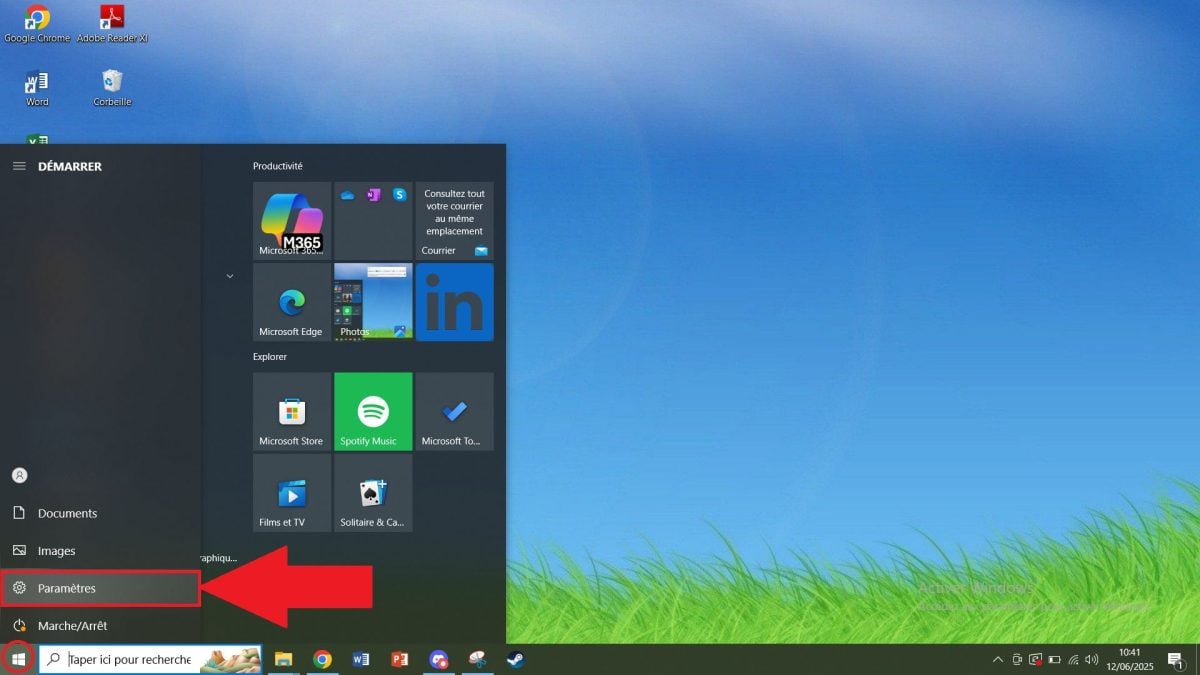
- Go to Peripherals.

- Click on “Bluetooth and other devices”then activate Bluetooth.

- Take your PS5 controller. Simultaneously hold down the "Creation” and the “P.S.” until the light bar flashes.
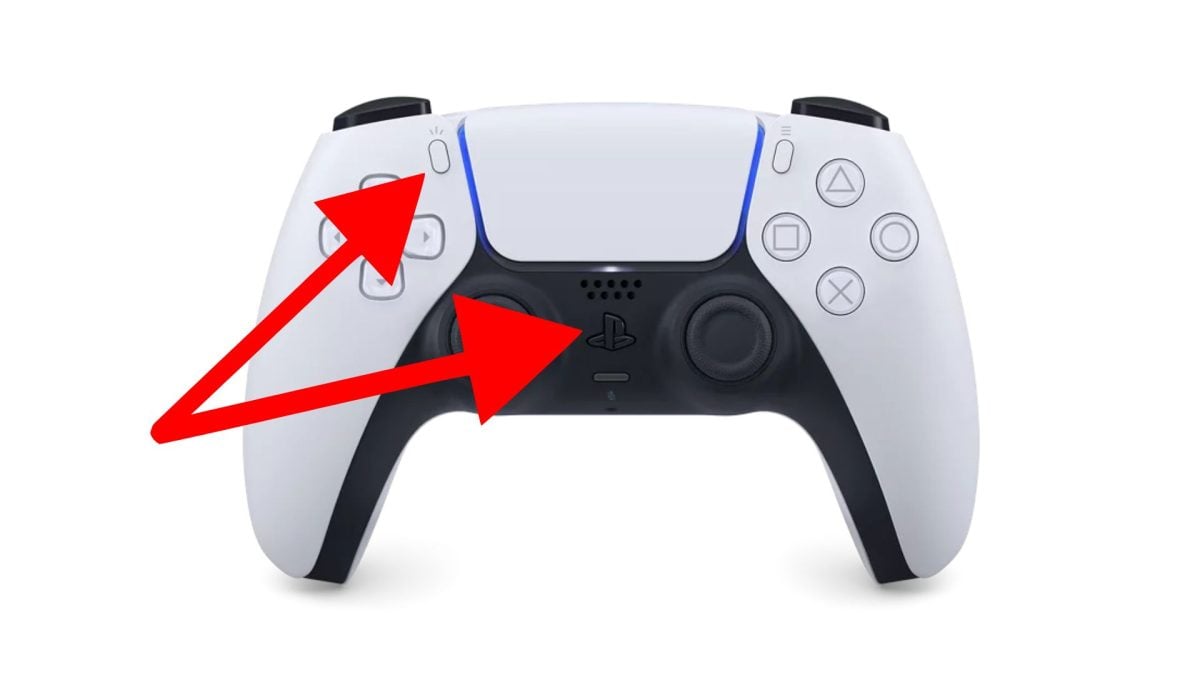
- “Wireless Controller" should appear in your Bluetooth settings. Click on it to pair your DualSense controller with your computer.

3. Using software to play with your PS5 controller
If your PS5 controller does not work properly despite a wired connection Where Bluetooth, you have the option of installing a software. It can activate the right drivers and ensure compatibility with your games.
a) Download DS4Windows to use a PS5 controller on your PC
DS4Windows is a simple and effective software that makes your PS5 controller compatible with most PC games. Follow these steps to install it on your machine:
- Go to official website from DS4Windows.

- Click on “Download” to download.
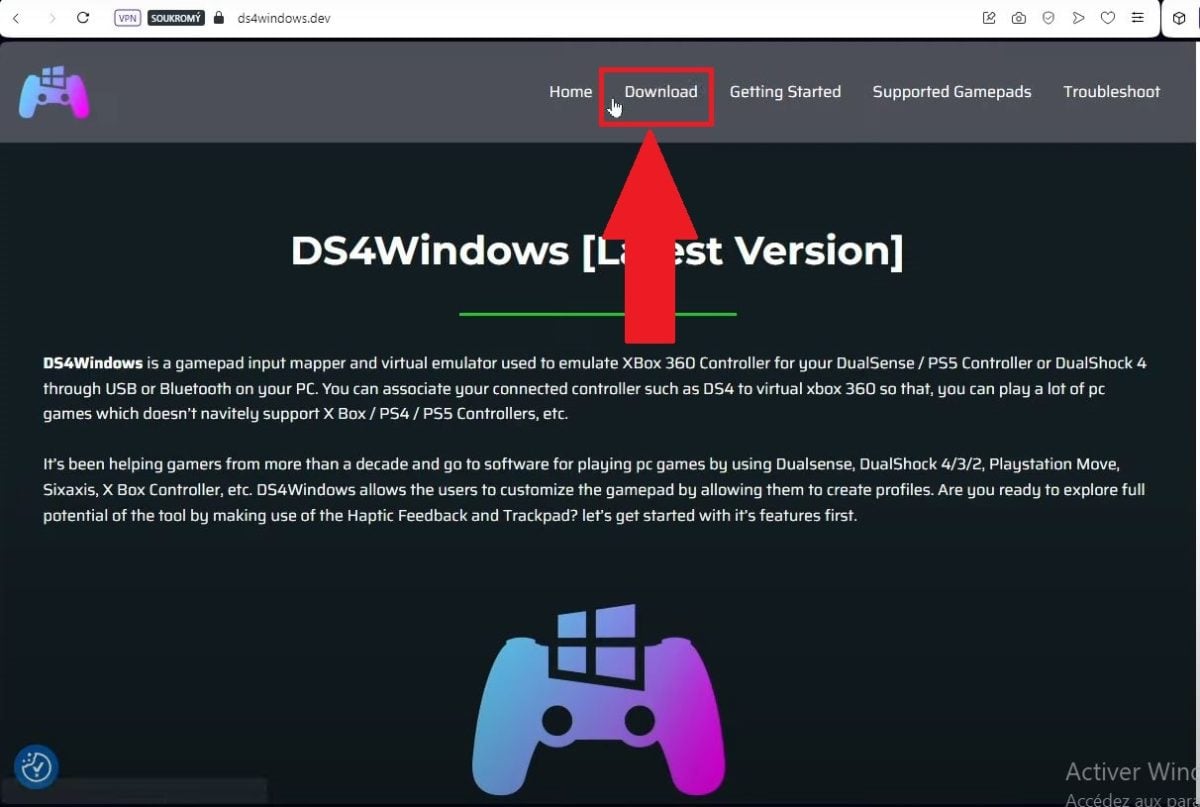
- Open the DS4Windows file and extract it by clicking on DS4Windows.exe.

- Open the extracted file and run DS4Windows.exe.

- Follow the instructions for install the necessary drivers. Click on “Finished” once everything is configured.

- Check that the PS5 controller appears in theDS4Windows interface.
- Make sure your controller is properly connected (via Bluetooth or USB cable).
- If it is, the software will display the following page:

Launch DS4Windows now to connect your PS5 controllers and play to your heart's content without interruption.
b) Install PlayStation®Accessories to use a PS5 controller on a PC
PlayStation®Accessories is an official SonyIt allows you to update and manage the PS5 controller settings on your PC, especially when connected via cable.
This software also allows you to check whether your PS5 controller is recognized and up to date so that it works correctly. Follow these steps to install the PlayStation®Accessories.
- Download the app on This site. It automatically recommends that you download the missing drivers.

- Once the missing drivers have been downloaded, click on the file PlayStationAccessoriesInstall to install the application correctly.
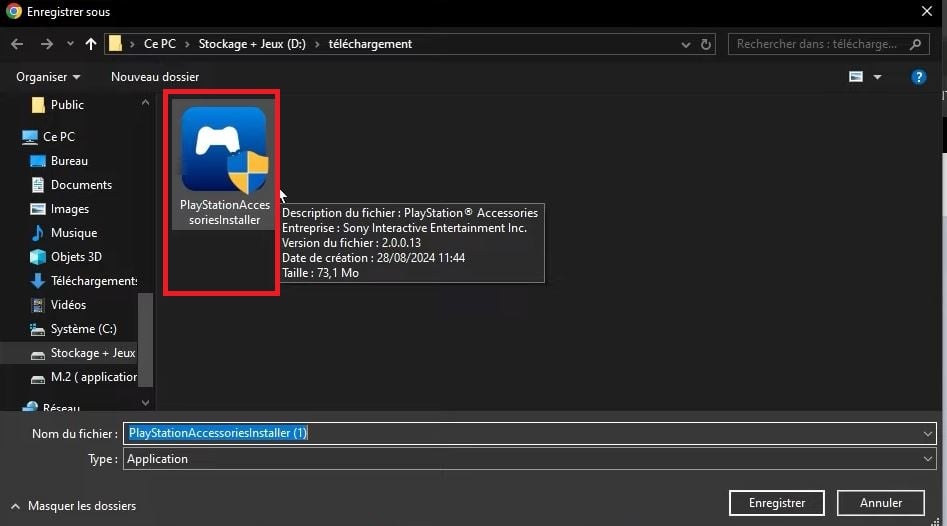
- After installation, you will arrive at the application.

- Connect your controller in Bluetooth or by cable to your PC.
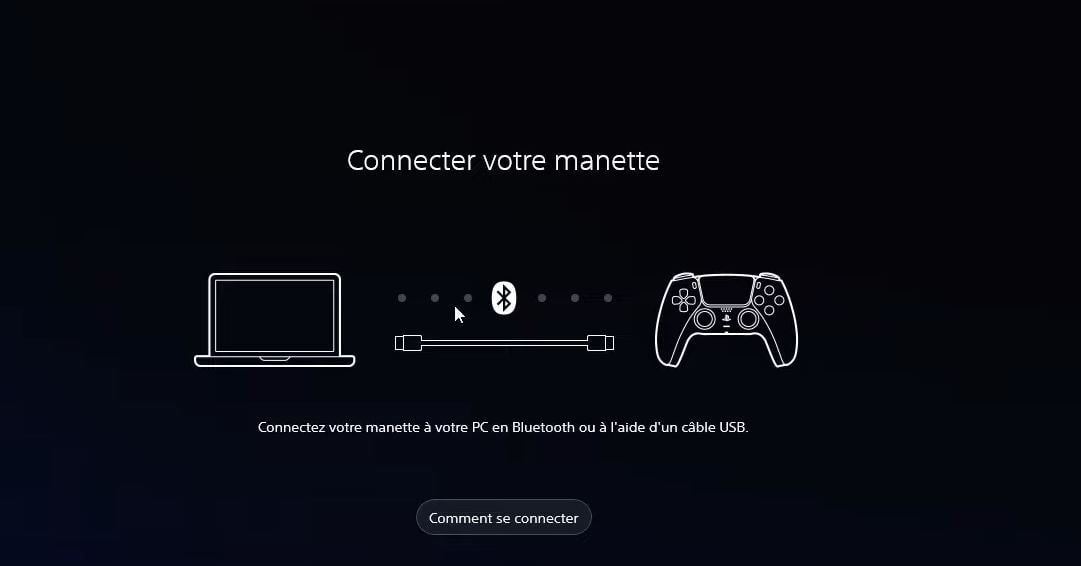
- Once logged in, you will see a short presentation to help you understand the operation of the application.

- You can connect 4 controllers simultaneously to your PC: wireless controller DualSense normal and Edge.
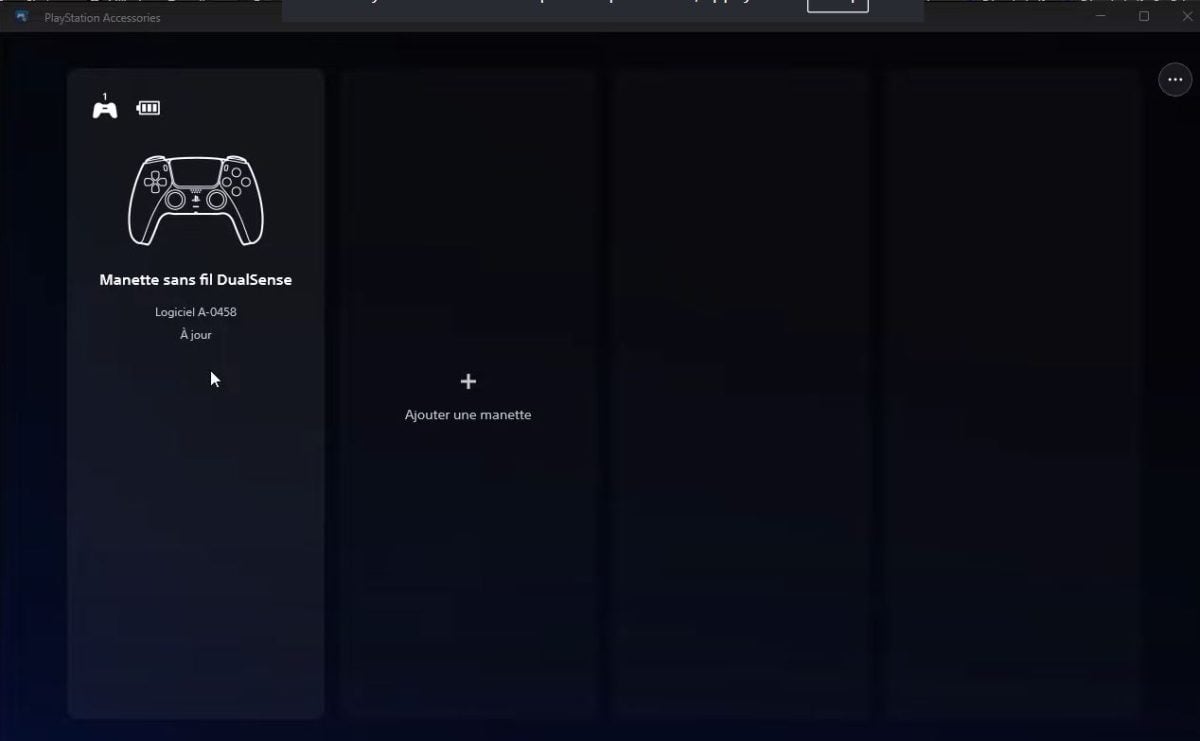
You can also test your PS4 controller with this software.
FAQs
Why won't my PS5 controller work on PC?
If you are having problems with the PS5 controller on your computer, here are the possible causes:
- A damaged USB cable Where not compatible.
- Regarding the drivers are absent.
- Your Windows system is not up to date.
- the Bluetooth on your PC is not enabled.
How can you extend the life of your PS5 controller?
Here are a few tips to extend the life of your controller:
- Do not leave it connected to a continuous load.
- The clean regularly.
- The ranger protected from shocks and moisture.
- Disable haptic feedback when it is not necessary.
How do I play with a PS5 controller on Steam?
To play on Steam with a gamepad 5 :
- First connect it to USB Where Bluetooth to your computer.
- Open the application Steam in Big Picture mode.
- Go to General parameters.
- Check “PlayStation controller stand”.
- Customize keys if possible.
How to activate adaptive triggers on PC?
If you wish to activate the adaptive triggers on your machine :
- First, connect the controller to your device with or without wires.
- Use tools such as DualSenseX if the game is compatible.
- The games Steam sometimes support adaptive triggers.
How to play GTA with a PS5 controller on PC?
Playing GTA with a DualSense controller is easy:
- Connect the device to your computer.
- Start the game on Steam or your usual launcher.
- Check in the settings of the game if the controller is correctly detected.
- If this is not the case, use DS4Windows.
How can I update my PS5 controller on my PC?
To update your DualSense controller on your device, simply download PlayStation®Accessories.
In short, connecting a PS5 controller to a PC is very simple. There are both wired and wireless solutions. For a headache-free connection, follow this guide. See also








 English