On Windows, press Alt + Shift to switch between two languages that are already installed.
The shortcut Windows + Space does the same thing by displaying the list of keyboard layouts. If the language you're looking for isn't installed yet, you can quickly add it through the settings.
This guide covers Windows 10 and Windows 11, as well as changing the language on Android (Samsung) and on iPhone.
Video tutorial on how to change your keyboard language Windows
The video below shows you how to add a new language, using the example of switching from a keyboard French (AZERTY) toward a keyboard English (QWERTY), and vice versa.
Explanatory video in French by Alucare, ideal complement to the page. View video (you can use YouTube's automatic translation)

Would you rather follow the steps in writing? The illustrated tutorial below details the entire setup process, both on Windows[/NOTRANSLATE] 10 than on Windows 11.
Change the keyboard language to Windows
This method works on the operating system Windows 10 as on Windows 11. It lets you add a new keyboard layout or delete one you no longer use.
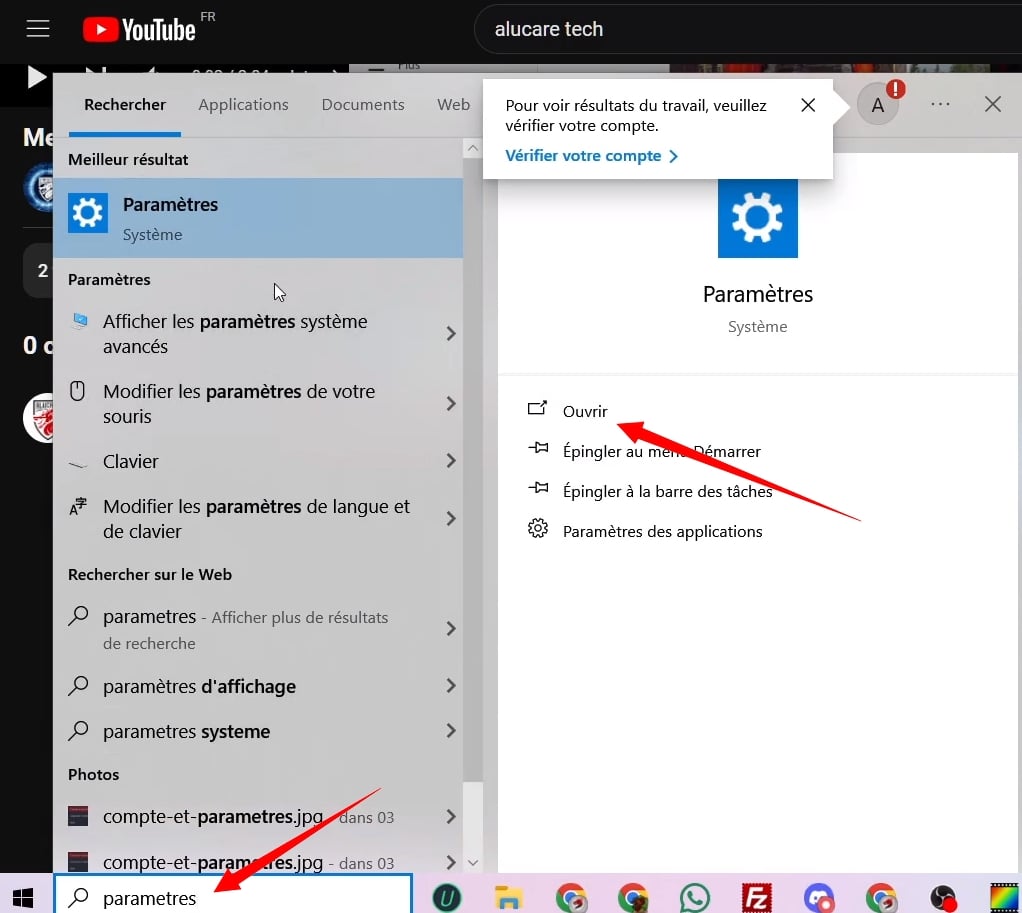
Step 1: Open Settings
Tape "Parameters in the search bar Windows, then click the corresponding icon.
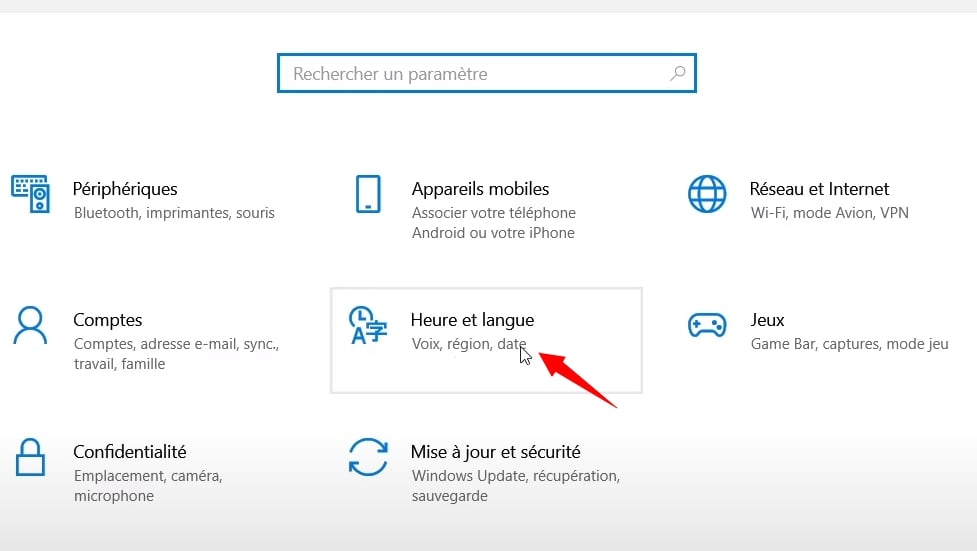
Step 2: Go to «Date & Time»
In the settings window, select the section «Time and Language». This is where you manage the language, the region and the game's keyboard layouts installed on your system.
Step 3: Open the «Language» menu»
In the left pane, click on «Language» (Where «Language and Region» at Windows 11). You will then see a list of the languages and layouts already installed on your computer.

Step 4: Add or open the options for a language
To add a language that's missing, click on «Add a language» and select the one you want (English, Spanish, Arabic, Russian…). For a language that's already installed, select it and then click «Options» in order to manage its keyboard layout.

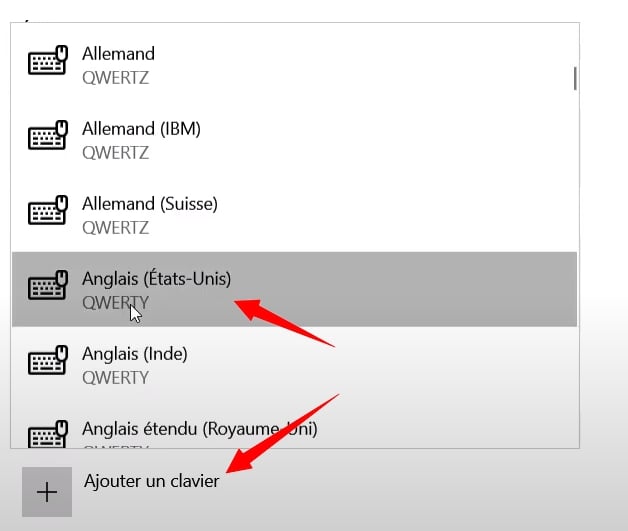
Step 5: Add the desired keyboard layout
In the options, go to «Keyboards» then click on «Add a keyboard». Select the desired layout, for example, the keyboard QWERTY English. This is also where you can delete a layout you no longer use by clicking on it and then clicking "Delete.
Step 6: Switch between your keyboards
Once you've set up several layouts, you can switch between them from the’language icon, to the left of the time in the taskbar. Click on it to display the list and select the layout you want to use. There are also two keyboard shortcuts that do the same thing:
- Alt + Shift : Switch directly between your last two input languages.
- Windows + Space : Scrolls through all installed layouts in a short list.
- Ctrl + Shift : an alternative shortcut recognized by some versions of Windows to change the keyboard language.

Delete a keyboard layout on Windows
If you have too many layouts installed, you can easily remove some of them. Here are the steps:
- Open the settings, then Time and language.
- Click on Language (Where Language and Region at Windows 11).
- Select the language you want, click the three dots, then click Language Options.
- Dans la section Keyboards, click on the layout you want to remove, then click To delete.
If you don't want to delete the entire language but only a layout, this method allows you to keep the language in the system while removing only the input configuration you no longer use.
Enable the Arabic keyboard (and other non-Latin languages) on Windows
Adding a language such as Arabic, Russian, or Chinese follows the same process as for Romance languages. There are a few specific points to keep in mind.
- Go to Settings > Date & Time > Language, then click on Add a language.
- Tape Arabic in the search bar and select the desired region (e.g., Arab (Saudi Arabia)).
- Check the language options you want, then click Install. Windows automatically downloads the language pack.
- Once it's installed, you'll see the layout appear in the list. Use the’language icon in the taskbar or the shortcut Alt + Shift to toggle.
For languages with non-Latin scripts, Windows often offers several options (e.g., Arabic with and without diacritics). Select the one that suits your needs.
Troubleshooting: What to Do If It Doesn't Work?
Here are the most common problems and their solutions.
The keyboard shortcut does not change the language
The shortcut Alt + Shift is sometimes disabled or replaced by another option in the advanced settings. To check or change it:
- Go to Settings > Date & Time > Language.
- Click on Advanced Input Settings (at the bottom of the page).
- Click on Change the keyboard shortcuts for the language bar.
- Select the shortcut you want to use and confirm.
The language icon does not appear in the taskbar
If you don't see a language icon in the lower-right corner of the desktop, it's often because only one layout is installed. Add a second language through Settings: the icon will appear automatically once you have at least two active layouts.
The new keyboard layout isn't showing up
After adding it, restart your PC if the layout does not appear in the list. Some languages require a restart to become fully active in the system.
The keyboard is typing the wrong characters even though the setting is correct
If the characters you type do not match the selected layout, check that the language displayed in the taskbar matches the one you want to use.
Sometimes an app maintains its own language settings independently of the system. In this case, change the language directly within the app (for example, in the settings for Word) is required.
Change the keyboard language to Windows through the Control Panel
On some older versions of Windows 10, it is also possible to go through the Control Panel Traditional. This method is used less often but is still valid.
- Open the Control Panel by typing their name into the search bar.
- Click on Time and Regionthen on Region.
- Go to the tab Keyboards and Languages, then click on Edit Keyboards.
- In the window that opens, click Add, select the desired language and layout, then confirm.
This method produces the same result as using modern parameters. It's useful if you're using a version of Windows where the settings interface does not display all the options.
How to Change the Keyboard Language Android (Samsung)
On a phone Samsung, you add a new one keyboard language in just a few seconds through the settings. The path goes through the general management, then the input languages. Here are the steps, illustrated with pictures.
- Open the settings from your phone.

- Go to General Management (also known as "comprehensive management," depending on the version).

- Select Language.

- Press Add a Language Then select the desired language from the list (French, English, Spanish, Arabic, etc.).

- Open any app with a keyboard, tap the’planet icon (globe) and watch your keyboard switch from one language to another. You must have at least two languages so that it works.

This path is valid on Samsung. On other devices Android (Pixel, Xiaomi…), the principle is the same, but you use the keyboard Gboard.
Change the keyboard language using Gboard on Android
Gboard is the default keyboard on devices Google Pixel, Xiaomi and many other brands Android. Here's how to add a language:
- Go to Settings > System > Language & Input > On-Screen Keyboard > Gboard.
- Press Languages to view the active provisions.
- Select Add a keyboard, type the name of the language you want and confirm.
Once the item has been added, simply press the’globe icon allows you to switch between your installed languages while typing.
How to Change the Keyboard Language iOS (iPhone Apple)
On iPhone, it all takes place in the settings of the system. Here are the exact steps to add and change your keyboard language.
- Open the app Settings of your iPhone.
- Select General.
- Press Keyboardthen on Keyboards.
- Select Add a New Keyboard.
- Type the name of the language you want, for example English, Spanish Where Arabic, then select it.
Your short story keyboard layout is ready. To switch between languages, open any app with a keyboard and then press the’globe icon bottom left.
Why change the keyboard language?
The keyboard layout determines which characters appear when you type. A keyboard configured in AZERTY (French) places the letters differently than on a keyboard QWERTY (English). If you use multiple languages on a daily basis, changing your input settings becomes essential.
The most common use cases are as follows:
- Write text in another language (English, Spanish, Arabic, Russian) without losing any special characters.
- Use a physical keyboard purchased abroad that has a different layout than the default one.
- Work in an international professional environment where multiple languages are used interchangeably.
- Switching between keyboards AZERTY has a QWERTY for coding, since technical symbols are more accessible in the English keyboard layout.
The operating system Windows handles this through the language and region settings, without any third-party software.
A single tap cycles through your languages one by one. A long press Pressing that same key displays the full menu, allowing you to directly select the language you want or a third-party keyboard.
If you also need to change the language in a specific program, the steps to do so are as follows: Word is a little different and deserves its own tutorial. You can also learn how to make a copy and paste or a screenshot directly from the keyboard.









 FR
 RU
 EN
 ES
 IT
 DE
 ZH
 PT
 ID
 JA
 DA