Being able to talk and activate microphone are crucial to effective communication Google Meet.
You are here because you want to know how to activate your microphone in Google Meet ? You've come to the right place!
Find out more in this article:
- How to activate the microphone on a PC
- How to activate the microphone on a cell phone
- How to troubleshoot microphone problems on Meet
1. Enable microphone on PC in Google Meet
Before we look together at how to activate your micro on PCif you wish to a comprehensive guide to using Meet, don't hesitate to click on this article!
a) Allow Meet to access the microphone
If this is your first video conference, Meet will ask for access to your microphone. You will then have two options:
- "Authorize during site visit to grant it access each time you use Meet,
- Or " Authorize this time "You'll receive a new request the next time you use Meet.
As a result, Meet can using your microphone during your videoconferences.
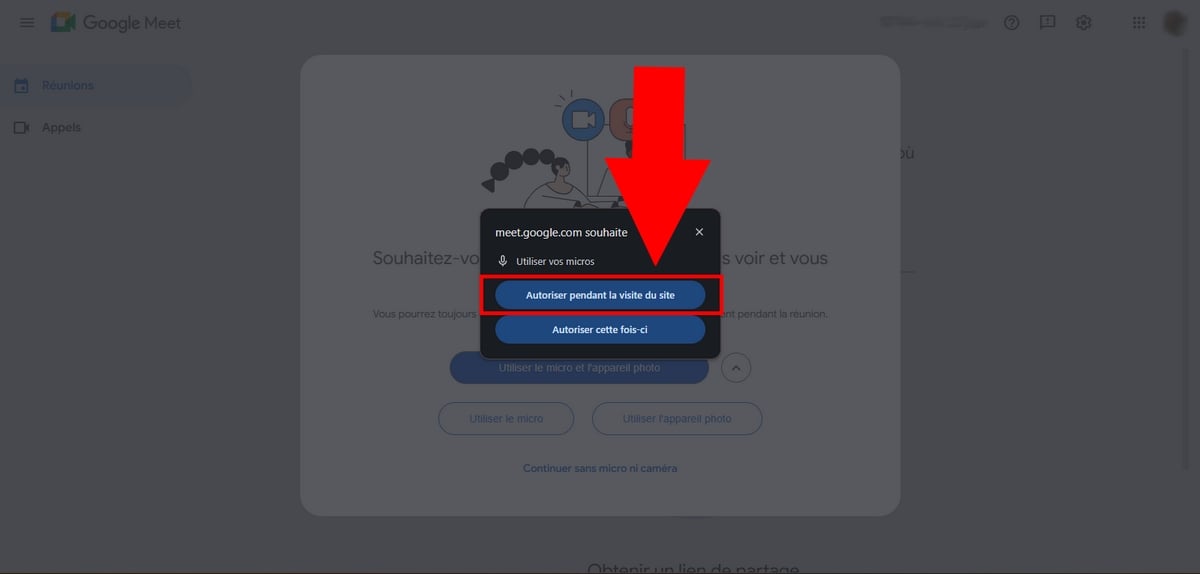
The same applies to mobile devices. The app will ask you to allow Meet to use your microphone at first launch or when you join a meeting for the first time.
Simply authorize it to using your microphone correctly on MeetIf this is not your first meeting, you can proceed directly to the next step.
b) Join or create a meeting
Here's how to activate your microphone on Meet :
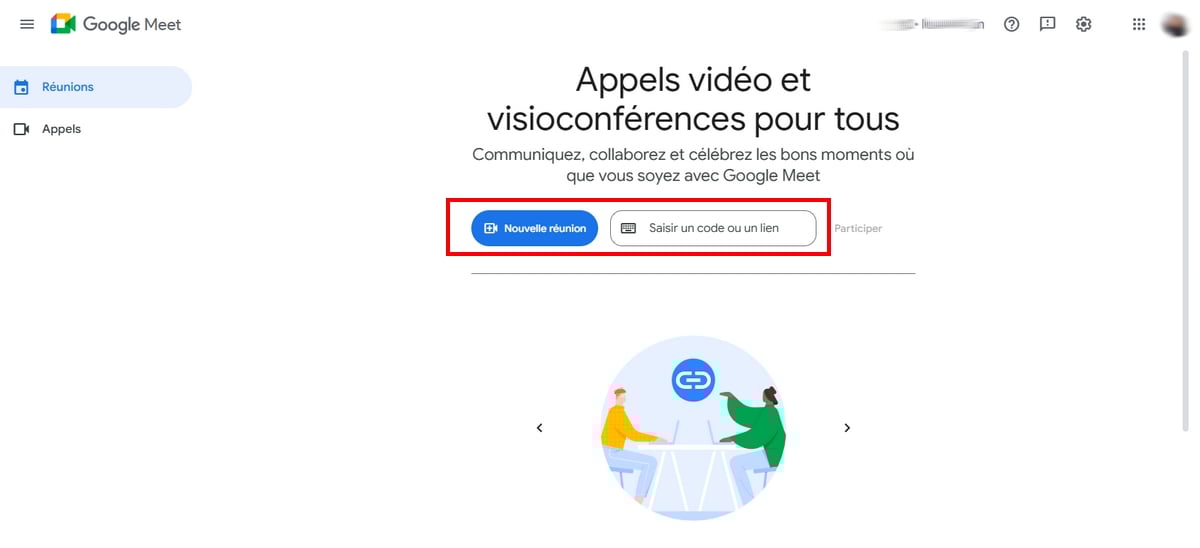
- Create a new meeting by clicking on Start an instant meeting »,
- Or join a meeting with a code. Type the code into " Enter a code or link "then press the To participate ".
Turn on the microphone on the home screen
This option is only valid if you have received a invitation to join a meeting on Meet. In fact, it does not apply if you start an instant meeting.
Here are the steps to follow:
- On the home screen, you can already setting up your microphone and your speaker.
- To do this, click on the icon micro located next to the camera, and check the settings speakers and microphone underneath.
- Please select the correct microphone and speaker.
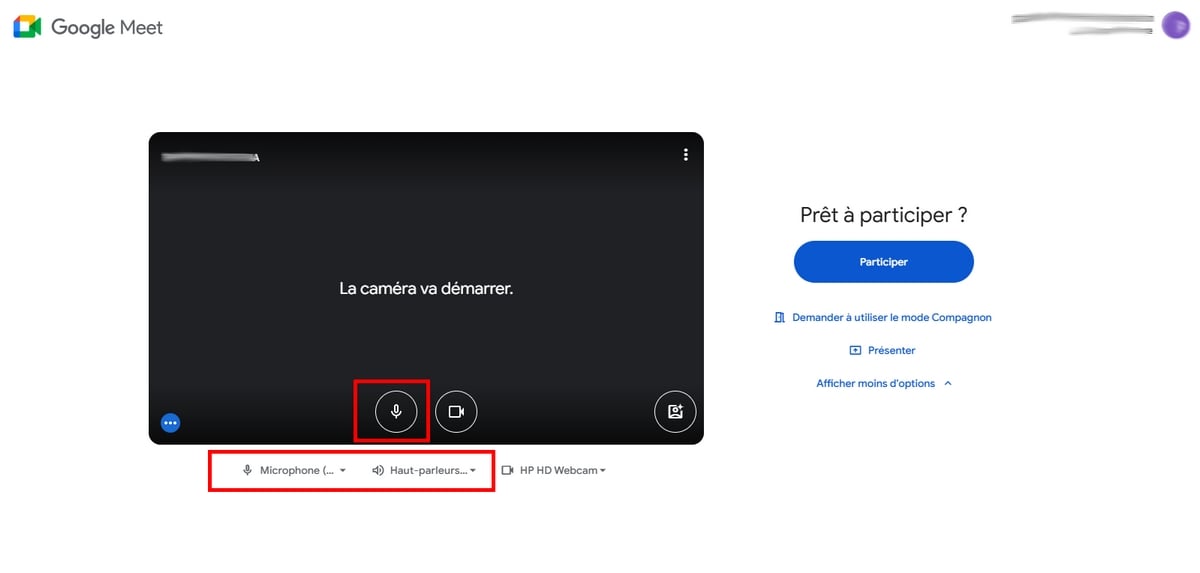
- Then click on To participate when everything is ready. If you have disabled the microphone, you will join the meeting with the microphone muted. However, if you have enabled it, it will work when you join the meeting.
Activate the microphone once in the meeting
You can also choose to activate the microphone. once in the meeting.
If that is your choice, it's quite simple:
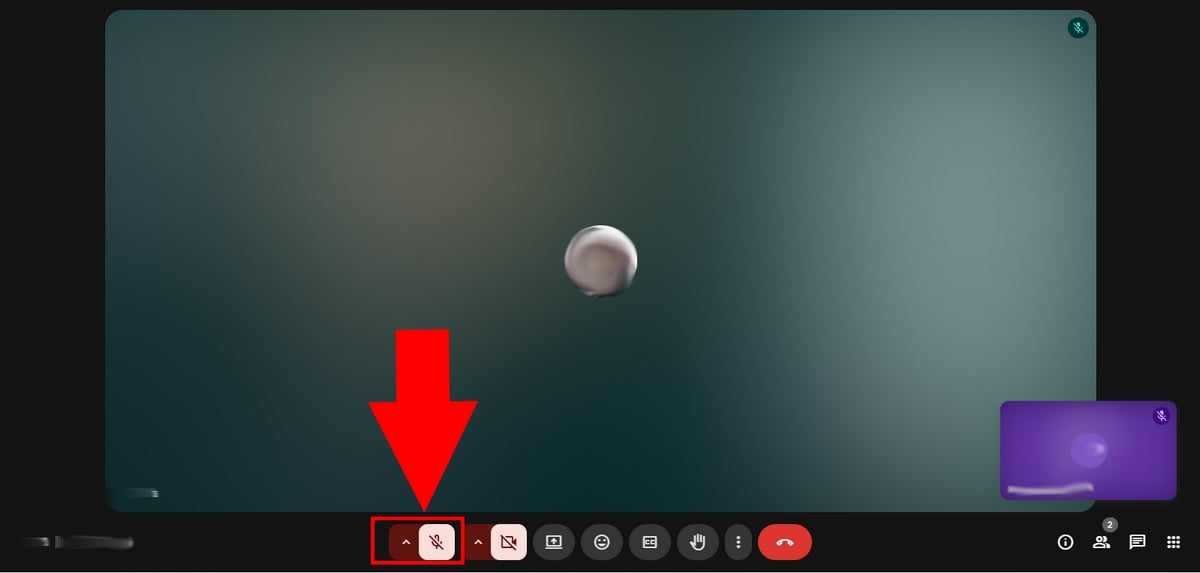
- Once in the meeting, at the bottom left of your screen, you will find themicrophone icon,
- Click on it to activate/deactivate your microphone,
- You can also press the Ctrl + D to activate/deactivate your microphone,
- This is what an activated microphone looks like:
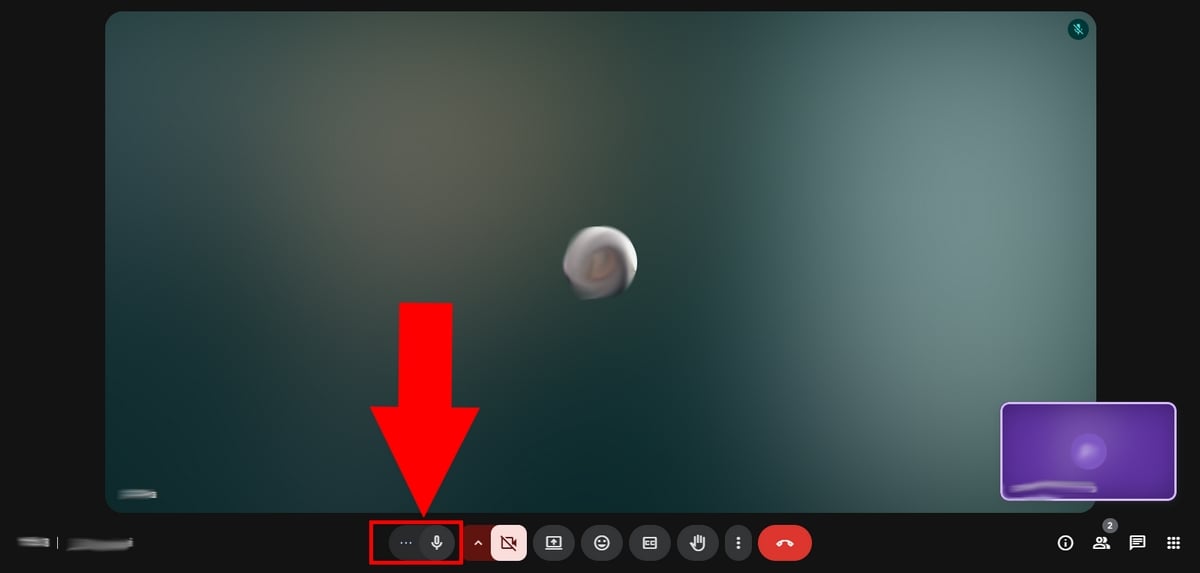
- On the other hand, the icon crossed-out microphone in red means that the microphone is deactivated.
2. Activate the microphone in Google Meet on mobile
a) Allow Meet to access your microphone
If you have installed Google Meet on your mobile device and wish to activate your microphone:
- Visit theGoogle Meet application, then create or join a meeting using a code.
- If this is your first meeting on Meet or you are turning on your microphone for the first time, you will receive a request for access to your microphone, usually just before the start of the meeting.
Here's what the application looks like on mobile (iPhone):
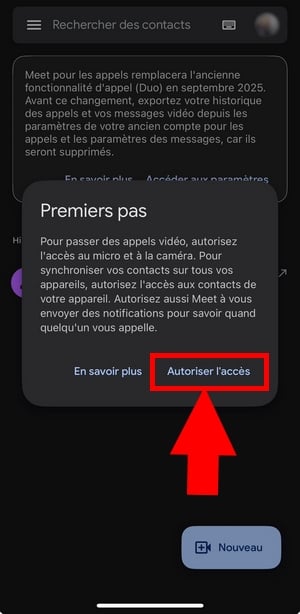

In this case, you mustaccept or go to your device settings to activate it manually. If you have not granted the authorizations required for MeetDon't worry: we explain how to restore them further down in this article!
b) Activate the microphone before/during the meeting
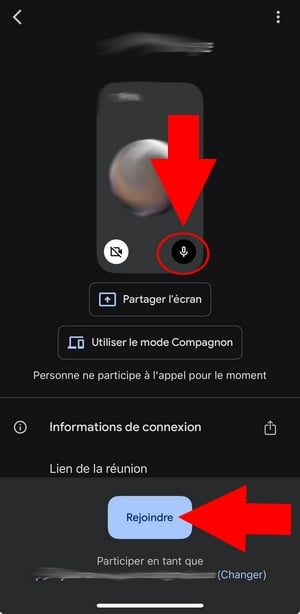
When you create a meeting or join a meeting on your mobile device, you can also choose toactivate microphone before joining it.
Before the meeting :
- Once on the home screen, click on the micro to enable or disable it.
- Then press Join us,
- In this image, the microphone is activated,
During the meeting :
If you only want to activate your microphoneonce in the meetinghere's how:
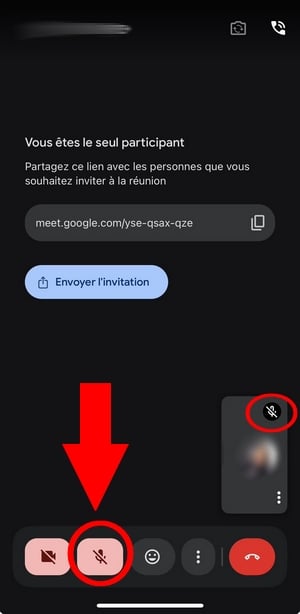
- Once in the meeting, click on themicrophone icon Next to the camera in the Meet interface to turn your microphone on or off.
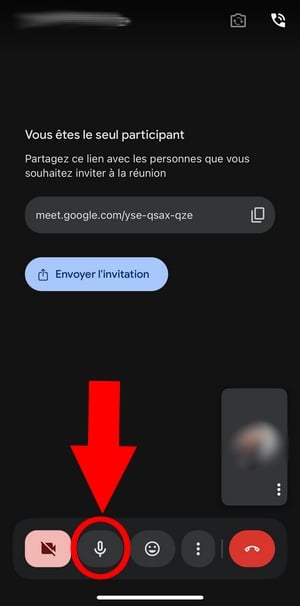
- The microphone icon barred means that it is disabled.
FAQs
In this section, you'll find all the solutions related to microphone problems in Google Meet!
Why doesn't the microphone work in Google Meet?
There may be various situations in which the microphone does not work properly in Google Meet, including :
- When you join a meeting : Make sure you are not in Companion mode. If you are, you must leave the meeting, then rejoin it (outside of Companion mode) and activate your microphone. Otherwise, you will not be able to activate your microphone.
- During a screen presentation on Meet : Please note that you must share a specific tab and not the entire screen or a specific window in order to share the sound.
- Also check that the sound of your device is activated.
Once these checks have been carried out and the problem persists Don't panic, though: you still have other options!
How do I unblock the microphone on Google Meet?
a) Ensure that Meet has the necessary authorization
To enable/disable your microphone, you must verify that the application has authorization to use your microphone.
On Android :
- Check your Settings ⇒ Applications or Apps,
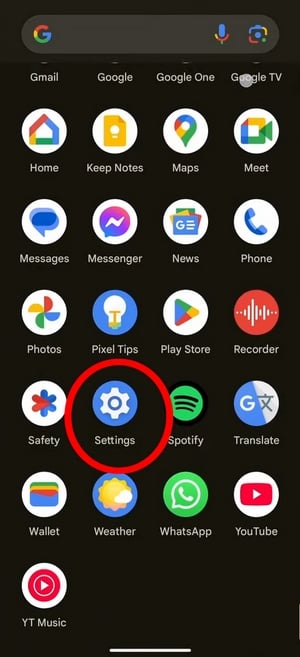
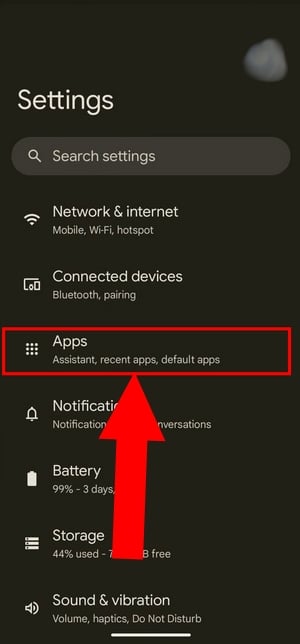
- Click on the application Meetthen on Authorizations.
- Once in this menu, select the option Microphone and click on Allow only if the app is being used Where Allow only while using the app if this is not already the case.
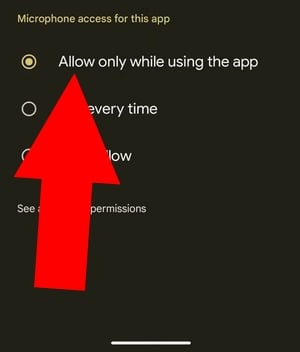
- You can also choose the option “Always ask" to receive a microphone permission request each time you use Meet.
On iPhone :
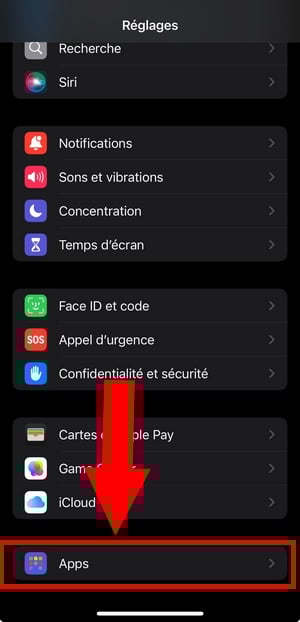
- Meeting on Settings then on Apps at the very bottom,
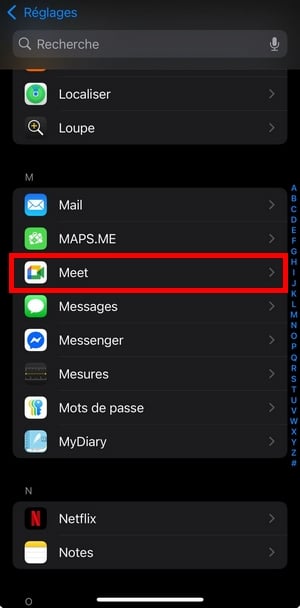
- Find Meet among the apps,
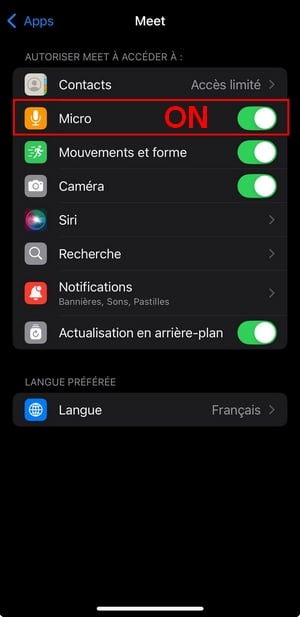
- If the microphone is not enabled for this, click on Microphone to activate it.
b) Ensure that the browser can access your microphone
On Chrome :
- Go to the Chrome browser,
- In the upper right corner of the screen, select Settings then Privacy & Security,
- Once there, click on the option Site parameters,
- In Authorizations, click on Microphone then make sure that the box “Sites may ask to use your microphone" is checked,

- Then access Meet and check that it has the necessary authorizations.

For other browsers, please visit the following pages (they will open in a new tab so you can easily return to this page):
- To Safari,
- To Mozilla Firefox,
- To Microsoft Edge.
c) Other solutions for unlocking the microphone on Meet
If your still not working After checking your browser settings, device sound, and performing any necessary updates, try the following solutions:
Reset browser :
Some extensions or applications may use your microphone, leave your Chrome browser when you encounter a problem with your microphone may not be enough.
Instead, we recommend these steps:
- In your browser, enter chrome://restart in the search bar,
- This will reset your browser applications and extensions,
- Then check that your microphone is switched on, and rejoin the videoconference.
- Finally, try toactivate your microphone in Meet!
Update browser :
- If you're using the Chrome browser to access Meet, please launch it,
- At the top right of the screen, you will find the three small points next to your Google profile,
- Then click on Assistance then About Google Chrome.
- A new window will open, and if you find the option Relaunch in this one, click on it, as an update is available,
- However, if it is not displayed, it means that you are using the latest version of Chrome.
- Finally, launch Meet and try toactivate your microphone.
Check that the application is up to date:
Also check that the application (PWA Meet or the mobile application) is at day.
Device volume:
Ensure that the sound on your device is not muted and that you are connected to the good microphone and loud speaker. Don't hesitate to disconnect and then reconnect your Bluetooth devices.
Request permission from the meeting organizer(s):
Sometimes the administrator or meeting participants may choose to mute your microphone in order to reduce background noiseTo restore it, you must activate it yourself in the Meet interface.
Restart the device:
If you can't figure out which other application is using your microphonerestart your device and join Google Meet again to check whether you can activate your microphone this time!









 English