To Turn on your microphone in Google Meet, click on the’microphone icon at the bottom of the screen during the meeting. You can also turn it on from the home screen, right before joining the call.
If your The microphone gets stuck, check that Google Meet does have the’authorization to access it in your browser or device settings.
Enable the microphone on a PC in Google Meet
Before you get started, if you're new to Meet, you can check out Our Complete Guide to Using Google Meet.
a) Allow Meet to access the microphone
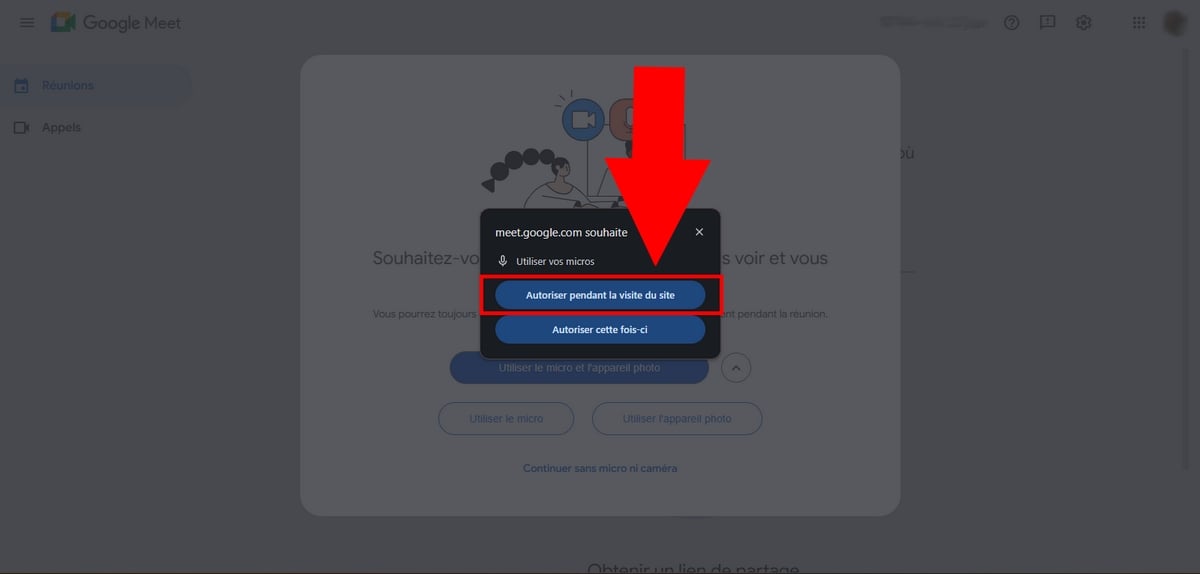
If this is your very first video conference, Meet will ask you the’access to the microphone. Two options will appear in your browser:
- "Authorize during site visit to grant access every time you use it Meet.
- «Allow it this time» to receive a new request the next time it is used.
Once authorization has been granted, Google Meet can use your microphone during your meetings. If this isn't your first meeting, skip ahead to the next step.
b) Join or create a meeting
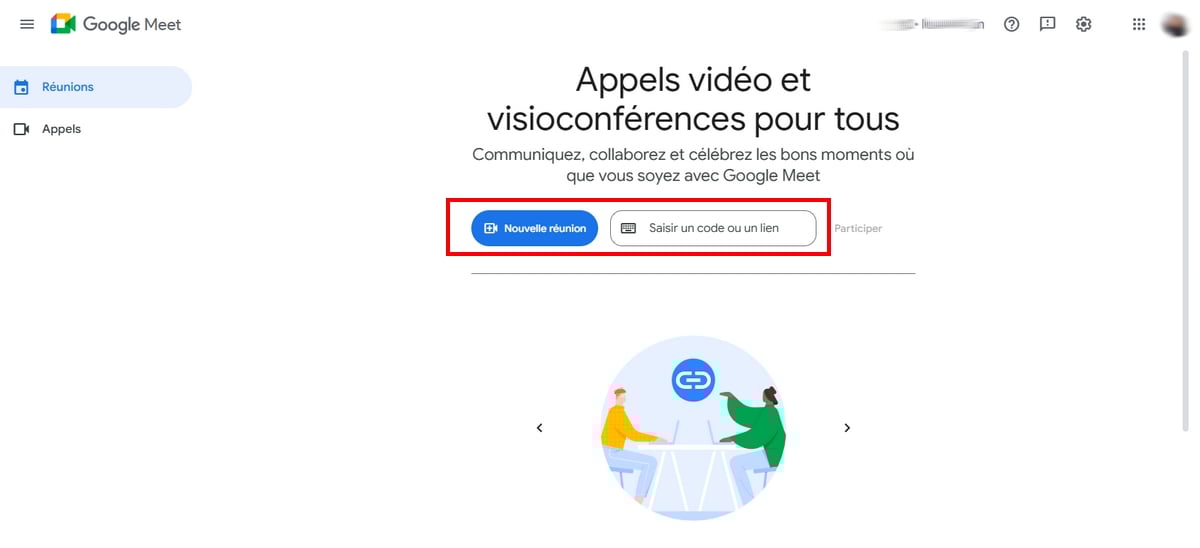
From the home page of Meet, you have two options:
- Create a new meeting by clicking on «Start an instant meeting».
- Join an existing meeting by entering the code in «Enter a code or a link», then click on «Participate».
Turn on the microphone on the home screen
This option is available only if you have received a Invitation to Join a Meeting. It doesn't apply when you start an instant meeting.
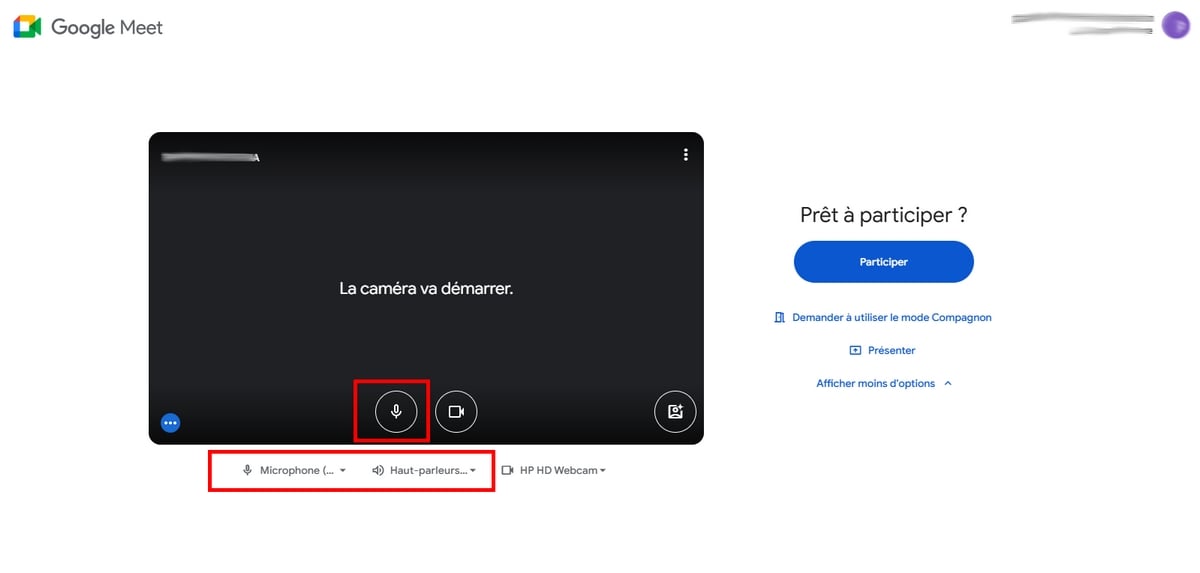
- On the home screen, click the’microphone icon located next to the camera to turn it on or off.
- Check the audio settings right below it, then select the correct one microphone (built-in microphone or headphones) and the right one loud speaker.
- Click on To participate once everything is settled.
If you muted your microphone before joining, you'll enter the meeting with the micro cut. If you've turned it on, it works as soon as you answer the call.
Activate the microphone once in the meeting
You can also turn your microphone on or off directly from the meeting interface, whether you're in a video conference or recording:
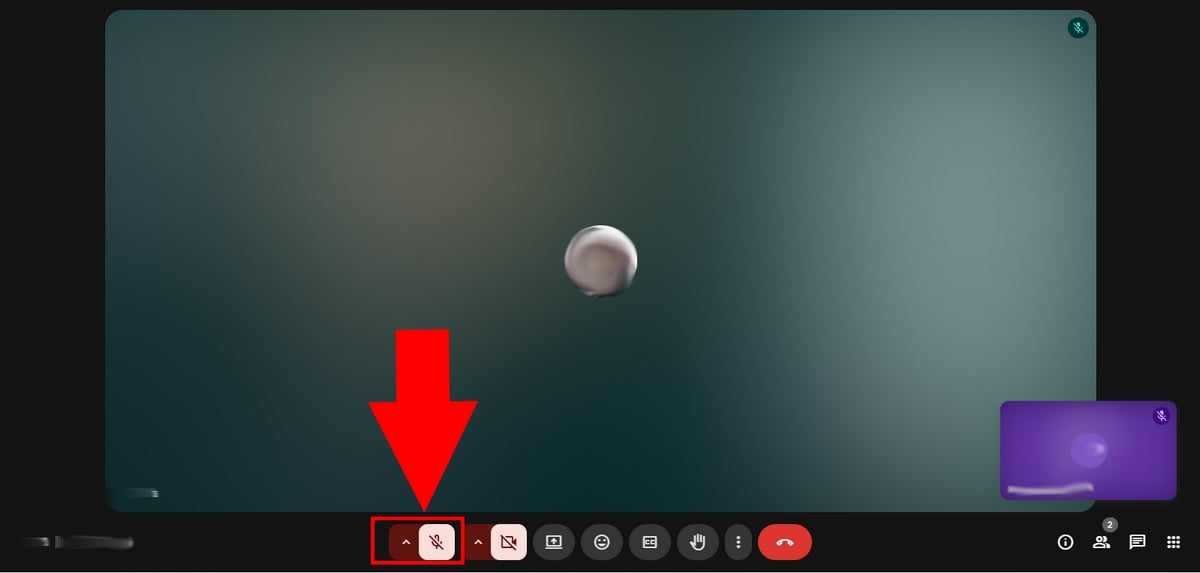
- Find the’microphone icon in the lower-left corner of your screen.
- Click here to activate or deactivate your microphone.
- You can also use the keyboard shortcut Ctrl + D to do the same thing.
Here's what a microphone on :
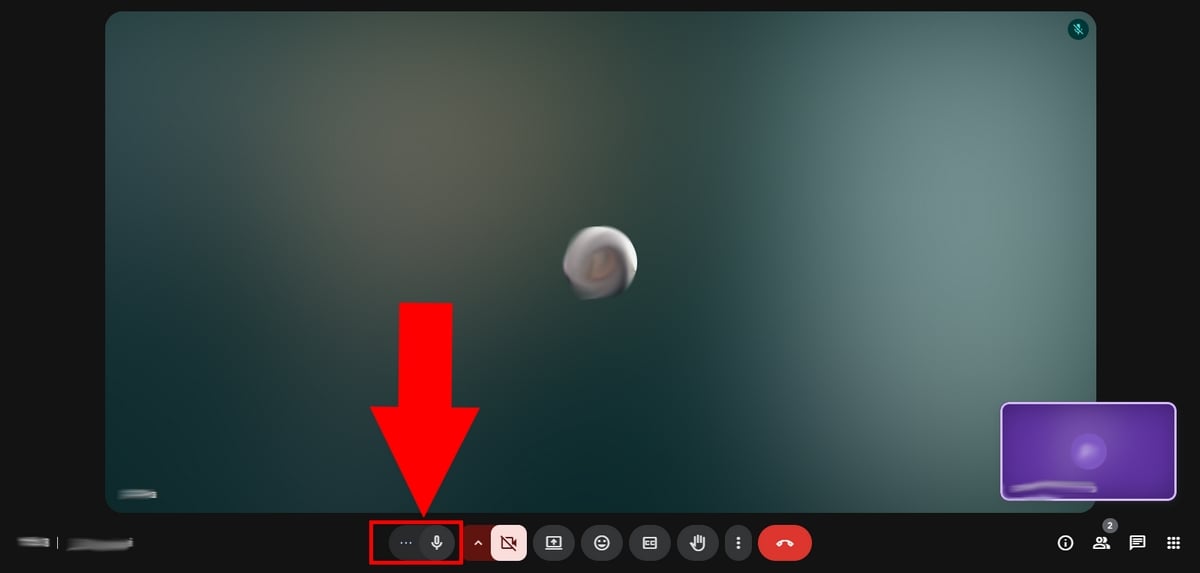
Conversely, the icon micro marked in red means that your microphone is turned off.
Turn on the microphone in Google Meet on mobile
Allow Meet to access your microphone
You have installed Google Meet on your phone? During your first video conference, a request to speak appears automatically. You must accept it before you can speak.
Here's what that request looks like on iPhone :
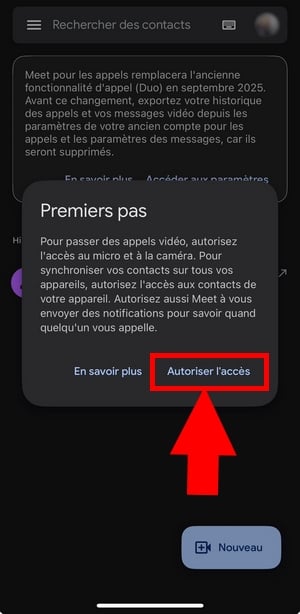

If you declined this request, go to the audio settings on your device to enable access manually. The steps are detailed a little further down in the section on microphone issues.
Turn on the microphone before or during the meeting
On mobile, you can choose to turn on the microphone before you even join the call, or right after you join.
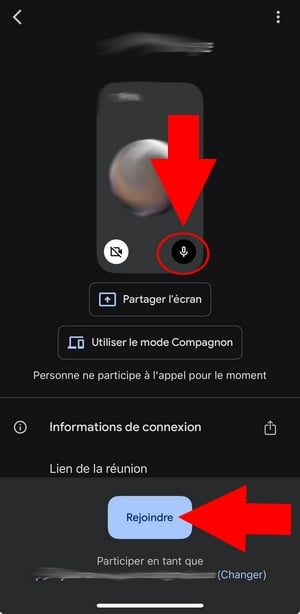
Before the meeting :
- On the home screen, click the’microphone icon to enable or disable it.
- Then press Contact.
During the meeting :
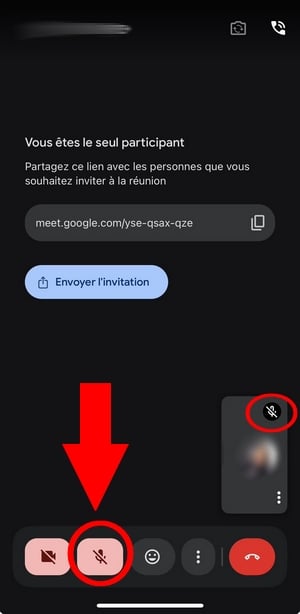
- Click on the’microphone icon next to the video in the Meet interface to turn it on or off.
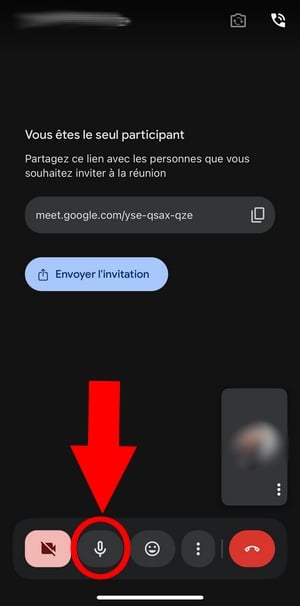
A microphone icon with a line through it means that your microphone is turned off.
Troubleshooting Microphone Issues on Google Meet
To troubleshoot audio issues on Google Meet, start by checking the authorizations and the game's audio settings on your device. Here are all the solutions to help you get it working again.
Why doesn't the microphone work in Google Meet?
There are several reasons why your microphone might not work during a video conference:
- Companion Mode enabled: If you join the meeting in Companion mode, your microphone will be muted. Leave the meeting, rejoin it outside of Companion mode, and then unmute your microphone.
- Screen Sharing: during a screen presentation on Meet, you have to share a specific tab (not the entire screen or a window) for the sound to be transmitted.
If these checks aren't enough, the solutions below will help you unmute your microphone.
How do I unblock the microphone on Google Meet?
a) Ensure that Meet has the necessary authorization
Whether Meet If your device doesn't have permission to use your microphone, clicking the icon won't make any difference. Here's how to fix this audio issue depending on your device.
On Android :
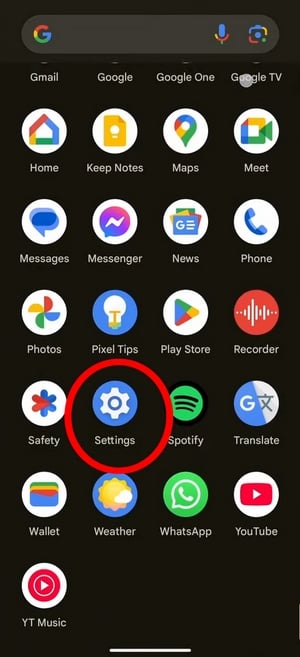
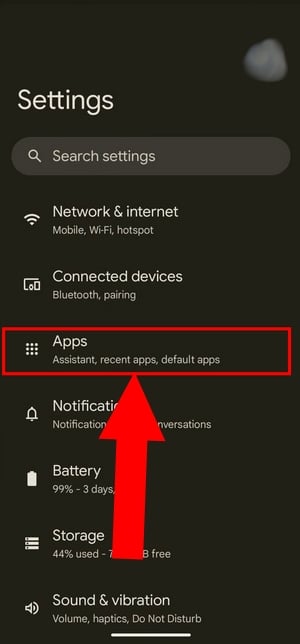
- Access the Settingsthen to Applications (Where Apps).
- Click on the app Meetthen on Authorizations.
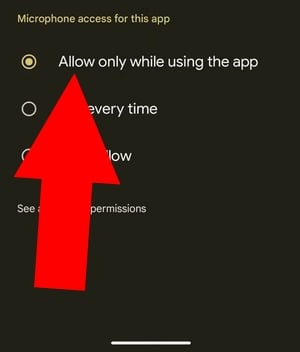
- Select Microphone, then select Allow only if the app is being used (Allow only while using the app) if you haven't already done so.
- You can also choose Always ask to receive a confirmation each time you use it.
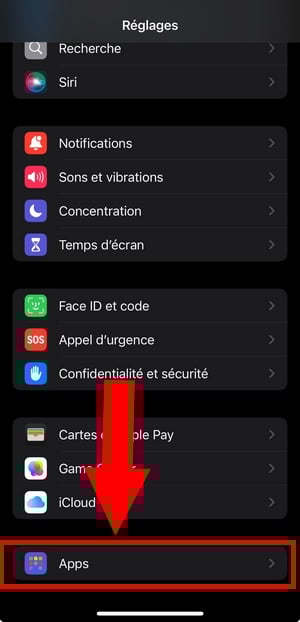
On iPhone :
- Access the Settingsthen to Apps at the very bottom.
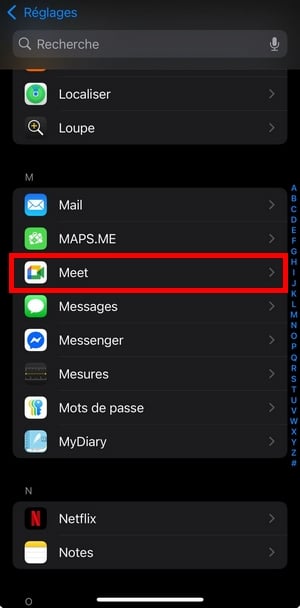
- Find Meet in the list of apps.
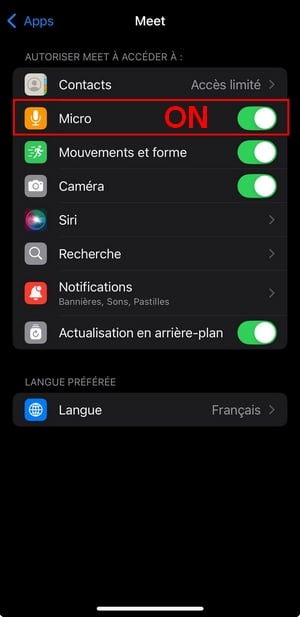
- If the microphone isn't turned on, click Microphone to activate it.
b) Make sure your browser can access your microphone
On a PC, your browser must also be authorized to use your microphone. Here are the steps to resolve this audio issue, depending on your browser.
On Chrome :
- Open Chrome and click on the three small points at top right.
- Go to Settings, then Privacy and security.
- Click on Site parameters.
- In Authorizations, click on Microphone and make sure the box is checked «Websites may ask to use your microphone» is checked.

- Next, go to Meet and make sure it has the necessary authorizations.

In other browsers, the process is similar:
- Firefox : Open the menu (☰), go to Privacy and Security, scroll down to Authorizations and click on Microphone.
- Edge: go to Settings, then Privacy, Research, and Services, then Site Authorizations and finally Microphone.
c) Other ways to fix audio issues on Meet
If your microphone still not working After checking the permissions, try these solutions one by one.
Reset the browser
Some extensions Some apps may be using your microphone in the background. Closing Chrome isn't always enough. To force a complete reset:
- Enter chrome://restart in the address bar.
- This command resets all apps and extensions Chrome.
- Once Chrome has restarted, make sure your microphone is turned on, then join the meeting.
Update Chrome
- Click on the three small points at top right.
- Go to Assistance, then About Google Chrome.
- If the button Relaunch If it appears, click on it: an update is available. Otherwise, you're already using the latest version.
- Next, join Meet and test your microphone.
Update the app
Also check that the PWA Meet or make sure the mobile app is up to date from your app store.
Check the volume and audio devices
Make sure the sound on your device isn't muted. Also check that you're connected to the good microphone (built-in microphone or headphones) and the good speaker. If you use devices Bluetooth, disconnect them and then reconnect them. An incorrect audio setting is often the cause of a silent microphone during a video conference.
Ask the organizer for the floor
Sometimes the host or a participant will mute your microphone to reduce background noise. In that case, you have to reactivate it yourself from the Meet interface. If your microphone is still muted after you've turned it back on, check your audio settings.
Restart the device
If you can't figure out which app is using your microphone in the background, Restart your device. Then join a Meet meeting to see if the audio issue has been resolved.









 English