Google Meet can be used directly in your browser, with no installation required. You can create a meeting with a single click on meet.google.com, you share the link, and the videoconference begins. A simple Google account (Your Gmail address) is all you need to join or host calls.
We'll explain everything to you!
How do I use Google Meet on my PC?
Whether you're on Windows Where Mac, the usage remains virtually the same. Google Meet works right in your browser, without having to install anything.
To create an invitation, you need a Google account or a business account.
1. Organize a meeting from a browser
- Go to Google Meet at the address meet.google.com, or open the menu Application of Google and click on Meet.

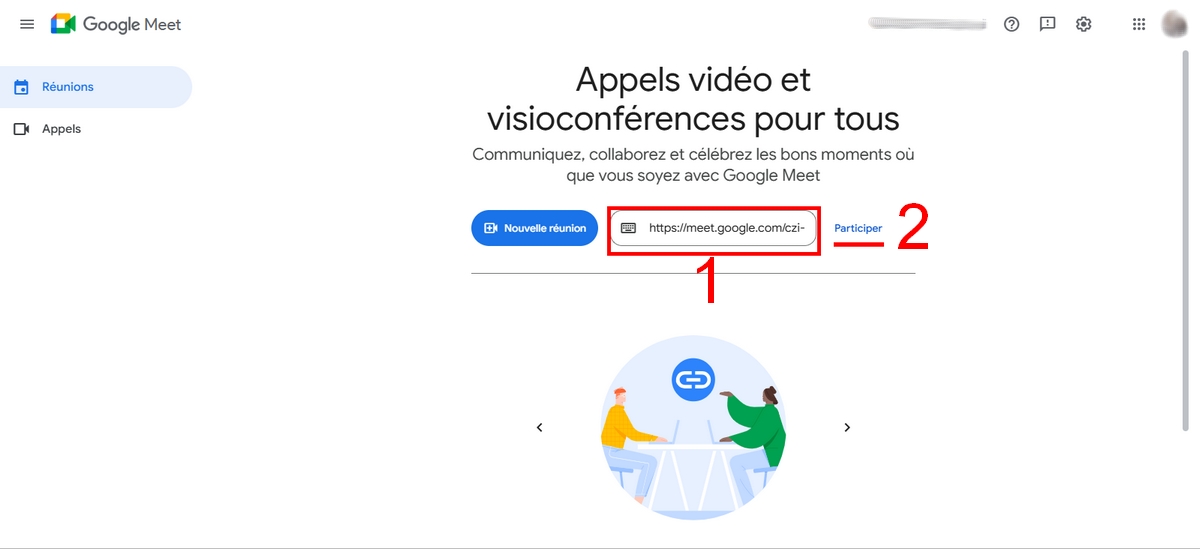
- Once you're on the interface, you have two options : Create a new meeting Where Enter a code or link.
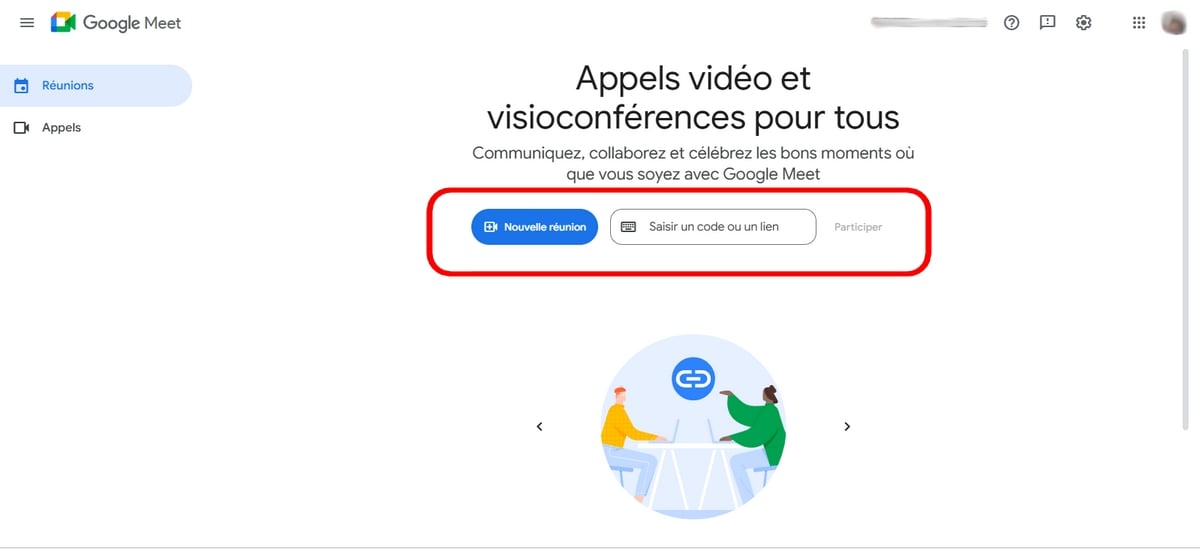
Create a new meeting :
- Schedule a meeting for later : Click this button, Copy the code provided and send it to the people you want to invite. This is the best option for scheduling a video conference for a later date.

- Start an instant meeting : Click this button to start a video call right away. To invite participants, click the link in the lower-left corner and send it, or tap Add guests and take their e-mail address.
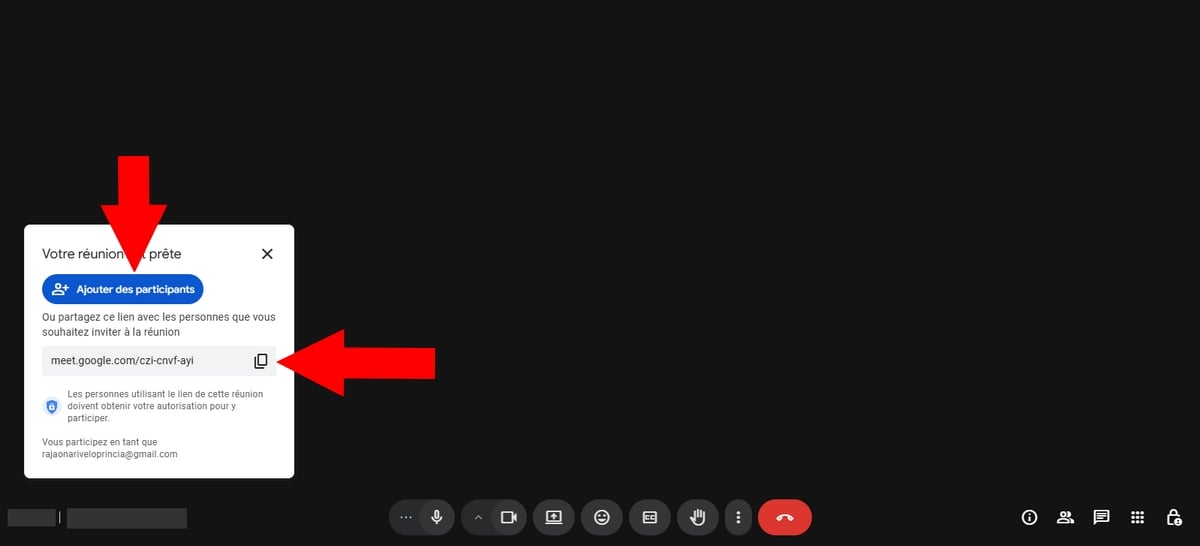
- You can also choose to plan in Google Agenda. The following section explains this option in detail.
Enter a code or link :
- Enter the code in the box Enter a code or link, then press To participate.
2. Organize a meeting with Google Calendar
- Open your browser and go to Google Agenda.
- Select the date of your meeting, name it, then press Adding time to select the time.
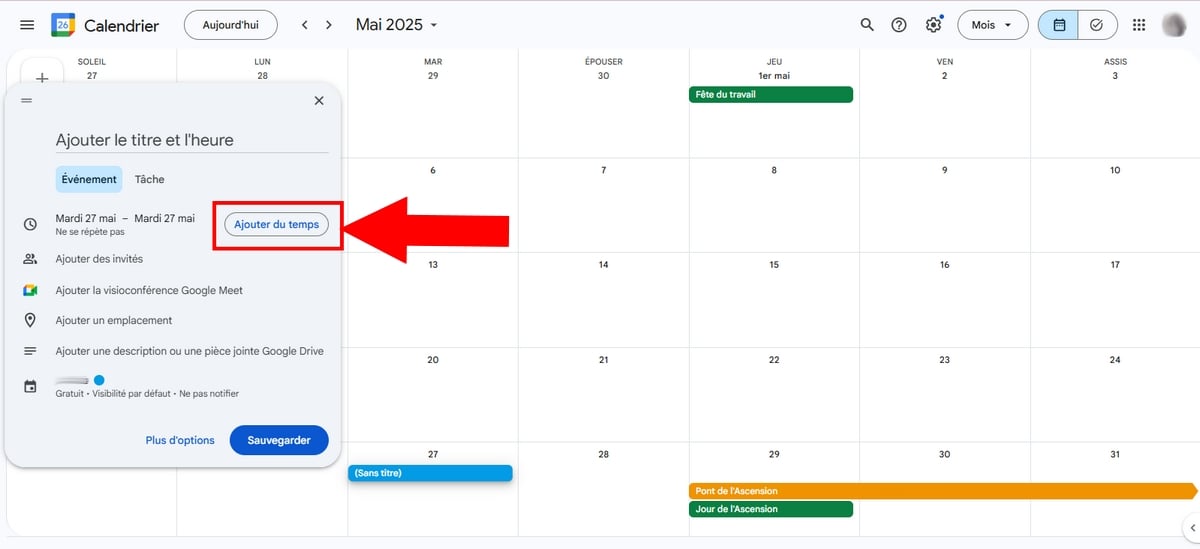
- Click on Add guests, provide them with e-mail address, then confirm by pressing Save.

- You can also click on Add a Google Meet video conference to generate a link Ready to copy.
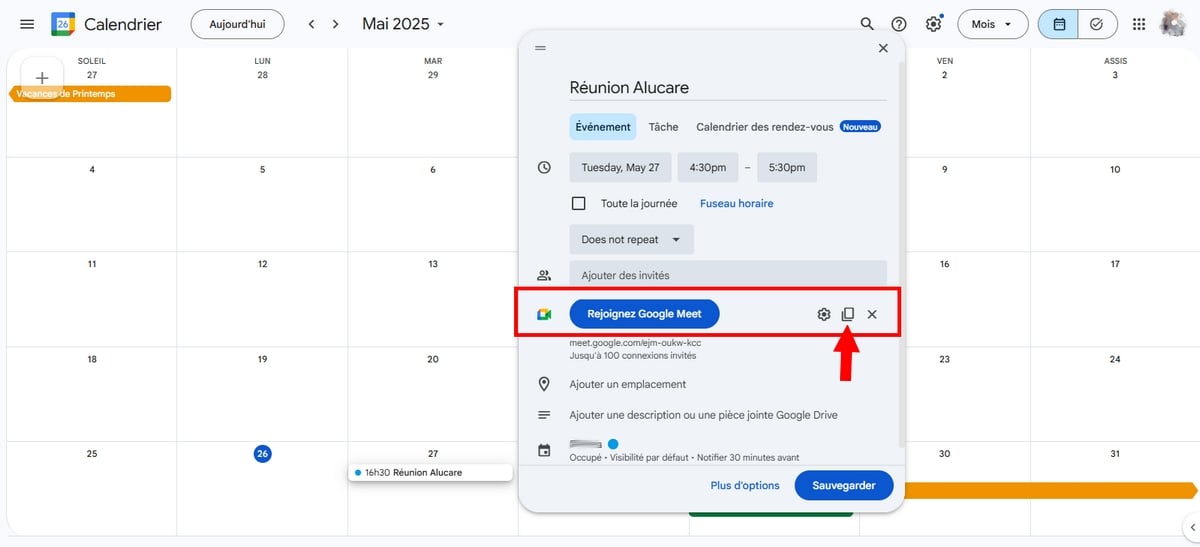
- Press Save, then confirm the’sending invitation emails to participants.

3. How can I take part in a Google Meet?
To join a meeting, you have 3 ways.
a) With Gmail
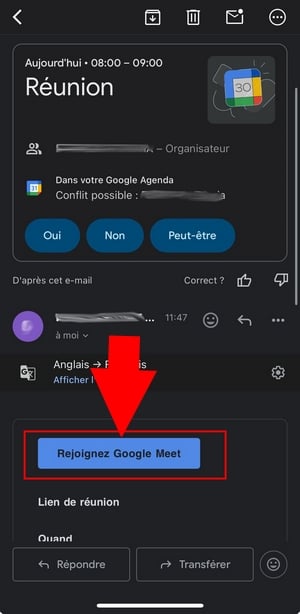
- Click on the link provided by email or by clicking the button Join via Google Meet.
- Click on Participate with Google Meet, you can already set the micro and the camera.
- Then click on Take part in the meeting, Using companion mode Where To present to share your screen.


b) With a link
- If you've been given a code, just open a browser and paste it directly into the search bar,
- Or you can search for the platform and enter the code in the box Enter a code or link Then tap "Join.".
c) With Google Calendar
This technique also works if the organizer scheduled the meeting using Google Calendar.
- Go to Google Calendar,
- Select the scheduled meeting and click the button Join Google Meet,

- You'll be taken to its main interface, where you can set up your microphone and camera,
- Once everything is set, all you have to do is click on the "Join the Meeting" button.
How do I use Google Meet on my phone?
On mobile, the steps are almost identical on android and on iPhone. Two prerequisites before getting started:
- Install the’Google Meet app since Google Play Store (Android) or the’App Store (iOS).
- Connect with your Google account.
a) Create a new instant meeting
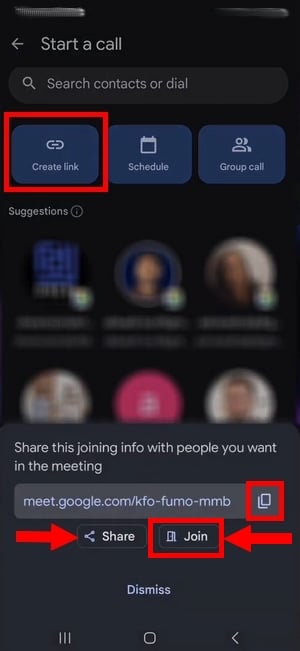
- Press the button New in the lower right corner, then on Create a link.
- Copy the coded provided, then press To share to send it to your contacts or post it on social media.
- Then press Take part in the meeting To adjust the volume, the micro and the camera.
On Android :
On iPhone :

- Press Contact when you're ready.
b) Schedule a meeting
- Press Program.
- On Google Agenda, select Event and enter the details (title, hour, guests), just like on a PC.
- Use the button Add guests to invite other participants.

- Once you've filled in all the information, tap Record at top right.
c) Attend a meeting
Using a link or a code:
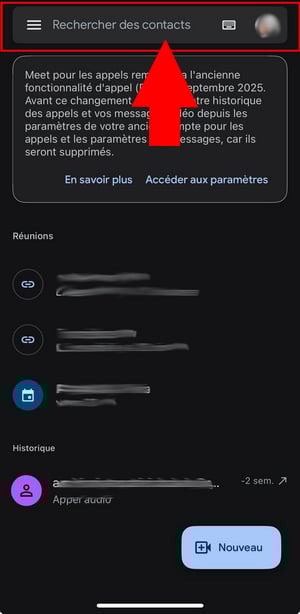
- In the upper-right corner, tap the’keyboard icon In the search bar, type coded of the meeting, then presses Contact.
With Google Calendar :
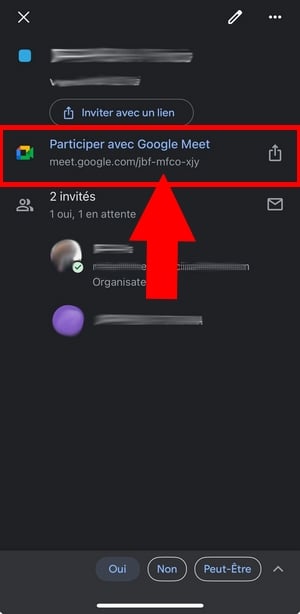
- Open Google Agenda, select the meeting you've been invited to, then tap Participate with Google Meet.
If you received an invitation by email:
- In your email, tap Join via Google Meet, sets the micro and the camera, then press Contact.
Learn all about Google Meet features
Once you're in the video conference, each icon has a specific function. Here's how to use the toolbar from left to right, on a PC.
- The following are displayed in the lower-left corner: person's name who created the meeting, as well as the’hour and the name of the meeting.
- The toolbar contains, in order: the micro, the camera, the icon CC (Where Subtitles (depending on the version) to enable the live subtitles, and the emoji icon to send a reaction. To react more effectively, check out the Meaning of Emojis.
- The upward-pointing arrow, named Present now, is used to share your screen.
- The icon Hand allows you to raise your hand during the call.
When participants turn off their cameras, only their profile photo remains visible.

The three small points, next to the hand icon, provide access to several options. The first one lets you manage streaming or’record the meeting.
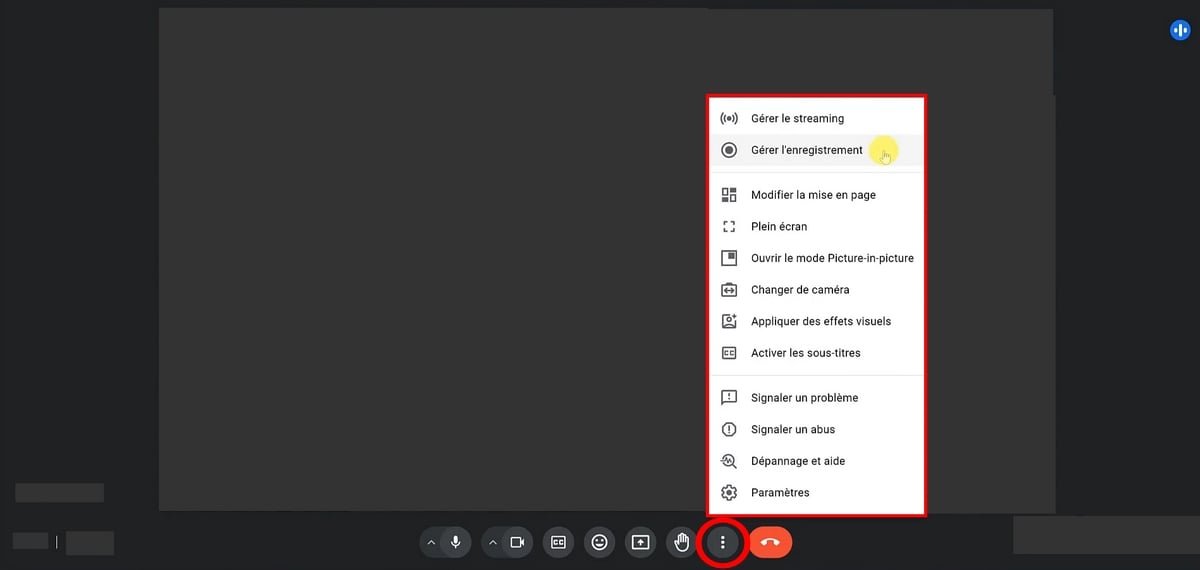
With a free account, the first two options aren't visible. Here's what you'll see with a compatible account:
- Change the layout : the mode Mosaic "Show Everyone" mode Projector highlights the speaker, and the sidebar centers the speaker by placing the others on the right.
- Set to full screen to fill the entire screen.
- Picture in picture to drag your call to another window.
- Backgrounds and visuals : Blur your background, add filters, or change your video background.
- Signs in the event of a problem or abuse.
- Settings.
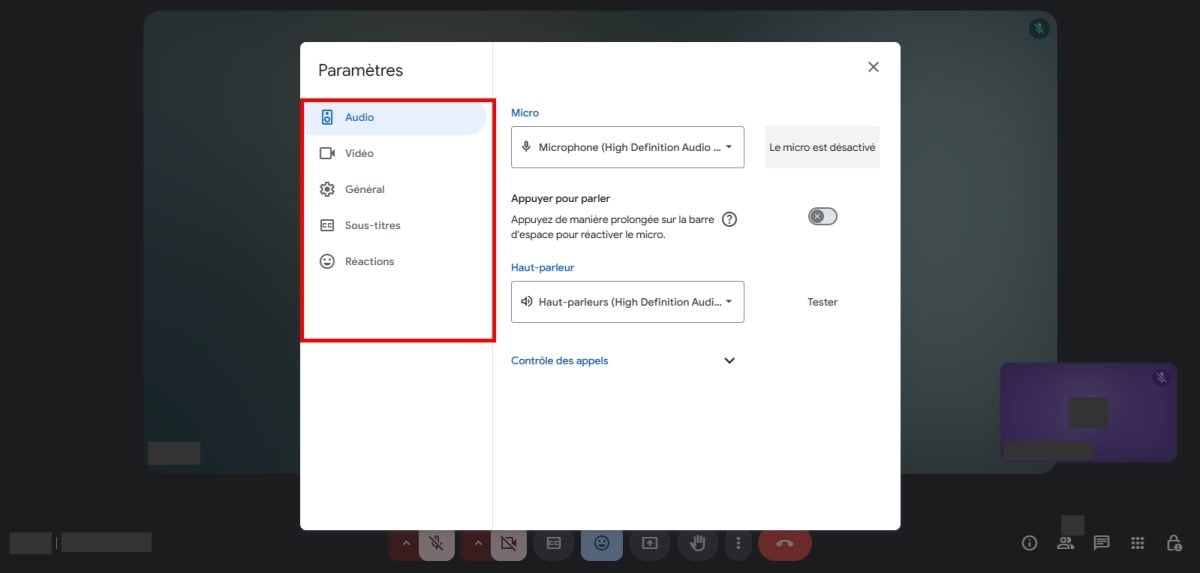
On the right side of the screen, there are three additional icons:
- The icon Info (I) displays the meeting information, including the link to share.
- The icon participants shows the number of people online.
- The conversation bubble opens the cat Of the reunion.

- The tab Activities launches a registration of the meeting, available only with a subscription Google Workspace compatible.

- the small padlock allows the’organizer to maintain control of the meeting, including deciding whether or not to grant administrator rights to participants (such as muting others' microphones).

- With one edition Google Workspace, you can also take notes during the meeting by clicking on the pen at top right.

FAQs
How do I create a Google Meet account?
All you need is a Google account (an address Gmail). This account gives you access to Google Meet for free, without having to install anything.
How do I send a Google Meet link?
During the meeting, open the cat, copy the meeting link and paste it wherever you want (email, message, social media).
How do I reply to a Google Meet invitation?
Choose from the options provided in the email: Yes, Nope Where Perhaps. The’organizer will receive your reply by email. When the time comes, click on Join via Google Meet to participate.
How do I activate the camera on Google Meet?
Click on the’camera icon in the toolbar to turn it on or off. The first time, your browser will ask you for the’authorization Camera access: Accept this to make yourself visible.
How do I activate the microphone on Google Meet?
- Click on the’microphone icon to turn your microphone on or off. If it's crossed out, the microphone is turned off.
- If your browser asks you to’allow access to the microphone, click on To allow.
How do I share my screen on Google Meet?
- Click the icon Present now (the up arrow) in the toolbar at the bottom.

- Choose the area to share : a window, a specific tab, or the’full screen. The full-screen view helps ensure you don't overlook any details during your presentation.

- Click on To sharethen on Stop sharing when you're done. Even guests can use this feature.
Note: on Mac, prioritizes the browser Chrome Where Firefox for seamless sharing.
How do I share a document on Google Meet?
To share a document, you have two options:
- Share Your Screen by selecting the document tab (Google Docs, Slides Where Sheets) so that everyone can watch it live.
- Send the document link directly into the cat Of the reunion.
How do I change my name on Google Meet?
If you're logged in with your Google account, simply change the name of this account.
Who can use Google Meet?
Any user who has a Google account Where Gmail (free) can access the platform. Accounts Google Workspace (paid plans) also unlock features designed for businesses. Meet is available through a browser on a PC and via the’mobile app on Android as on iOS.
How many people can you invite to a Google Meet meeting?
With just a Google account, you can bring together up to 100 people for 1 hour maximum. To exceed this limit, you'll need a special edition Google Workspace compatible.
How do I create a Google Meet meeting without a waiting room?
The fastest way is still to Start an instant meeting : Click on New meetingthen on Start an instant meeting. Then copy the link and share it with your contacts.
How do I blur the background on Google Meet?
- Click on the three small pointsthen on Background and Effects. Choose from the following options: blur slightly, blur heavily Where Add your own background.
- To turn off the effect, click the selected option again.

How do I leave Google Meet?
Click on the’red phone icon. To rejoin the meeting, click Reintegrate the meeting.
Google Meet Companion Mode: What Is It?
This is a feature that lets you join a video call on a second screen.
- Click on Enter a code or link, then paste the coded Of the reunion.
- Press To participatethen on Another way to participate.
- Click on Request to use companion mode and wait for the organizer to approve your request.
Good to know: l'Audio is turned off in companion mode, but you can still turn on your camera.









 English