You can record a meeting on Google Meet in four ways:
- The built-in function from Google (available only to accounts Google Workspace)
- The expansion Bluedot
- A screenshot tool on your PC
- Your phone's built-in voice recorder
Don't have a Workspace account? Methods 2, 3, and 4 work without a subscription. And no matter which method you choose, always remember to notify the participants Before starting the recording: In many countries, this is a legal requirement.
Transparency: this link to Bluedot is an affiliate link. It doesn't change the price for you, and it doesn't influence our opinion.
1. Use the built-in recording feature in Google Meet
Google Meet includes a native recording feature, which is easy to use but subject to a few conditions. If you don't meet all of them, skip ahead to methods 2, 3, or 4.
a) Meet the registration criteria
Before you get started, make sure you've checked off all these boxes:
| Terms | Details |
|---|---|
| Have an account Google Workspace | You must have a compatible version : Business Standard, Business Plus, Enterprise, Education, Essentials. |
| Authorization Enabled | The administrator of your organization must have enabled the feature in the Google Workspace console. |
| A eligible role | You must be the’organizer or one co-organizer. A regular guest cannot start the recording. |
| A storage space sufficient | You need enough space on Google Drive, where the file will be saved. |
| To be on computer | This built-in feature is available only on PC or Mac, not on mobile. |
Please note that since late 2023, some subscribers Google One Premium (paid personal accounts) can also record data. However, the Free Google accounts (@gmail.com) users do not have access to this option.
b) Start recording
Have you checked all the boxes? Here are the steps to schedule your meeting:
- Go to Google Meet from your browser.
- Join or create a next meeting.
- In the lower-right corner of the screen, click the’Activities icon.

- A new window will open. Click the button Recording.

- Click on Start recording to start recording.
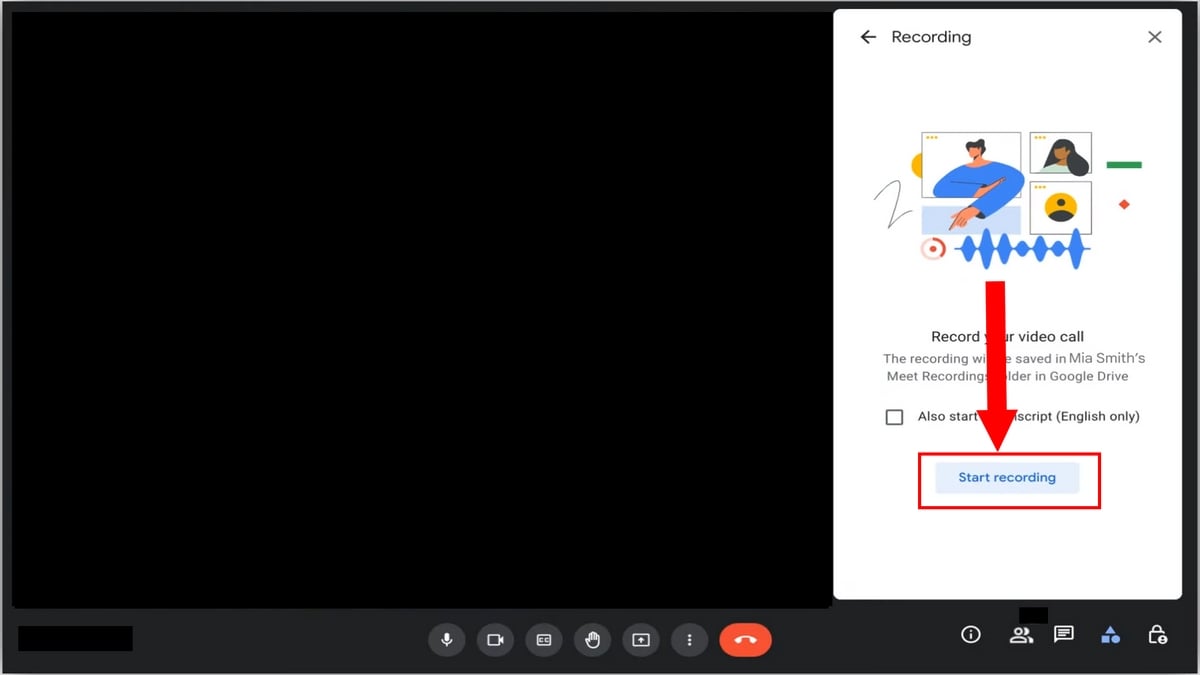
- All the participants receive a notification. A note Recording appears in the upper-right corner of their screen.
- To stop, open the panel again Activities, click "Save," then click Stop recording.

Want to share a document during the meeting, but it's showing upside down? Find out how flip the camera on Google Meet.
c) Find and share the recorded meeting
Your recording is complete. Here's where to find it and how to share it:
- Find all your Google Meet registrations in Google Drive, in the folder Meet Recordings, under "My Drive.".
- A link to the recording is also sent by email to the organizer.
- To share, click on the’Share icon, enter an email address, set the permissions, and then tap Send.
Good to know: The file is always stored on the Organizer's Google Drive. If it's not you, ask them to share it so you can access it.
2. Using a browser extension: Bluedot
If you don't have an account Google Workspace, or if you're not the meeting organizer, the extension Bluedot is the simplest solution. It is in addition to Google Chrome and start recording with just a few clicks, with no access restrictions.
Bluedot proposes a plan free, but this access is limited. Full access to advanced features requires a paid subscription.
This includes the transcription unlimited, the notes enhanced meeting features and the summary automatically generated by AI : after each session, Bluedot analyzes the content and automatically generates a structured summary, notes keys and a transcription complete.
You can also check out our guide on How to Write a Summary on Google Meet to get the most out of it.
a) Download the extension to your device
Start by install the extension :
➡️ Install the Bluedot extension for free ⬅️
- On the website, look for the button Add to Google Chrome.
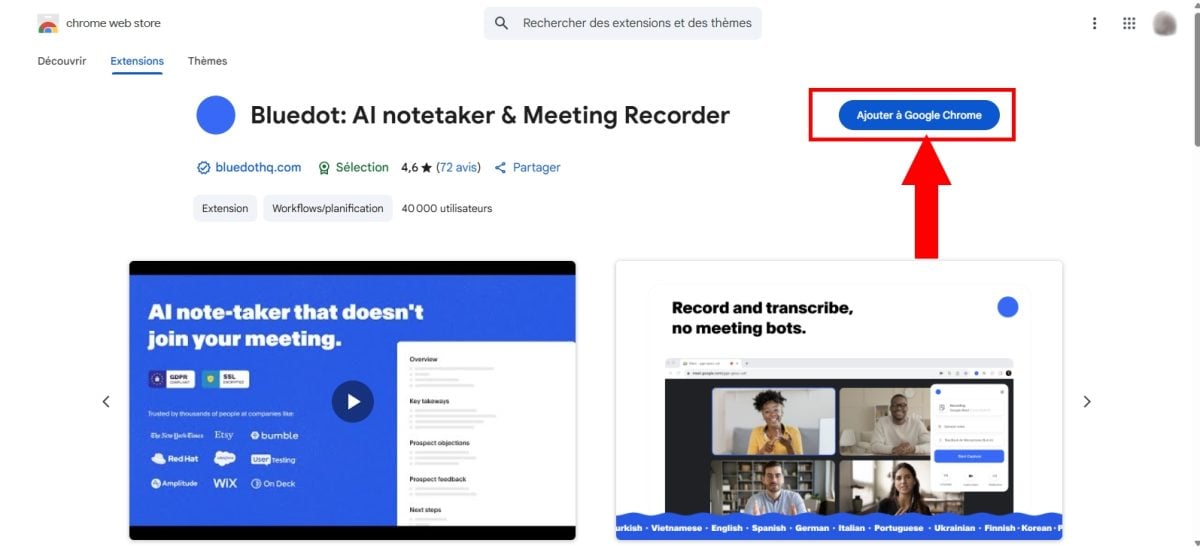
- Click on Add the extension to confirm.
- Once installed, the icon appears in the’extensionsat top right.
- Pin it by clicking on the’red pin next to Bluedot.
- You will then be prompted to create a workspace.

- Click on Take me to Google Meet to land directly on the platform.
b) Join a meeting on Google Meet
- Join a session with a link or an invitation.
- You can also click on New meeting or on Insert a code or link.
c) Record the meeting
- Once you're in the meeting, click the icon Bluedot pinned to your extensions bar.
- A new window will open. Click on Start Capture to start recording.

- You can also use the shortcut Ctrl + Shift + S to get started.
- Before you start, click Audio/video at Start Capture to customize the quality video and audio processing.

- The Active, standing next to the microphone, confirms that the recording is indeed in progress.
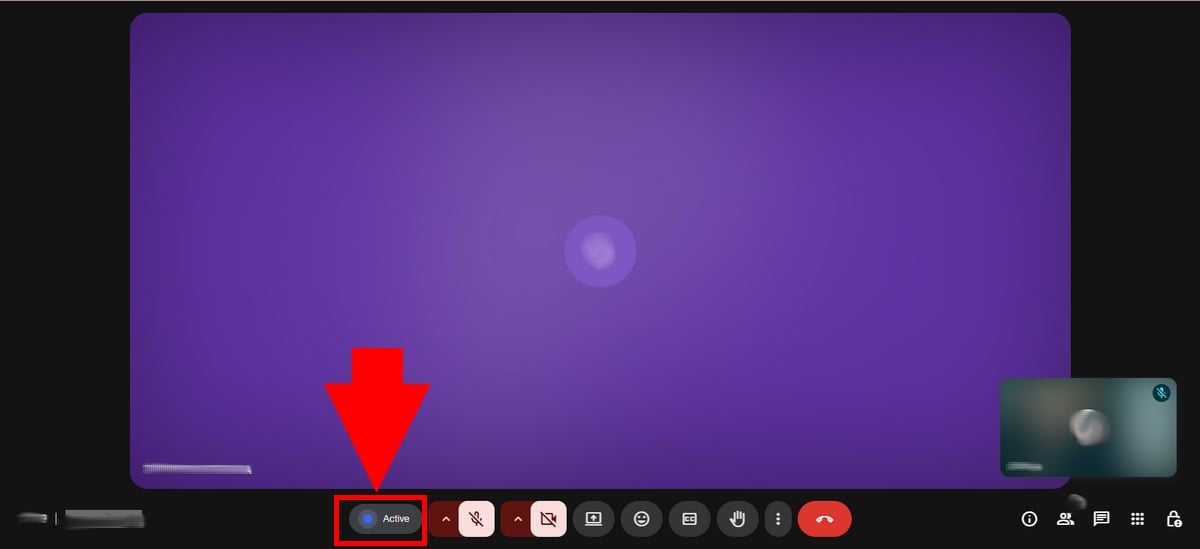
- To pause, click on Pause. To stop, click on Finish.

- After clicking on Finish, you'll be redirected to the interface for Bluedot. There you'll find the recording with its transcription automatic and the notes generated by AI.
d) Record a screen share
Here's how Share your screen with Bluedot during a meeting:
- Join the meeting as usual.
- Click the icon screen, next to the video icon, then select the items you want to capture.
- When you're done, click Stop presentation, in the upper-right corner of the screen.

e) Find the recorded meeting
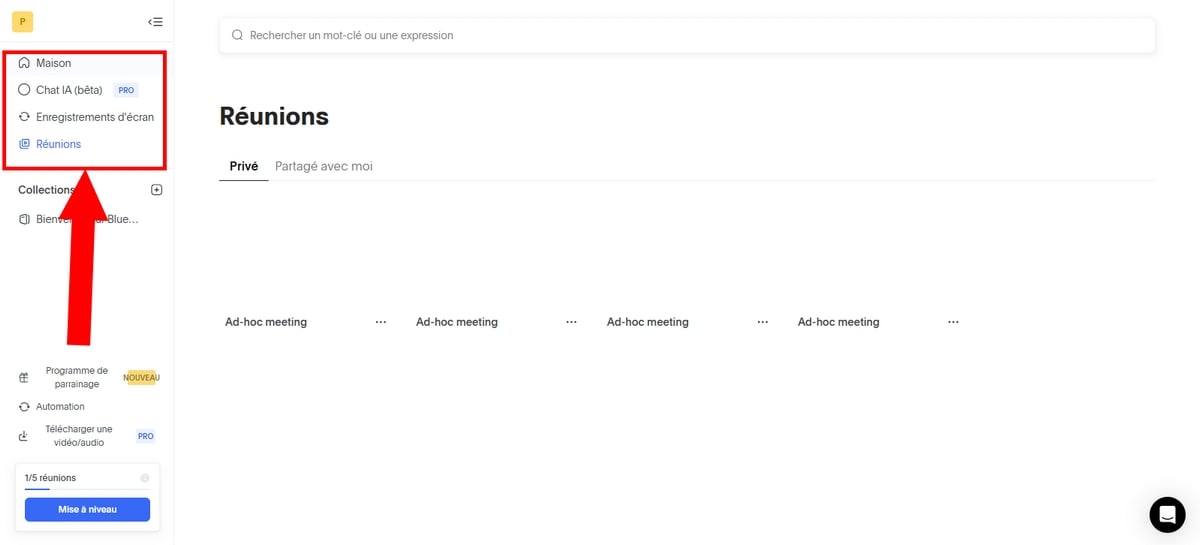
- After clicking on Stop sharing, you arrive at your workspace Bluedot.
- Click on the section Meeting.
- The video fits right in with its notes and his transcription.
Ready to record your first meeting with Bluedot?
📹 Record a meeting with Bluedot 📹
3. Record Google Meet with free PC tools
Your computer already includes a free screen recorder, no matter what system you use. This method works for any session Google Meet, even as a guest. The video quality It depends on your screen, but it's still more than enough to watch a session work or a training.
a) On Windows
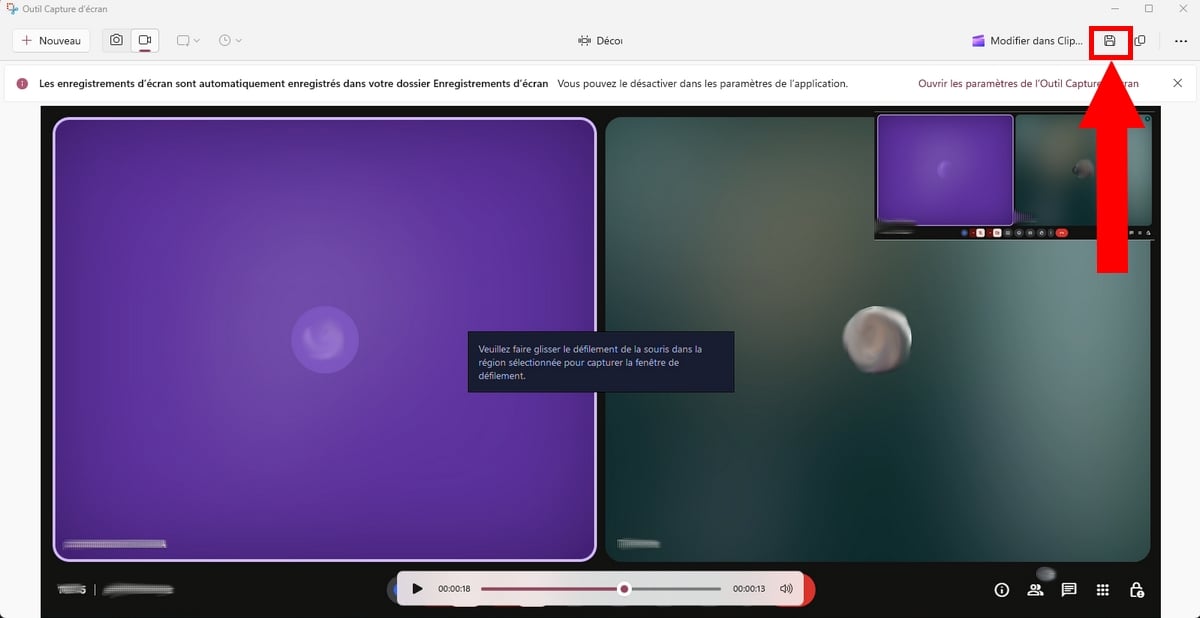
You can record a meeting using the’Screenshot Tool built into Windows:
- Tape Screenshot Tool in the Windows search bar, then open it.
- Hold down the keys Windows + Shift + R to start recording.

- Manually select the area to capture.
- A countdown of 3 seconds is triggered, then click on To start up.
- To pause, use the button Pause (black). To stop, click on the red button.
b) On Mac
On a Mac, the built-in tool for screenshot It works without installing anything:
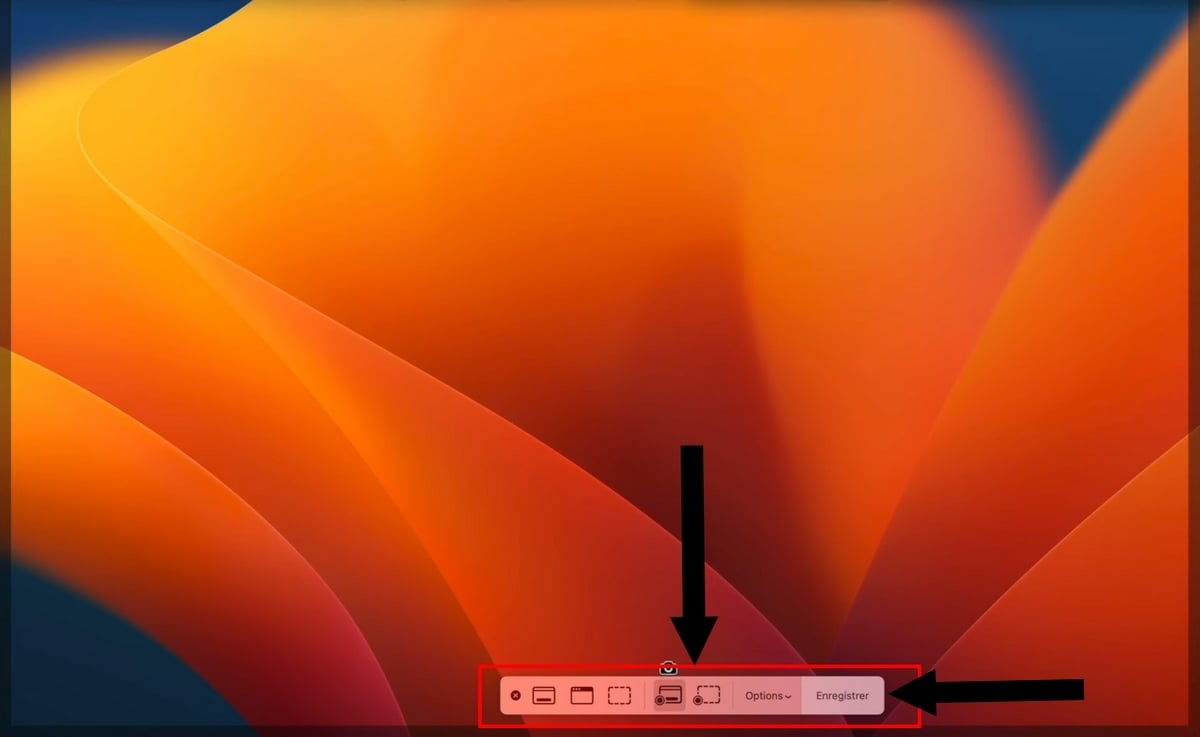
- Use the shortcut Shift + Command + 5 to open the recording toolbar.
- Select the area to capture, then click on To register.
- To stop, click the button Stop in the menu bar at the top of the screen.
- The video is being saved automatically to the Desktop, in the format .mov. You can change this folder through the menu Options.
4. Record a meeting on Google Meet with my phone
The built-in feature of Google Meet and the extension Bluedot are reserved for the computer. On mobile, you go through the built-in screen recorder on your device: it's free, requires no third-party apps, and is available on android as on iPhone.
On Android
- Join your meeting Google Meet.
- Swipe the top of the screen to open the quick menu.
- Press Screen recording.

- Start recording and remember to Turn on the microphone to pick up the sound of the call.
- To stop, press the red button. The video is automatically saved to your gallery.
On iPhone
On the iPhone, the’screen recorder lives in the control center:
- Join your meeting Google Meet via the link or invitation you received.
- Open the control center, then press the’circle icon with pastille to start recording.

- Go back to the’Google Meet app to follow your meeting.
- To stop recording, press the red bar at the top of the screen, then on Stop. You can also open the Control Center again and tap the recorder icon once more.
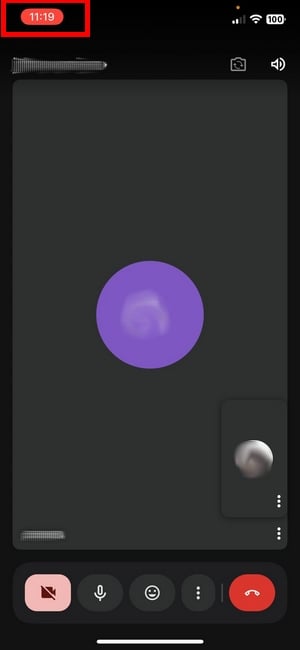

- The video will automatically appear in your app Photos.
Note: This method captures whatever is displayed on the screen. The quality depends on your device's resolution and your internet connection during the meeting.
FAQs
How do I enable automatic recording as an administrator on Google Meet?
As a’administrator, you can enable recording for your entire organization. Here is the procedure:
- Log in to the administration console Google using your administrator account.
- Make sure you have a edition Google Workspace compatible.
- Go to Menu, then Applications, Google Workspace, Google Meet and Video settings Meet.
- Select the option Recording, check the box, then click To register.
To disable To disable the feature, simply uncheck the same box. All the participants eligible for your organization will then be able to use the recording feature based on their role.
Why can't I record on Google Meet?
The most common causes are as follows:
- The recording was disabled by the administrator on your behalf.
- You don't have a Workspace Edition (Adapted) : Business Standard, Business Plus, Enterprise Standard, Enterprise Plus, Teaching and Learning Upgrade, Education Plus, Essentials, Enterprise Essentials, or Enterprise Essentials Plus.
- Are you using a free Google account (@gmail.com), which does not have access to the built-in feature.
- You are in a small-group session, where recording is blocked.
The simplest solution: ask the’meeting organizer to start the recording for you. Otherwise, use a screenshot or by the extension Bluedot, which operate without Google Workspace.
Can I record a Google Meet meeting as a guest?
No. The built-in function is accessible only to the’organizer, to a co-organizer or a participant from the same organization who has the necessary permissions. If you join a meeting as a’external guest, you won't see the save button. In that case, use a screenshot tool on your PC or mobile device.
Where do my Google Meet recordings go?
The location depends on the tool you used:
| Tool used | Location of the recording |
|---|---|
| Built-in function of Google Meet | Google Drive from the organizer (the “Meet Recordings” folder) + link sent by email |
| Extension Bluedot | Stored in the app Bluedot, in your workspace |
| Mobile devices (Android / iPhone) | Gallery or Photos on Your Phone |
With the built-in feature, the file is automatically saved to the Google Drive from the organizer.
How can I retrieve a recording if I'm no longer the organizer?
The file remains in the Google Drive from the organizer. If you no longer have access to it, ask him to share the file or send you the link. A Workspace Administrator You can also locate the file in the Drive of the relevant account and then manage its sharing or deletion.
Does a Google Meet recording include a transcript?
Yes, under certain conditions. With certain editions Google Workspace, you can enable the transcription and the game's subtitles during the meeting. The transcripts are stored in a separate document, next to the video, in the organizer's Google Drive.
This is especially useful for reviewing a training or locate a specific point on a session. If you want to take it a step further, the extension Bluedot also generates notes and transcripts automatic thanks to AI, including for the participants without a Workspace account.
Recording a Meeting: What Does the Law Say?
In many countries, you have to get the participant consent before recording a meeting. Google Meet also displays a notification to everyone when recording begins. Always let everyone present know and follow the legal obligations in effect, especially in a professional setting.
Have a question? Ask it in the comments.









 English