You've received an invitation Google Meet and you don't know how to log in? The easiest way: click on the meeting link received by email or text message, or enter the coded directly on meet.google.com.
Depending on your context, there are several access points: from Gmail, Google Agenda, the mobile app, via phone, or even without a Google account.
1. Join a meeting from Google Meet
You can join a meeting Google Meet directly from the website or the app. If you want to first Install Google Meet on your PC, it's this way. There are two possible scenarios: either the meeting is already scheduled in Google Agenda, or you have a coded or a link to enter.
a) Scheduled meeting
For a meeting that has already been scheduled in Google Agenda :
- Open meet.google.com in your browser.
- Select the meeting in the list of scheduled events.
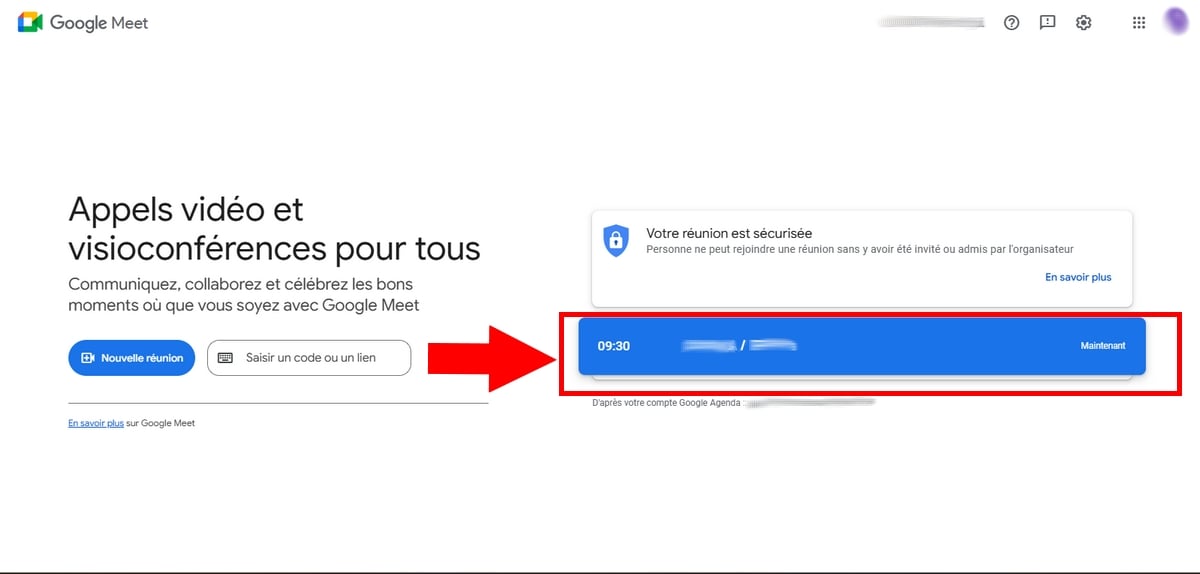
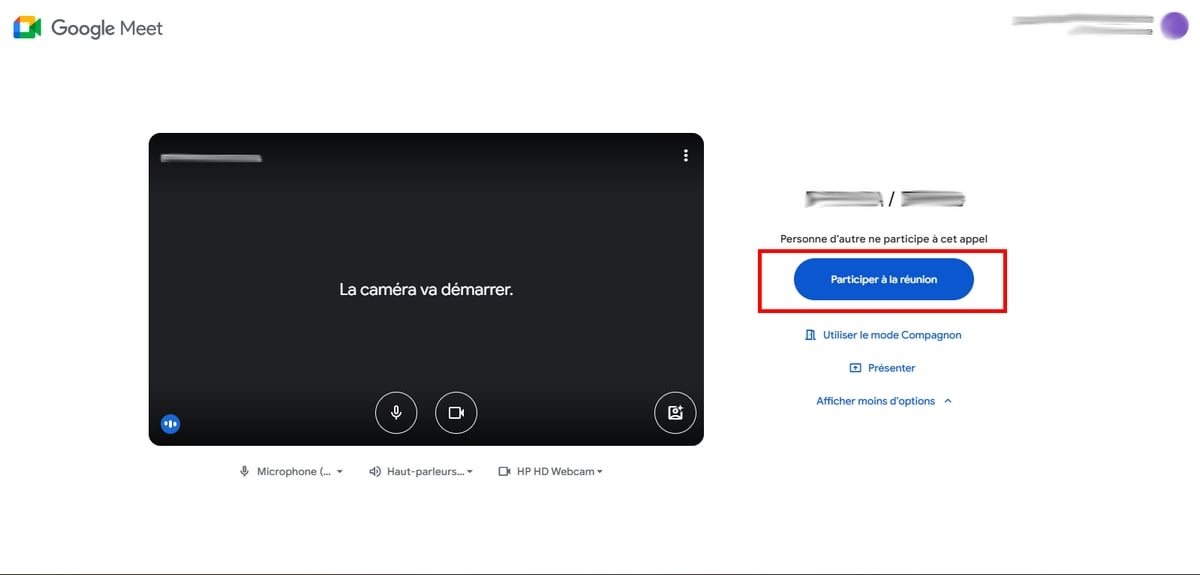
- Click on Take part in the meeting in the new window that opens.
- Volume control microphone and your camera before entering (enable them or not). You also choose how to participate: by companion mode or by introducing yourself in a video.
b) With a code or a link
If you have a link or a coded provided by the organizer:
- Go to Google Meet.
- Paste the link where the coded in the field Enter a code or link.

- The button To participate becomes clickable: tap it to join the meeting.
- If theorganizer added you to the guest list via Google Agenda, access is available automatically. Otherwise, you'll have to wait for their confirmation before you're admitted.
c) With an alias
A alias is a custom name that the Google Workspace users create for a meeting. It works like a code, but is easier to remember.
To note : You can use an alias only if your account belongs to the the same professional field than the organizer.
- Open Google Meet, then click on the bar Enter a code.
- Type coded or thealias Of the reunion.
- Press Contact to participate.
Do you want to know How many people can participate? At a Meet meeting? The answer is in our dedicated article.
2. Join a Meet meeting from Google Calendar
If you use Google Agenda, every event scheduled to include a videoconference already contains the Link to the meeting. So you can access it by one click, without looking for the code elsewhere.
- Open Google Agenda and see all your upcoming meetings.
- Click on the’event in which you want to participate.
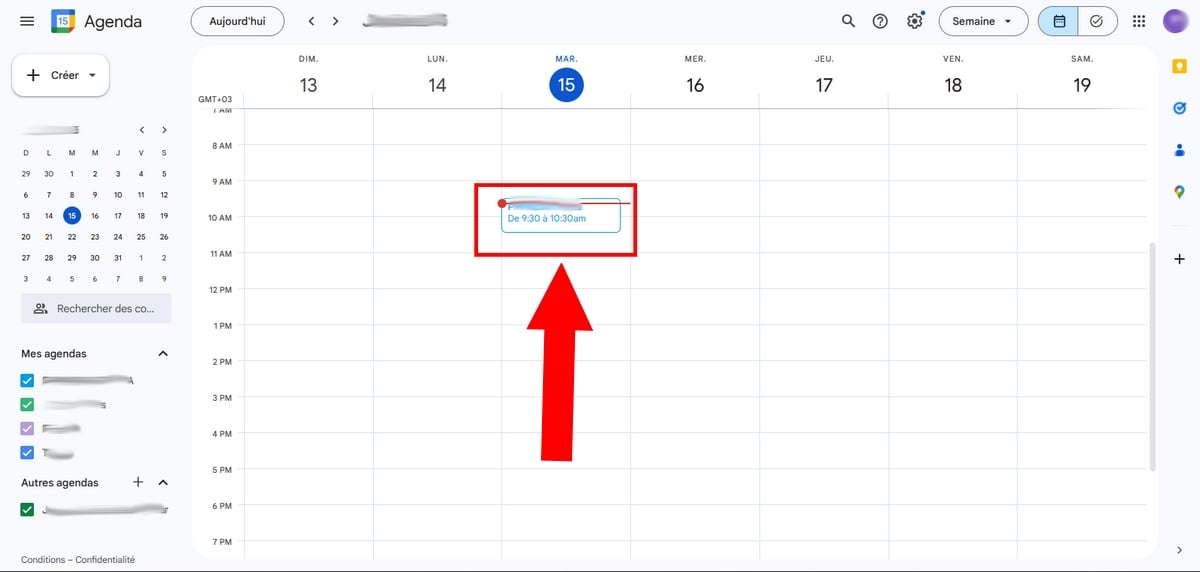
- Find the button Participate with Google Meet, or copy the meeting link into your browser's URL bar. The coded is located right below the button.

- A new window will open. Click on Take part in the meeting to join the other participants.
3. From Gmail
You can also attend a meeting Meet directly from Gmail, depending on three scenarios: a scheduled meeting, a code received, or an email invitation.
a) For a scheduled meeting
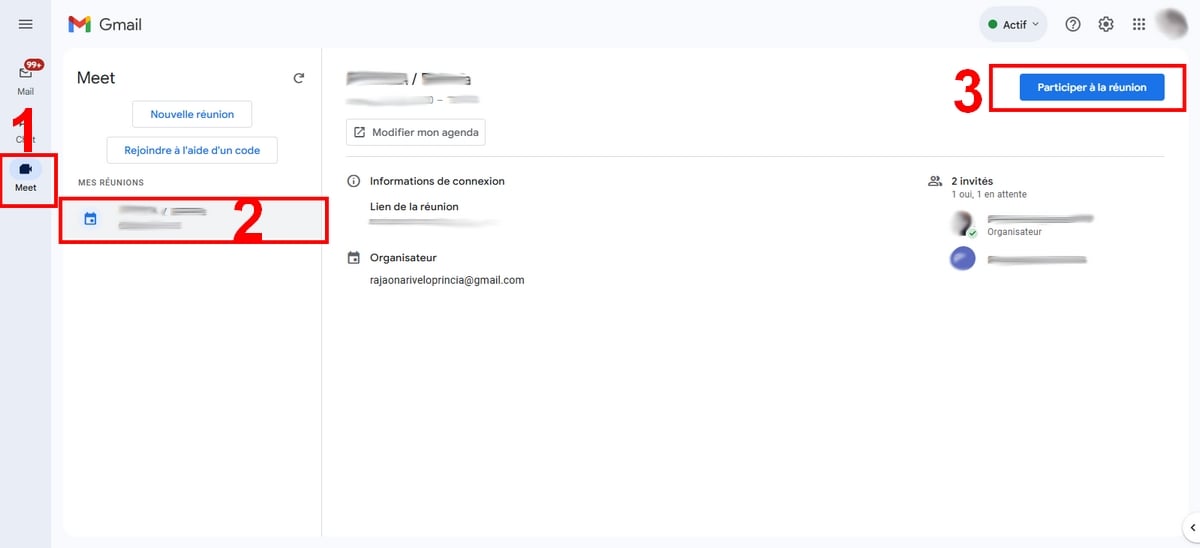
- Open Gmail and log in to your Google account.
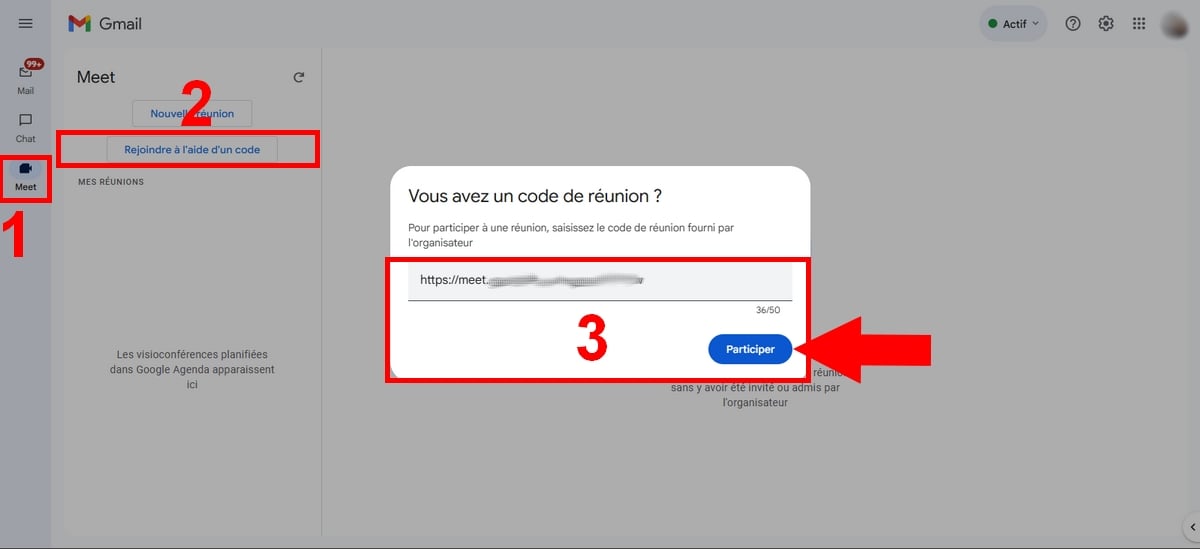
- In the lower-left corner, click on Google Meet (the video icon).
- Under the My meetings, select the meeting you want. Only meetings scheduled via Google Agenda are displayed here.
- Click on Take part in the meeting, then confirm in the new window by pressing Take part in the meeting.
b) With a code
- If the meeting doesn't appear in the list, click Join using a code.
- Enter the meeting code, then click on Take part in the meeting in the new window.
c) With an invitation
You received a invitation by email ? It's even more straightforward.
- Click on Participate with Google Meet, or directly on the meeting link.
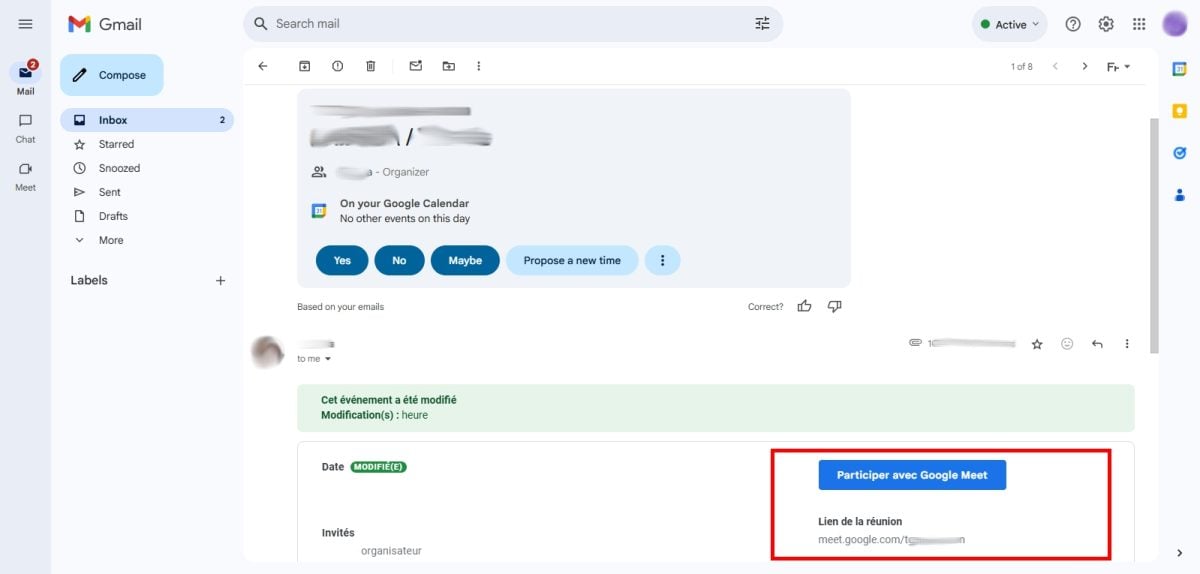
- No matter which option you choose, you'll be redirected to a new window.
- Click on To participate to confirm your attendance and join the meeting.
4. Join a Meet meeting on mobile devices
You can join a meeting Google Meet from your phone using the app available on android and iOS. There are two options, depending on what the organizer sent you: the link where the coded.
a) By clicking on the link
This is the fastest way when someone has shared a link with you:
- Log in to your Google account on the device.
- Press the meeting link received via text message or email.
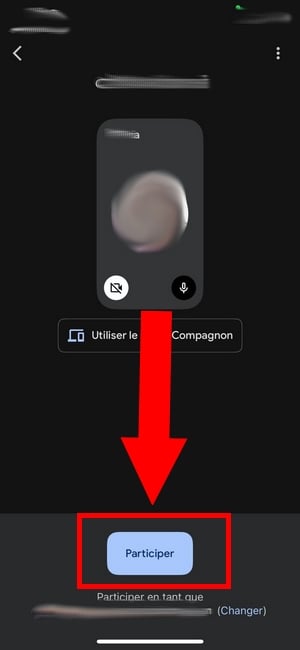
- Press To participate.
- As soon as the’organizer If you're authorized to do so, you can join the meeting.
b) By entering the meeting code
If you only have the coded, go through the app:
- Open Google Meet on your device and log in with your Google account if you haven't already done so.
- In the search field, tap the small keyboard icon.
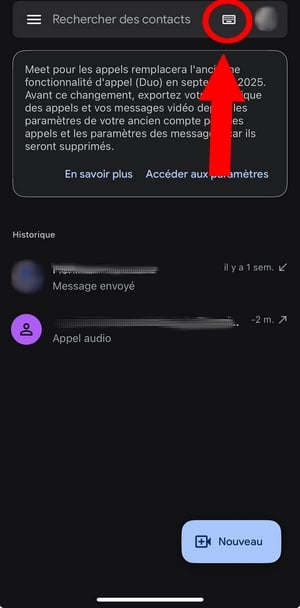
- Enter the coded where the meeting link, then press Contact. You're on the video conference.
5. Take part in a Meet by Phone meeting
You can join a meeting Google Meet in audio only, without a camera, by dialing a number. It's handy when your internet connection is poor or you're on the go.
Before you get started, here are a few important points to keep in mind:
- This feature is For users only Google Workspace. With a free Google account, she isn't not available.
- You only have access to the sound of the meeting, not the video, chat, or screen sharing.
- If you're trying to join before the start During the event, a message stating that the code is not recognized may appear. This is completely normal.
- This option is not Not available in all countries. To check if your country is eligible, see this Google Help page.
Here's how to participate by phone:
- Open the invitation you received by email or the event in Google Agenda, then dial the phone number displayed.
- Enter the code of the meeting, then presses #.
- Wait for a participant to approve your request to join the meeting by audio mode.
If you don't have the number handy, go to meet.google.com or in Google Agenda and opens the meeting details: the phone number and the coded are listed there, sometimes with additional information automatically.
Useful command to know: press *6 to turn your microphone back on or off if your audio is muted. Attention : Google We do not charge for using Meet over the phone, but your carrier may apply standard call charges.
6. Join a meeting without a Google account
You can't create a meeting without a Google account, but you can still join a as a guest.
Important : This access is available only if the organizer uses an account Google Workspace (Business, Enterprise, or Education). If the meeting is started from a free Google account, you'll need to sign in to join.
- Click on the meeting link received via email or chat, or paste it directly into your browser.
- Enter your name, then click on To participate.
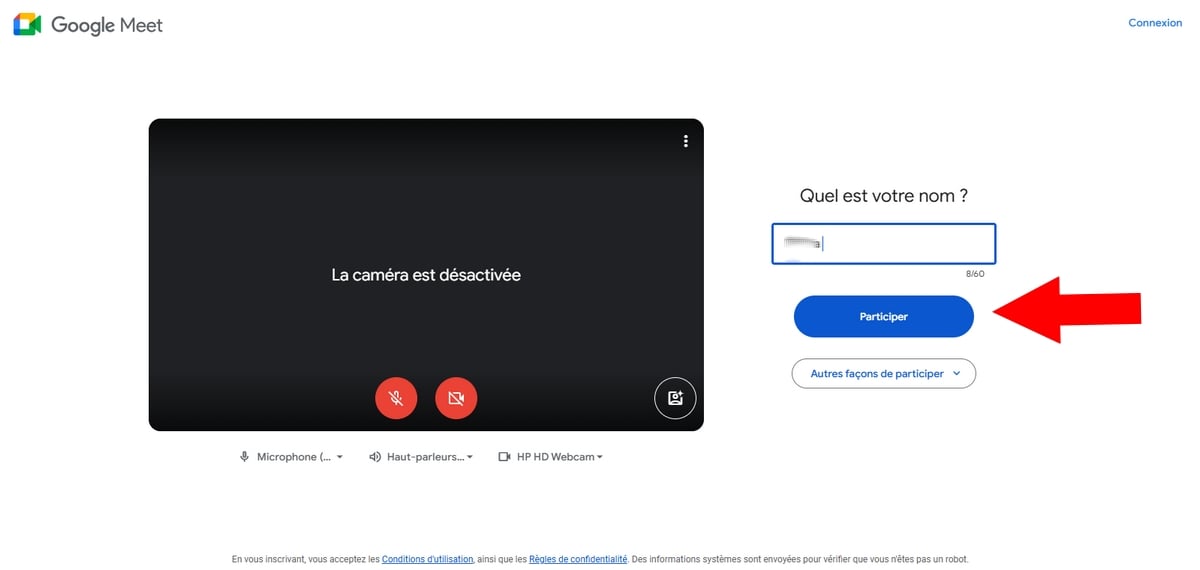
- All that's left to do is expect that the organizer approves Your access request.
Please note: Behavior may vary depending on the device. On desktop browser, guest access is more flexible. On mobile, a participant must approve your entry before you can join the meeting.
7. From a Google meeting room
You can also join a meeting from a room equipped with certified equipment to Google Meet.
- With the remote control room equipment, select the meeting to join from the events scheduled in the room's calendar.
- Otherwise, Enter the code or thealias the meeting directly on the device, then tap to start the video call.
The Upcoming Events appear automatically on the screen when a meeting Google Agenda is associated with the room.
Who can join a videoconference?
Depending on your type of Google account, access to meetings Google Meet is not the same. Here is a default summary.
| Users | Meetings You Can Join |
|---|---|
|
All the meetings you've been invited to. However, the administrator of some accounts may restrict access at certain meetings. |
| Google Education | Your administrator determines which meetings you can join. By default, you can participate in meetings organized by Google Workspace users people who are not subscribed to Google Individual. |
| Google Workspace | Your administrator determines which meetings you can join. By default, you can participate in a meeting organized by users Google Workspace, an account Google personal, Google Workspace Individual Where Google One. |
Good to know: accounts managed by Family Link may not attend meetings organized by people outside their immediate family without prior authorization.
FAQs
Can I take part in a Google Meet videoconference without a Google account?
Yes, but on one condition. You can join a meeting Google Meet without Google account, provided that the organizer uses an account Google Workspace (Business, Enterprise, or Education). If the meeting is created using a free Google account, guest access is not not available and you'll need to log in to participate.
How can I reach Google Meet by phone?
Dial phone number provided in the invitation, then enter the meeting code to join via audio. This feature is reserved for accounts Google Workspace and is not available with a free Google account.
Who can join a videoconference on Meet?
Anyone can participate, whether you have a free Google account or a subscription Google Workspace. Depending on the settings defined by the organizer, some participants may have to wait in the waiting room before being admitted.
How do I accept or decline an invitation?
You can confirm or adjust your presence based on your entry point.
From the Gmail invitation : Select your answer from the email: Yes, Nope Where Perhaps.
From Google Calendar :
- Click on the’event in question.
- Choose your answer from the options provided: Yes, Nope Where Perhaps.
And that's how to easily join a Google Meet meeting! If you're having trouble or have specific questions, feel free to ask them in the comments!









 English