To share your screen on Google Meet, join a meeting, click the icon Introducing yourself (right after the camera icon), select the area you want to stream, then confirm. Here are the full details based on your device and your situation.
How do you share your screen on Google Meet on a PC?
The steps are quick and easy. If you want to start by install Google Meet To make your computer run more smoothly, check out this guide.
1. Take part in a meeting
Go to Google Meet: https://meet.google.com/landing from your browser or the app. To find out join a meeting For existing systems, see the dedicated guide.
a) Join a meeting before introducing yourself
- Join the meeting.
- Click the icon Introducing yourself, between the camera icon and the emoji.
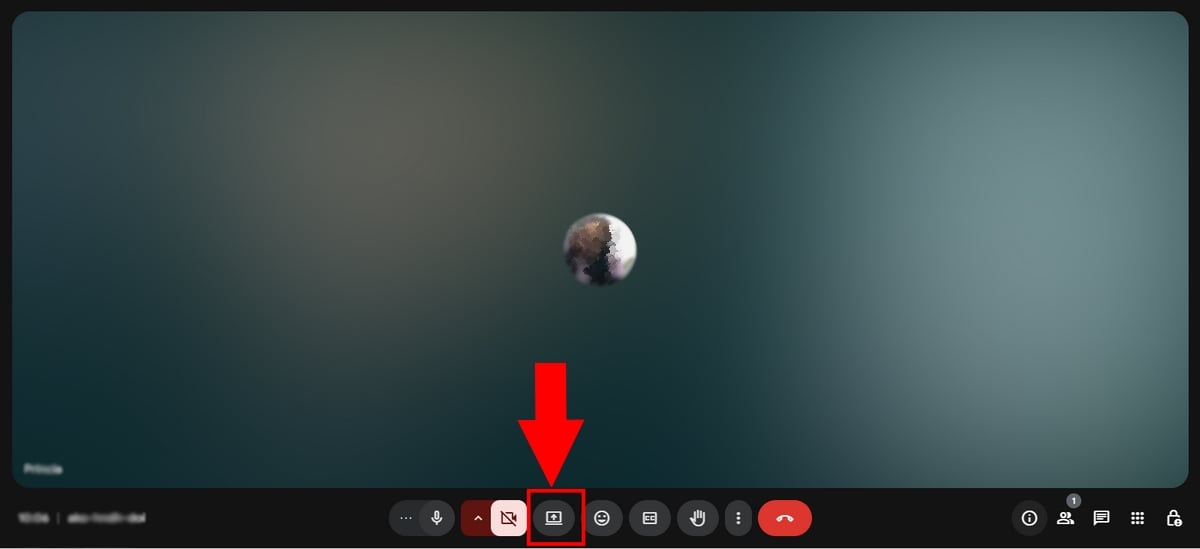
b) Click on Introduce yourself before joining a meeting
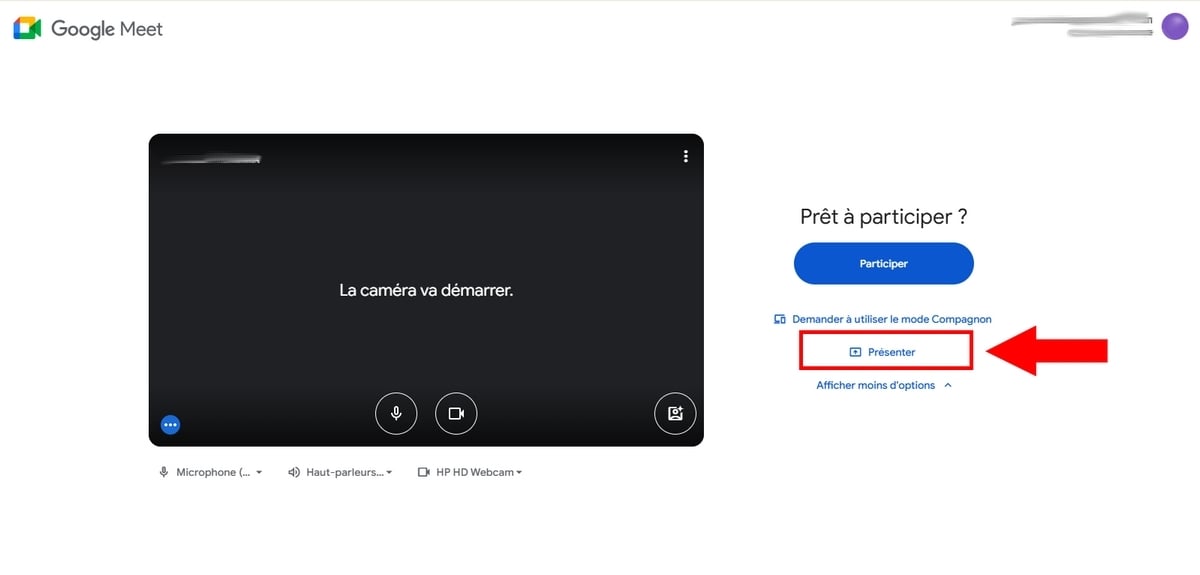
You can also click on Introducing yourself even before joining a video conference, directly from the home screen.
- Enter the meeting code, then click To participate.
- You then enter companion mode. Note: With this option, your micro and your loud speaker are not available.
2. Select the area to be displayed
Before starting the broadcast, you must select the area to display. This step applies whether you're in companion mode or already in the current meeting. If you want to explore all the tool's features, find out how to Use Google Meet.
You have three options to choose from:
- Tab Chrome : to display only a specific browser tab.
- A window : to display only one specific open application.
- Full screen : to display your entire screen.
Here's how it works:
- Choose the zone to present.
- Select the option you want, then click To share (In this tutorial, we selected “Full Screen”).

- A confirmation message appears top right : You're introducing yourself, aren't you?.

- To make it easier to read, feel free to resize your presentation. You can zoom in from 25 to 500 % depending on your needs.
Please note: If the shared items appear upside down, check out our guide to flip the camera on Google Meet.
3. Stop presentation
- Click on Stop presentation in the upper-right corner, or by clicking the button Stop sharing, to stop the broadcast.

Good to know:
- If another participant joins during the meeting, your screen stops automatically.
- If you share your entire screen and the Meet window appears on top of it, you'll see an endless loop of windows nested inside each other. It's better to share a tab Where a specific window to avoid it.
- To share the’sound, appears only a tab Chrome and enable the option Share the audio from this tab.
- You can also record the meeting in progress to keep track of your presentation.
How do I share my Google Meet screen on my cell phone?
Introduce yourself once in the meeting or use the companion mode
The steps are the same on Android and iPhone. When the location of an icon differs, an illustration is provided for each system.
To begin with:
- Open Google Meet on your device.
- Log in to your account Google.
- Join a existing meeting or creates a next meeting.
a) Using the companion mode
Even before joining the video call, you can start screen sharing from the meeting's home screen.
- Click on Se présenter.
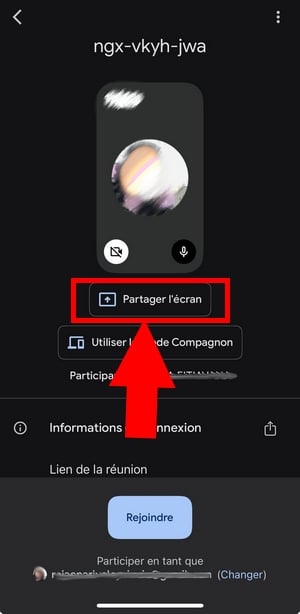
- By introducing yourself before joining the meeting, your microphone and your loud speaker remain disabled.
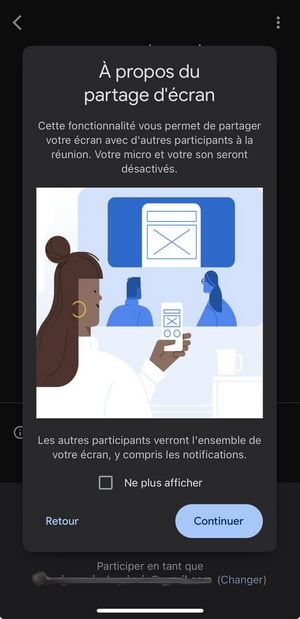
- Wait for the organizer to approve your participation.
- Then click on Lancer la diffusion.
- On iPhone, a countdown is triggered before sharing.
- To stop, click on Arrêter le partage, then confirm by clicking on Arrêter.
b) Share your screen during a meeting
- Join the meeting.
- Once you're inside, click on the three small points, located between the hang-up icon and the emoji.

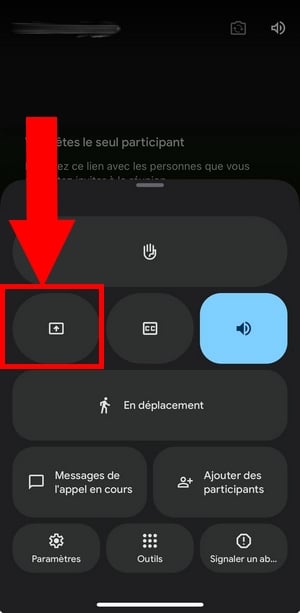
- From the options, click on Se présenter, highlighted in the images below.

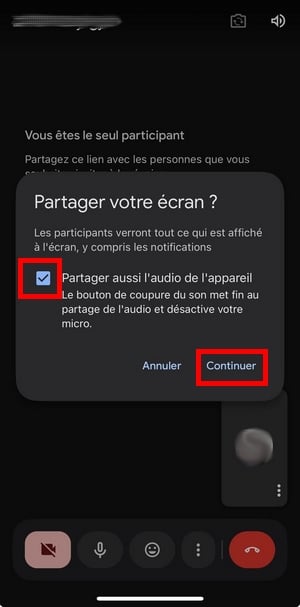
- To share the’sound, check the box “Partager aussi l’audio de l’appareil“, then click on Continuer. If you mute your microphone, it will remain muted for the entire presentation.
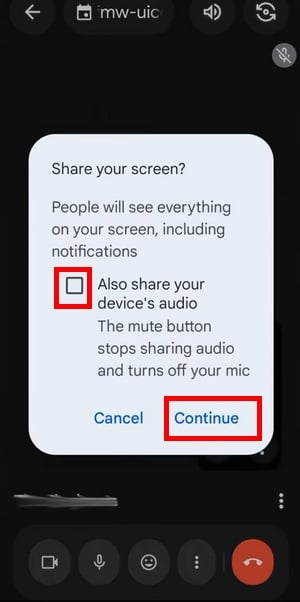
- Click on Lancer la diffusion to confirm.

- Your screen is now being shared with the meeting participants. Once you're done, click Arrêter le partage.

How do you share your screen from a Docs, Sheets, or Slides file?
You can start a videoconferencing directly from a document, without going through the home page of Meet. It's especially handy when you want to share a document Be precise during your meeting.
- Open a file in Google Docs, Google Sheets Where Google Slides.
- In the upper-right corner, click the icon Meet.
- Select an option: Start a new meeting Where Using a code to join an existing call.

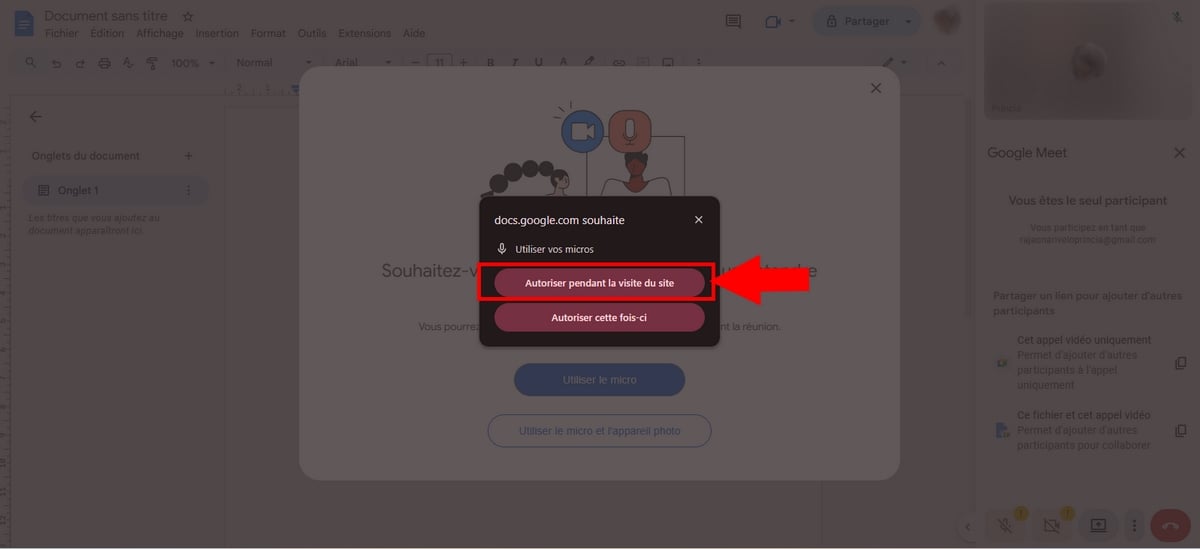
- When Meet asks you for the authorizations, click on Using the microphone (Where Using the microphone and camera), then on Authorization during site visit.
- Click the icon Introducing yourself bottom left.
- The file then appears directly on the screen of the participants.

- To Stop the presentation, click the button Stop presentation.

FAQs
Why won't Google Meet let me share my screen?
There are several possible causes. The most common is still a bad connection or some missing authorizations on the browser side (screen sharing not enabled).
Your administrator Google Workspace may also have disabled this option for your account.
On iPhone, the browser Safari doesn't handle sharing a tab with audio properly. In that case, use the’application Google Meet rather than through the browser.
How do I share my screen on Google Meet with audio?
- Don't join the meeting in companion mode.
- On a PC, choose to display a tab Chrome, not a window or the entire screen.
- Check the box Share the audio from this tab as well before clicking on To share.
This is the only method that correctly conveys the’sound of your video to the participants.
How do I stop screen sharing on Google Meet?
During your presentation, a bar indicates that your screen is being shared. Click on Stop presentation from the Meet window, or by clicking the button Stop sharing displayed at the bottom of your screen.
Sharing stops immediately, without leaving the meeting, and you can resume a presentation at any time.
How can I see the participants while I'm sharing my screen?
To keep an eye on your audience during your presentation, turn on the mode Picture in picture. He opens the call in a small floating window, alongside the content you share.








 English