To create a Google Meet meeting, the quickest way is to go to meet.google.com: click on New meeting and your videoconferencing It's ready in just a few seconds!
You can also schedule your meetings from Google Calendar, Gmail, Google Chat, the mobile app, or even Outlook. Each method generates a meeting link which you then share with your participants.
1. From the Google Meet homepage
- Go to Google Meet: https://meet.google.com/landing
- Click on New meeting.
You have three options:
- Create a meeting for a later date.
- Start a instant meeting.
- Schedule a meeting in Google Calendar.
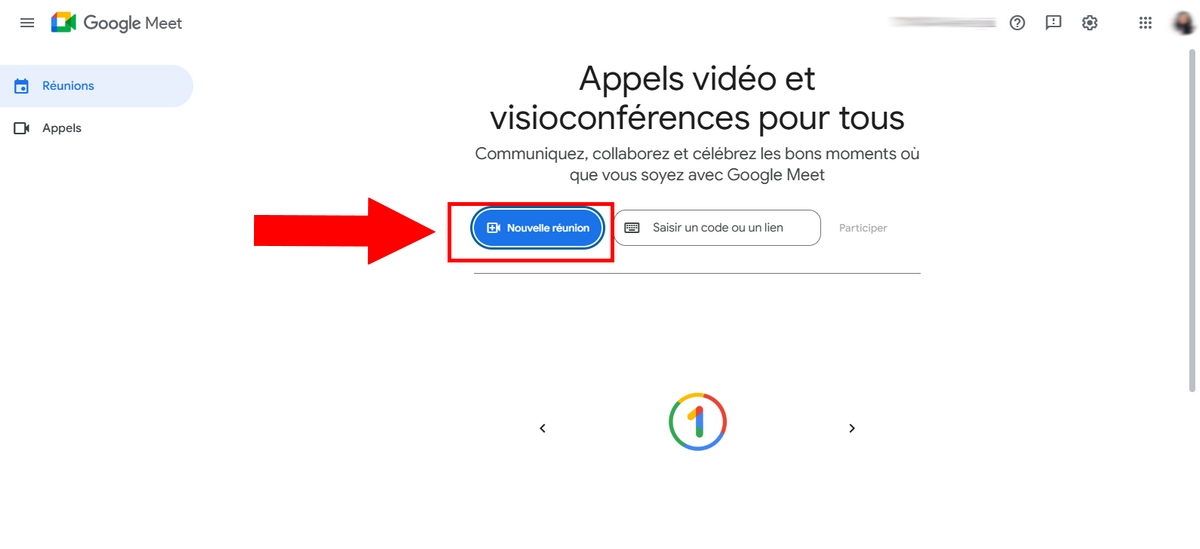
a) Create a meeting for a later date
This option gives you direct access to the meeting link, without making the call right away. You can also create a Google Meet link designed to share it in advance.
- Copy the link displayed on the screen.
- Share it with your guests whenever you want.
- To join the meeting later, paste this link into your browser, then click Take part in the meeting.
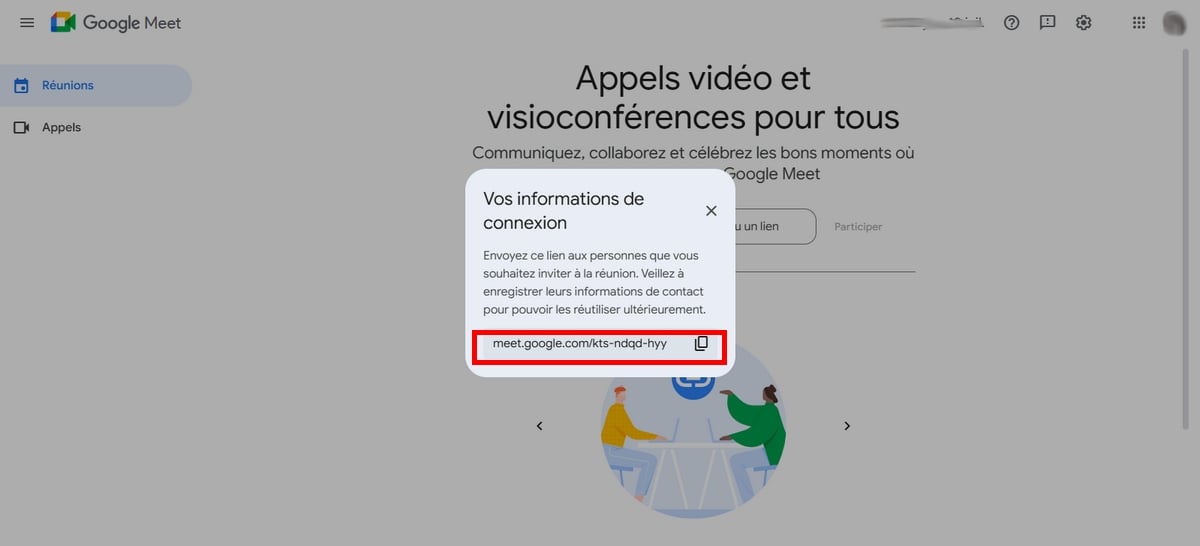
b) Start an instant meeting
This option creates the meeting and connects you to it immediately. It's ideal for a quick video call, without any prior planning. Once you're in the meeting, you can:
- Copy link to send it to other participants.
- Click on Add participants to invite them directly.

c) Scheduling in Google Calendar
This is the best option if you want to Plan your video conference in advance and automatically notify your guests.
- You are being redirected to Google Calendar to create your event.
- Add the meeting details : title, date, time, guests.
- When everything is ready, click on To register at the top right of the screen.
You can choose to’Whether or not to send invitation emails. If you don't send it, your participants won't receive the link by email. Regarding the visibility settings About the event:
- Status «Public», all the details are visible to everyone.
- Status «Private», other users cannot view these details.
2. From Google Calendar directly
Go through Google Calendar "Directly" is the best method when you want to set a specific date, notify participants, and generate the meeting link in advance.
- Go to Google Calendar with your Google account.
- Select the date and the time of your meeting.
- Click on Add Meet videoconferencing : a link is generated automatically.
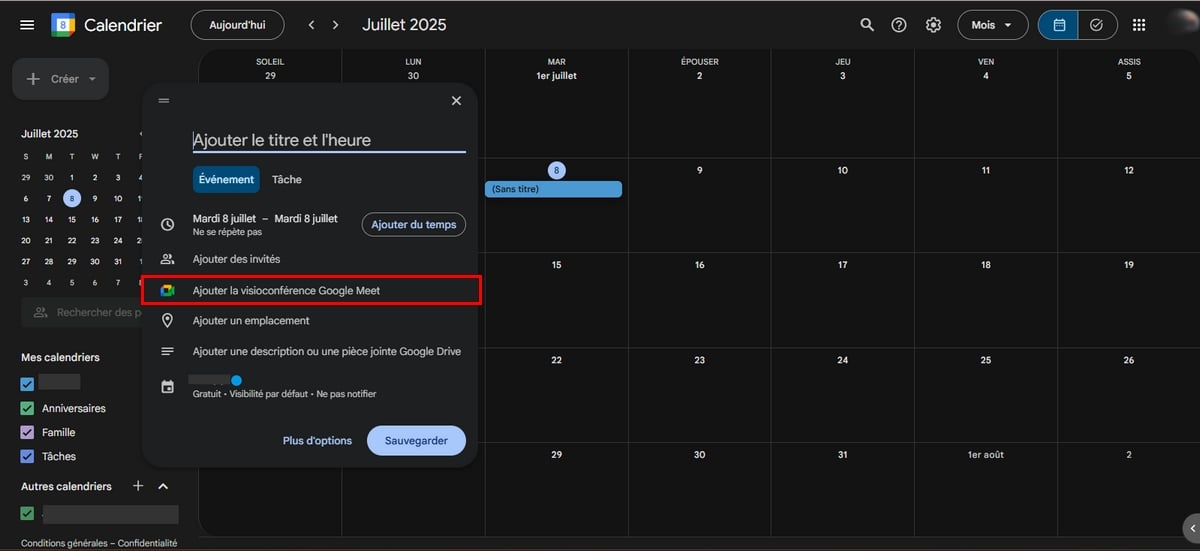
- Fill in the details Meeting details: title, time, reminder, etc.
- To invite participants, click on Add guests and enter their email address.
- Click on To register. You can send the invitation emails to the guests, if you'd like.
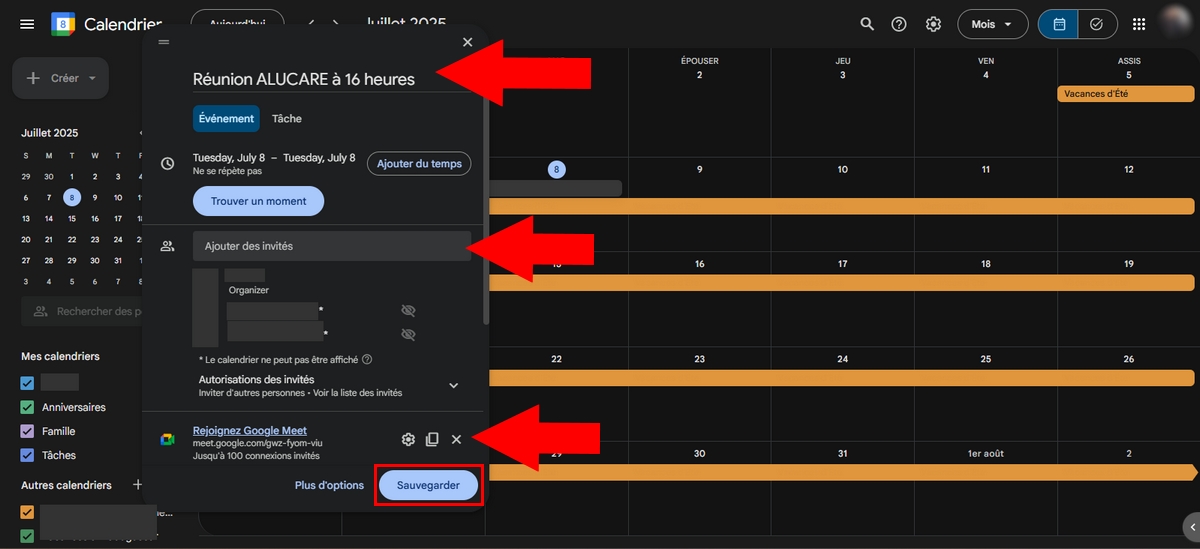
Guests receive the link via email and simply need to click on it to join the Google Meet meeting when the time comes.
See also: Find out how Record a Meet meeting for free.
3. From Google Chat
You can create a meeting Google Meet directly from Google Chat. It's handy when you're already chatting with someone or a group and want to switch to a video call without changing tools.
You have two options: share a meeting link for later, or start a instant video conference.
a) Share a link for a future call
- Go to Google Chat, or go through Gmail then click on Cat in the left-hand menu.
- Open a conversation with the person or group in question.
- Click on the’video icon at the bottom right of the editing area to generate the meeting link.
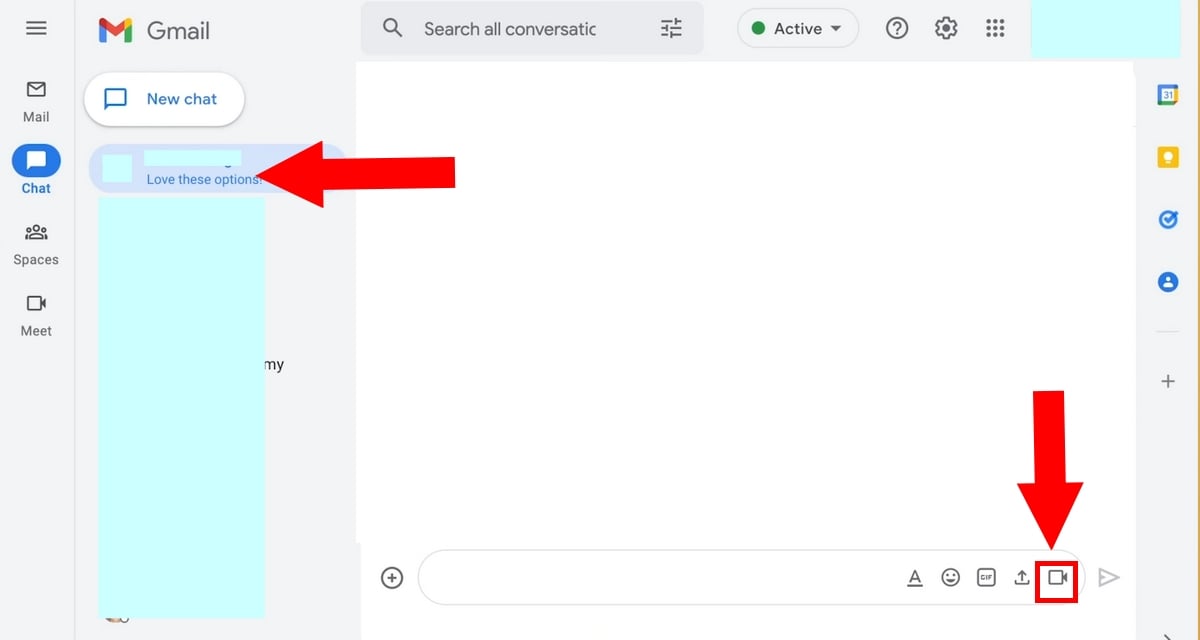
- Click on Send to share the meeting link Meet. Your participants can join whenever they want.
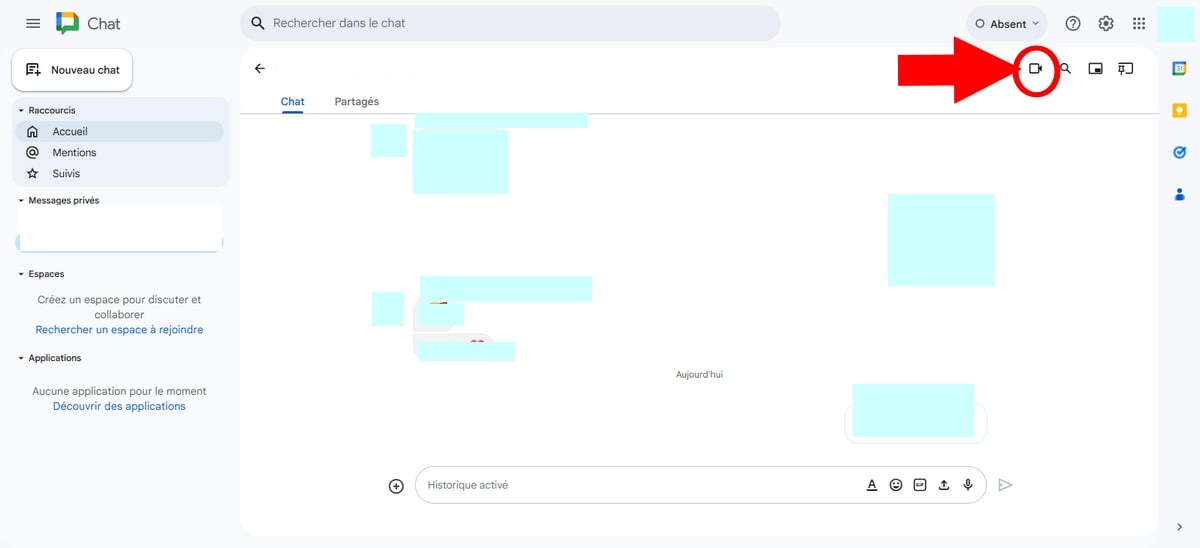
b) Start an instant video conference
For a instant video call, the process is even faster.
- From the main screen, tap again on New.
- Click on Start a video call, in the upper-left corner of the screen.
- Wait until the person you're talking to join the meeting.
4. With Gmail
You can create a Google Meet meeting directly from Gmail, without leaving your email inbox.
- Open Gmail from your browser or the app.
- Dans la section Meet, on the left side of the screen, click New meeting.
- A window opens with the meeting information and the link to share.
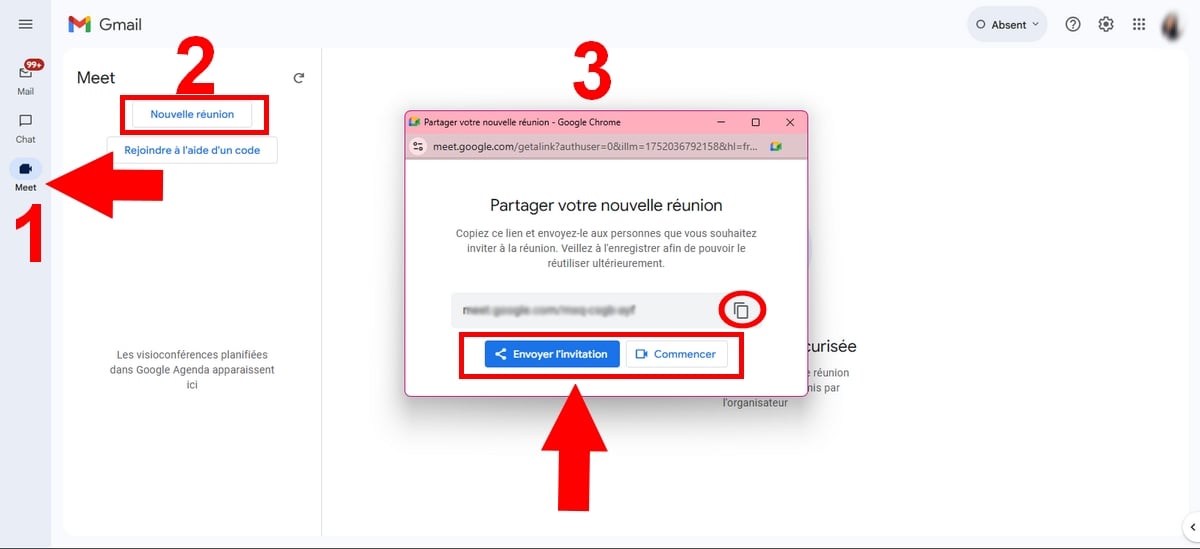
- Click on Send the invitation to share the meeting link by email to the participants.
- To make the call, click on Start.
- You are being redirected to Google Meet to start your video conference.
You can also join an existing meeting from Gmail by selecting Join Using a Code, then paste the link you received before clicking to participate.
5. Through the mobile app
You can also create a meeting Google Meet directly from your telephone. The process is almost identical to that of the browser, both on Android than on iPhone.
a) Start a Meet call
- Start by Install the Google Meet app if you don't already have it on your device.
- Once it's installed, open it.
- In the lower-right corner of the screen, tap New.
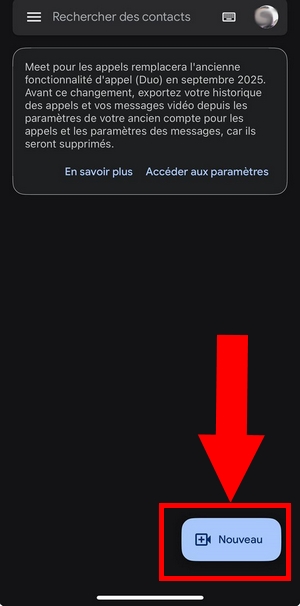
- Press Create a link in the upper-left corner of the screen.
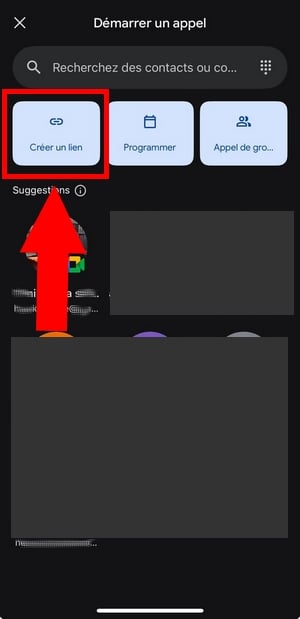
- You can copy link to share it with your participants.
- You can also press Take part in the meeting.
- To make the call, press Contact.
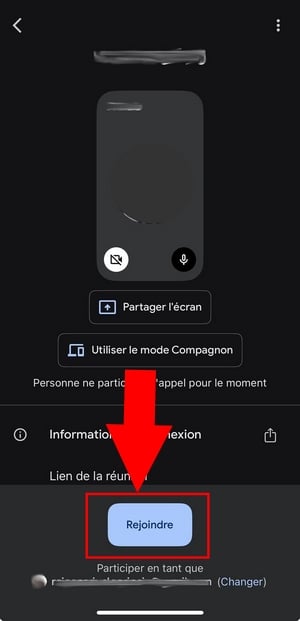
Optional : You can adjust the microphone and the camera before joining the meeting.
b) Schedule a Google Meet
Do you prefer to program your videoconferencing in advance? The mobile planning feature is based on Google Agenda.
- From the main screen, tap again on New lower right.
- Choose Program.
- You are being redirected to Google Agenda. On iPhone Where iPad, you may sometimes need to select it manually.
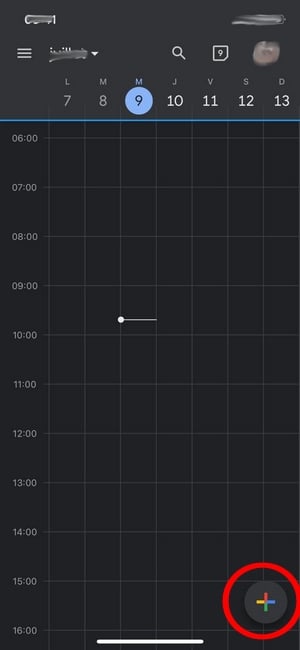
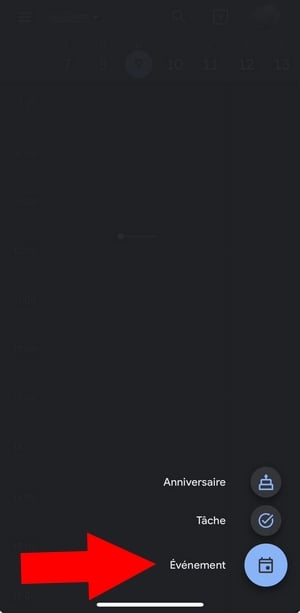
- Press the button More in the lower-right corner of the screen.
- Choose Event.
- Press Add a video conference to automatically generate the meeting link.
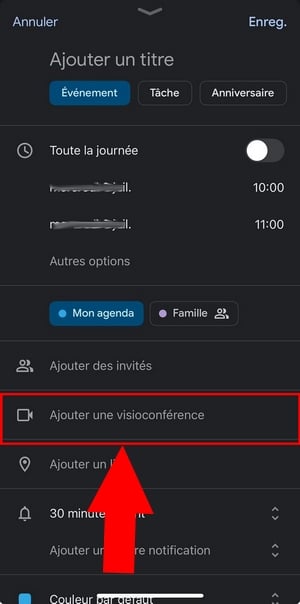
- Add the Details of your meeting : title, time, guests, notification, color.
- To add participants, tap Add guests.
- To set what guests can do, tap Guests can and select the options you want.
- Once you've made your settings, press To register at the top right of the screen.
6. With Outlook
You can also schedule your meeting Google Meet since Outlook. This is handy if your work calendar is already running on Microsoft, particularly in an environment Google Workspace.
Before you start : You must have installed the Google Meet add-on since Microsoft AppSource and have a Google account (Gmail staff or Google Workspace). Otherwise, the "Meet" option won't appear in your toolbar.
- Click on New event, in the upper-left corner of the screen.

- Select the date and time from your meeting.
- Add relevant details: title, reminder notification, etc.
- In the toolbar at the top, click Google Meetthen on Add a meeting.
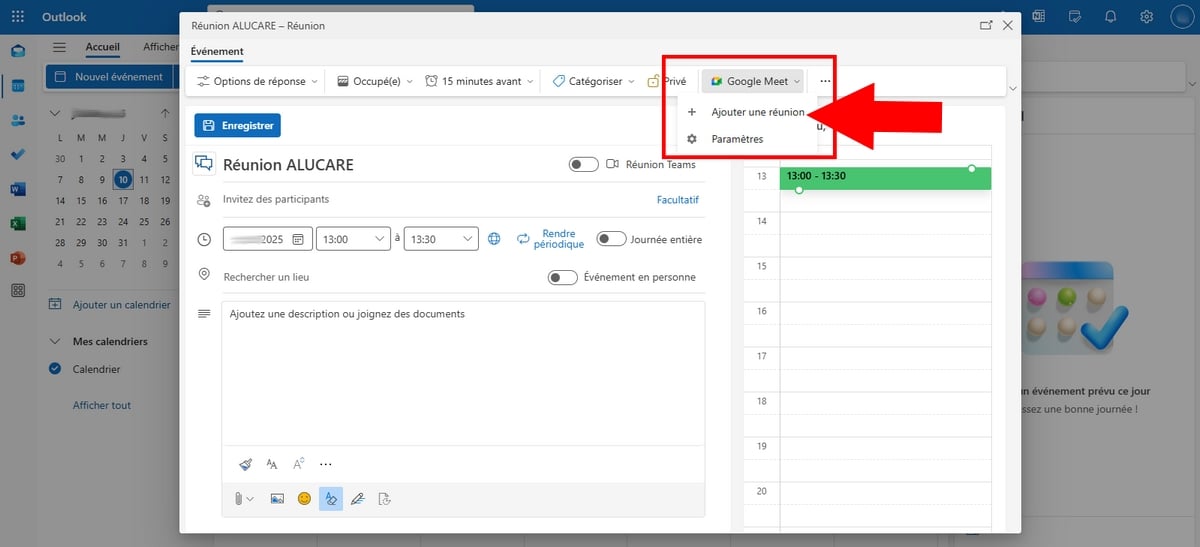
- Follow the instructions displayed on screen.
- A meeting link is generated automatically and added to the description.
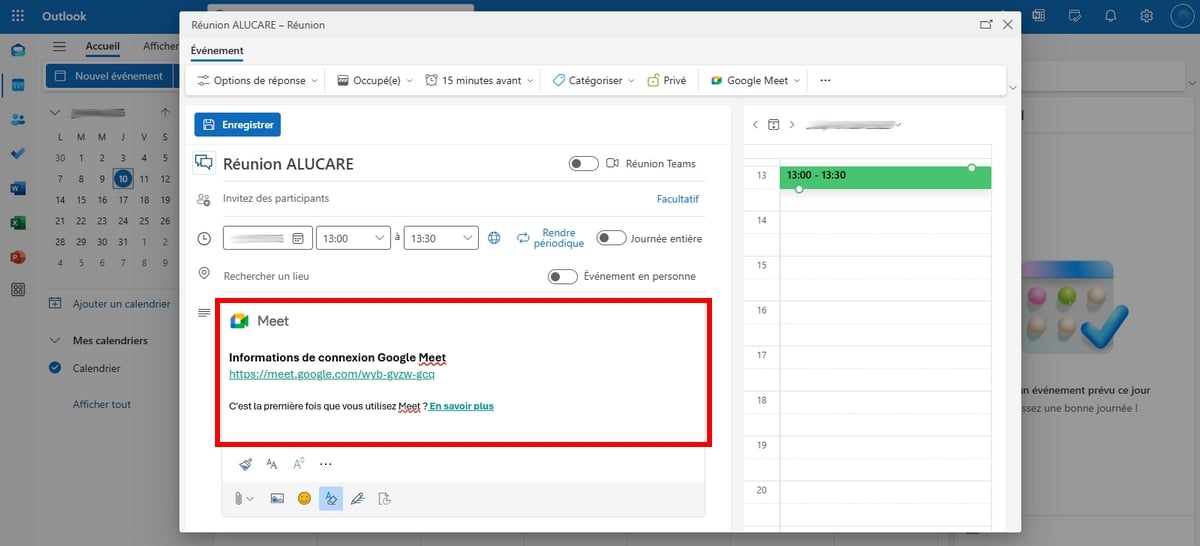
- If everything looks correct to you, click on To register.
Then all you have to do is share this link with your guests so they can join the meeting when the time comes.
Did you know that? You can start a Meet meeting directly from a document Google Docs, Sheets, or Slides. Click the icon Meet in the upper-right corner of your document to share your screen and present your work live to your colleagues, without switching windows.
Google Meet AI Features
Google Meet includes several artificial intelligence-based features that make your meetings more comfortable. These tools are available depending on your account type.
- Real-time automatic captions : Meet generates a live transcript during video calls, which is helpful for participants who are hard of hearing or in noisy environments.
- Automatic Transcription : with an account Google Workspace, you can save the complete transcript of your meeting in Google Docs.
- Background Noise Cancellation : AI filters out background noise during your calls, ensuring better audio quality for everyone on the call.
- Automatic Summary : available to certain users Google Workspace, this feature generates a meeting summary once the videoconference has ended.
FAQs
How do I invite people to Google Meet?
There are two ways to invite participants. The first: enter their e-mail address directly during or after the meeting is created. The second: share the meeting link by email or through a messaging app. Anyone who receives this link can then join the video conference.
How long is a Google Meet link valid?
The validity period depends on the tool used to create the meeting. Here are the key points to know:
| Meet Meeting Creation Tool | Link expiration date |
|---|---|
| Google Chat, Gmail, homepage of Google Meet, Outlook | The link expires 365 days after it was last used. The counter resets every time the link is used. |
| Google Agenda | The link remains valid as long as it is related to a future event in your calendar. If there is no associated event, it expires according to the rule of 365 days due to nonuse. |
Please note: A code created since Google Classroom or a session with a nickname expires as soon as all participants leave the meeting.
Can I take part in a Google Meet without a Gmail account?
Yes, but with one condition. As an organizer, you must have a Google account to create the meeting. With an account Google Workspace (work or school), you can allow participants without a Google account to join the video conference.
On the other hand, if the meeting starts with a personal account (ending with @gmail.com), all users will need to sign in to a Google account to access it. This is a measure to security from the organizer's perspective.
And if you want to take it a step further, check out how to use Google Meet in detail.








 FR
FR  RU
RU  EN
EN  ES
ES  IT
IT  DE
DE  ZH
ZH  PT
PT  ID
ID  JA
JA  DA
DA