Create a link Google Meet is simple and requires only a Google account Free. You can choose from five methods depending on the tool you use:
- Google Meet,
- Gmail,
- Google Agenda,
- The mobile app or
- Google Chat.
1. From Google Meet
This is the fastest way to Create a video conference or generate a link to send. You can access Google Meet from any device, with no installation required.
- Go to Google Meet (meet.google.com).
- Click on New meeting, then choose from the options provided.
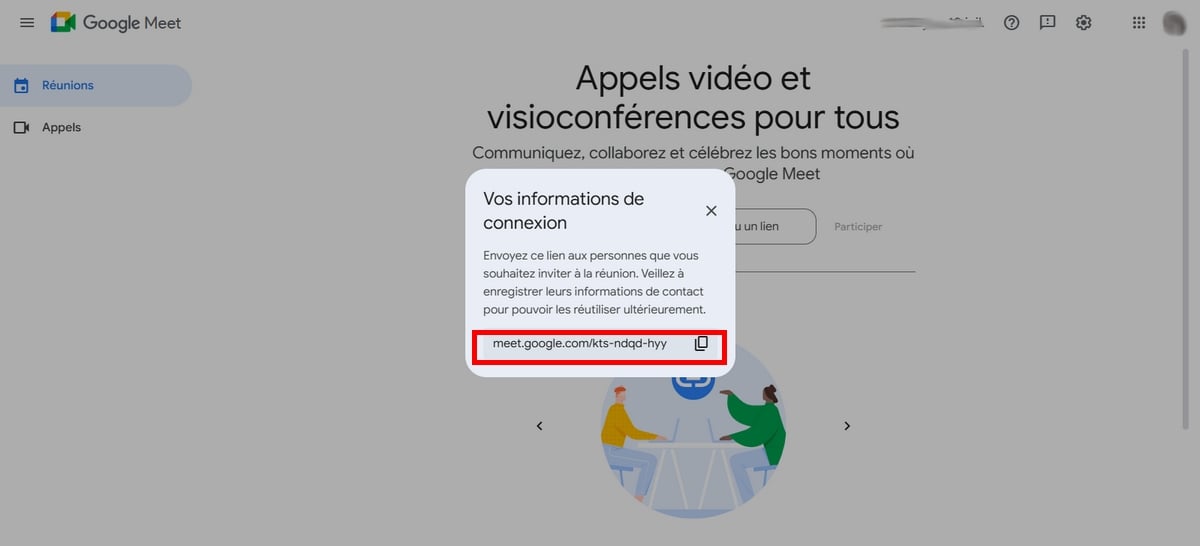
Schedule a meeting for later
- Click here to schedule a meeting for a later date. A meeting link is generated automatically. Copy it and share it with your participants so they can join the video conference.
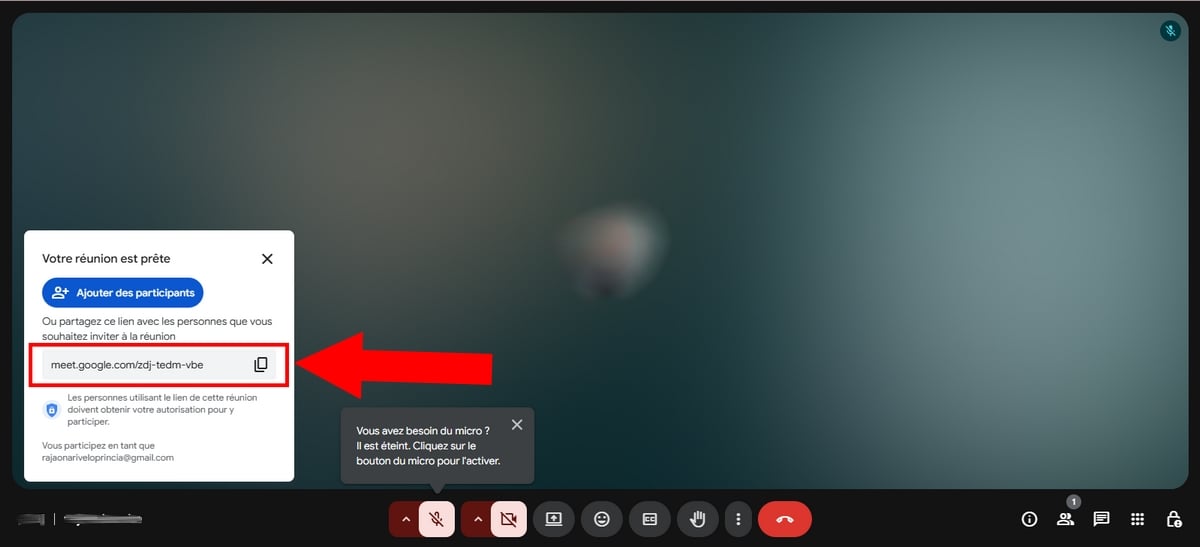
Start an instant meeting
- Click this option to immediately open the meeting room. The link will appear in a new window. Copy it and share it so your guests can join the meeting and participate in the video conference.
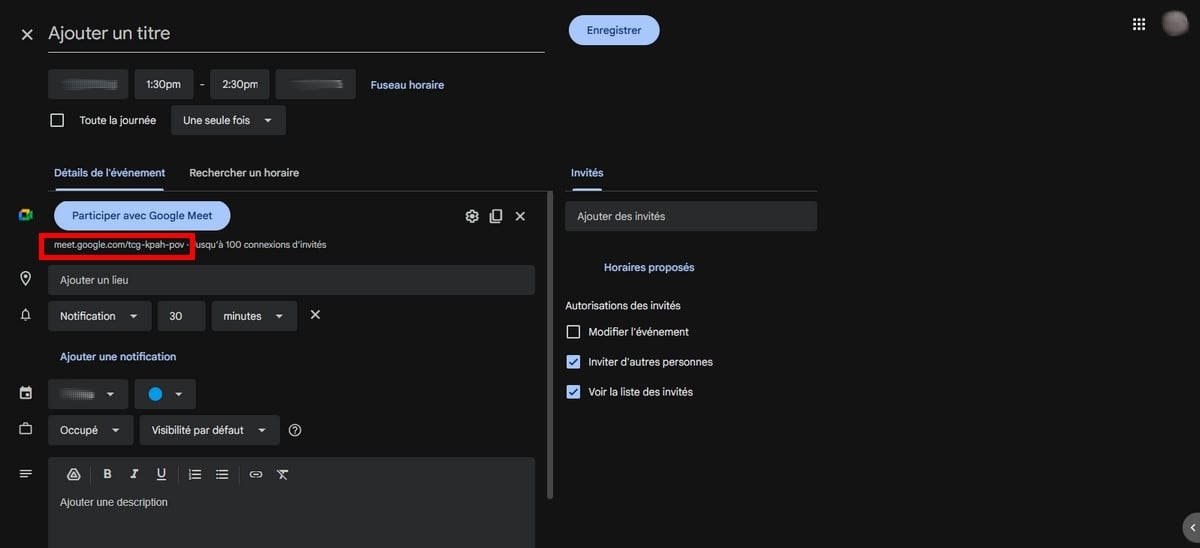
Schedule a meeting
- Click on Schedule in Google Agenda.
- Once on Google Agenda, click on Participate with Google Meet. The link is created automatically.
This option opens directly Google Agenda. You can find all the details (participant invitations, recurring meetings, settings) in the Section 3 below.
2. Via Gmail
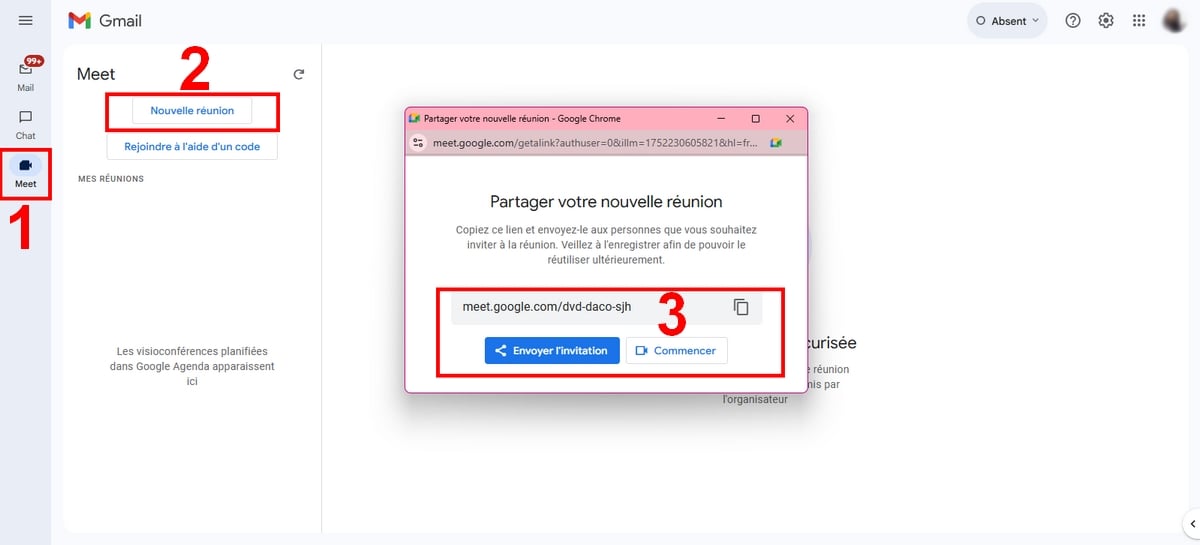
You can create a link Google Meet directly from Gmail, without opening another app. This is handy when you're already in your email and want to start a video meeting right away.
- Open Gmail with your account Google.
- In the left column, click on Meet.
- Press the button New meeting.
- the meeting link is generated automatically.
Copy this link and send it to the participants so they can join the meeting Google Meet with just one click and join the video conference.
3. From Google Calendar
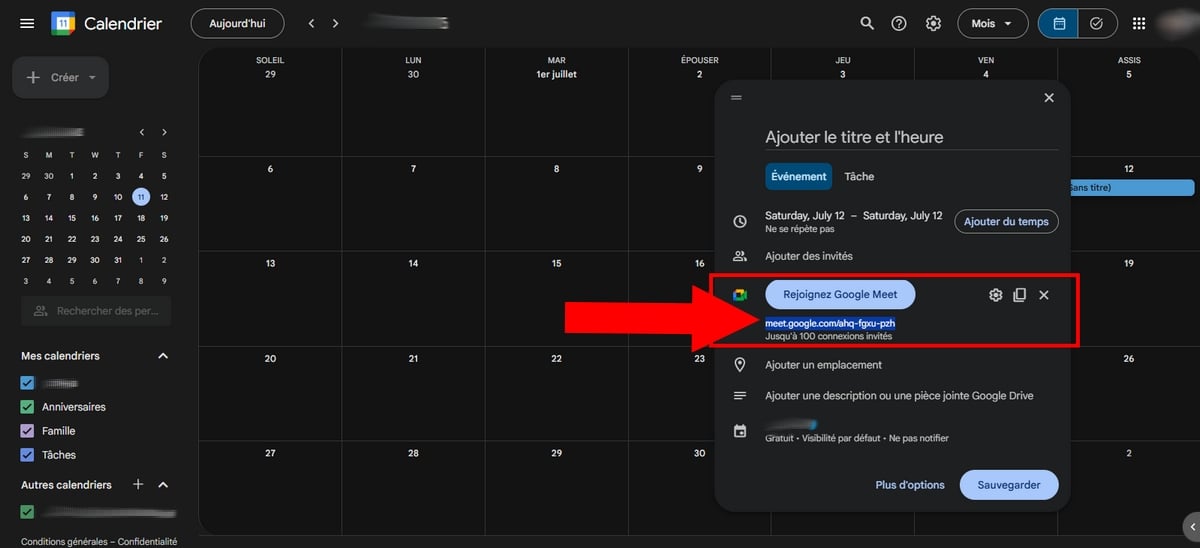
This is the ideal method for schedule a videoconference in advance, especially for the recurring meetings. The link stays the same every time the event takes place, which is very convenient when you play against the same team every week.
- Go to Google Agenda : https://calendar.google.com/calendar/u/0/r?pli=1 using your account Google.
- Select the date of your meeting.
- Click on Add a videoconference Meet to generate the link.
As a’meeting organizer, you can add participants in the field provided. When you save the event, Google invites you to’send an invitation by email to everyone. Everyone receives the meeting link and can access the meeting room Google Meet when the time comes.
During the meeting, you can also share a document with your participants directly from the interface.
4. Create a Meet link from the mobile app
Don't have your computer handy? No problem, the’mobile app Google Meet It also lets you create a video meeting and generate a link from your device.
- Start by set up Google Meet on your mobile device.
- Open the app, then tap New in the lower-right corner of the screen. Two options appear:
- «Create a New Meeting» : to generate a meeting link.
- «Call» : to ring a contact's phone directly, without a link.
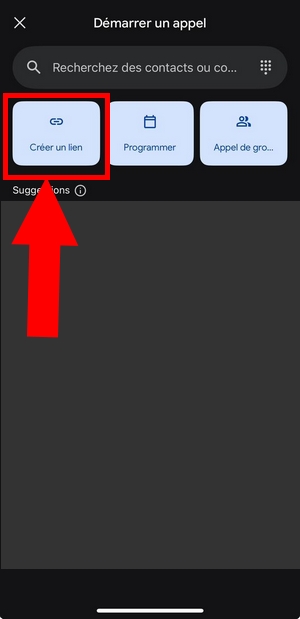
Create an instant link
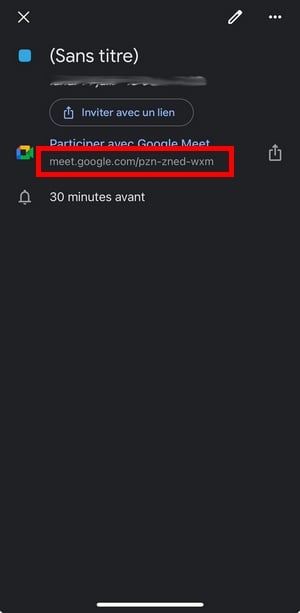
Press Create a link to get a meeting code that's ready to copy. Send it to the participants so they can join the meeting and access the room with a single click.
Schedule a video conference at a specific time
For a meeting scheduled for later, the app redirects you to Google Agenda. It's the right choice for recurring meetings.
The steps are the same as in the Section 3 Above: You create an event, then add a video conference Google Meet, then click "Save" to get the link.
Good to know: with a free Google account, a meeting at 3 or more participants is limited to 60 minutes. With Google Workspace, you'll enjoy extended time limits and additional features to organize your meetings across all your devices.
Want to take it a step further? Check out our comprehensive tutorial on how to use Google Meet.
5. Create a Google Meet link from Google Chat
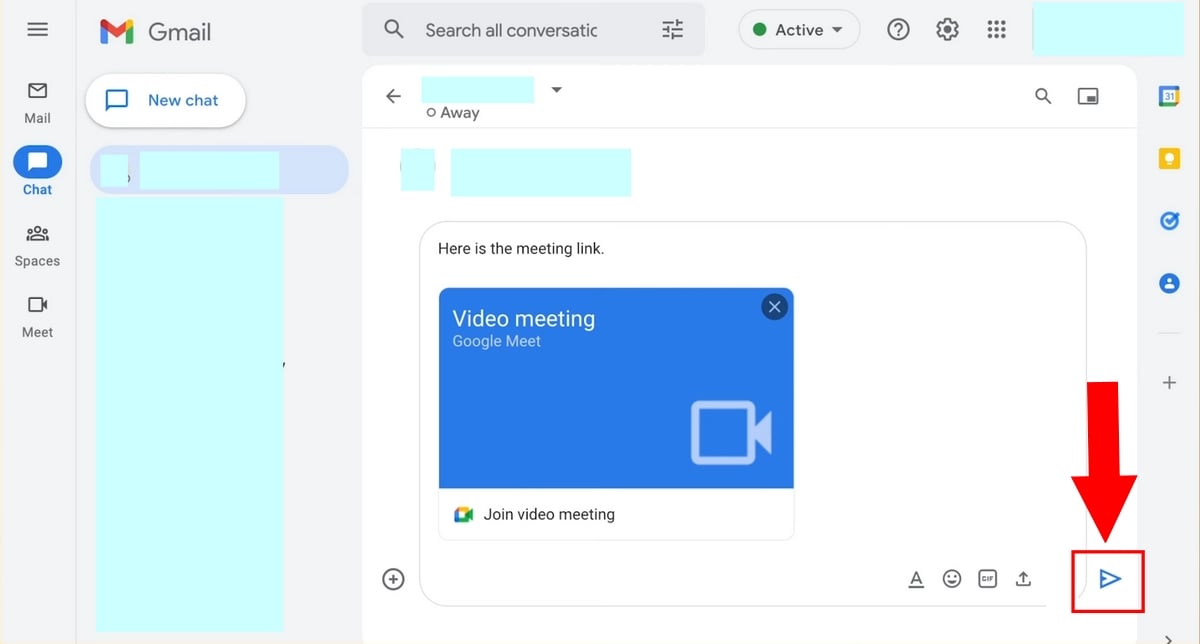
Since a conversation Google Chat, you can generate a meeting link Google Meet without leaving the chat. This is the fastest way to start an impromptu video call with a small group.
- Open Google Chat (Where Gmail, then click on Chat (on the left side of the screen).
- Select the conversation in question.
- In the text box, click the’camera icon on the right.
- A meeting link is automatically generated in the conversation.
Participants simply need to click on the link to join the meeting and access the room Google Meet. For schedule a meeting in advance, Google Chat redirects you to Google Agenda to make it a memorable event.
FAQs
How do I send a Google Meet invitation?
The easiest way is to share link by message or through a messaging app. Each participant clicks on it to join your meeting Google Meet.
If you happen to be passing through Gmail, Google Agenda Where Google Chat, here's how to do it.
Since Gmail
- Click on Send the invitation then on Share via email.
- You are being redirected to a new mail. Enter the guests' email addresses.
Since Google Agenda
- As a’organizer, click on Add guests and enter the email addresses of the people you want to invite.
- When you save the event, Google invites you to’send an invitation by email to everyone. They receive the link to access the meeting room.
Since Google Chat
- Click on Send to share the meeting link in the chat or group where you want to start the video call.
How do I create a permanent Google Meet link?
a) With Google Calendar
Google Agenda is ideal for recurring meetings. As an organizer, you create a recurring event, and the same link Google Meet is available at every session.
- Go to Google Agenda.
- In the upper-left corner, click on Create then choose Event.
- Enter the meeting details, then click Add Google Meet.
- Select the date and time for define a recurrence (for example, every day).
- Copy the link Meet generated.
- Click on To register when everything is going well.
b) With Google Meet
You can also create a reusable link directly from Google Meet. This link will expire 365 days after it was last used. If no one uses it for a year, Google permanently deletes the link.
- Go to Google Meet.
- Click on New meeting.
- Choose Create a meeting for a future date, then copy the link.
- You can link this to an event Google Agenda so you can find it easily.
- With Google Workspace (Business Where Enterprise), you'll have access to additional features such as meetings with no time limits and advanced administrative tools.
And that's how to create a Google Meet meeting link effectively! Any questions? Feel free to ask them in the comments section!









 FR
FR  RU
RU  EN
EN  ES
ES  IT
IT  DE
DE  ZH
ZH  PT
PT  ID
ID  JA
JA  DA
DA