To share a document on Google Meet, you have two free options: share your screen Where send a link in the chat of the meeting Google Meet.
You can also submit directly from Google Docs, Sheets Where Slides without sharing your entire screen, or recording the meeting to watch later.
1. Share your screen
This is the best-known method for screen sharing on Google Meet. Before you begin, make sure you have a account Google and to use, preferably Chrome, which handles audio sharing best. This feature works on computers as well as on mobile devices (Android and iOS).
To note : If certain presentation options don't appear, it's probably because the organizer has disabled them for participants. In that case, ask the organizer for access before you get started.
Share Your Screen During a Video Conference
Once you're on the call, you can Share your screen on Google Meet in just a few clicks. You can choose to share a tab, a window, or your entire screen.
- Join an existing meeting or create one.
- Once you're in the video conference, click the icon Introducing yourself at the bottom of the screen.
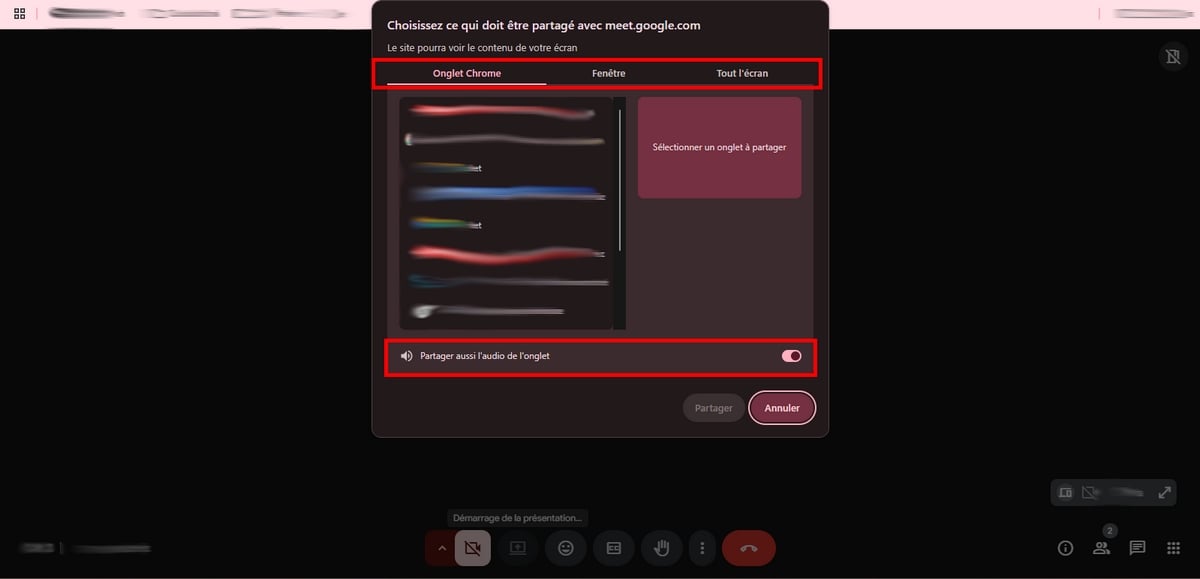
- Select the area you want to share: a tab, a window specify or the’entire screen.
- Open your document Google Docs, Sheets Where Slides to present it to the participants.
- When you're done, click Stop presentation.
Other participants can see in real time what you're displaying during your presentation. If you share a tab Chrome, they follow every scroll and zoom in real time. A quick tip: Always choose the tab over full-screen mode when you also want to share the’sound a video.
Depending on the selected area, the available features change:
| Sharing Option | Full Screen | Specific Window | A tab |
|---|---|---|---|
| Available features |
|
|
|
Present from a second device using Companion Mode
the Companion mode allows you to participate in the videoconference and present from a second device, without having to switch between audio and camera sources. This is especially handy when you're leading a training session while keeping an eye on the chat on your main computer.
Three ways to access it:
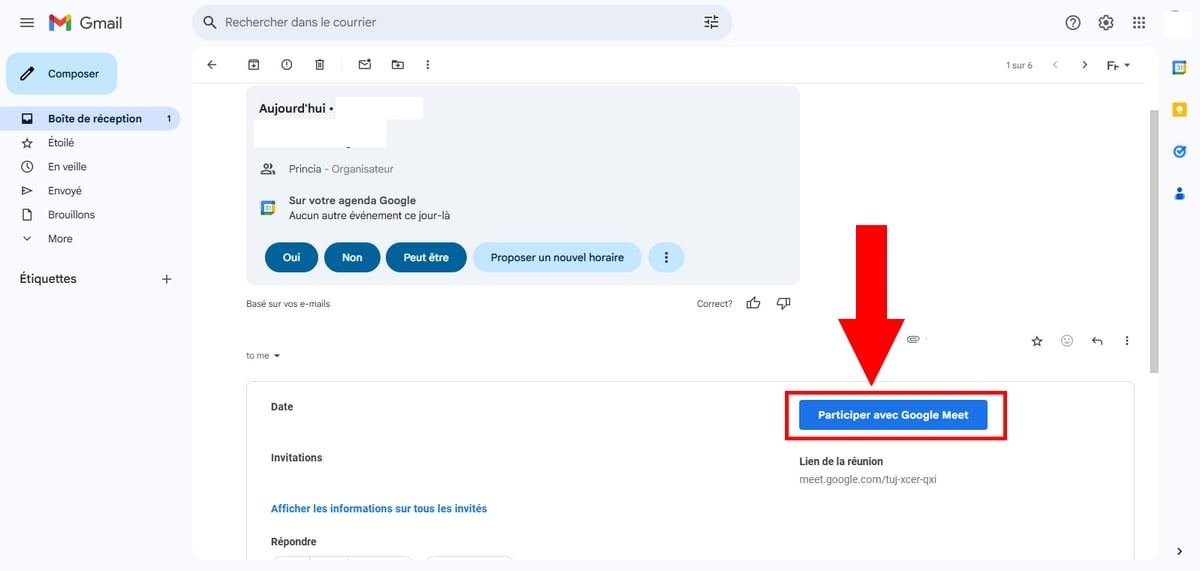
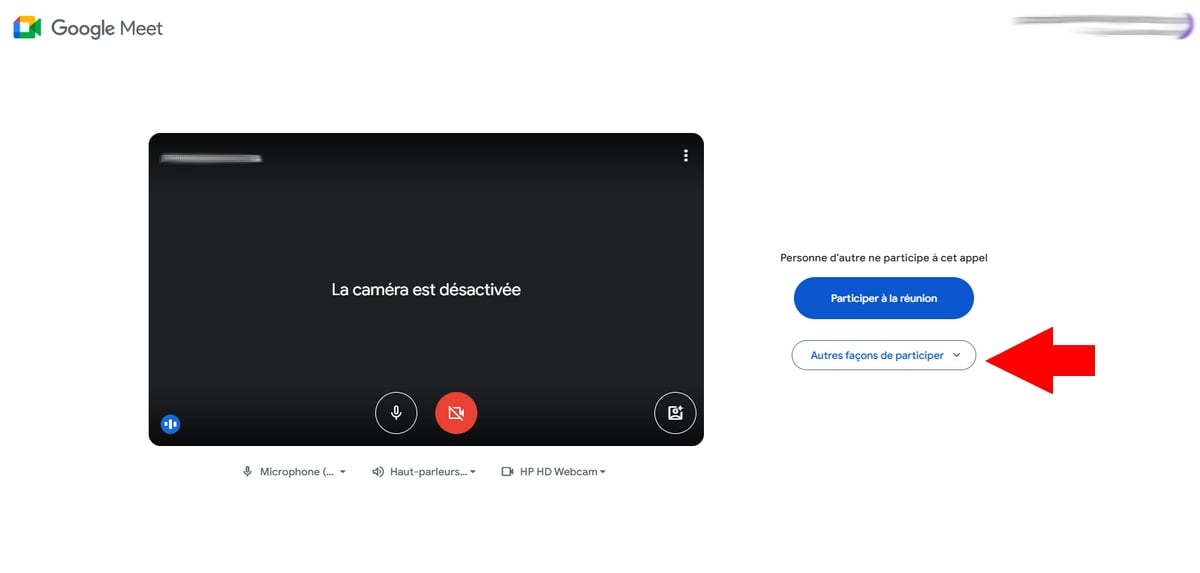
- Since the invitation: opens Google Meet, click on Participate with Google Meet, then in Other ways to get involved selected Request Companion mode.
- To join without introducing yourself right away: Type g.co/companion into your browser, paste the link or select the scheduled meeting, then click To participate.
- To join by presenting directly: Type "g.co/present," select the meeting or enter the meeting code, then click To participate.
Next, click on Introducing yourself, select the area you want to share (ideally a tab), then start sharing. Finally, click Stop sharing.

2. Submit a document directly from Google Docs, Sheets Where Slides
You can share a document without using full-screen sharing. This option displays only the tab for the relevant file, which makes the screen cleaner and easier to read for participants during the videoconference. It is available only on a computer, via Chrome Where Edge.
- Join or start a meeting on Google Meet.
- Open your file in Google Docs, Google Sheets Where Google Slides.
- In the upper-right corner, click the icon Meet.
- Choose Present at the meeting, then select the current videoconference or paste the coded of the appeal.
- Valid: Your document will immediately appear on all participants' screens.
Others can see the content of your Docs, Sheets Where Slides while you're scrolling through the presentation. To stop, click on Stop presentation from the document or from the window Meet.
Something to keep in mind: You can't switch tabs while you're presenting from Docs. To navigate between multiple files during the same presentation, return to the Standard screen sharing since Google Meet.
3. Use the meeting chat
Chat remains the fastest way to share a document without interrupting your presentation. You send the file link and each participant opens it on their own, at their own pace.
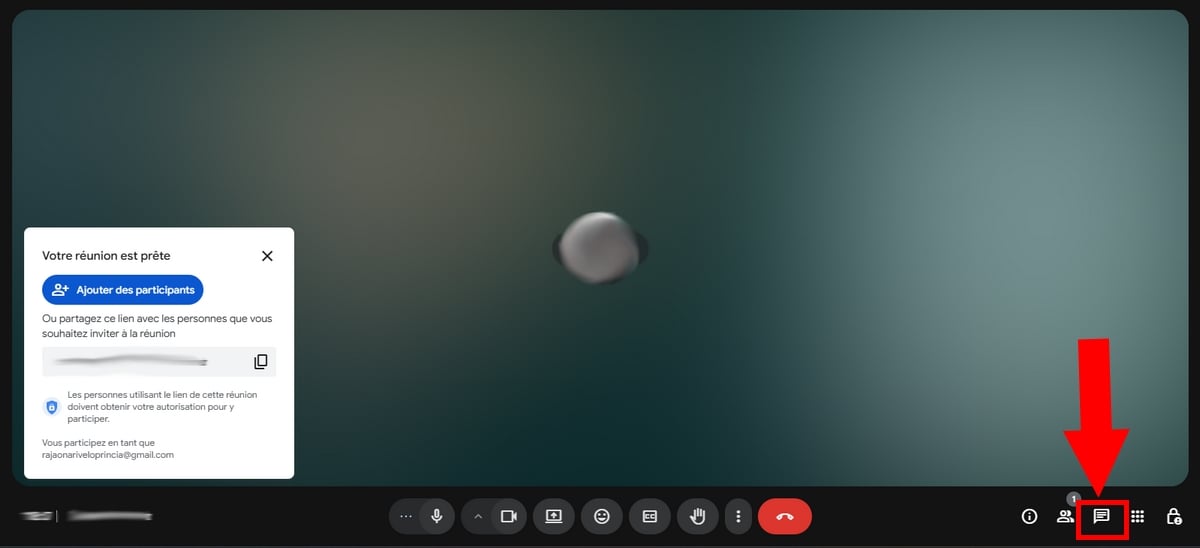
- Click on the’Chat icon in the lower-right corner of the screen.
- Make sure all participants can access the messages.
- Paste the link to your document (Google Docs, Sheets Where Slides) and send it.
Before sending the link, set up the access rights since Google Drive : Open the document, click on To share, then select “All users who have the link”. Without this step, participants will see an authorization request instead of the content.
To note : the cat is temporary By default, messages disappear at the end of the call, unless the organizer enables chat archiving.
4. Record the meeting for later viewing
Do you want a participant to be able to find a specific document or passage later on? Launch the’registration from the meeting. Everyone will be able to review the video and the shared content at their own pace.
- During the videoconference, click on Activities lower right.
- Select Recording, then click on To start up.
- To stop, click on Stop recording. The file is automatically uploaded to the Google Drive from the organizer.
A few important things to know before you get started:
- This feature is available only if the meeting was created with a edition Google Workspace compatible, and only since a computer.
- You must be organizer, co-organizer, or be a member of the same organization that the organizer must unlock the option.
- Think about the privacy : Let the participants know before you start recording; this is a basic rule and often a recommended best practice.
For detailed instructions on each step and solutions to common problems, check out the complete guide to record a meeting on Google Meet.
FAQs
How to Add a Document to an Invitation Google Meet ?
You can attach a document directly to the meeting from Google Agenda. Here's how:
- Open the event, then click “Add an attachment”.
- Choose the attachment since Google Drive.
- Check the access permissions of the file so that guests can view it during the videoconference.

How do I manage access permissions for a shared document?
Before sharing a file during a video conference, open it in Google Drive and click on "Share in the upper right corner. You can then choose the access level that best suits your needs:
- Reader: Participants can only view the document's content.
- Commentator: They can add comments without changing the content.
- Publisher: Useful for co-presenting or collaborating with others in real time.
To share something quickly in the chat, select “All users who have the link”. This is the easiest way to avoid access issues during a video conference.
Can I send images to Google Meet ?
Yes, you have two options:
- Share Your Screen to display the image to all participants during the meeting.
- Please forward this image link in the meeting chat.
However, you can't insert an image directly into the chat. It only accepts text and links.
How to stop screen sharing on Google Meet ?
When you're done with your presentation, click on “Stop the presentation” at the bottom of the window Google Meet. You can also use the button “You present” displayed on the screen. Sharing stops immediately, and the other participants return to the camera view.
If you have any other questions about Google Meet, feel free to ask us in the comments. We'd be more than happy to help!









 English