To make a summary on Google Meet, you have two options:
- Either you use Gemini, the AI built into Google Workspace (for a fee).
- Either you install the’extension Bluedot, free.
Both automate the note taking and deliver a clear summary Once the call is over, with the decisions made and the key actions identified. No more jotting everything down by hand while you try to follow the discussion.
Discover the tool that takes notes for you on Google Meet :
1. Make a Google Meet summary with Gemini
Google Meet natively integrates the’artificial intelligence Gemini to help you take notes during your meetings.
In practice, the AI takes care of everything and lets you focus on the call. At the end of the session, it generates a summary and an transcription placed directly into a Google Docs.
It’s a real productivity boost for you and your team: you can access decisions that have been made, tasks to be completed, and key actions without having to write anything down.
Please note that this feature is not not automatic : It must be activated manually, and it is subject to several conditions.
| Terms of Use for «Take Notes for Me» | Details |
|---|---|
| Have a subscription Google Workspace compatible | This feature is available only in certain paid editions (Business Plus, Enterprise Standard, or Enterprise Plus), with a license assigned by the administrator. |
| If management by the’administrator is enabled | Only the meeting organizer or co-organizer can enable or disable «Take notes for me.». |
| If administrator management is disabled | All meeting participants can enable this feature and start taking notes with Gemini. |
| Languages in charge | English, French, German, Italian, Japanese, Korean, Portuguese, and Spanish. |
How do I take notes with Gemini?
If you check all the boxes, here are the step-by-step instructions:
- From your browser, go to Google Meet.
- Join an existing meeting or start a new one.
- In the upper-right corner of the screen, click on Taking notes with Gemini (the pen icon).
- You can also check Transcribe the meeting too, then confirm with Start taking notes.
- From there, the AI takes over meeting notes automatically for you.

- A mention Transcription appears at the top of the screen to notify participants that a Transcription in progress.

- By clicking on the icon CC In the lower left corner, you can see the real-time transcription, including the participants' names and what they say.
- Once the meeting was over, end the call by clicking on the red phone.
- The notes document is created in Google Docs and shared with you. Click on Open meeting notes to view it.
- There you'll find a section dedicated to summary and another at the transcription full text of the appeal.
Pros and Cons of This Feature
Here are the strengths and limitations of Gemini For your meeting notes:
| Advantages | Disadvantages |
|---|---|
|
|
You don't have access to the AI from Google Meet ? Don't panic. There's a free alternative to transcribe your calls and get your summaries easily.
2. Use the Bluedot extension to get a summary of Google Meet
Among the many tools available on the market, Bluedot stands out with a touch of 4.1/5 on the Chrome Web Store. It is a note taker IA that records, transcribes, and summarizes your meetings for you. It really saves you and your team time on note-taking, and the basic version is free of charge.
Disclosure: The link below is an affiliate link. It doesn't change the price you pay; it just supports Alucare.
How do I get the Google Meet summary with Bluedot?
Install the extension from this link:
⬇️ Install the Bluedot extension free of charge
- Once the installation is complete, the steps are similar to those for record a meeting on Google Meet.
- The extension has been added to your browser Chrome, visible in the menu Extensions. Pin it so you can get there faster later.
- You can then join a meeting or create a new one.
- Once you're on the call, start recording by clicking on the extension Bluedotthen on Start Capture.

- A mention Active appears in the lower-left corner of your screen to confirm that a registration is in progress.
- At the end of the meeting, Bluedot generates automatically the summary and transcripts. You can find them in your dashboard on bluedothq.com, and you can also receive them by e-mail by enabling this option in the settings.
- You can connect Bluedot to tools such as Notion to share the meeting notes with participants who were absent.
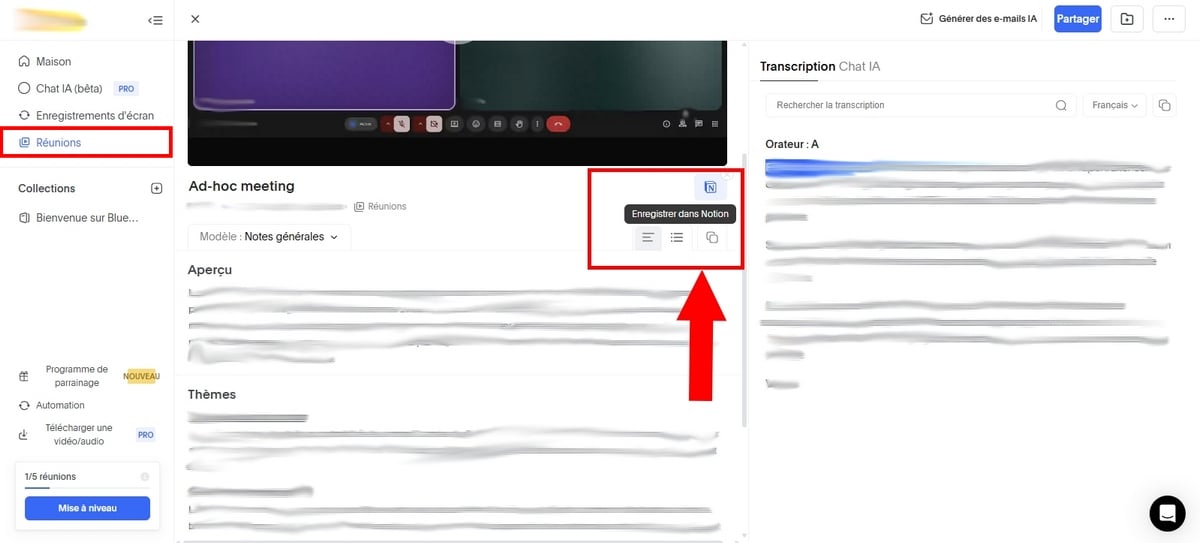
- You can also choose from existing templates or create new summary views. To do so, click on Add a custom template.

- You name the model, then you write a personalized prompt to guide the generation of the summary. You can even add specific questions to which Bluedot will respond depending on the nature of the meeting.
What are the advantages and disadvantages of this method?
Here are the pros and cons you should know before using it Bluedot :
| BENEFITS | DISADVANTAGES |
|---|---|
|
|
FAQs
Can I record a Google Meet conversation?
Yes, you can record a conversation on Google Meet and keep a written record of it. Gemini (for a fee, via Google Workspace) or the extension Bluedot (free) both manage the transcription and the note taking on your behalf. You’ll then receive a clear summary of the call, including the decisions made, the tasks to be completed, and the follow-up items.
To get a meeting summary for free Google Meet :
Take free notes with Bluedot 🗒️
How do I activate Gemini in Google Meet?
Activation is performed on the administrator side, in the console of Google Workspace. Here are the steps :
- Log in to the Google Admin Console using an administrator account.
- Go to Menu, then Applicationsthen Google Workspace and finally Google Meet.
- Click on Settings Gemini.
- Open the option Note-Taking with Google AI.
- Check the box Enable note-taking with Google AI during meetings.
Once this setting is enabled, the participants in question can use the feature and receive the meeting notes at the end of the call via Gmail. Note: This feature depends on your edition Workspace (Business Plus, Enterprise Standard, or Enterprise Plus).
How do I get the Google Meet summary on mobile?
Functionality Taking notes for me may not appear on your mobile screen. For now, it's only being rolled out to a small number of users. The terms and conditions remain the same as on a computer:
- Have a account Google Workspace compatible.
- The administrator must have enabled the feature on your behalf.
- The meeting must last at least 15 minutes.
On Android
- Open the app Google Meet on your device.
- Join a meeting with a coded or one link, or tap a scheduled meeting.
- Press Menuthen on Taking notes with Gemini.
- Start taking notes by pressing To start up.
On iPhone
- Open the app Google Meet on your iPhone Where iPad.
- Tap a meeting on your list, or join a new one using a link or code.
- Press Menu, select Taking notes with Gemini, then press To start up.
Shortly after the meeting ended, a e-mail containing the link to the document Google Docs is sent to the organizer and to the participants who had enabled the feature.










 English