You don't know how create a meeting link Google Meet ? Find out in this article how to do it, whatever tool you use!
🚀 Quick response :
To create a link, you must either create, that is schedule a Google Meet meeting.
Remark : A link created instantly is for one-time use, whereas a link generated via Google Calendar can be reused for recurring meetings.
Here's how to do it:
- From the Google Meet home page
- From Gmail
- From Google Calendar
- From the mobile application
- From Google Chat
It should also be remembered that, for create a Google Meet link, you need a Google account. A free account is all you need, but you can also use a business account via Google Workspace.
1. From Google Meet
- Go to Google Meet,
- Click on New meeting and choose one of the following options:
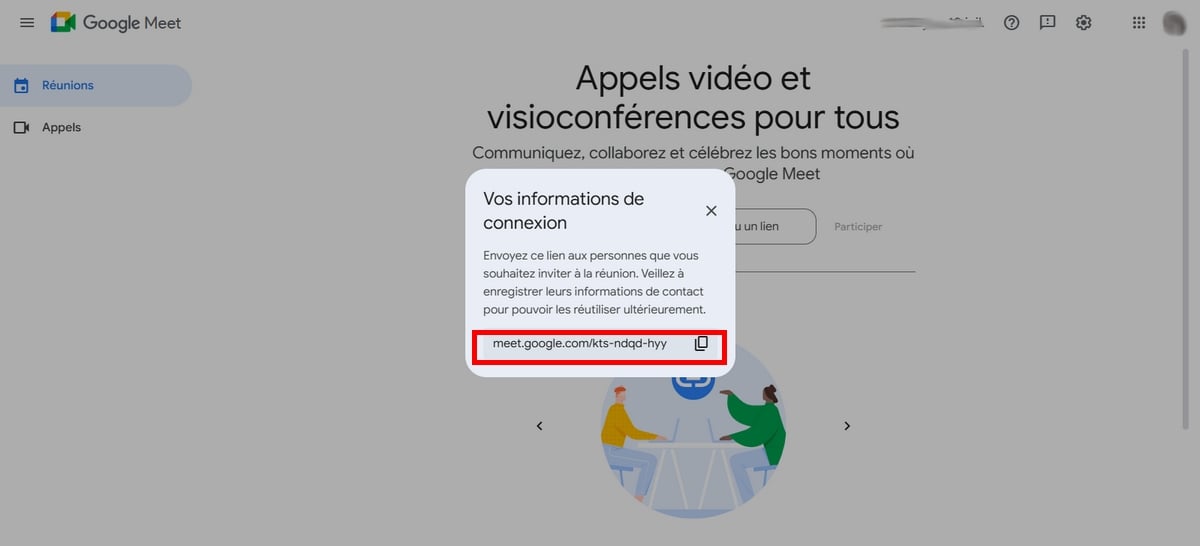
For a later meeting :
- Click on it to create a meeting scheduled for later. A link will be automatically created.
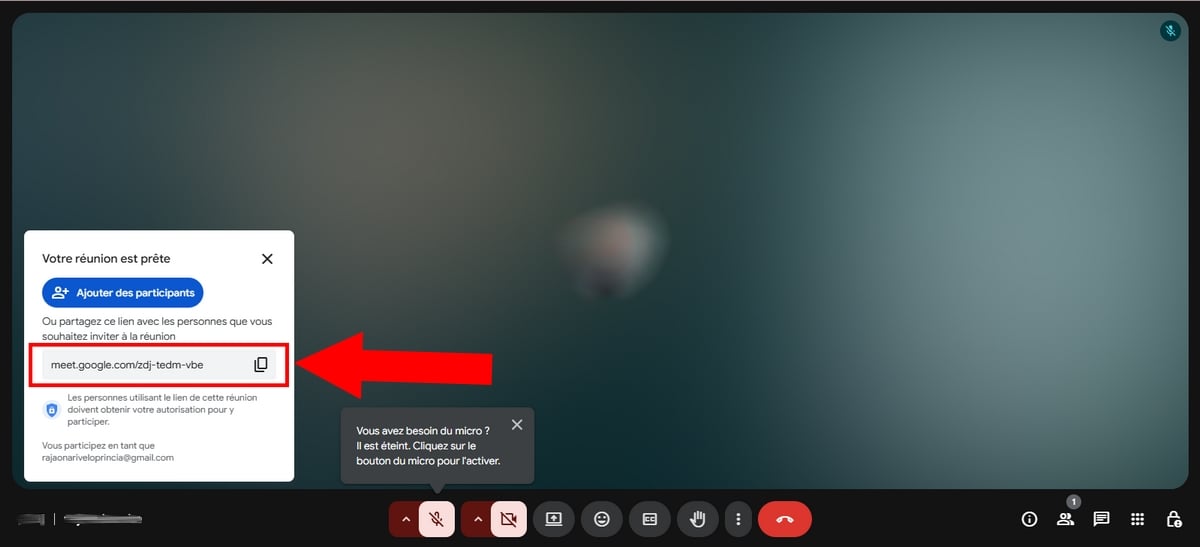
Start an instant meeting :
- Click on this option to immediately open the meeting room: the link is then displayed in a pop-up window for copying and sharing.
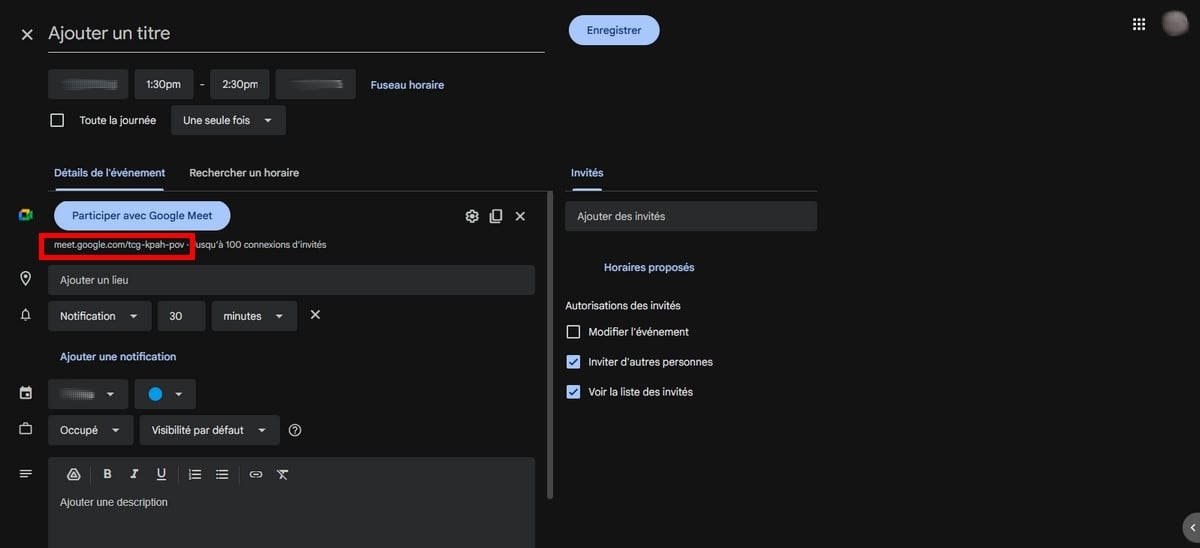
Planning a meeting :
- Click on Schedule in Google Calendar,
- When you arrive at Google Calendar, click on Participate with Google Meet. A link will be automatically generated.
2. Via Gmail
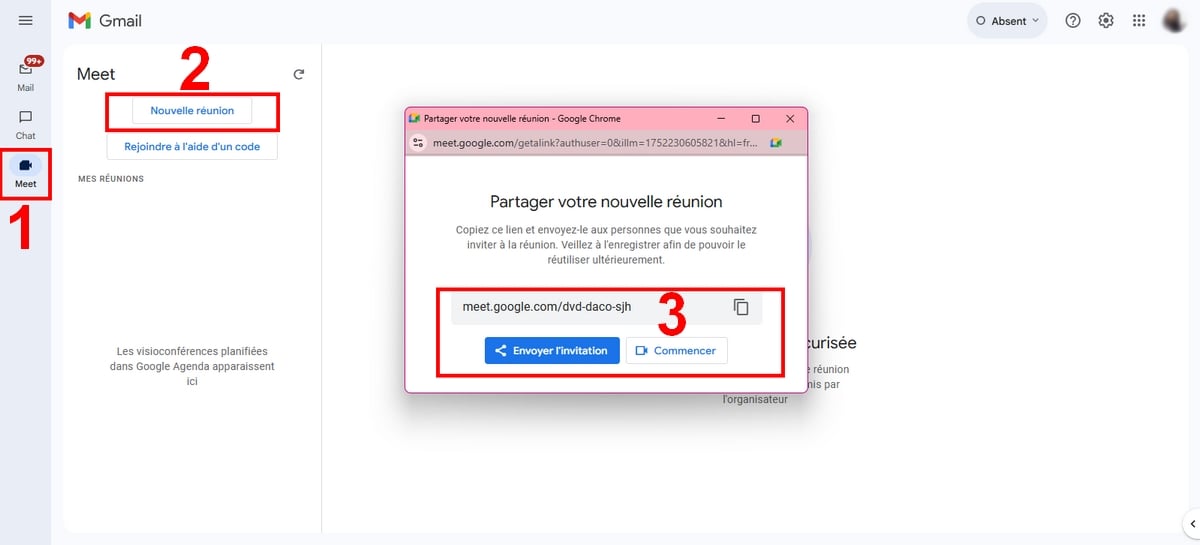
You can also create a Meet link via Gmail.
- Go to Gmail,
- On the left, click on Meet,
- Push the button New meeting,
- A link will be automatically generated.
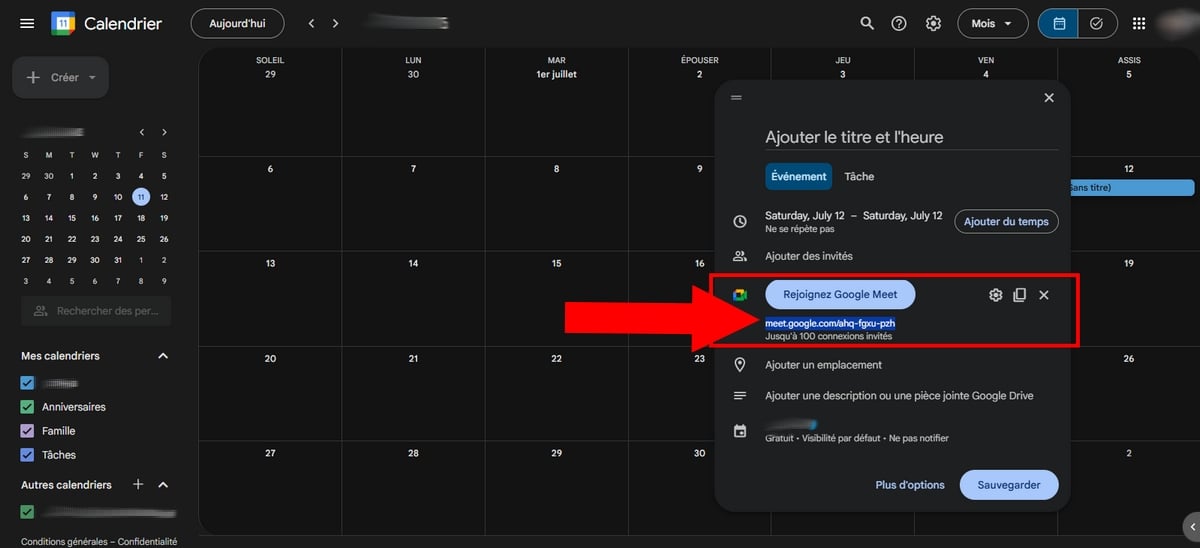
3. From Google Calendar
The steps are identical to those followed for plan a meeting from Google Meet :
- Start by visiting Google Calendar,
- Then select the date on which you would like to hold the Google Meet videoconference,
- Finally, for a link, click on Add a Meet videoconference.
4. Create a Meet link from the mobile application
You can also use the mobile application to create a Google Meet videoconference and thus create a link.
- start with install Google Meet on your device if you don't already have it.
- Launch the application, then click on New in the bottom right-hand corner of the screen. You can :
- “Create a new meeting”: to generate a link (URL).
- “Call”: to make a contact's phone ring directly (without a link).
Then, choose from 3 options:
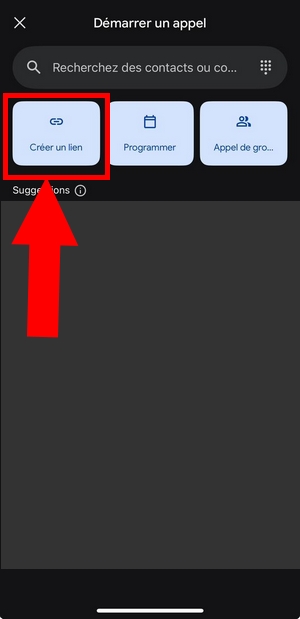
Create a link :
By clicking on it, you will see a Meet link ready to be copied.
Schedule a Google Meet videoconference :
- You will be redirected to Google Calendar,
- Click on the + button at the bottom right of the screen,
- Choose Event,
- Then click on Add a videoconference,
- Click on To register at the top right of the screen.
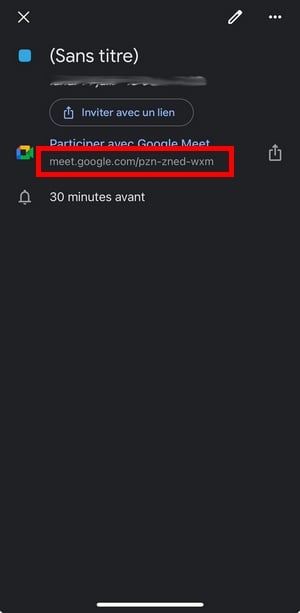
- Press on the event you have created to display the meeting link Google Meet.
Want to learn how to use the tool better? Discover our complete tutorial on how to use Google Meet !
5. Create a Google Meet link from Google Chat
You can also create a invitation Meet using Google Chat.
- Meeting on Google Chat (or Gmail and click on Google Chat on the left of the screen),
- Select the conversation in which you wish to hold a Google Meet videoconference,
- In the text box, click on the’camera icon on the right,
- A link will be automatically generated in the conversation, which you can then send to the participant(s).
FAQs
How do I send a Google Meet invitation?
You can simply share link by message or via a messaging application to invite participants to join your Google Meet videoconference.
If you use Gmail/Google Calendar or Google Chat to create a link, be aware that :
Gmail :
- Click on Send invitation then on To share by e-mail.
- You will be redirected to a new mail, and you can manually enter guests' e-mail addresses.
Google Calendar :
- Click on Add guests and insert the e-mail addresses of all those you wish to invite to the meeting.
- When you save the changes you've made to the Meet meeting, you also have the option of saving the changes. send invitation e-mails to participants.
Google Chat :
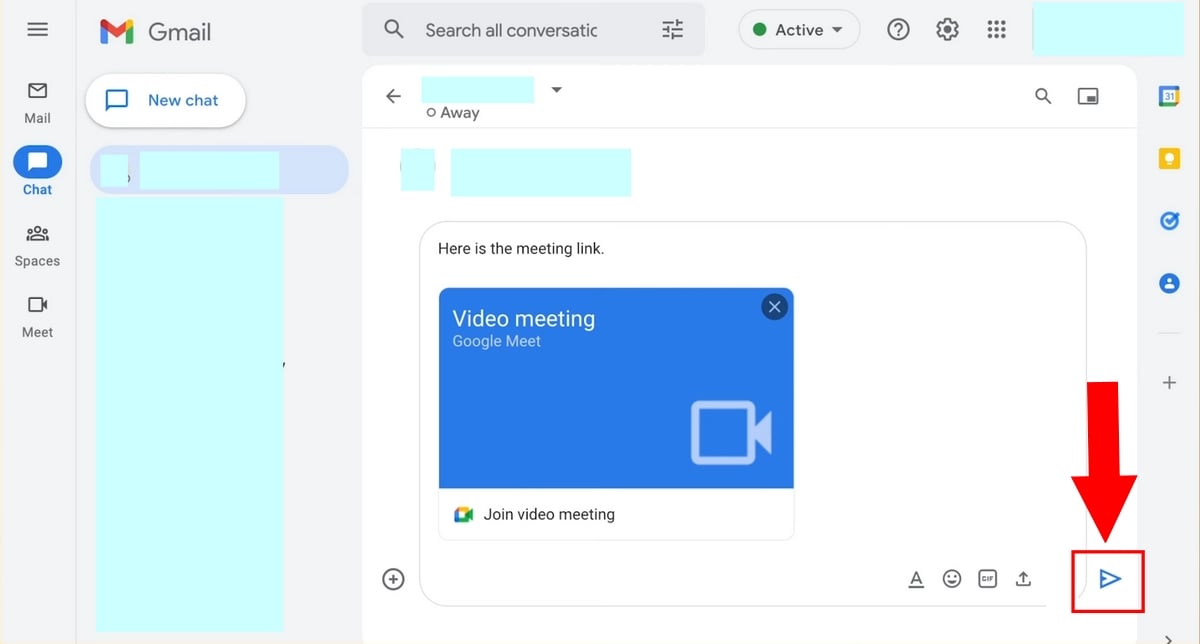
- You can click directly on Send to send the Meet meeting link generated in the chat or newsgroup in which you want to place the call.
How do I create a permanent Google Meet link?
a) With Google Calendar
- To do so, go to Google Calendar :
- In the top left-hand corner of the screen, click on Create then select Event,
- Fill in the meeting details, then click on Add Meet videoconferencing,
- Press the scheduled meeting date and time (default) to define a recurrence (e.g. every day),
- Copy the generated Meet link,
- Click on To register when everything is good.
This link will be valid for each occurrence of the event.
b) With Google Meet
This second option also creates a permanent link:
- Meeting on Google Meet,
- Click on New meeting,
- Choose Create a meeting for a future date then copy the newly created link,
- The link will expire 365 days after its last use.
- You can associate it with an event for easy retrieval.
Attention : if the link is not used once in a year, it will be permanently removed by Google.
And that's how create a Google Meet link efficiently! Any questions? Don't hesitate to ask them in the comment zone!









 English