You are overwhelmed, or have trouble concentrating during Google Meet meetings Are one or more team members absent?
In that case, you're probably looking for a way to make a Google Meet summary ! This blog post reveals the 2 best techniques for doing just that!
Discover the best tool that takes notes for you on Google Meet :
1. Make a Google Meet summary with Gemini
The number one technique is to use the built-in functionality of the Google Meet.
Indeed, the platform uses artificial intelligence. Gemini to help participants make efficient notes during a meeting.
Easy to use, this feature helps you focus on what matters most, and lets AI take care of everything for you. However, this is only functional if you have fulfilled the conditions necessary. Which ones?
| 🤔 Terms of Use for «Take Notes for Me» | ℹ️ Details |
|---|---|
| Have a subscription Google Workspace compatible | You must be a Gemini Enterprise or AI Meetings and Messaging subscriber. |
| If the Administrator Management feature is activated | Only meeting organizers/co-organizers can enable or disable this Take notes for me feature. |
| If the Administrator Management feature is disabled | All meeting participants can activate this feature and take notes with Gemini. |
| Languages in charge | English, French, German, Italian, Japanese, Korean, Portuguese, Spanish. |
How can I take notes with Gemini?
If you check all the boxes, it's time to take action!
- On a browser, go to Google Meet,
- Then join a meeting or start a new one,
- At the top right of the screen, click on Take notes with Gemini in pen form,
- You can also click on Transcribe the meeting too then Start taking notes,
- From now on, AI will automatically take notes for you.,

- A mention Transcription will be displayed at the top of the screen to inform participants that a transcript is being created.

- By clicking on the icon CC At the bottom left of the screen, you will see a live transcript of the conversations, with the names of the participants and what they are saying throughout the meeting.
- Once finished, simply end the call by clicking on the red telephone,
- An e-mail containing the meeting summaries and transcript will be sent to you afterwards. Click on Open meeting notes to consult them,
- You'll find a section dedicated to the note and another at transcription.
What are the advantages and disadvantages of this feature?
Here is a summary of the assets and limits from Gemini to take notes on Google Meet :
| ✅ ADVANTAGES | ❌ DISADVANTAGES |
|---|---|
|
|
Can't use Google Meet's AI? Don't worry! We have a other technique to enable you to transcribe and have the Google Meet summaries with ease!
2. Use the Bluedot extension to get a summary of Google Meet
Method number two also makes it possible to designing an effective overview of the Google Meet.
Currently, there are many tools on the market that allow all participants to have detailed information about a Google Meet. Among them is Bluedot, rated 4,6/5 by its users.
Bluedot is a note taker IA which records, transcribes and summarizes meetings on Google Meet for you.
How do I get the Google Meet summary with Bluedot?
Install the extension from this link:
⬇️ Install the Bluedot extension free of charge
- Once installation is complete, the steps remain the same as for record a meeting on Google Meet,
- The tool will now be added to your browser and will be visible in the Extensions. Feel free to pin it to make the following steps easier.,
- Then you can join a meeting or create one,
- Once in the meeting, start recording the meeting by clicking on the‘Bluedot Extension and then on Start Capture,

- An Active notification will appear in the toolbar at the bottom left of the screen to confirm that a registration is in progress,
- Once this has been registered, let Bluedot do the rest. summary and the transcription of the meeting for you.
- You can also connect Bluedot to tools such as Notion to share the summary more easily with absent team members.
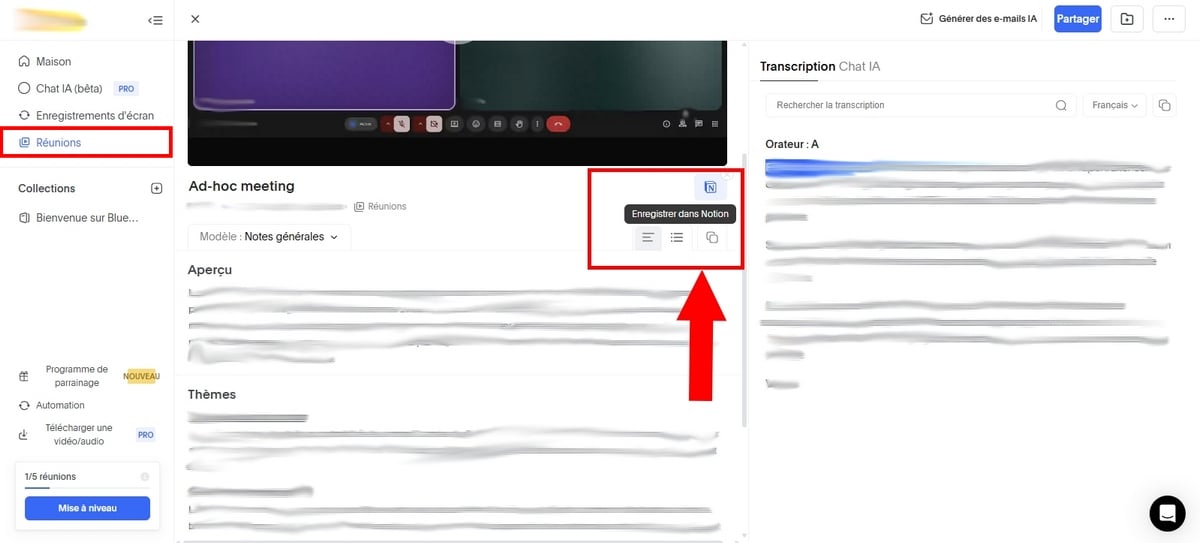
- In addition, you can also choose from templates or create new views for displaying the meeting summary. To do this, click on the option Add a custom template.

- Finally, you can name the model, then write a personalized prompt for ChatGPT in order to guide the generation of the summary or to add personalized questions to which Bluedot will have to respond according to the content of the meeting.
What are the advantages and disadvantages of this technique?
What are the pros and cons to know about using Bluedot ?
| ✅ ADVANTAGES | ❌ DISADVANTAGES |
|---|---|
|
|
Have you ever wondered how to invert the camera on Google Meet ? Click on this article!
FAQs
Can I record a Google Meet conversation?
Yes, you can record a conversation on Google Meet. To do this, you have two options:
- Paid: Use Google Meet's Gemini AI,
- Free: Use the Bluedot extension.
To get a summary of a Google Meet meeting for free:
Take free notes with Bluedot 🗒️
How do I activate Gemini in Google Meet?
- Connect to Google Admin Console with an administrator account,
- Then go to Menu ⇒ Applications ⇒ Google Workspace ⇒ Google Meet,
- Then click on Gemini parameters,
- Then click on Note-taking with Google AI,
- You can check the Allow note-taking with Google AI during meetings.
Therefore, once this setting has been enabled by the organizer, all meeting participants can benefit from this functionality and get a summary of what was said at the end.
How do I get the Google Meet summary on mobile?
The " Taking notes for me "on mobile can not appear on your screen when you are on Google Meet. This feature is currently only available to a small number of users.
The conditions remain the same:
- Have an account Google Workspace compatible,
- The administrator must have enabled this feature on your behalf,
- The meeting must last at least 15 minutes.
On Android
- Open the application Google Meet on your device,
- Join a meeting with a code or link, or click on a meeting,
- Press on Menu then opt for Taking notes with Gemini,
- Start taking notes by pressing the Start.
On iPhone
- Launch and open the application Google Meet on your iPhone or iPad,
- Tap on a meeting in your videoconference list or join a new one using a link/code.,
- Press on Menu then select the option Taking notes with Gemini then on Start.
Afterwards, an e-mail containing a link to the document (Google Docs) will be sent to the organizer and all individuals who have enabled this feature shortly after the meeting ends.
In short, with the two methods mentioned in this article, summarize a Google Meet meeting becomes easier, whether you're a company or an individual.









 English