Discord has been natively compatible with the Xbox since 2022. You can link your account Discord on your console, join a vocal recital to chat with your friends, and even stream your gameplay on a server.
It all starts with linking your two accounts: once you've done that, the rest is just a few simple steps.
Step 1: Connect the Discord account to the Xbox profile
This connection is made only’only once. You'll only need to do this again if you switch accounts or if you choose to unlink the two. There are several ways to do this, depending on the device you're using.
Connect a Discord account from Xbox
Whether you go through the’Xbox application or directly through the Xbox console, it's still quick and easy to use.
On the Xbox app
- Open the’Xbox application on your cell phone.
- From the page at’Home, press the button Discord.
- A message prompts you to connect your account Discord to the Xbox console. Press " Continue " below.
- Enter your ID Discord, then your identifiers Microsoft.
- Finish by pressing "Connection.
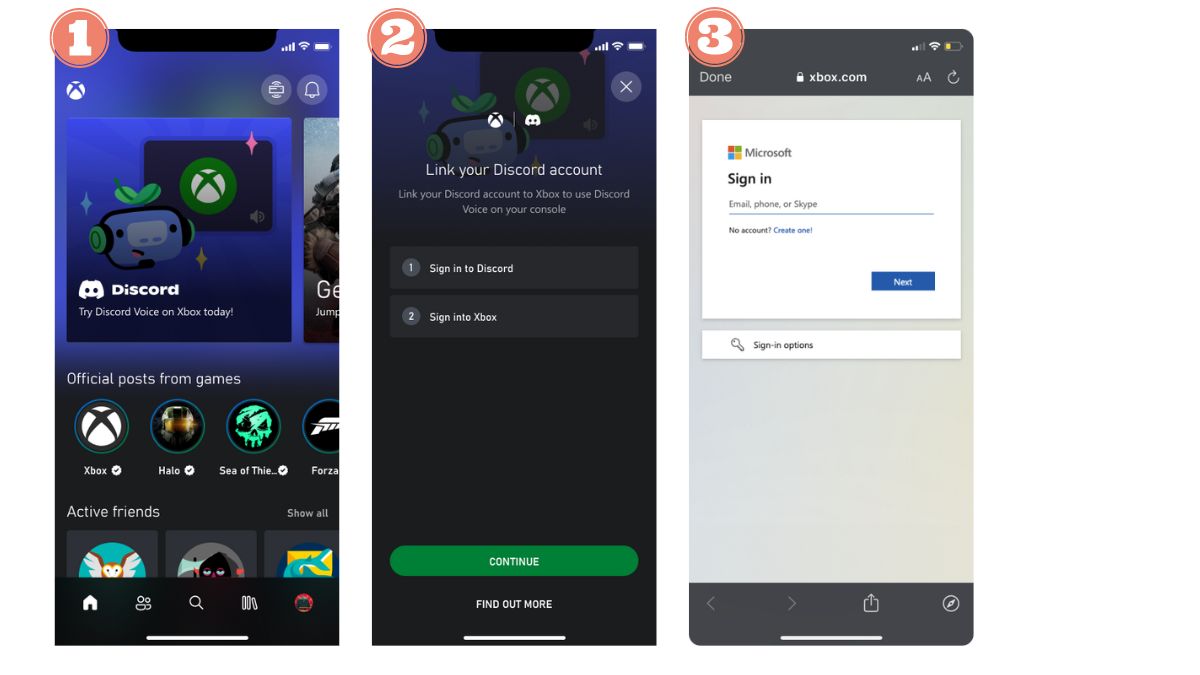
On the Xbox app for Windows
- Press the button To start up on your PC, then select Xbox.
- Click on the’profile icon and go to Settings.
- Press «Link» next to Discord, then follow the instructions.
On the Xbox console
- Once you're logged in to your Xbox console, open the guide using the Xbox button on your controller.
- Go to «Profile and System», then «Settings,» «Account,» and «Related financial statements».
- Go to the section «Unrelated» and select Discord.
- Press «Link», then follow the on-screen instructions.
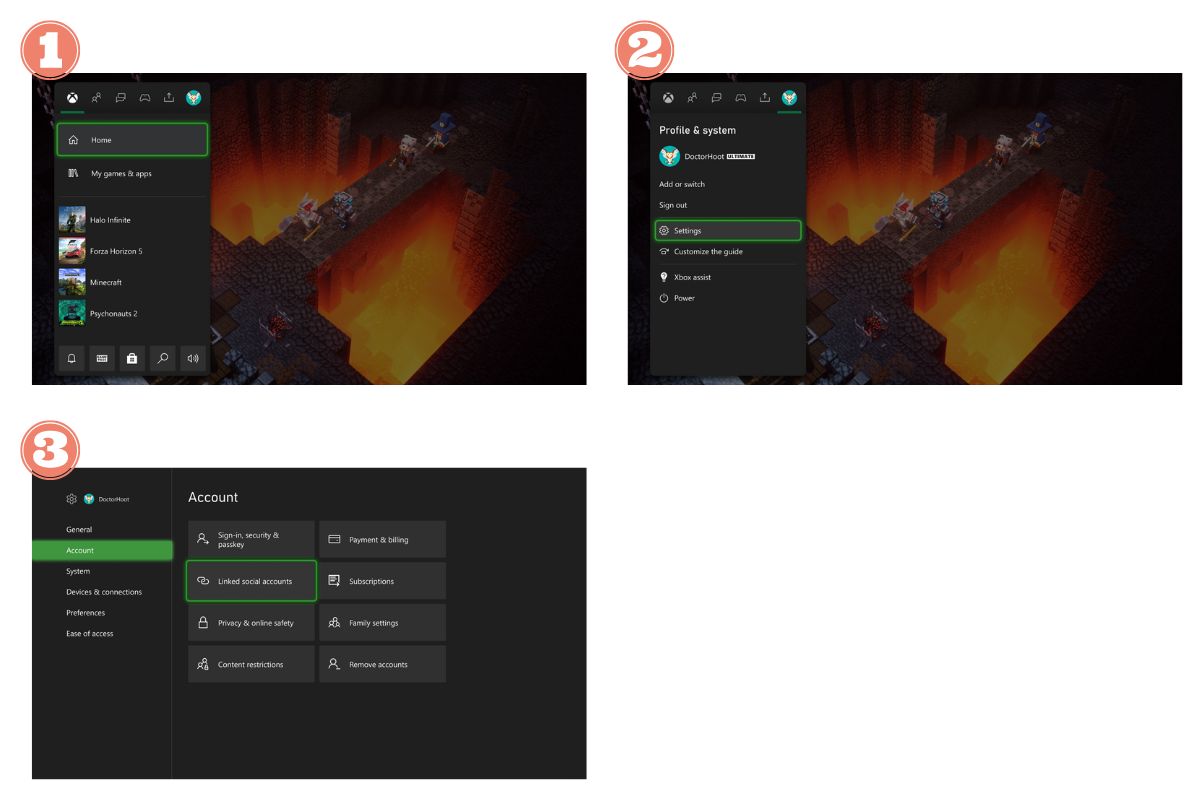
Connect Xbox profile from Discord
Would you rather start with Discord? The procedure varies slightly depending on the device.
With Discord on smartphone
- Log in to your Discord account, then press your avatar to open the settings.
- Go to «Connections», then select «Add.».
- Select «Xbox» in the «Add New Connections» list.
- Press " Continue ", then follow the prompts: Start, Continue, and enter your Microsoft credentials.
- A authorization message appears. Tap «Allow,» then «Continue.».
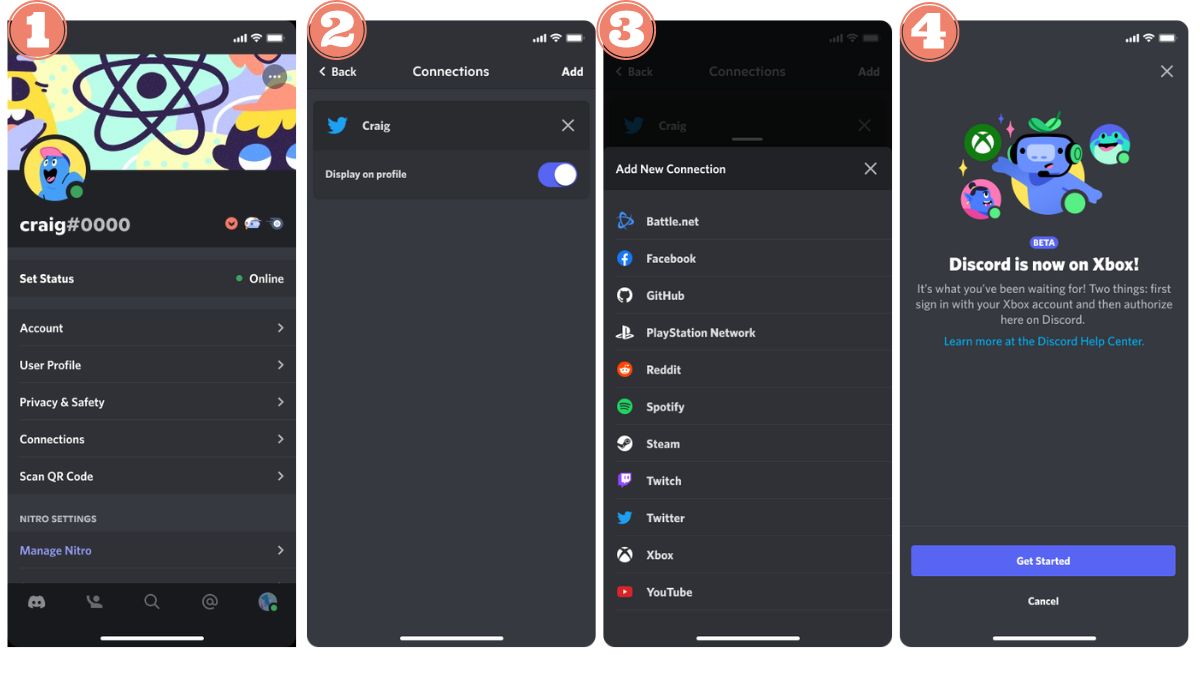
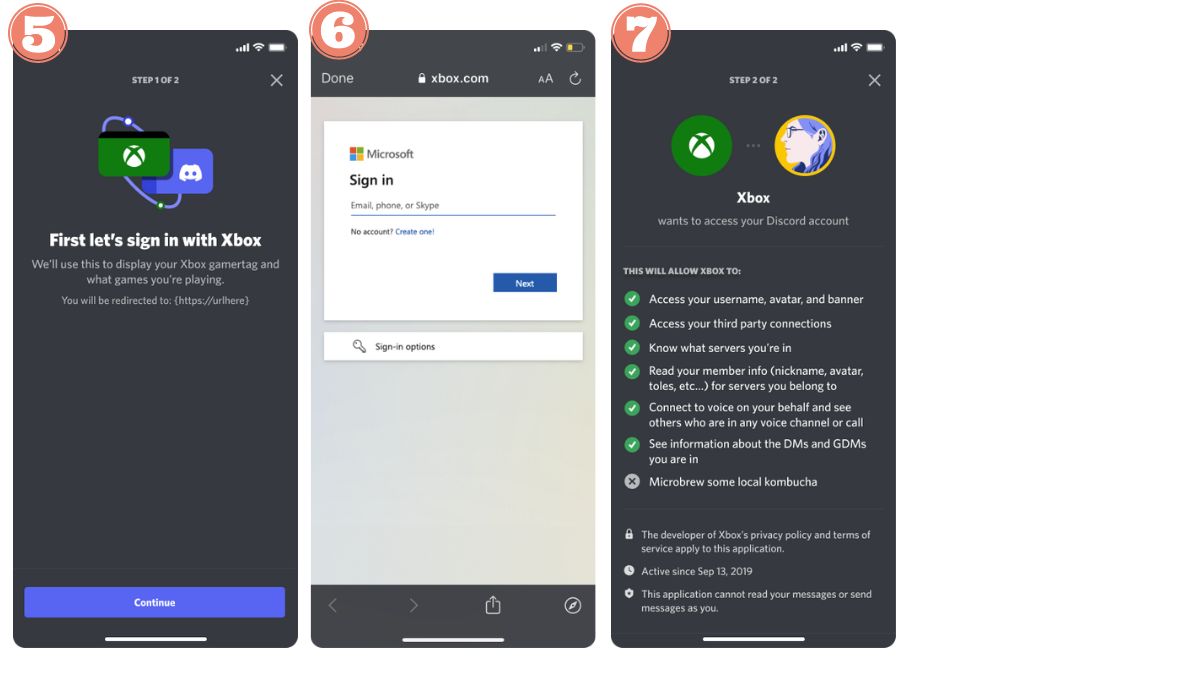
On Discord Windows or Mac version
- Open your settings using the gear icon in the lower-left corner, then click on «Connections».
- Click on the’Xbox icon, then click «Continue» and follow the instructions.
- On the browser page, enter your login credentials for your Microsoft account.
- A application for authorization appears. Select «Yes» or «Allow,» then tap «Continue» to confirm the connection.
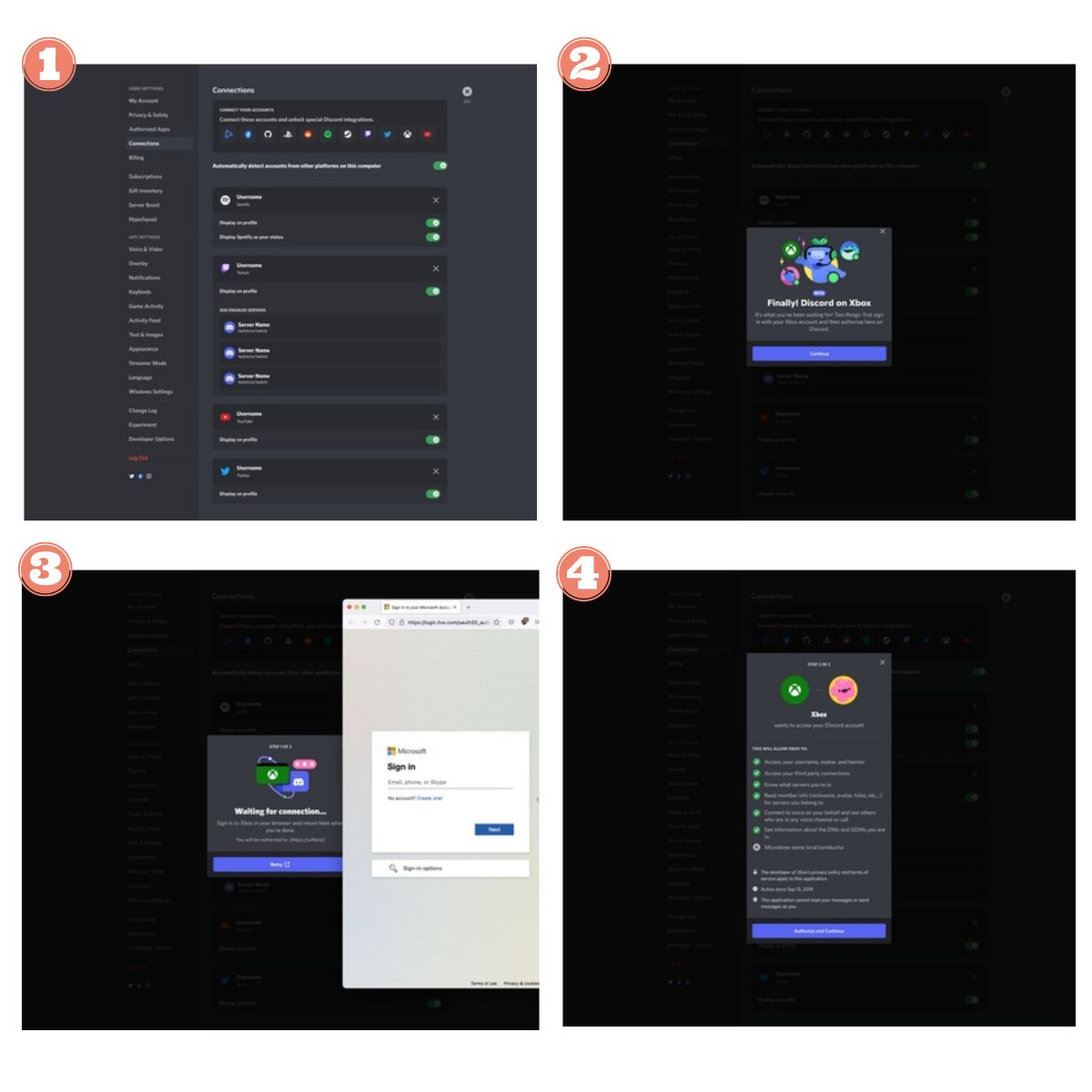
Once you've Linked Discord and Xbox accounts, several things are changing:
- You get a discussion group dedicated to Xbox, which is different from your usual chat rooms on Discord.
- Your Discord contacts and your Xbox friends remain separate : The two lists do not merge.
- You can Display Discord on your profile your Xbox activity, your tenure, and your Gamertag.
Step 2: Join and transfer a Discord voice chat from Xbox
Once your accounts are linked, you have two options. You can Join a Discord voice chat room directly from the Xbox console, Where transfer a call in progress from your phone or computer to your Xbox.
Join a Discord voice chat on Xbox
- Log in to your Xbox console using the account associated with Discord.
- Open the guide by pressing the Xbox button on your controller.
- Go to « Groupe & Conversations » and locate the option « Discord Voice ».
- Select the server Discord of your choice.
- Choose the vocal recital that you want to join. You'll be logged in in just a few seconds.
Note: if no server appears in « Discord Voice », you must first join one on Discord, then repeat these steps.
Transfer voice chat Discord to Xbox
The method varies depending on whether you use the’mobile application Discord or the desktop version.
With Discord on phone
First, you need to have the’Xbox mobile app installed on your phone. Without it, you won't be able to transfer data to the console.
- Make sure your The Xbox and Discord accounts are linked. Then install the’Xbox mobile app since the’App Store where the Play Store.
- Start your conversation in the’application Discord. Drag the slider up to display the audio settings, then select « Joindre sur Xbox ».
- L'Xbox mobile app opens automatically. Otherwise, you'll be prompted to download it.
- Select the Xbox console where to send the Discord audio file.
- Press « Transférer l’audio ».
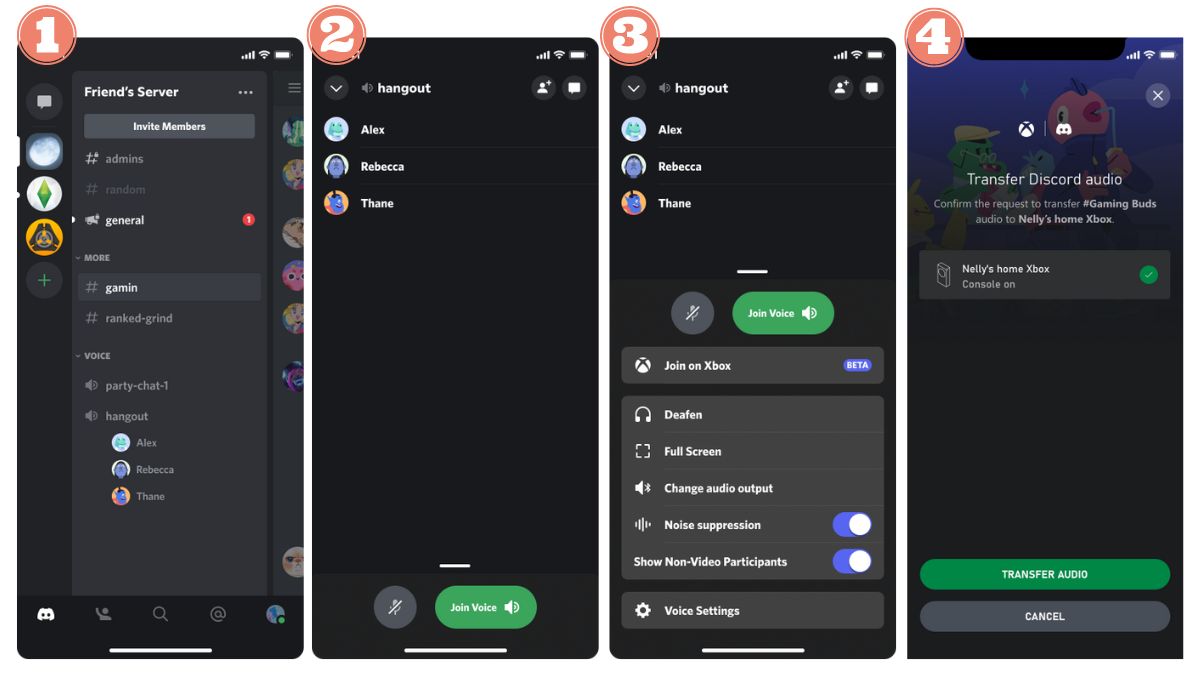
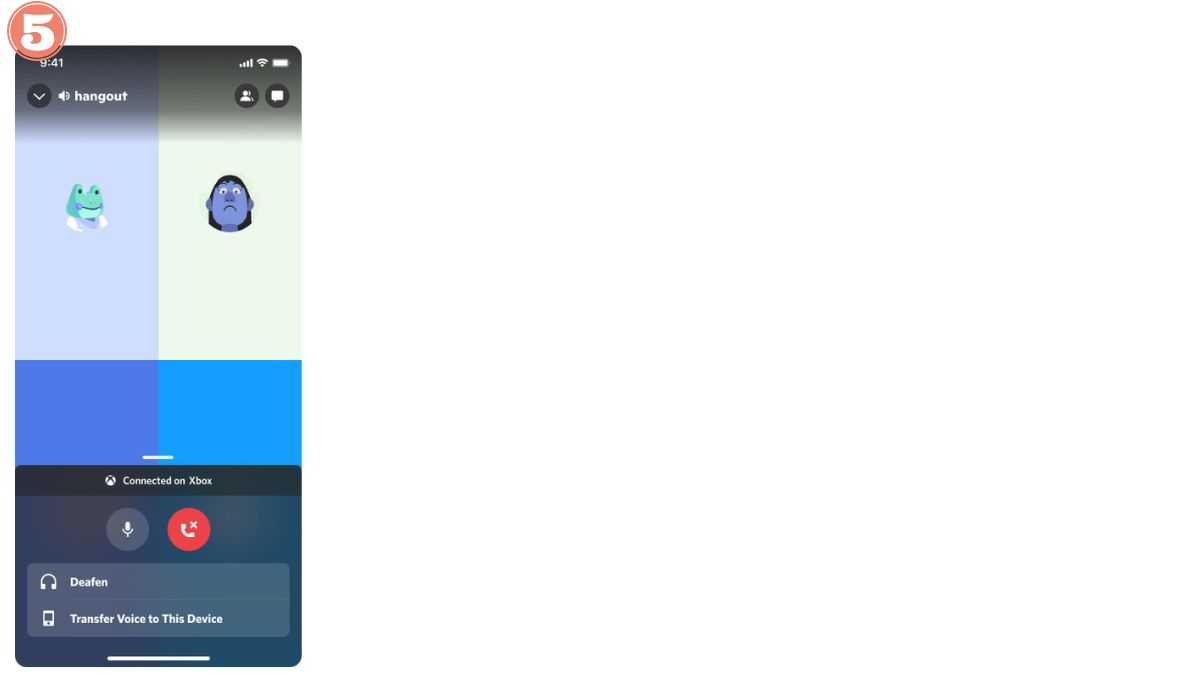
Note: In the Discord app, you can turn off your mic Where mute yourself by sliding the slider up in the living room. The changes will also apply to your Xbox.
On Discord Windows or Mac version
- Open the waiter on your computer.
- Make a Right-click on the voice chat room, then select « Transférer la voix vers Xbox ».
- Scan the QR code displayed on your phone.
- On the screen « Transférer l’audio Discord », your default console appears. Tap «Edit» to choose a different one, or tap « Transférer l’audio » to start the transfer.
- A confirmation notice will then appear on your Xbox.
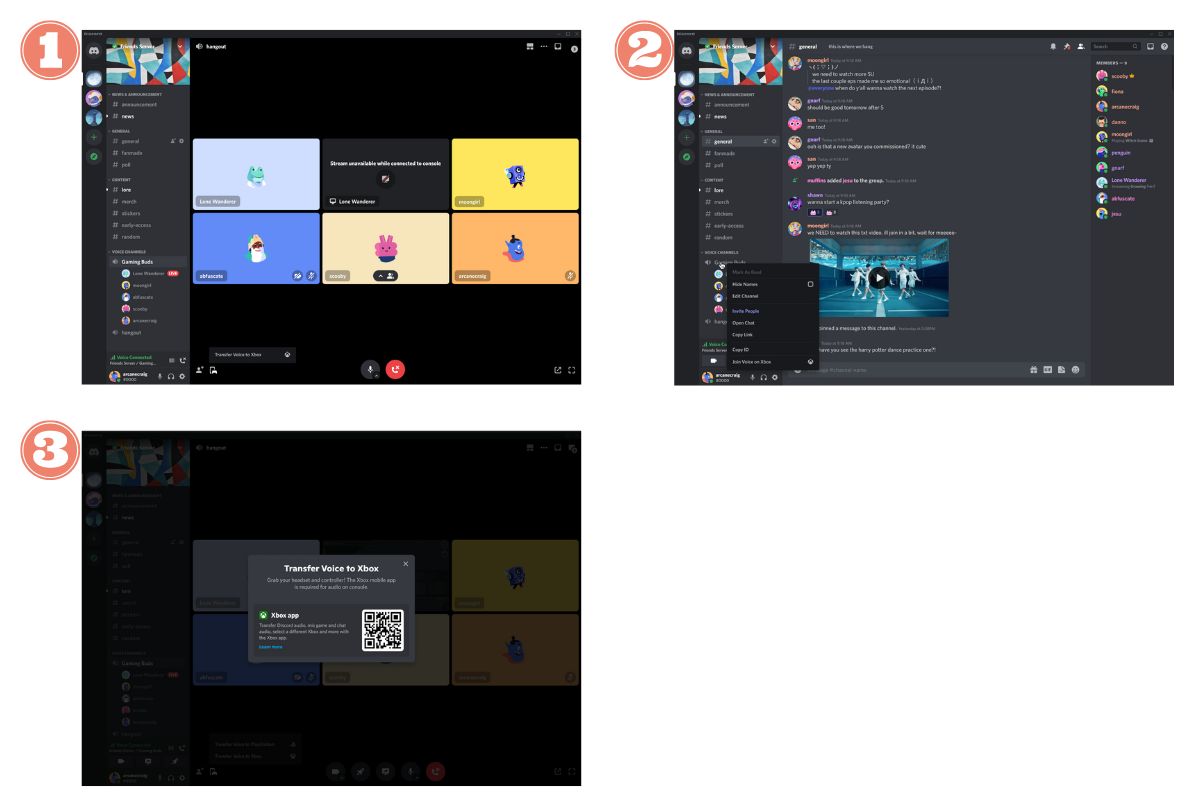
Good to know:
- If you had linked your accounts before the voice feature was introduced, you'll have to reconnect.
- If the QR code If you have trouble, start the transfer directly from the’application Discord on mobile.
- To talk outside of your Xbox, set the privacy settings for the Xbox app to «Everyone» for voice and text, and select «Allow» for cross-network games. The options «Friends in the Game» Where «Stuck» will limit communication.
Step 3: Stream Your Gameplay Live
Since 2023, you can Stream your Xbox gameplay directly to a Discord living room, without using a computer. The stream starts from your Xbox console to a server or a private message. Unlike the PlayStation, the Xbox includes this feature natively in Discord.
- Log in to your Xbox Series X, Series S Where Xbox One with your account linked to Discord. Open the guide by tapping the Xbox button on your controller.
- Dans la section «Groups and Discussions», select the option Discord.
- Select the vocal recital wherever you want to stream.
- Press «Share Your Game» in the Xbox menu for your Discord conversation.
- If you're a subscriber Nitro, adjusts the resolution and frame rate, then press «Start Sharing».
To stop, click on «Stop the broadcast» in the "Groups and Chats" menu.
Explanatory video in French by Alucare, ideal complement to the page. View video (you can use YouTube's automatic translation)

Important things to know:
- The option 60 FPS is not available on Xbox One. The Xbox Series X|S offer better video quality thanks to their superior processing power.
- You can't Don't watch the Discord broadcasts from your Xbox: the console only allows you to’Broadcast your own gameplay.
- The webcams are not supported while streaming from the console.
- If the stream doesn't start, check that your The Discord and Xbox accounts are linked correctly, your internet connexion and updating the’application Discord.
Step 4: View logged-in account and all Xbox activities
Once you've linked your accounts, you can view your gaming activity directly on your Discord profile. It takes just a few seconds to set up, whether on computer than on mobile.
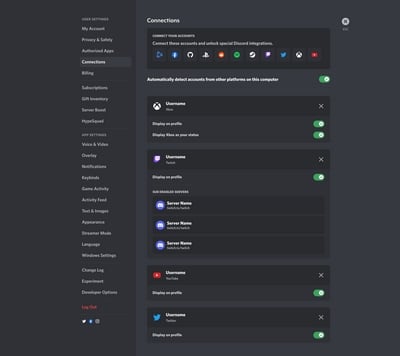
On PC: View your Xbox account on Discord
- Open the Settings by clicking the gear icon in the lower-left corner of your profile.
- In the menu on the left, select the tab «Connections».
- Find your connected Xbox account, then enable the option «Show on profile».
Your friends Discord then see your Xbox account right on your profile, which is handy for showing what games you're playing on your Xbox Series X or your Xbox One.
On a phone: View Xbox account activity as status
Since the’mobile application Discord, the procedure is very similar:
- Go to Settings, then select the tab «Connections».
- Find your connected Xbox account on the page.
- Enable the options «Show on profile» and/or «Set »Xbox' as your status" so that the game you're currently playing appears automatically next to your username.
Bonus: How to Disconnect the Discord from the Xbox
Want to stop using Discord on your Xbox? There are three options available, depending on your needs.
Stop streaming your gameplay
- Press the Xbox button on your controller to open the guide, then go to the tab «Parties and Conversations».
- Choose the Discord Hall on which you stream.
- Press «Stop Streaming».
Leave a Discord voice chat on Xbox
- Open the guide by pressing the Xbox button on your controller.
- Go to «Groups and Conversations», then select Discord.
- Press «Log Out» to leave the voice chat room.
This action causes you to leave the voice chat without breaking the link between your accounts. To completely separate the two, proceed to the next step.
Remove the Xbox connection from your Discord account
The method varies slightly depending on the medium you're using.
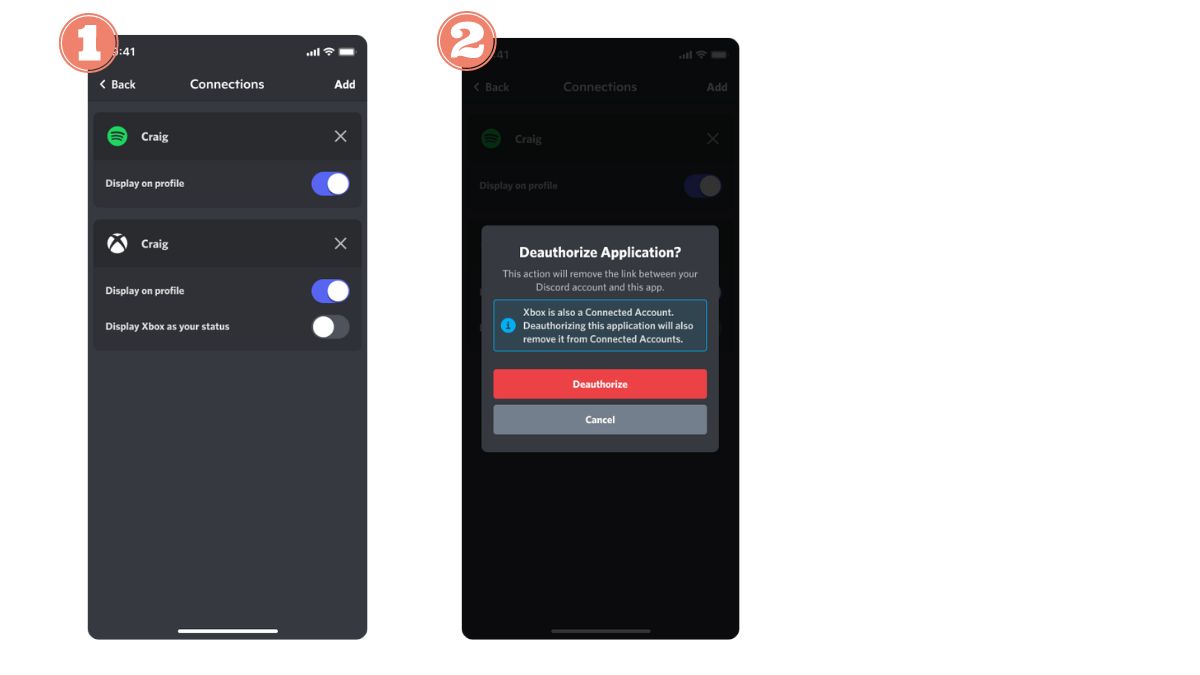
On the Discord mobile app
- Open the’application Discord, go to Settings, then select «Connections».
- Press the «X» next to your name Xbox account.
- Confirm to revoke permission and unlink your Xbox profile from your Discord account.
On PC
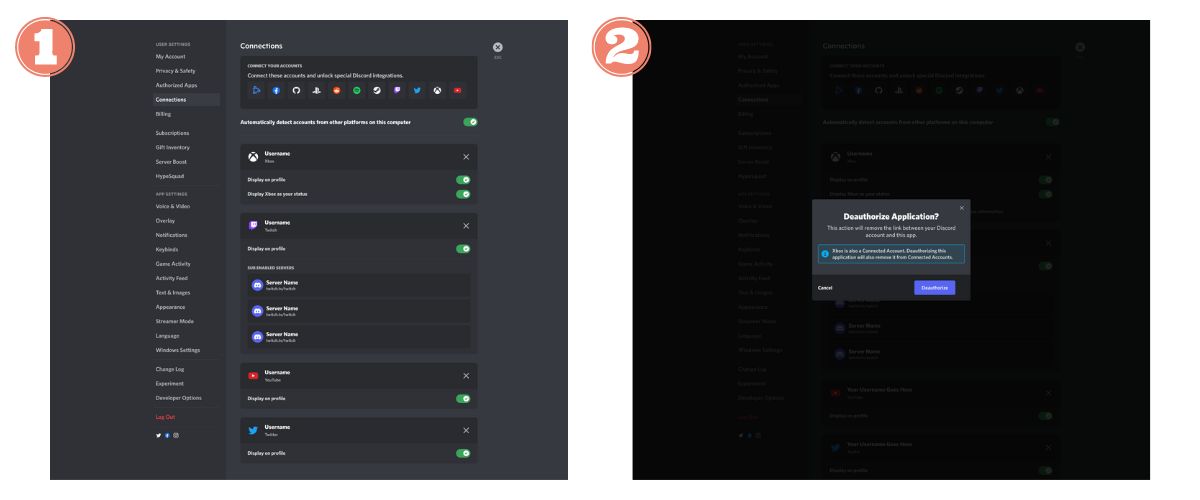
- Go to the settings via the gear icon next to your profile.
- Select «Connections» in the left-hand menu.
- Find your Xbox account on the page, then tap the «X» right next to his name.
- Select «Revoke authorization» in the window that opens to confirm the unpairing.
You now have everything you need to How to use Discord on Xbox, from the first voice call until the connection is completely terminated.
Have a question? Ask it in the comments.








 FR
FR  RU
RU  EN
EN  ES
ES  IT
IT  DE
DE  ZH
ZH  PT
PT  ID
ID  JA
JA  DA
DA