Want to share information efficiently with your colleagues or partners via Google Meet Screen sharing is the ideal tool!
This step-by-step guide shows you how to share your screen Like a pro on Meet! Let's go!
How can I present my screen on Google Meet on a PC?
The steps are relatively simple! And if you want to install Google Meet on your device for smoother operation, click on this article!
1. Take part in a meeting
Meeting on Google Meet from your browser or the app.
a) Join a meeting before introducing yourself
- Join a meeting,
- Then, click on the icon Introducing yourself between the camera icon and the emoji,
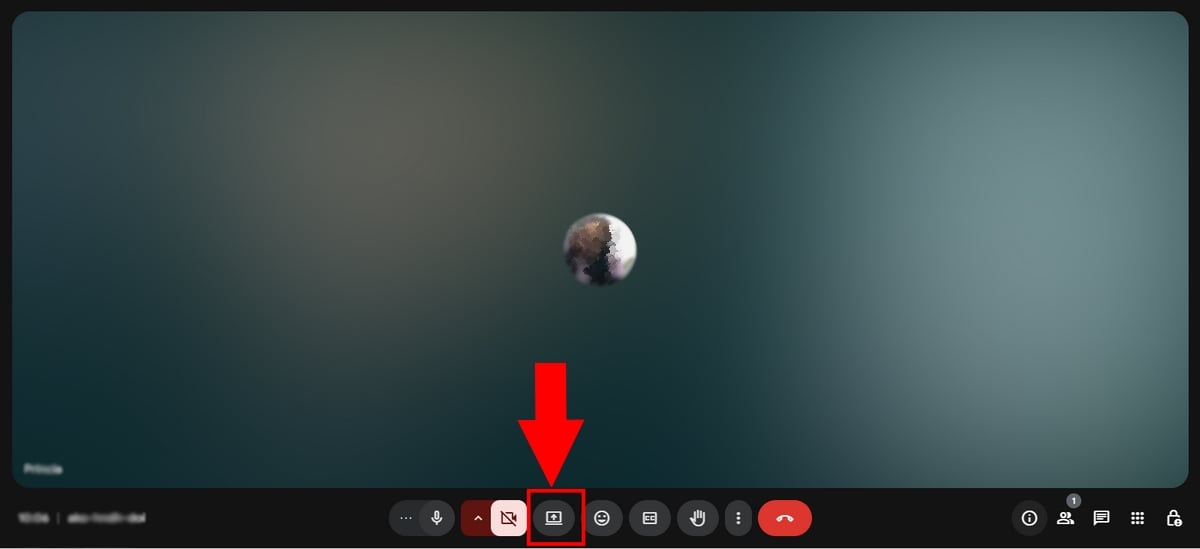
b) Click on Introduce yourself before joining a meeting
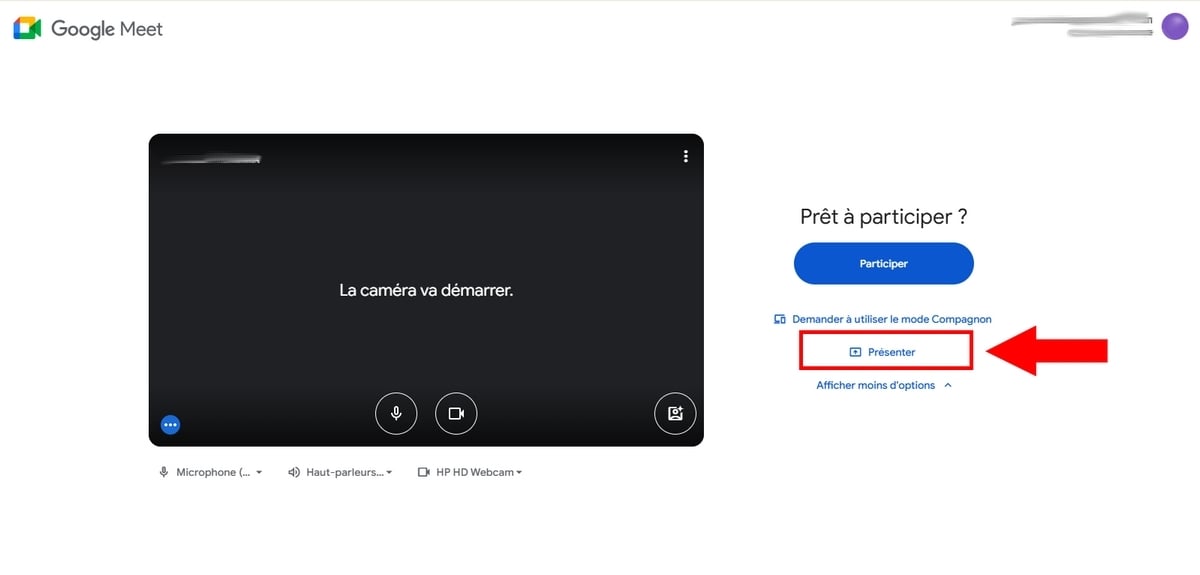
You can also click on Introduce yourself well before joining a video conference on the home screen.
- If you are invited to join a meeting, enter the code and click on To participate,
- In this case, you must present yourself in companion mode. However, you should be aware that if you choose this route, your micro and will not be available.
2. Select the area to be displayed
Whether you choose to join a meeting in companion mode or wait until you are in the meeting to introduce yourself, you must select the area to display before broadcasting. Discover also how to use Google Meetif you don't understand all its features!
You will be offered the following 3 choices:
- Chrome tab : To present just one tab among others,
- A window : To show only a specific window,
- Full screen : To display your entire screen.
Here's how to get there:
- Select the zone to present,
- Select the chosen option before clicking on Share. In our tutorial, we chose “Full Screen.”,

- Now you'll see confirmation in the top right-hand corner that you are introducing yourself,
- You may also notice that the items shown are upside down. Fortunately for you, we have a comprehensive guide on how to invert the camera on Google Meet !

- And for a better presentation of the content, feel free to resize size of your presentation. To do this, you can choose to zoom in on the content of 25 to 500 %according to your needs.
3. Stop presentation
- Click on Stop presentation at the top right of the screen or on the button Stop sharing to stop the presentation.

ℹ️ Note:
- If a user shows up while you're showing your screen, yours stops automatically.
- We recommend sharing a new window Where specific tab to avoid endless screen duplication.
- And to share the sound, you only need to present a specific tab.
How do I share my Google Meet screen on my cell phone?
Introduce yourself once in the meeting or use the companion mode
The stages remain the same on android and iPhone. To better guide you, we have added illustrations for both systems when the location of certain icons differs or there is a slight difference in display.
- The first step is to open Google Meet on your device,
- Log in to your Google account to continue,
- Join a existing meeting Where create a new one.
a) Using the companion mode
- Before joining a video or voice call, you can choose to introduce yourself.,
- Click on Introducing yourself on the home screen,
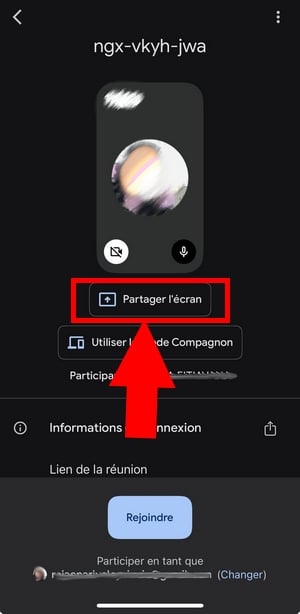
- However, when introducing yourself before joining a meeting, be aware that your microphone and loud speaker will be disabled.
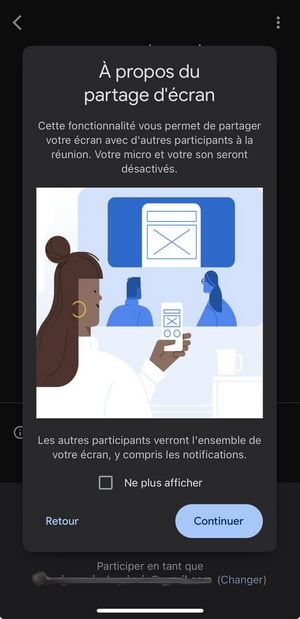
- Wait for the organizer to approve your participation,
- If you still wish to continue, click on Start broadcasting,
- A countdown will start to allow you to share your screen (if you're on iPhone),
- To stop it, simply click on Stop sharing,
- Confirm by clicking on Stop.
b) Share your screen during a meeting
- Join a meeting,
- Once inside, click on the three small points located between the hang-up icon and the emoji.

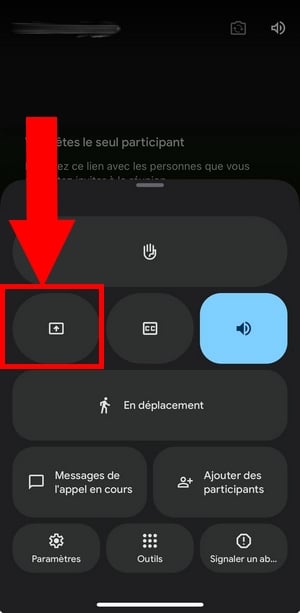
- Among the available options, click on Introducing yourself, framed in the image below,

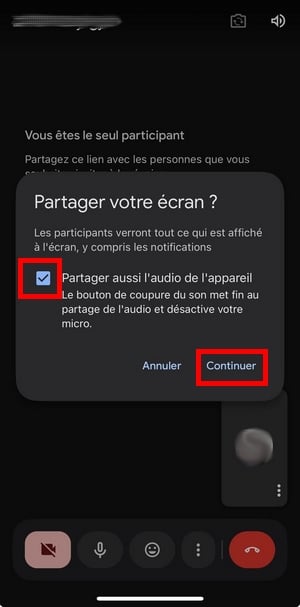
- Now, check the box “Also share the device's audio” then click on Continue,
- Please note that disabling your microphone also disables your microphone during the presentation.
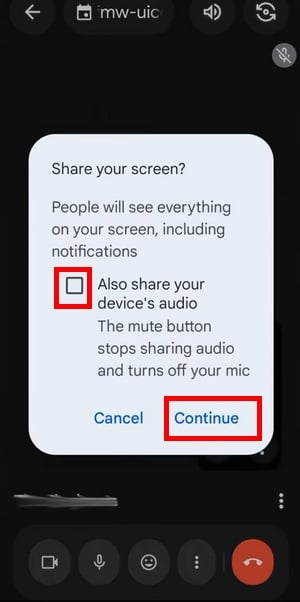
- Confirm the action by clicking on Start broadcasting,
- A countdown will start if you're on iPhone,

- You can now to share your screen.
- Click on Stop sharing when finished.

How do I share my screen from a Docs, Sheets or Slides file?
- Open a file in Google Docs, Google Sheets or Google Slides,
- In the top right-hand corner, click on Meet,
- Choose from a range of options, including Start a new meeting Where Using a code.

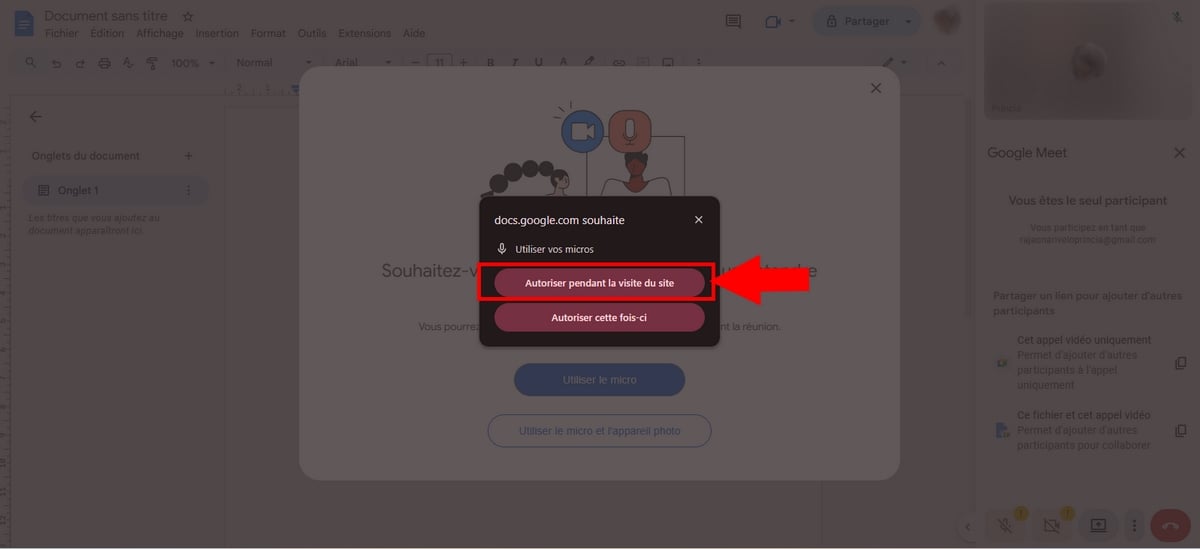
- When prompted to use your microphone, confirm by clicking on Using the microphone/ Using the microphone and camera then on Authorization during site visit.
- Then click on the icon Introducing yourself bottom left,
- Here is a preview of the presentation displayed on participants' screens:,

- To stop the presentation, press the Stop presentation !

FAQs
Why won't my Google Meet let me share my screen?
There may be many reasons for this, including bad connection, of the missing authorizations (browser permissions, microphone permissions, etc.) or because the’administrator has disabled this feature for you.
How do I share audio while screen sharing?
- Do not participate in the call by companion mode,
- Choose to display a tab if you are on a PC, rather than a window or the entire screen. Then check the box. Also share the audio from the tab.
How can I share my screen and see the participants?
To keep an eye on the participants during your presentation, you can choose the Picture in picture. This will open the call in a new window, allowing you to view your audience at the same time.








 English