Want to use Google Meet for your personal or professional videoconferences? Want to get more out of it?
Our comprehensive guide will show you how to use Google Meet more easily, whatever your device!
How do I use Google Meet on my PC?
Whether you're on Windows Where Macits use remains virtually unchanged.
However, before going any further, please note that in order to create a invitation to a meeting, you must have a Google account or a business account.
Here are the steps to follow:
1. Organize a meeting from a browser
- Go to Google Meet from your browser,
- You can also go to a browser and choose Menu Application and find it among those proposed,

- Once on the interface, you will two choices of which Create a new meeting Where Enter a code or link.
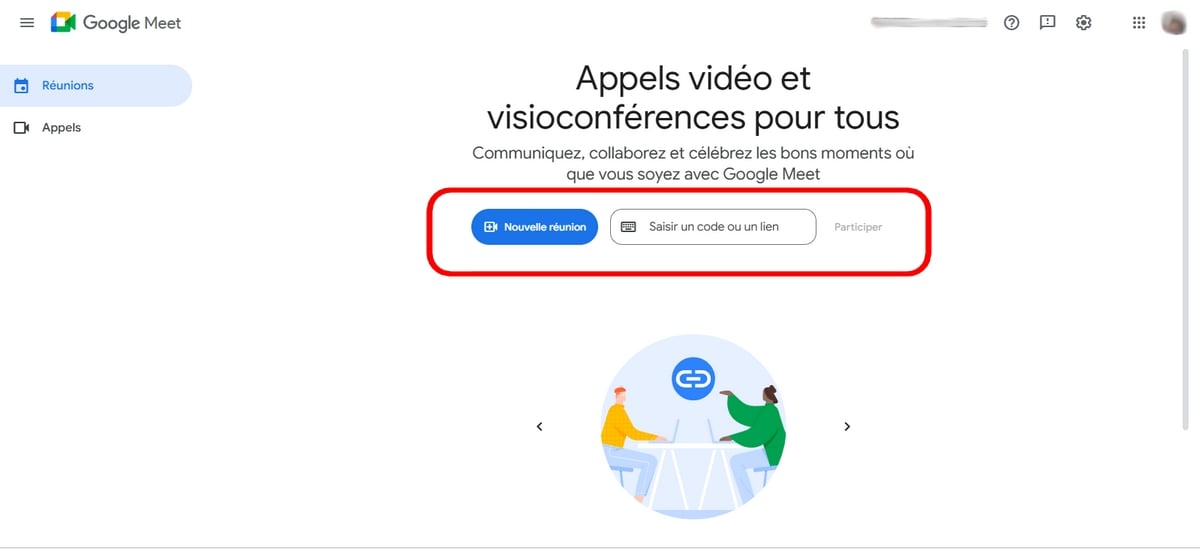
Create a new meeting :
- Create a meeting for a future date Just click on this button and copy the code provided and send it to those you wish to invite. This button is ideal if you want to set up a videoconference at a later date.

- Or also choose Start an instant meeting to launch a video call.
To invite participants, you can :
- Click on the link at the bottom left, then send it to those you wish to invite,
- Or press the button Add guests and insert their e-mail address in the appropriate field.
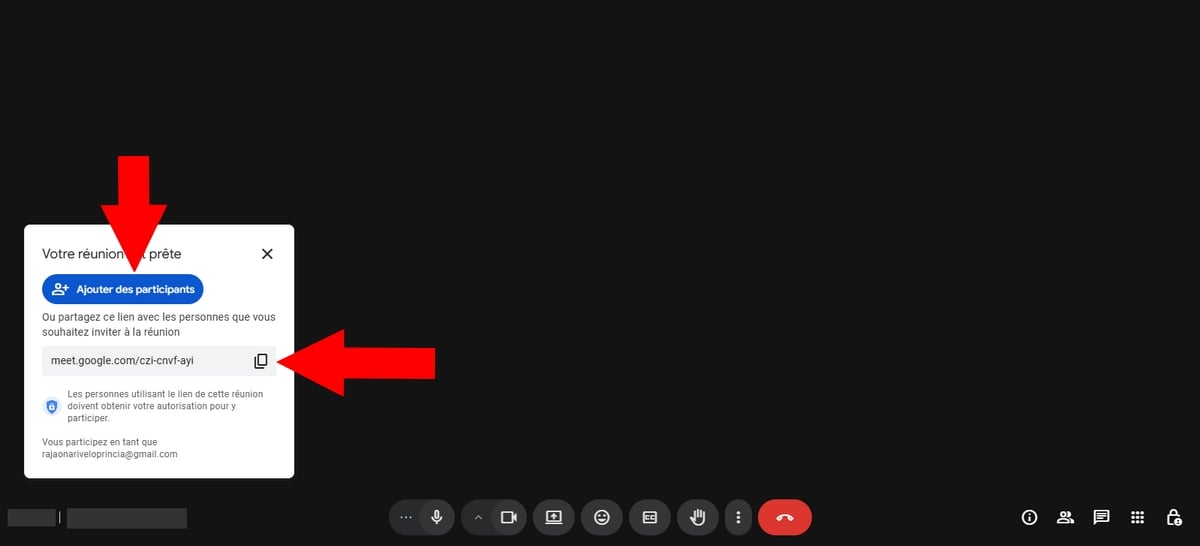
- You can also choose to Plan in Google Calendar, and that is what we will see in the next section.
Enter a code or link :
- Among the choices offered, you can also insert the code provided in the box Enter a code or link then press the To participate.
2. Organize a meeting with Google Calendar
- Go to a browser, then search for Google Diary in the search bar,
- Once on this page, you'll be presented with a calendar,
- Simply select the date you wish to hold the meeting, name it, then press the button Adding time to select the appropriate time,
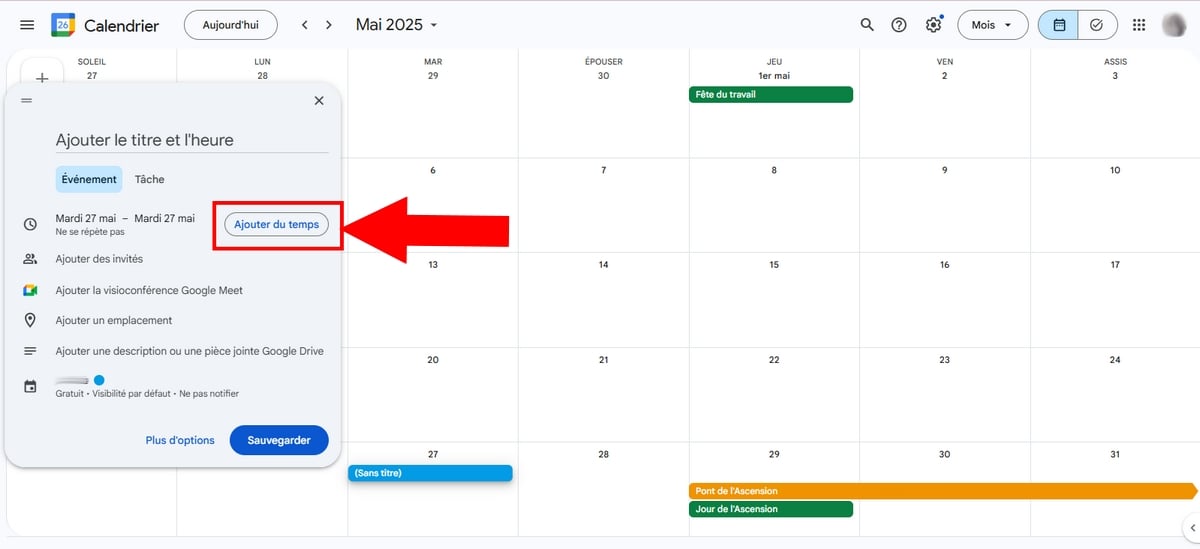
- From now on, click on Add guests to invite participants to your meeting. Simply enter their email address in the appropriate field and confirm this action by pressing Save,

- You can also click on Add a Google Meet videoconference to have a code ready for copying,
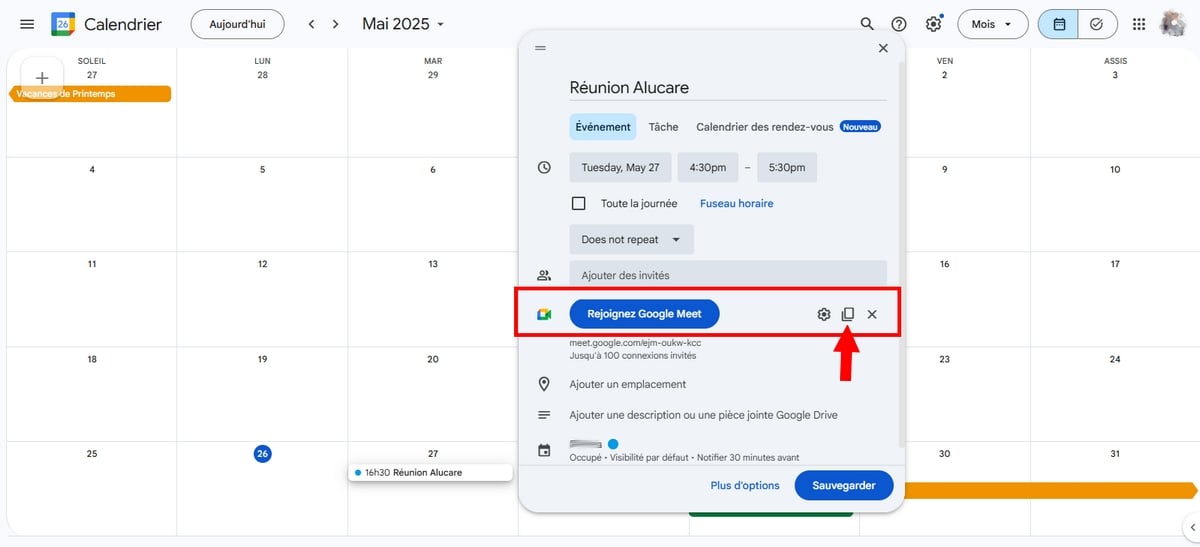
- Then press the Save then confirm the’sending invitation emails to guests.

3. How can I take part in a Google Meet?
There are 3 ways to do this:
a) With Gmail
- To join a videoconference as a guest, click on the link provided by e-mail or on the Join Google Meet.

- Click on Participate with Google Meetyou'll already be able to set up the microphones and camera,
- Then you can click on Take part in the meeting / Using companion mode or To present to share your screen.

b) With a link
- If you have been given a code, simply go to a browser and enter copy it directly in the search bar,
- Or, search for the platform, type the code in the box Enter a code or a link then press To participate.
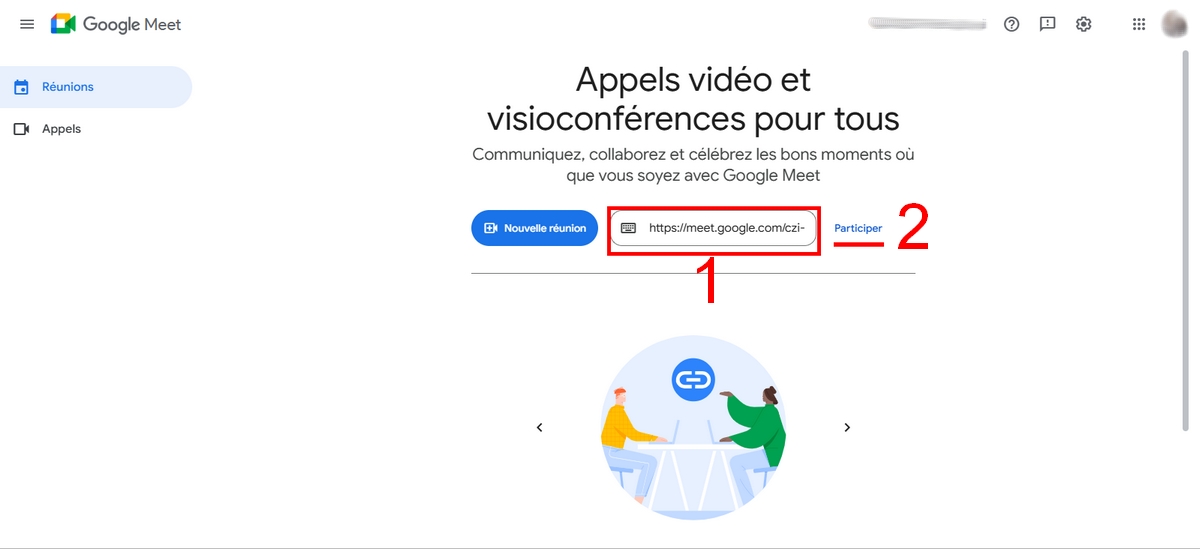
c) With Google Calendar
This technique also works if the organizer has scheduled the meeting via Google Calendar.
- Meeting on Google Calendar,
- Select the programmed meeting and press the Join Google Meet,

- You will arrive on its main interface where you can setting up your microphone and camera,
- When all is well, press the Take part in the meeting.
How do I use Google Meet on my phone?
Steps for using the mobile app on Android and iPhone also remain the same:
- start with install and download the app on Google Play Store (Android) or App Store (iOS),
- Log in using your Google account,
a) To create a new instant meeting
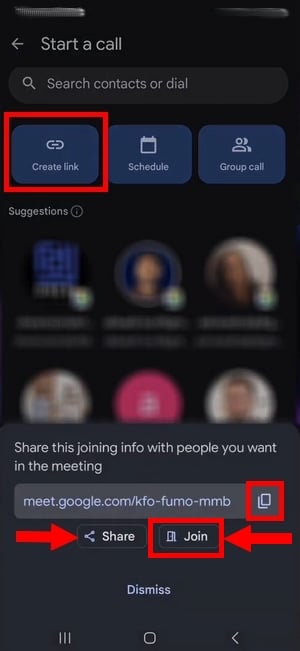
- Push the button New at bottom right, then on Create a link,
- Copy the coded then click on To share to send it to your contacts or friends on social media,
- Then press Take part in the meeting to adjust sound, microphone and camera settings.
Android overview:
Preview on iPhone :

- Finally, press the Contact when you're ready.
b) Or to schedule a meeting :
- Click on Program,
- Then click on Google Calendarchoose Eventadd the meeting details (title, time, guest, etc.), just as you would on your PC. You can also press the button Add guests so that other people will join you.

- Once you have made your changes, click on Record at top right.
c) To take part in a meeting
With a link:
- In the upper right corner, click on thekeyboard icon in the search bar and insert the code,
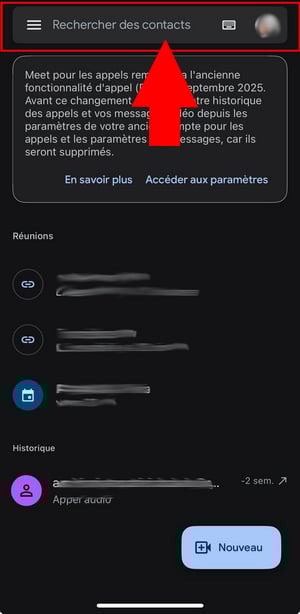
- Then click on Contact.
With Google Calendar :
- Meeting on Google Calendar,
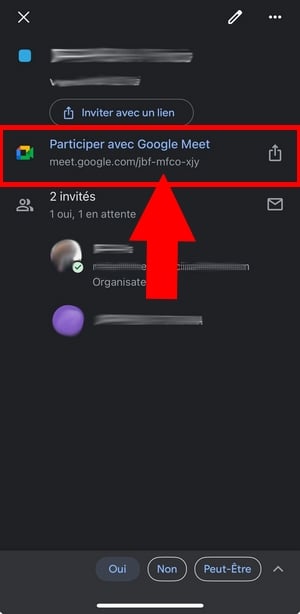
- Click about the meeting you are invited to attend,
- Select Participate with Google Meet.
With a mail invitation:
- Push the button Join Google Meet in your e-mail and adjust the microphone and camera settings,
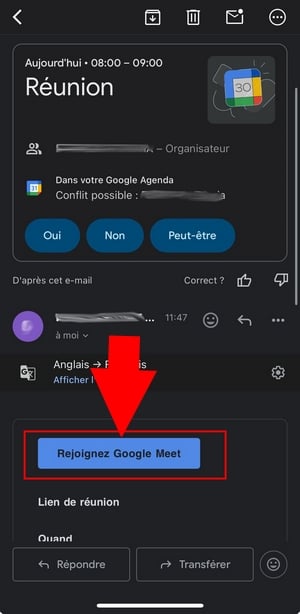
- Finally, press Contact when you're ready.
Learn all about Google Meet features
Once you're in the videoconference, here's everything you need to know about each icon, from left to right, on PC:
- In the bottom left-hand corner, you will find the person's name who created the meeting,
- Below, you will find the’hour then the name of the meeting,
- The toolbars represent: The microphone, the camera, the CC icon that activates the subtitles (live), then the emoji icon that allows you to send your reaction throughout the meeting. To react more effectively, discover the emoji meanings in our article!
- The upward-pointing arrow is called the Present now and is used to share your screen,
- The hand icon allows you to raise hand during the video call.
In this screenshot, the participants have disabled their cameras. With this in mind, there is only their profile photo that is displayed there.

- The three dots next to the hand icon allow you to:
- Manage streaming or record Google Meet meeting (one of the paid features). If you have a Pro edition Google Workspaceyou'll find the following options:
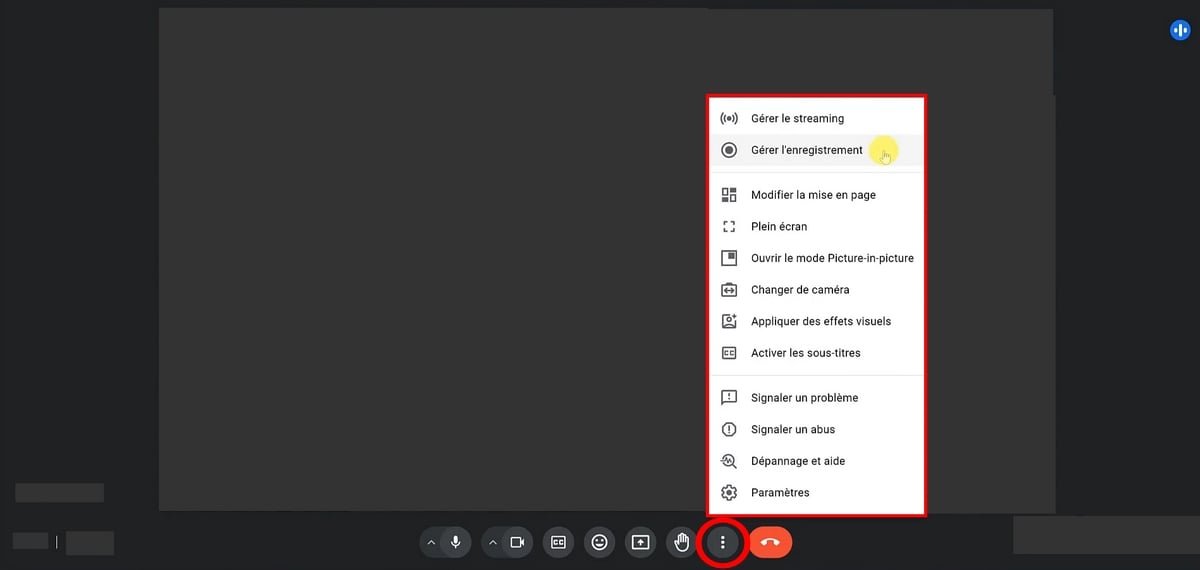
If you have a free account, the first two options will not be visible.
- Modify the page layout : In Mosaic to have a view of everyone, by Projector to have the projection on the person speaking, then The sidebar to center the speaker and place all other participants to the right,
- Of Set to full screen,
- To open the Picture in picture mode if you want to put your call in another window,
- To apply backgrounds and visuals. This option allows you to blur your background, apply filters and decorations, or even add backgrounds to your video.,
- Then the various signals (a problem or abuse),
- And the settings which include the following options:
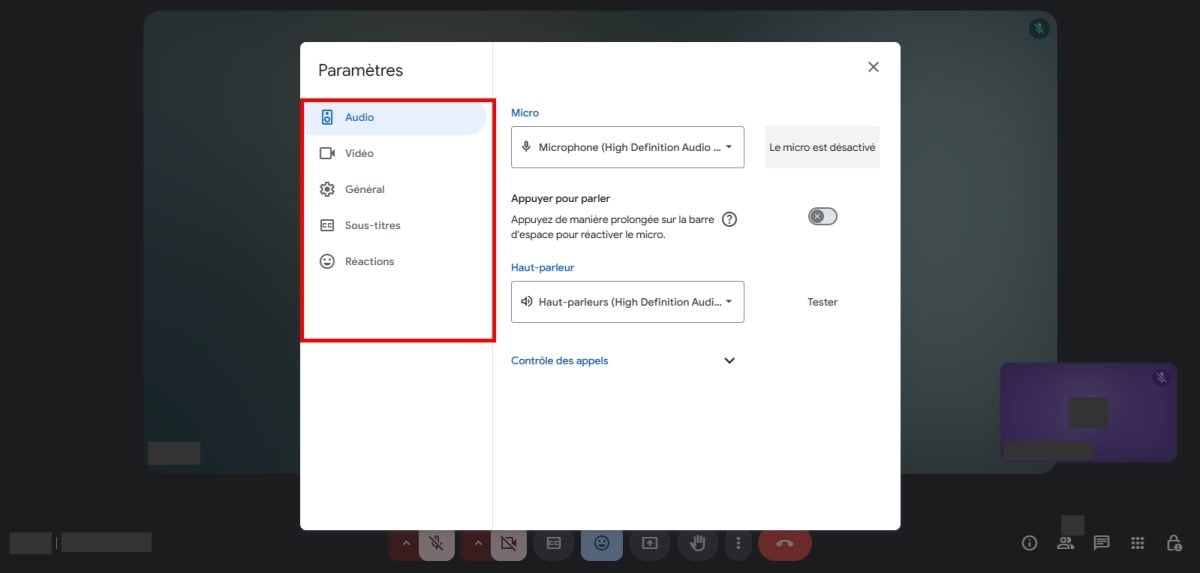
On the right, you'll see :
- The icon Info (I) displays meeting information,
- The icon 👥 shows the number of participants.,
- The last one concerns the icon of chat (in the form of conversation bubble with lines).

- The tab Activities is used to start recording the meeting, which is only available if you have the edition Google Workspace compatible.

- the small padlock, on the other hand, allows you to maintain control of the meeting as its administrator.
- This feature allows administrators to enable or disable participants to have administrator rights (like muting other participants and more).

- If you have a Google Workspace edition, you can also take notes during a meeting. Just click on the pen in the top right-hand corner.

FAQs
How do I create a Google Meet account?
All you need is a Google account (A Gmail).
How do I send a Google Meet link?
You can visit the meeting chat then copy the’meeting address that you will find inside and share it on social media.
How do I reply to a Google Meet invitation?
All you have to do is choose one of the e-mail options, namely Yes/No/May be. The meeting organizer will receive your response via email.
Push the button Join Google Meet if you want to be one of the participants.
How do I activate the camera on Google Meet?
Simply click on the camera icon in the toolbars to activate/deactivate the camera. You'll also need to give it the necessary authorizations so you can activate your microphone when the time comes.
How do I activate the microphone on Google Meet?
- Click on the icon microphone to activate/deactivate your microphone.
- If it is crossed out, the microphone is disabled.
Similarly, you must grant them access. If you are invited to Allow microphone access in the application, click on To allow.
How do I share my screen on Google Meet?
- Tap the icon Present now which can be recognized by an arrow that points upwards in the toolbars at the bottom of the screen (located between the camera icon and the emoji icon),

- Select the presentation area (window, specific area, or entire screen). It would be best to choose the entire screen so that you don't forget any details during your presentation.

- Then press To share and Stop sharing when you've finished. Even guests can benefit from this feature.
Note: If you're on a Mac, it's best to use Chrome or Firefox.
How do I share a document on Google Meet?
- First option : Share your screen. If you want to present documents, such as Google Docs, Slides, or Sheets, the best option would be to choose to present a Chrome tab.
- Second option : You can also send the link to the document in the meeting chat.
How do I change my name on Google Meet?
If you are logged in with your Google accountSimply change the name.
Who can use Google Meet?
Any user with a Google account or Gmail (free) or Google Workspace (paid) can access the platform and benefit from its features.
It has been available for PC browser and for a mobile app if you're on mobile: Android or iOS.
How many people are on Google Meet?
If you have a Google account, you can gather up to 100 people for a period of one hour, but no longer.
Therefore, to add more, you must have an edition Google Workspace compatible with this feature.
How do I create a Google Meet meeting without a waiting room?
To do so, you can directly Deginning an instant meeting :
- Press on New meeting ⇒ Start an instant meeting ⇒ Copy link and share it to your contacts or others.
How do I blur the background on Google Meet?
- Press the three small points between the icon Hand and the red phone ⇒ Background and effects ⇒ choose from the following options Blur your background slightly, Blur your background or Add your own background.
- To turn it off, press the selected option again.

How do I leave Google Meet?
Simply click on the icon for phone in red. Click on “Reintegrate the meeting”to come back to it.
Google Meet companion mode: What is it?
This is a feature that allows participants to integrate a video call into a second screen.
To do this,
- Click on Enter a code or a link then insert the code,
- Then press the To participate then on Another way to participate,
- And finally on Request companion mode. Then wait for the organizer to approve your request.
- Know that audio is muted for Companion mode on Google Meet, but you can still activate your camera.
That's it, this tutorial is now complete! We hope you found this article useful. If you have any Questions, feel free to ask them in the comments section!










 English